 WooCommerce Post-Purchase Survey: 7 Questions, When to Ask and What to Do Next

Filtering and Tagging Responses
Updated
On this page
Filters leave only the responses you need in Results: for example, respondents who gave a low NPS score or came from one unique link. Tags are labels you put on individual responses, such as "follow up" or "spam", so you can find those responses again with a filter.
Paid feature. Filters are available on the Basic plan and higher. Tags work on every plan. Compare plans
Building a filter
Filters work the same way on the Responses and Reports tabs.
- Open the survey, click Results and go to Responses or Reports.
- Click Filter. The filter panel opens on the right.
- Click a filter group to expand it, for example Period or Questions.
- Set the condition. To add one more question or variable in the same group, click Add.
- Click Apply.
The Filtered bar above the list shows each filter as a chip. Click a chip to change the filter, click its cross to remove it, or click Reset to remove all filters. Reset all in the panel only clears the conditions you are editing until you click Apply.
Filter groups
| Group | What it keeps |
|---|---|
| Period | Responses from the selected dates. |
| Questions (Responses), Filter by answers (Reports) | Responses with a certain answer to a question. See Conditions by question type. |
| Show questions (Reports only) | Shows only the selected questions in the report. The numbers don't change. |
| Completion time | Responses filled in within one time range, from Less than 1 minute to More than 60 minutes. |
| IP address | Responses from one IP address. Enter all 4 parts, such as 203.0.113.7. |
| Geography, Browser, Devices | Responses from the selected countries, browsers or device types. |
| Tags | Responses with the selected tags. See Tags. |
| Hidden Variables | Responses with a hidden variable value. Without a value, every response that has the variable. |
| Score | Responses by points: More than, Less than or Equal and a number. |
| Correct / Incorrect (Reports only) | Correct or incorrect answers in a quiz. |
| Categories | Respondents whose result is the selected category. |
| A/B test | Respondents who saw a certain variant of an A/B test. |
| Unique links | Responses from a set of unique links or from individual links in it. |
Some groups appear only when they have data: Score, Correct / Incorrect and Categories need scoring, Hidden Variables needs responses with variables, Tags needs at least 1 tag.
Responses collected anonymously don't store the IP address, country, browser or device, so these 4 filters don't find them.
Conditions by question type
In Questions (or Filter by answers), click Select a question, pick the question and set the condition:
| Question type | Condition |
|---|---|
| Single and multiple choice, Media Choice, dropdown, Yes/No, smile rating, paired comparison, Area Selection | Choose the option in Select a response. If the question allows several answers, you can choose several options. |
| Matrix | Choose the row (and the column in a 3D matrix), then the option. |
| Rating, opinion scale, NPS, slider, number, semantic differential, allocation slider | Equal, Not equal, Less than, More than, Less than or equal to or More than or equal to and a number within the question's range. For a semantic differential or an allocation slider, choose the row or option first. |
| Short text, name, email, phone, date | Equal, Not equal, Contains or Starts with and the text. Upper and lower case matter. |
| File upload | Loaded, Not loaded, Extension or Titles (the file name). |
| Click Test, Hotspot Selection | An area of the image set by X1, Y1, X2 and Y2 from 0 to 1, and whether the clicks are inside or outside it. |
How conditions combine
- Filters from different groups work together: a response must match all of them.
- Several questions in Questions also work together: a response must match every question.
- Several options in one question, or several values in Geography, Browser, Devices, Tags or Categories, are alternatives: a response needs only one of them.
- Several rows in Hidden Variables are alternatives too: a response needs only one matching variable.
Where filters apply
- Saved with the survey. Applied filters stay when you come back, and teammates see the same filters. Responses and Reports keep separate sets.
- Downloads. Files from Responses (CSV, XLSX, DOC, SPSS) and from Reports (PDF, DOC) contain only the filtered responses.
- Shared links. A link to the report keeps the filters you had when you created it. A link to responses includes the filtered responses. See How to Share Results.
On the Free plan, filters are not applied. Filters saved earlier are kept and work again after you upgrade.
Tags
Tags are added on the Responses tab, one response at a time.
- On a response card, click Add tag.
- Pick a tag from the list, or type a name and click Create new tag (or press Enter).
- To add another tag, click a tag on the card and repeat.
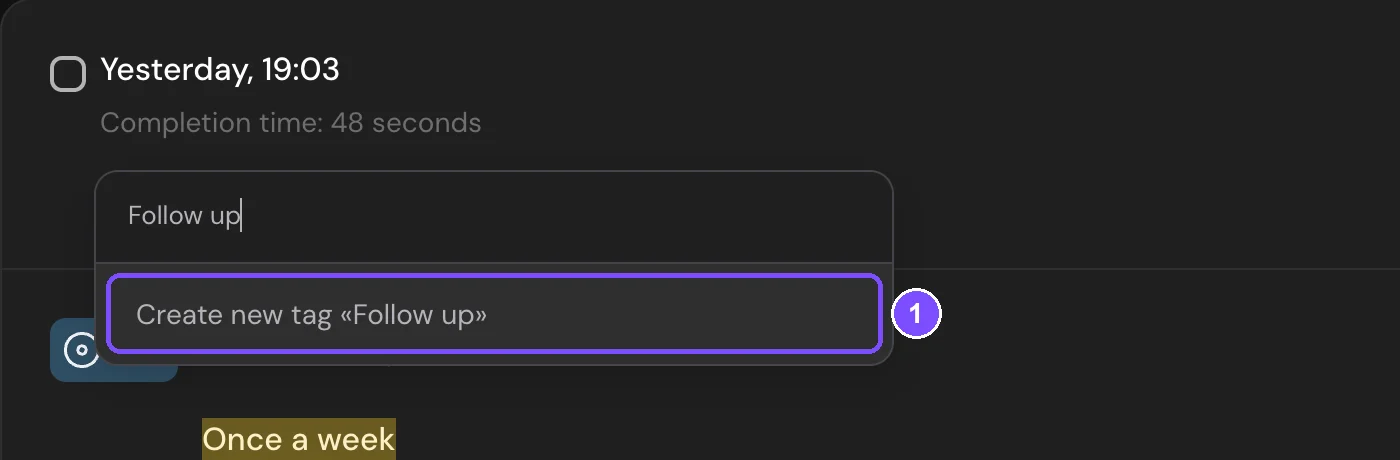
To remove a tag, click a tag on the card, then click the cross next to it.
Tags belong to the workspace: all surveys in it use the same list. When a tag is removed from its last response, it disappears from the list.
To see tagged responses, open Filter, expand Tags and choose one or several tags. Downloaded files have a Tags column with the tags of each response.
Limits
- A tag name can be up to 255 characters.
- Filters are not available on the Deleted tab.