 WooCommerce Post-Purchase Survey: 7 Questions, When to Ask and What to Do Next
Adding Multimedia
Updated
On this page
You can add an image, a video or an audio file to a question, the Welcome Screen or a Thank You Screen. Respondents see it next to the question, above it or as the background.
Adding media to a question
- In Builder, hover over the question and click Settings (the gear icon) (1).
- In the Additional section, under Media, click Add multimedia (2).
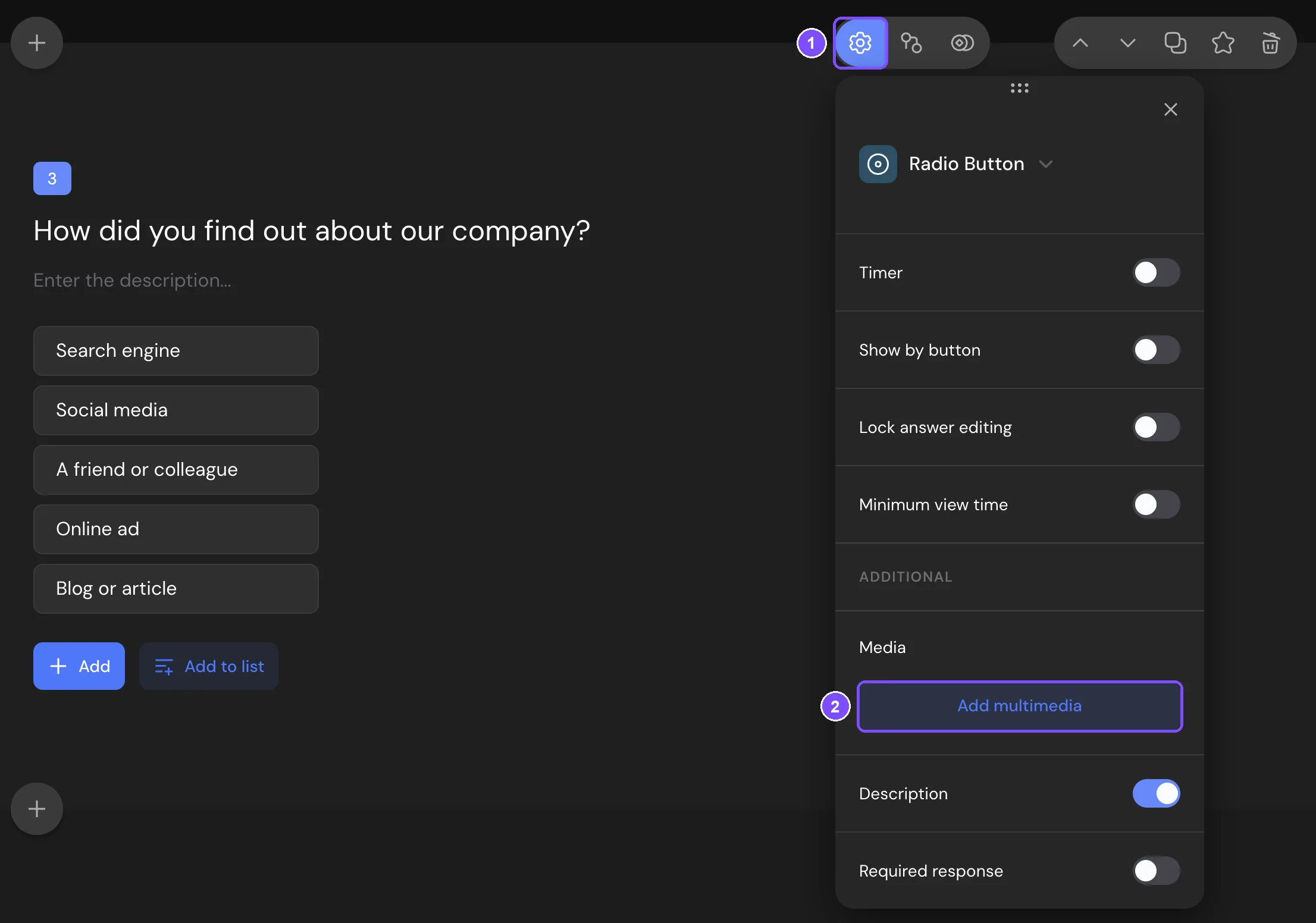
If the button is inactive, fill in the question first: for example, add answer options, or upload at least one image to a Media Choice question.
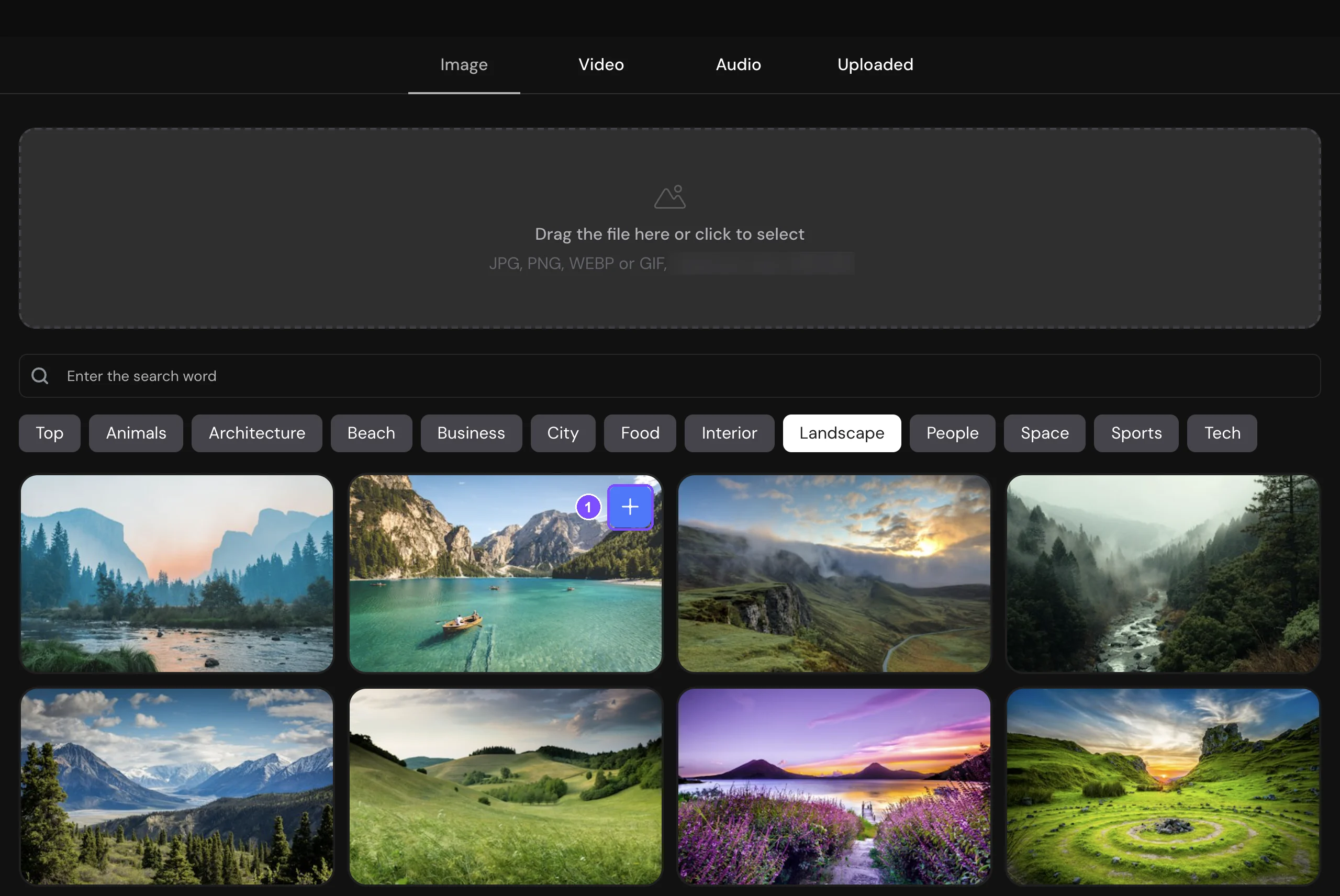
- A full-screen window with the media library opens. Choose a tab:
– Image: pick a picture from the library by category (Top, Animals, Architecture and others) or with Enter the search word, or upload your own file in the area at the top.
– Video: paste a YouTube link or a direct link to a video file, upload your own video or pick one from the library.
– Audio: upload an audio file.
– Uploaded: files uploaded to surveys in this workspace. - Hover over the file you want and click + on it (1).
- Set up how the media looks (see below) and click Apply.
| File type | Formats |
|---|---|
| Image | JPG, PNG, WEBP or GIF |
| Video | MP4, MOV or AVI, or a YouTube link |
| Audio | MP3, WAV or AAC |
Setting up the look
After you click +, the Edit screen opens: settings on the left, a preview of the question on the right. Use the Desktop and Mobile switch above the preview to set the layout for each device. To go back to the library, click Multimedia at the top left.
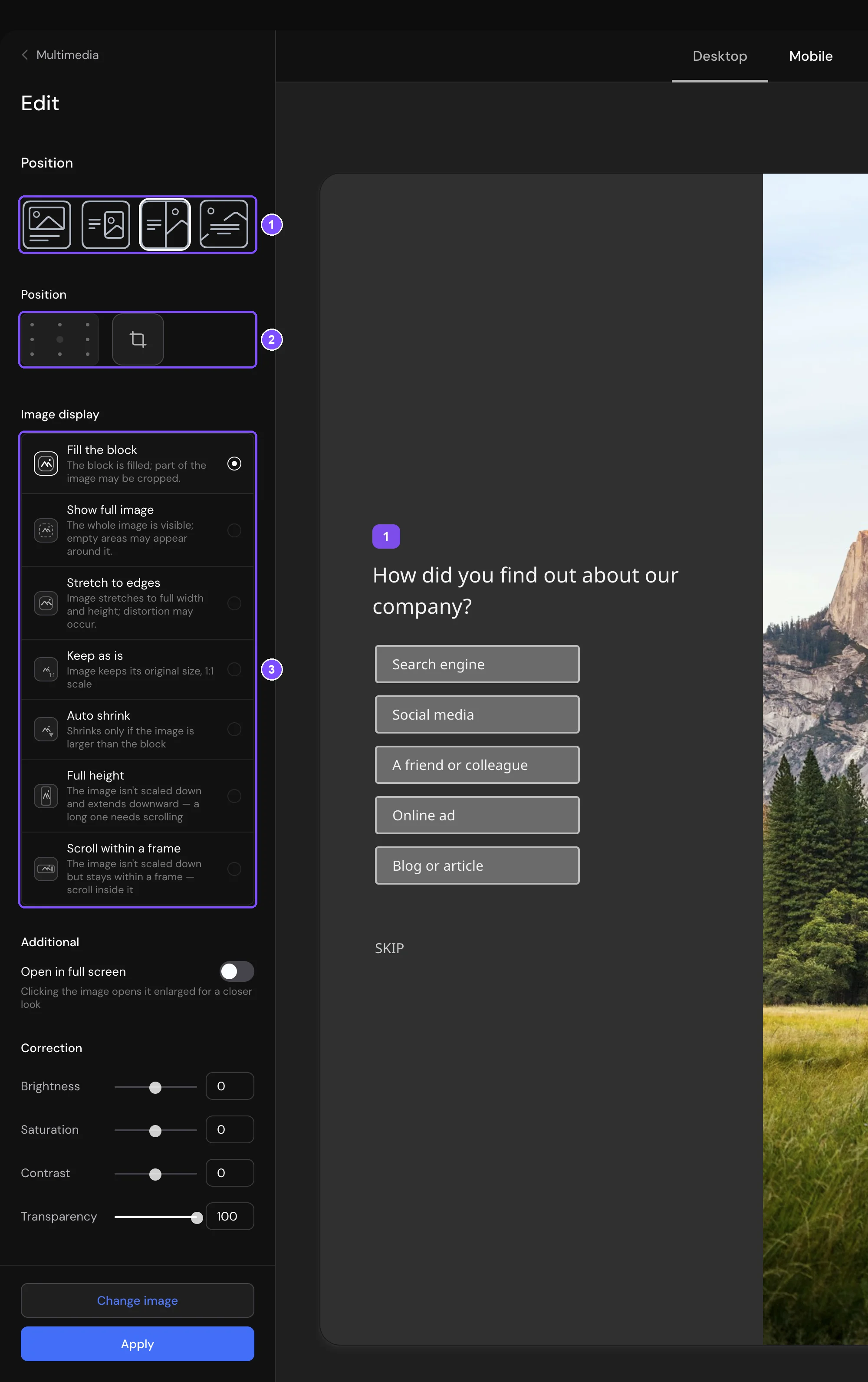
- Position (1): where the media goes. On a desktop, choose above the question, next to the question, half of the screen or the background. On a phone, choose the top of the screen edge to edge, the top with margins or the background.
- Position under the layout icons (2), images only: which part of the image stays visible, and the crop button.
- Image display (3): Fill the block, Show full image, Stretch to edges, Keep as is or Auto shrink. For long images, choose Full height or Scroll within a frame. Options that don't fit the selected position are inactive.
- Open in full screen in the Additional section: respondents can click the image to open it enlarged. Not available when the image is the background.
- Correction, for images and video: Brightness, Saturation, Contrast and Transparency.
- Video Settings, for video files (not YouTube links): Video controls and Autoplay.
To pick another file, click Change image, Change video or Replace Audio at the bottom.
Changing or removing media
Open the question Settings. Under Media, the added file has three icons:
- Preview (the eye) shows the file.
- Edit multimedia (the pencil) opens the editing screen.
- Disable media (the trash can) removes the file from the question. Confirm with Remove.
The file itself isn't deleted: your uploads stay on the Uploaded tab. To delete an uploaded file for good, open Uploaded, click the trash can on the file and click Remove.
Limits
- A question or screen holds one media file.
- You can't add media to questions inside a Question Group or to a micro survey.
- Audio and YouTube videos can't be a background. YouTube videos can't take half of the screen.
- The maximum file size depends on your plan: 100 MB on Basic, 300 MB on Standard and 500 MB on Premium. It's also shown in the upload area.
- Uploaded files count toward your plan's disk space: 1 GB on Basic, 3 GB on Standard and 6 GB on Premium.
If something doesn't work
The Add multimedia button has a $ icon. Media isn't included in the Free plan. Clicking the button opens the upgrade window. Compare plans
Nothing happens after you paste a video link. Only YouTube links and direct links to a video file (for example, ending in .mp4) are accepted. Copy the full link and paste it into the field.
The upload fails with "The file is too large". The file is larger than your plan allows, or it doesn't match the tab: for example, an audio file on the Image tab. Check the limit in the upload area and pick the right tab.