 WooCommerce Post-Purchase Survey: 7 Questions, When to Ask and What to Do Next
Webhooks
Updated
On this page
A webhook sends each completed survey response to a URL you specify, as an HTTP request with a JSON body. Use it to pass responses to your CRM, backend or an automation service.
Before you start
You need a server or service that accepts HTTP requests at a public address. To try webhooks without your own server, use a test endpoint from a service like webhook.site.
Creating a webhook
- Open the survey and go to the Integrations tab.
- Click Webhook in the list.
- Click Create a Webhook. If the survey already has webhooks, click Create a new Webhook.
- Fill in the fields:
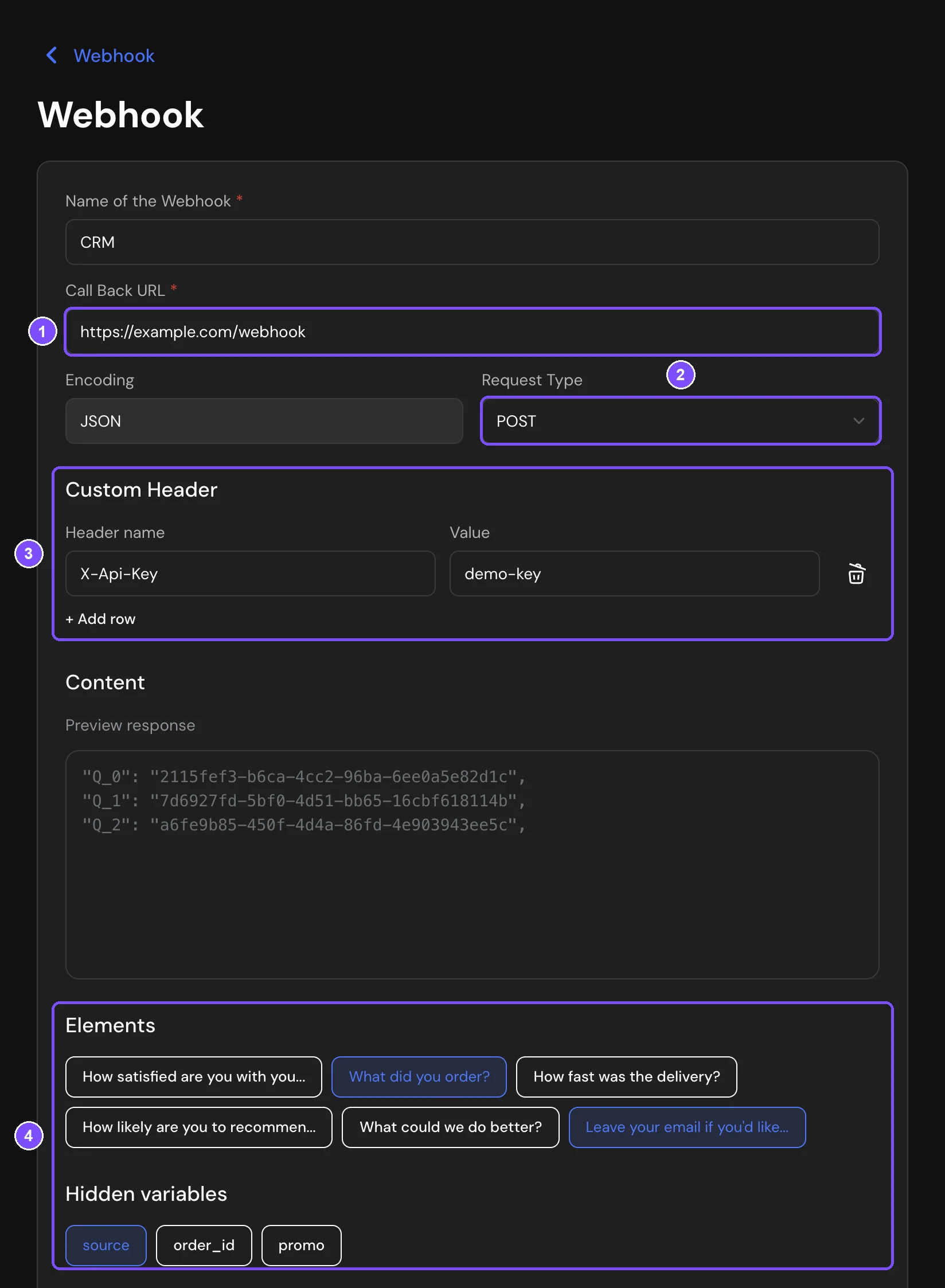
Field What to enter Name of the Webhook Any name to tell webhooks apart, for example "CRM" Call Back URL (1) The address that receives responses. It must be a public address, internal and local addresses are not allowed Encoding Always JSON Request Type (2) POST, PUT, PATCH or GET. Most services expect POST - In Custom Header (3), add the headers your server needs, for example an authorization token: enter the Header name and Value. To add one more header, click Add row.
- In Elements (4), choose the questions to send. All questions and hidden variables are selected by default and highlighted. Click a question to exclude it from the request, click it again to add it back. Hidden variables work the same way in Hidden variables.
- In Parameter names, you can give the selected questions short names. The name is sent in the name field of the question.
- Click Save.
The new webhook appears in the Webhooks list turned off. Turn on the switch next to it to start sending responses.
Content lists the IDs of the selected elements. In the request body, questions are keyed by these IDs, and hidden variables go to extra_params.
A survey can have several webhooks. The Webhooks list shows all of them, and the menu next to each one has Edit, Logs and Delete.
Sending incomplete responses
By default, a webhook receives only completed responses. To also get responses that respondents started but did not finish, turn on Send incomplete responses and choose an interval in Send every: 1, 6, 12 or 24 hours. An incomplete response that was delivered once is not sent again.
The request body doesn't say whether a response is complete. If the respondent finishes the survey later, the webhook receives the response again as a completed one.
Request format
SurveyNinja sends the request with the Content-Type: application/json header and the headers you added in Custom Header. The body contains general fields and an object for each selected question, keyed by the question ID.
| Field | Description |
|---|---|
| extra_params | Values of the selected hidden variables. Keys are the variable names in lowercase. Empty values are skipped; if no values are left, extra_params is an empty array [] |
| headers | The custom headers from the webhook settings |
| score_all, score_earned, score_percent | Maximum score, respondent's score and percentage, if the survey uses scoring |
| scores | The same scores and a breakdown by question (by_question). by_question lists every answered question, including the ones not selected in Elements |
| promo_code, order_number | The promo code issued to the respondent and the order number, if the survey uses them. Otherwise null |
| log_id | The ID of the delivery in the webhook logs |
| question ID | The question title, type, answers (results) and score data |
Example of a request body for a survey with a choice question, an email question and one hidden variable:
{
  "extra_params": {
    "utm_source": "newsletter"
  },
  "headers": {
    "X-Api-Key": "your-secret-key"
  },
  "score_all": 0,
  "score_earned": 0,
  "score_percent": null,
  "scores": {
    "user": 0,
    "max": 0,
    "by_question": {
      "3ec8521a-3af8-4fec-b11e-7409d38eab33": null,
      "87a748c3-43e5-4ecc-bba2-413deb908864": null
    }
  },
  "promo_code": null,
  "order_number": null,
  "3ec8521a-3af8-4fec-b11e-7409d38eab33": {
    "title": "How did you hear about us?",
    "results": [
      { "result": "Search engine", "score": null, "is_correct": null }
    ],
    "score_count": null,
    "type": "choiceSingle",
    "other": "",
    "score_max": null,
    "is_correct_question": null,
    "uuid": "3ec8521a-3af8-4fec-b11e-7409d38eab33",
    "name": "source"
  },
  "87a748c3-43e5-4ecc-bba2-413deb908864": {
    "title": "Your email",
    "results": { "result": "anna@example.com" },
    "type": "email",
    "score_count": null,
    "score_max": null,
    "is_correct_question": null,
    "uuid": "87a748c3-43e5-4ecc-bba2-413deb908864"
  },
  "log_id": 1024
}
For choice questions, results is a list of selected options, and other holds the text of the "Other" option. For text, email, number and similar questions, results is a single object with the answer in result. The name field appears only for questions you named in Parameter names. In a test request, name holds the question title for every question. Decode HTML entities in name on your side, for example & into &.
Checking delivery in the logs
- In the Webhooks list, open the menu next to the webhook and choose Logs.
- Click Test request (1) to send a request with test answers to all questions. It is sent even if the webhook is turned off.
- Click a log entry (3) to see the server response, the request body and the custom headers.
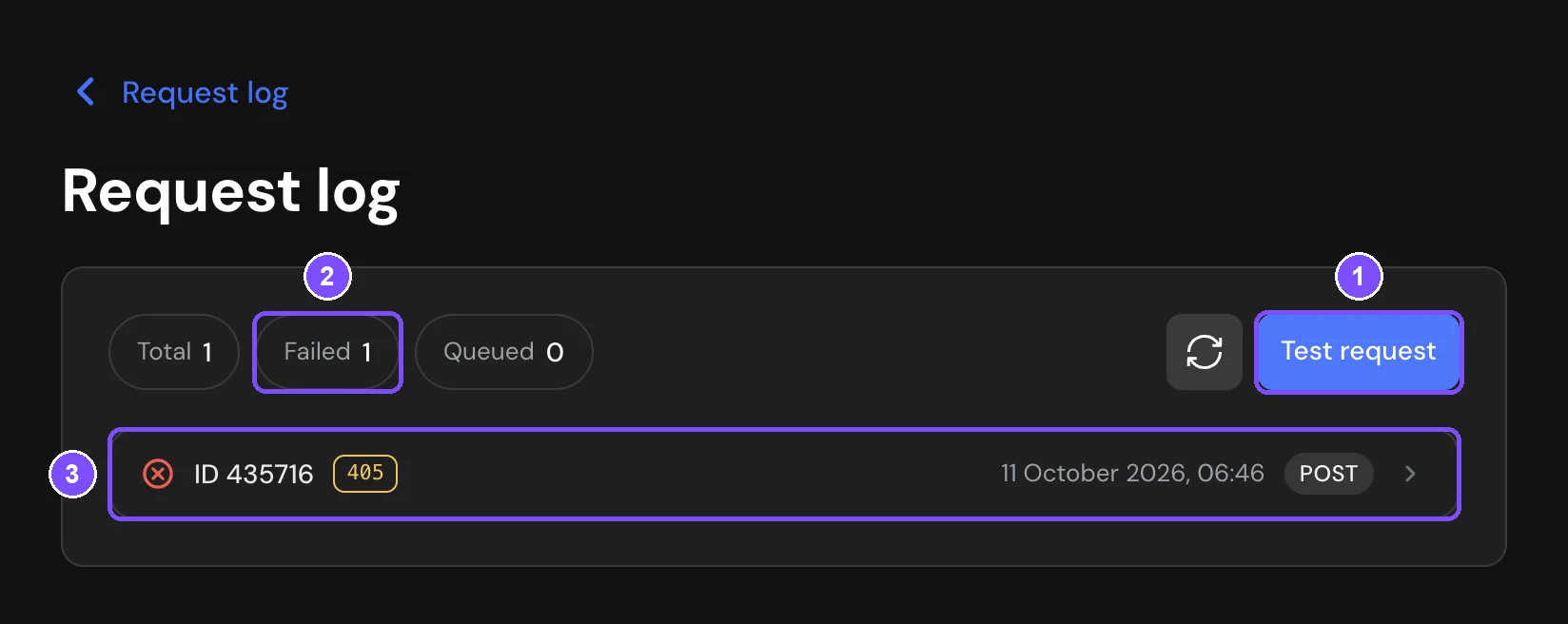
The counters at the top show Total, Failed (2) and Queued deliveries. To send a failed request again, open it and click Retry. When the log has more than one failed request, the Resend failed logs block appears: set the dates and click Retry to resend all failed requests for that period, up to 1,000 at a time. Retry sends the saved request body and headers again to the current Call Back URL, even if the webhook is turned off.
Turning off or deleting a webhook
To pause sending, turn off the switch next to the webhook in the Webhooks list. To remove the webhook, open the menu next to it and choose Delete. The webhook and its log are deleted right away, without a confirmation.
Limits
- The Call Back URL must be a public http or https address, and its domain must resolve when you save the webhook. Internal and local addresses are not allowed.
- Header names can contain only Latin letters, digits and the characters ! # $ % & ' * + - . ^ _ ` | ~. Headers with other names are not sent.
- Responses collected while a webhook is turned off are not sent later.
- Parameter names works for questions only. Names given to hidden variables are not used.
- The request body is always JSON.
- A delivery counts as successful if your server responds with any 2xx code. SurveyNinja waits for a response for up to 30 seconds and follows redirects.
- A failed delivery is not repeated automatically. It stays in the log with the error, and you can send it again from the log.
- If a webhook fails 20 times in a row, or 5 times in a row with a 4xx response, SurveyNinja turns it off and sends an email to the survey author, if System notifications are on in their profile.
If something doesn't work
- Responses don't arrive. A new webhook is saved turned off. Turn on the switch next to it in the Webhooks list.
- "Endpoint disabled automatically." The webhook failed several times in a row. Check the errors in the log, fix the receiver and click Turn back on. Then resend the failed requests from the log.
- The webhook isn't saved. The Call Back URL is not a valid address, its domain doesn't resolve, or it points to an internal or local address. Use a public http or https address.
- "The endpoint address is not allowed — check the settings" in the log. The address now points to an internal or local address, so the resent request was blocked. Change the Call Back URL.
- Retry fails with the same error after you changed the headers. Retry sends the headers saved with the original request. Click Test request to check the new settings. New responses are sent with the new headers.
- "The server did not respond within 30 seconds." Your server takes too long to respond. Make it return a 2xx code first and process the data after that.
- The log shows code 405. The server doesn't accept this request type. Check Request Type: most services expect POST.