 25 Questions for a Travel Agency Customer Satisfaction Survey

Reusing Answers in Survey Questions
Updated
On this page
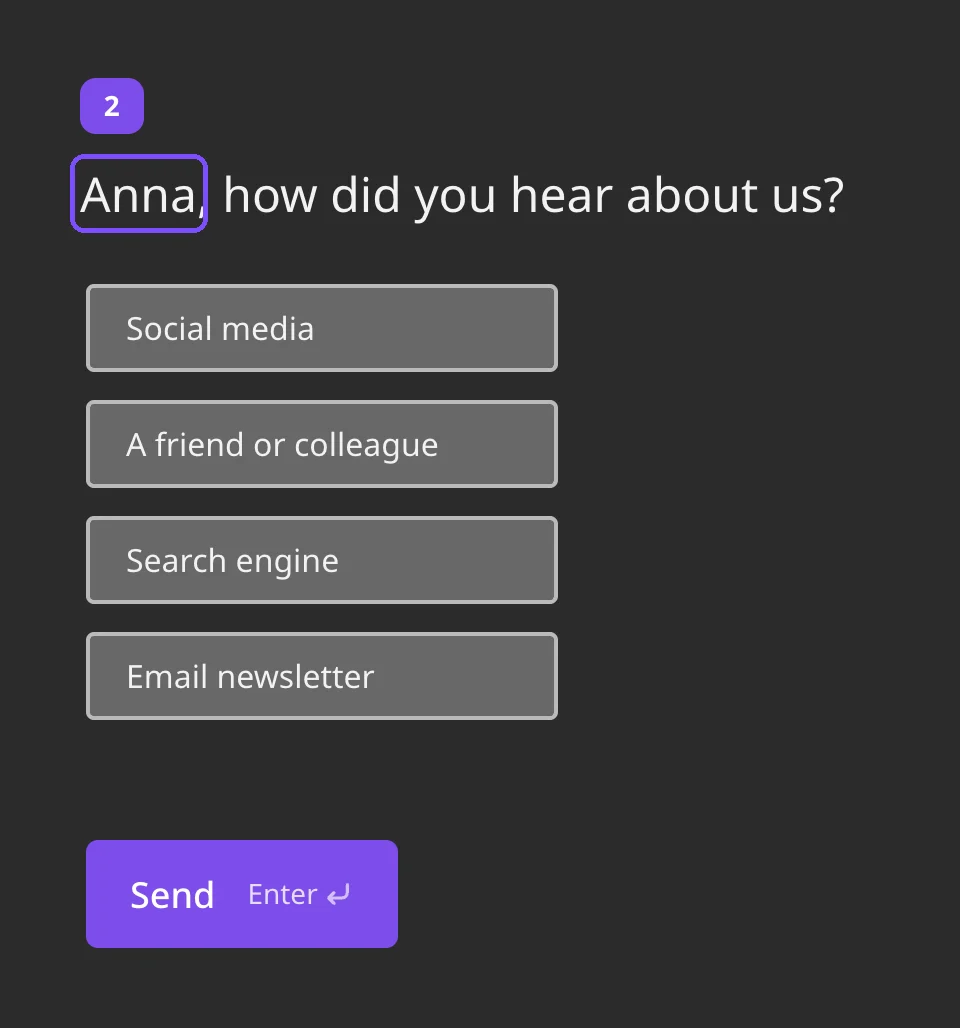
You can insert a respondent's answer to an earlier question into the title or description of a later question or of a Thank You Screen. For example, ask for the name in the first question and start the next one with "Anna, how did you hear about us?".
Inserting an answer
- Open the survey in Builder.
- Click the title or description of the question where the answer should appear. This question must come after the question with the answer.
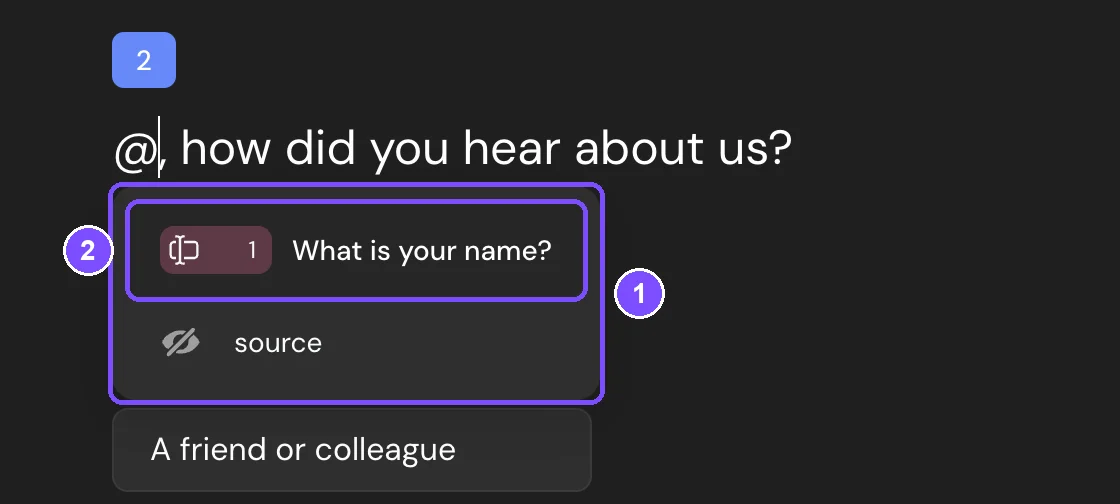
- Type @. A list of values you can insert opens (1): earlier questions with their numbers and hidden variables. Start typing a question title to filter the list.
- Pick the question (2). A tag with its title, such as @What is your name?, appears in the text, followed by a space. If a comma or another punctuation mark comes right after the tag, delete that space.
- Click Publish to apply the changes.
In the published survey and in Preview, the tag is replaced with the respondent's answer.
What you can insert
The @ list shows:
- Answers to the questions placed above the current one.
- Number of points, if scores are set for the questions above.
- Promocode, on a Thank You Screen or a Disqualification screen, if a promo code list is linked to the survey (Premium and higher).
- Hidden variables from the survey link (Basic and higher).
How an answer looks in the text:
| Question type | What respondents see |
|---|---|
| Radio Button, Multiple Choice, Media Choice, Yes or No, Dropdown | Text of the selected options, separated by commas |
| Enter Text, Numerical Response, Email, Phone Number, Date and Time, Full name | The entered value |
| Rating, Smile rating, Opinion Scale, NPS, Slider | The selected number |
| Ranging | Options in the order the respondent ranked them |
| Allocation slider | Each option with its units, for example "Price: 40, Quality: 60" |
Passing answers in a redirect link
You can add answers to the link that opens after the survey, for example to prefill a form on your site. The Thank You Screen is available on the Basic plan and higher.
- Select the Thank You Screen or the Disqualification screen and click the gear icon (Settings).
- Turn on Action button and choose Follow the link.
- Enter the URL, then click Answer from question under it (1) and pick a question or a hidden variable. A tag is added to the end of the URL. To put it in another place, type @ right in the URL field.
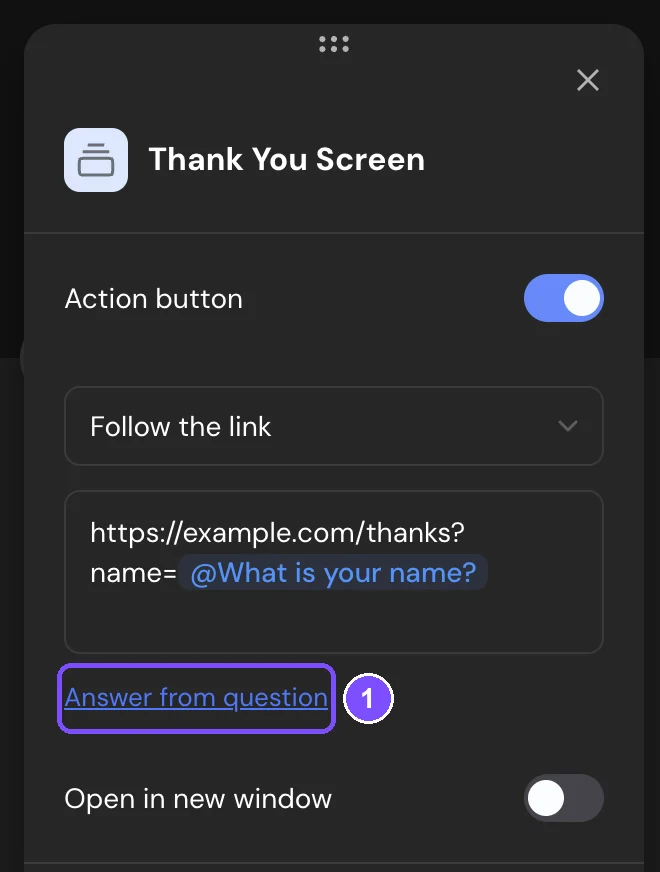
The answer is inserted into the link when the respondent clicks the button. If there's nothing to insert, the tag is removed from the link. To open the link in a new tab, turn on Open in new window.
Limits
- In a question, answers can be inserted only into the title and description, not into answer options.
- Answers can be inserted from the question types in the table above. The text typed in Other and answers to questions inside a Question Group aren't inserted.
- The @ list doesn't open on the Welcome Screen and in questions inside a Question Group.
- Answers can be added only to the Action button link. The Auto switch link has no Answer from question button.
If something doesn't work
Respondents see ___ instead of the answer. The three underscores appear when there's nothing to insert. Possible reasons:
- The respondent skipped the question. Use answers from required questions to avoid gaps.
- The survey link has no value for the hidden variable.
The @ list doesn't show the question you need. The list shows only questions placed above the current one. Move the question with the answer higher, or check that its type can be inserted (see Limits).