 WooCommerce Post-Purchase Survey: 7 Questions, When to Ask and What to Do Next

SurveyNinja Affiliate Program
Updated
On this page
The SurveyNinja affiliate program pays you 20% of every payment made by customers who sign up through your referral link. Joining is free: the For Affiliates section is available in any account.
Opening the affiliate dashboard
- Click your profile icon in the top right corner.
- Choose For Affiliates.
The page has three tabs: Statistics, Sources and Funds.
Note. The affiliate program belongs to your own account. If you are working in someone else's workspace, the section shows a notice instead of your data. Switch to your own workspace to see your statistics and balance.
Creating a referral link
- Open the Sources tab.
- Click Add source (1). A new link appears in the list, for example https://app.surveyninja.io/?ref=123.
- Click the source name (2) and type a new one, for example "YouTube" or "Newsletter". The name must be 3 to 25 characters long and is saved when you click outside the field.
- Click the arrow icon (3) next to the link. The link is copied to the clipboard. Share it.
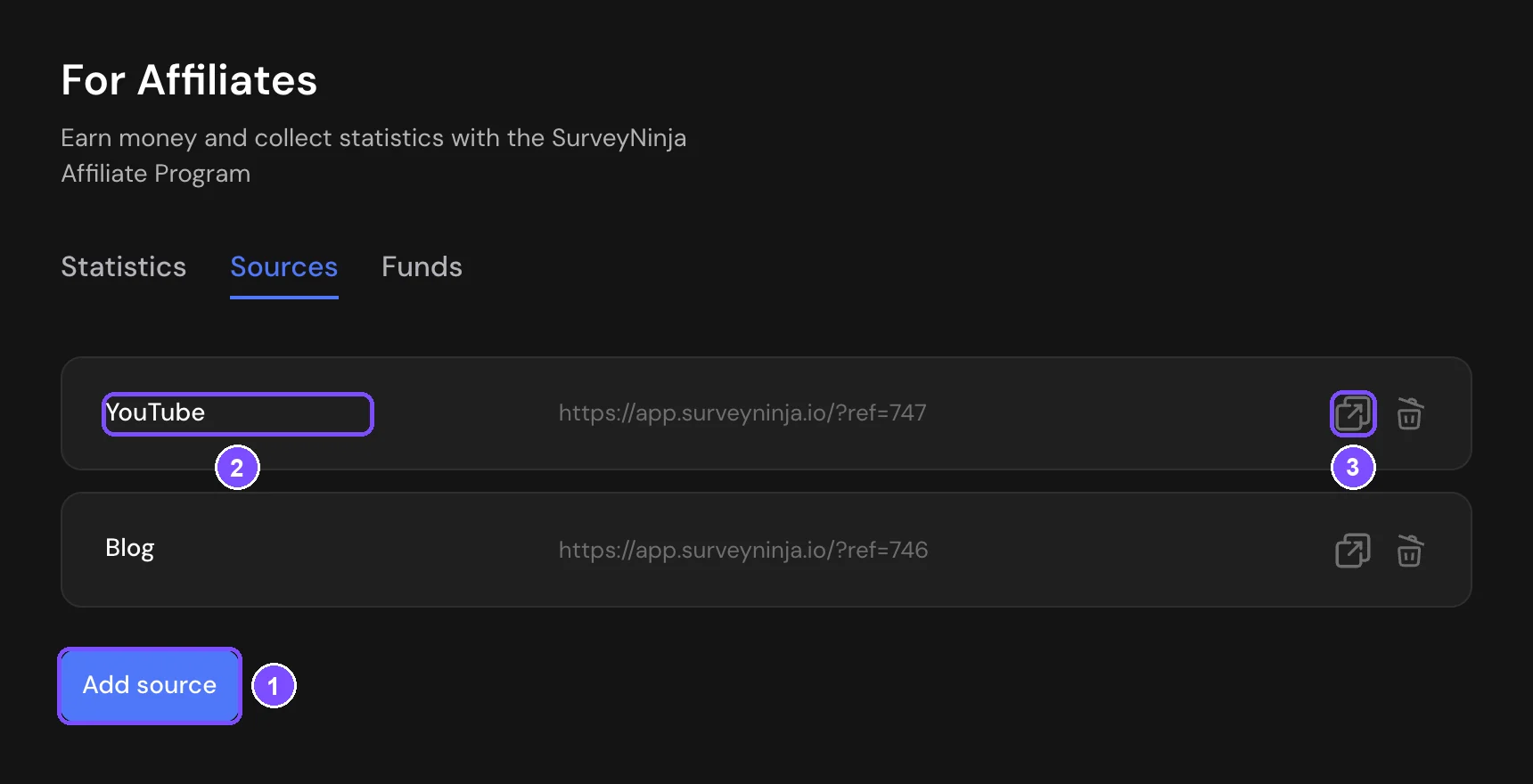
Create a separate source for each place where you publish the link. The statistics can then be filtered by source, so you can see which channel brings paying customers. To delete a source, click the trash icon.
When someone opens your link, SurveyNinja remembers the source in their browser. If they sign up from that browser, they are counted as your referral.
Reading statistics
Until you create the first source, the Statistics tab shows a short First Steps guide. After that, it has three views:
| Tab | What it shows |
|---|---|
| By registration date | Each referred user: User ID, date, number of payments (Paid) and Source |
| By day | Visitors, Registrations, Paid and Conversion rate for each day |
| By payment | Each payment from a referred user: User ID, the part still on Hold, the commission Amount and the Payment date |
On the first two tabs you can filter by period and by source. On By registration date you can also filter by status: Paid or Not paid. To clear the filters, click the trash icon next to them.
How commission is credited
When a referred customer pays for a plan, 20% of the payment is added to Funds on hold. The commission is then released to You can withdraw month by month, over the period the customer paid for:
- for a monthly plan, the whole commission is released one month after the payment;
- for a 6-month plan, one sixth is released each month;
- for an annual plan, one twelfth is released each month.
The hold exists because a customer can ask for a refund for the unused period. Your balance on the Funds tab shows the total of both parts.
Withdrawing funds
First, add a wallet for payouts:
- Open the Funds tab.
- In Payment methods, click Specify (1) next to PayPal or USDT (TRC20).
- Enter your PayPal email or your USDT TRC20 wallet address and click Save.
Then request a payout:
- In Funds withdrawal, enter the amount in whole US dollars (2).
- Choose the wallet (3).
- Click Withdraw funds (4).
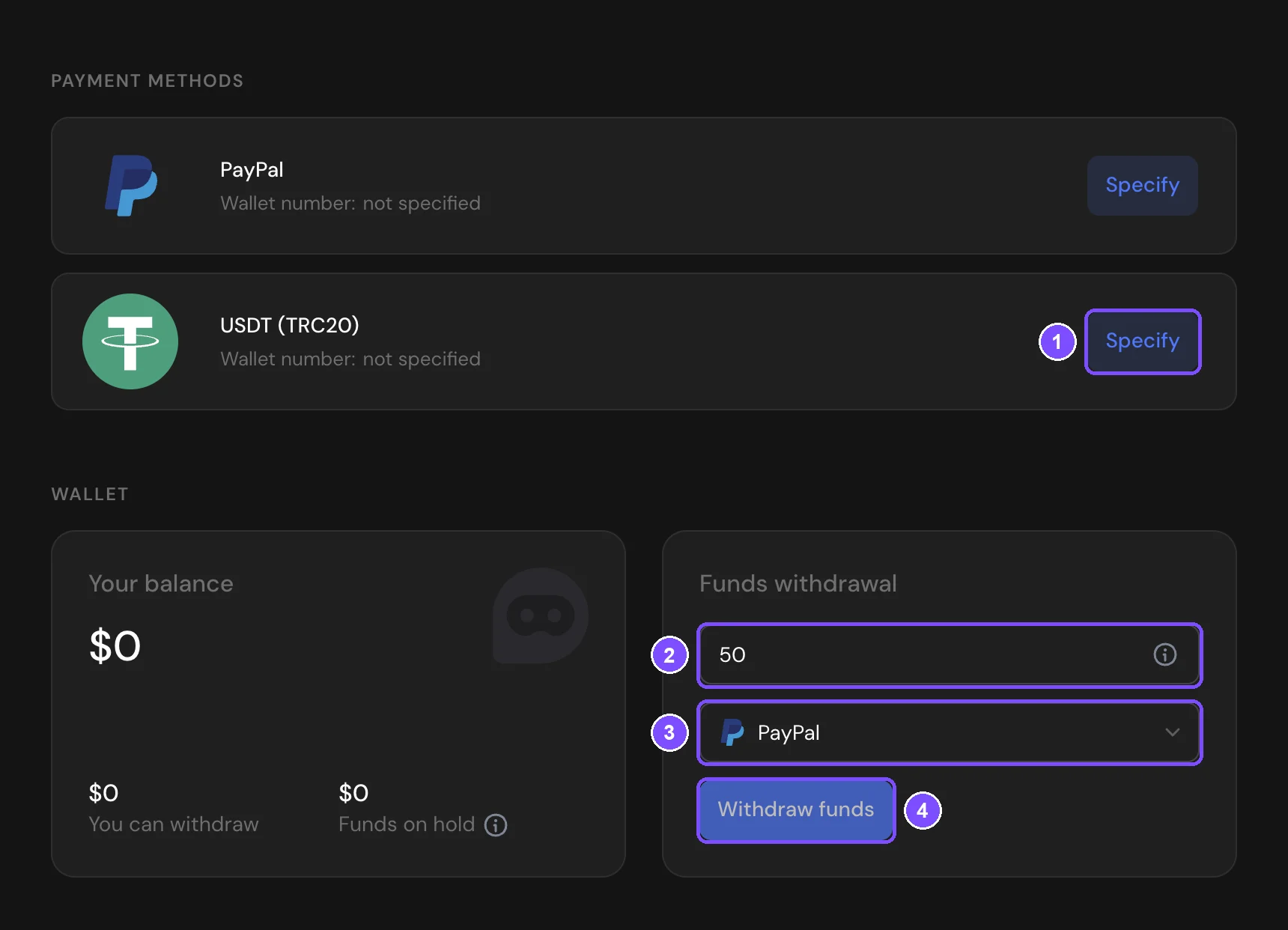
There is a minimum withdrawal amount. If you enter less, the request is not created and you see an error. The withdrawal form is unavailable until you have money in You can withdraw and at least one wallet. Hover over the form to see what is missing.
The request appears in the table below with the Pending status. We process requests manually. When the money is sent, the status changes to Paid and shows the payout date. If a request is Rejected, the amount returns to your balance and the reason is shown in the table. You also get an email when a request is created, paid or rejected.
Rules
- Do not use paid search advertising, including ads on the SurveyNinja brand name.
- Do not use spam, cashback schemes, ClickUnder or PopUnder.
- The sites and places where you publish the link must comply with applicable laws.
- Do not sign up with your own referral link.
The full terms and promotional materials are on the affiliate program page.