 WooCommerce Post-Purchase Survey: 7 Questions, When to Ask and What to Do Next
Incomplete Responses
Updated
On this page
An incomplete response comes from a respondent who started the survey but left before the end. SurveyNinja saves the answers as the respondent moves through the survey, so you keep what they managed to answer and can see where they stopped.
On lower plans the Incomplete tabs are marked with a $ icon. Incomplete responses are saved only while the workspace is on Standard or higher: the ones respondents left on a lower plan aren't kept, so after an upgrade you see only those that come in from then on.
How many respondents didn't finish
Open Results → Summary. The Not completed card shows the number of incomplete responses, and Complete rate shows the share of visits that ended with a completed response. In the Responses by day chart, switch to Not completed to see them by date. See Survey Summary.
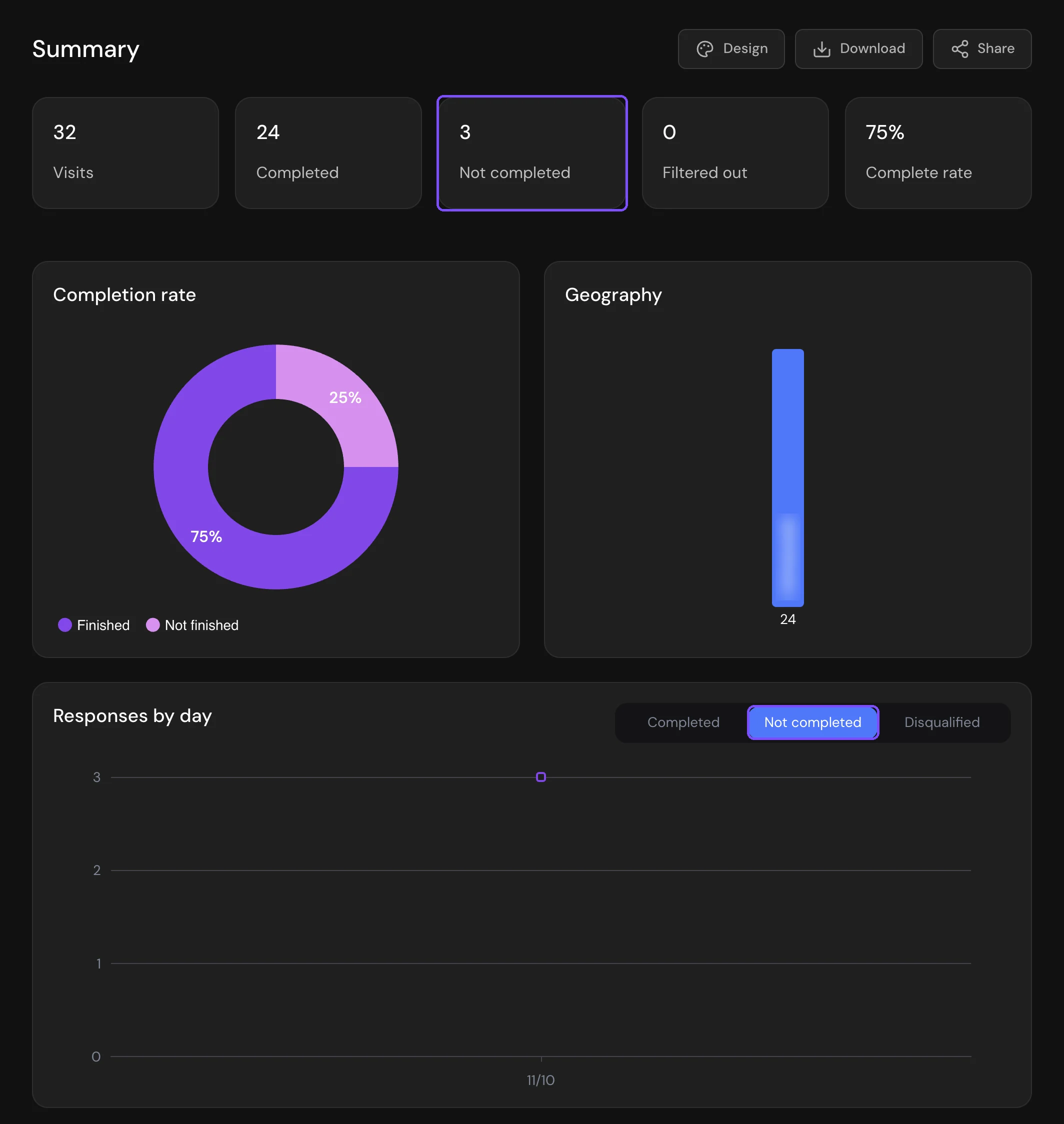
Answers to each question
Open Results → Reports and click the Incomplete tab above the report. The report counts only incomplete responses. The All tab counts completed, incomplete and disqualified responses together.
Each incomplete response
- Open Results → Responses.
- Click the Incomplete tab (1).
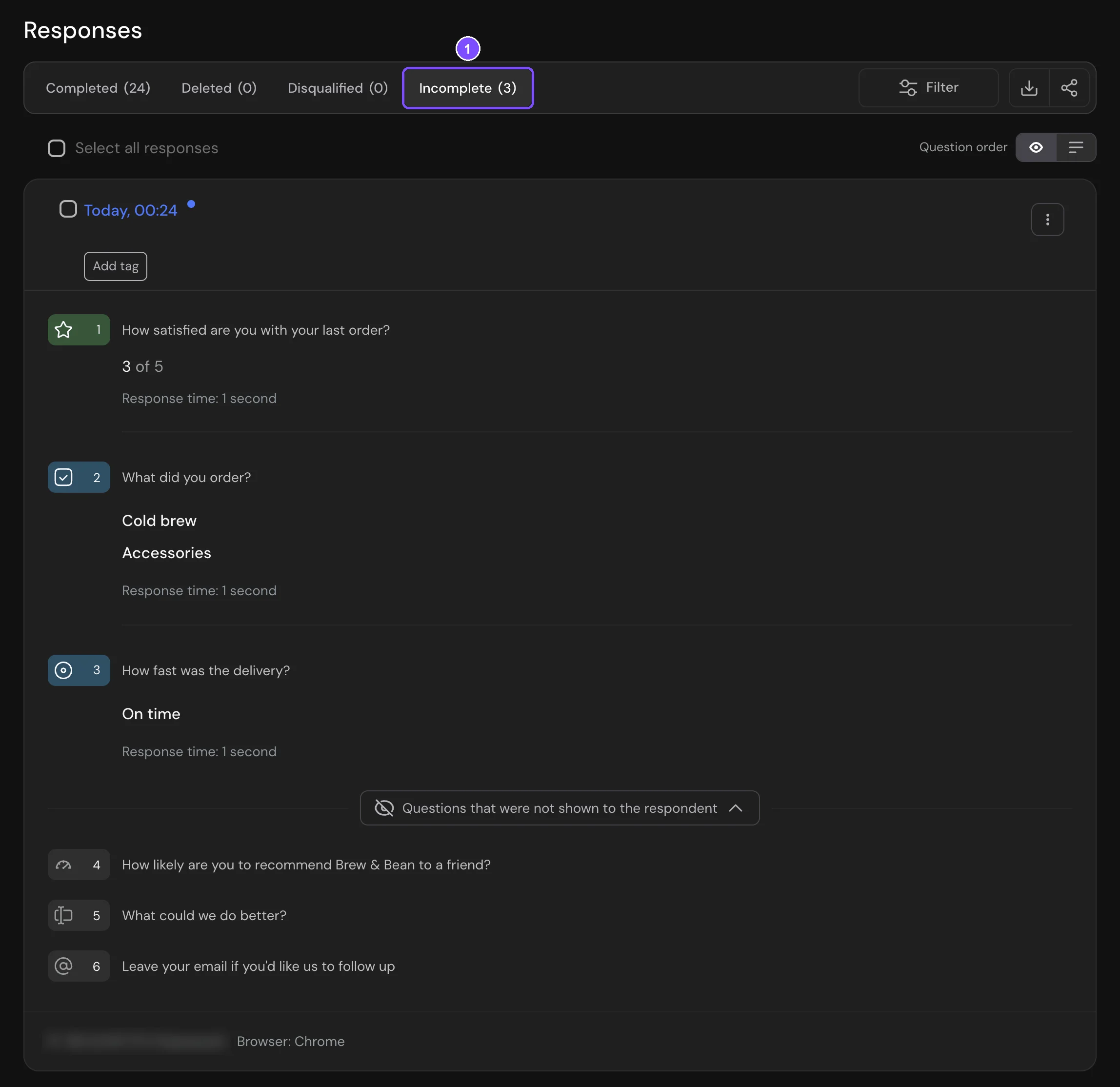
Each card shows the answers the respondent gave before leaving. Questions they never saw are hidden under Questions that were not shown to the respondent at the bottom of the card: click it to expand the list.
You can filter, download, share and delete incomplete responses the same way as completed ones. See Viewing and Downloading Survey Responses.
Note. If the survey has a Limit on number of responses, its Count setting decides whether incomplete responses count toward the limit: All entries counts them, Completed and Completed, excluding screened out don't. See Response Limit and Survey Deadline.