 WooCommerce Post-Purchase Survey: 7 Questions, When to Ask and What to Do Next
How to Share Results
Updated
On this page
You can share the report, the summary, the responses or the Smart Analytics report with a public link. Anyone with the link can open it without a SurveyNinja account, and the data in it updates as new responses arrive.
Creating a link
- Open the survey and go to Results.
- Open the tab you want to share: Reports, Summary, Responses or Smart Analytics (Premium and higher).
- Click the Share icon in the toolbar, the last one on the right.

- In the window that opens (Share report, Share summary, Share responses or Share AI report, depending on the tab), wait until the link appears under Share the link, then click the copy icon. The second icon opens the link in a new tab.
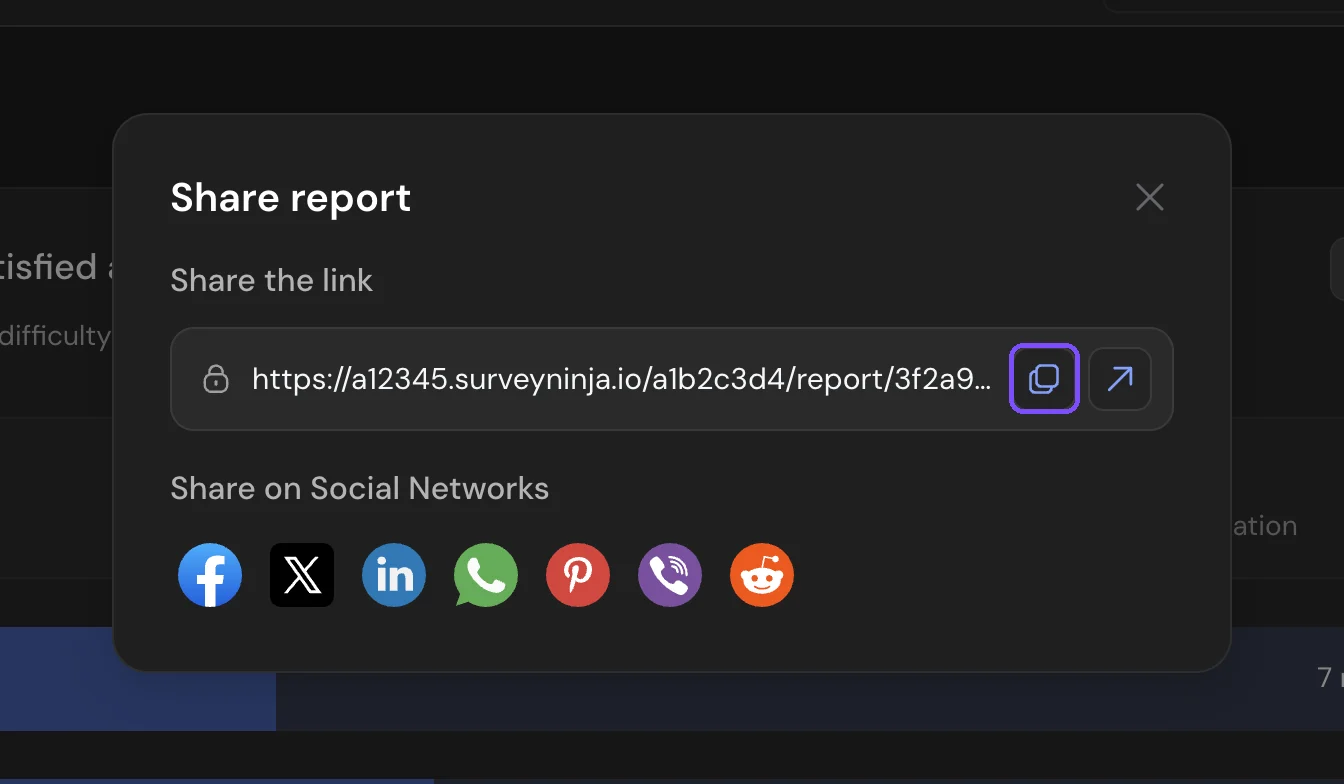
To post the link right away, click a network under Share on Social Networks: Facebook, X, LinkedIn, WhatsApp, Pinterest, Viber or Reddit.
What the link includes
- Reports: the report with the status tab (Completed, Incomplete and so on) and the filters you had selected when you created the link.
- Summary: visits, completion rate and the other summary charts.
- Responses: all responses of the open tab, taking the applied filters into account. To share only some responses, select them first and click Share in the bottom bar.
Charts in public links use the colors you set in Design on the Reports or Summary tab.
Note. Each time you click Share, a new link is created with the current settings. Links you created earlier keep working, so to share a different selection, change the filters and create a new link.
Limits
- Result links stay active. To stop them from opening, move the survey to the archive or delete it. Links of an archived survey work again after you restore it.