 WooCommerce Post-Purchase Survey: 7 Questions, When to Ask and What to Do Next
API
Updated
On this page
The SurveyNinja REST API lets your applications work with surveys and responses: get the list of surveys, read responses, export them, manage hidden variables and webhooks. The API returns JSON.
This article covers the basics. The full reference with all endpoints and parameters is at surveyninja.io/dev/api.
Before you start
An API key belongs to the workspace owner's account: requests made with the key have the same access as the owner. In someone else's workspace, the API / MCP section opens only if your role has access to it, and the keys you create there are added to the owner's account.
Creating an API key
- Click your profile icon in the top right corner and choose API / MCP.
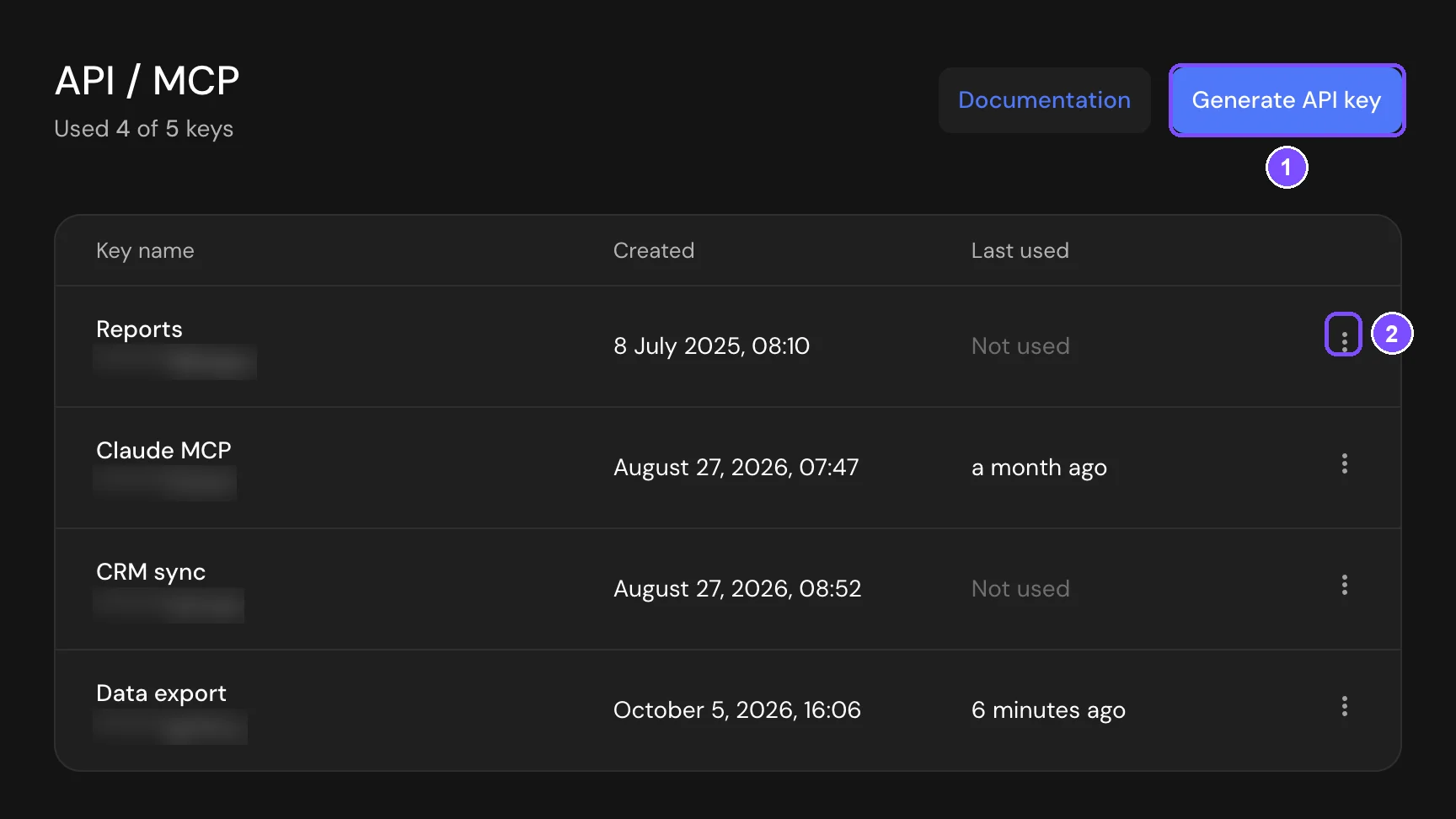
- Click Generate API key (1).
- In the Generate new API key window, enter the Key name (at least 3 characters), for example "CRM sync", and click Create key.
- Copy the key and store it in a safe place. Then click I have saved the key, close the window.
Important. The key is shown only once. If you lose it, delete it and create a new one.
The list shows the last characters of each key and when it was Created and Last used. To rename or delete a key, open the menu (2) next to it and choose Rename or Delete. Deleting asks for confirmation in the Delete API key window. To stop an application from using the API, delete its key: requests with a deleted key get the 401 code.
Making requests
All requests go to this base URL:
https://api.surveyninja.io/api/v3/service
Pass the key in the Authorization header of every request:
Authorization: Bearer YOUR_API_KEY
For example, this request returns the list of your surveys:
curl -X GET "https://api.surveyninja.io/api/v3/service/quiz" \
  -H "Authorization: Bearer YOUR_API_KEY" \
  -H "Accept: application/json"
If the key is missing or wrong, the API responds with the 401 code.
Integrations built on the old API paths (/api/service) work with the new keys too. For new integrations, use API v3.
Main endpoints
Paths are relative to the base URL.
| Method | Path | What it does |
|---|---|---|
| GET | /user | Information about the key owner |
| GET | /workspaces | Your workspaces |
| GET | /folders | Folders of your workspace |
| GET | /quiz | List of surveys |
| GET | /quiz/{id} | Survey data and questions |
| POST | /quiz | Create a survey |
| POST | /quiz/{id}/publish | Publish a survey |
| GET | /quiz/{id}/answers | List of responses |
| GET | /quiz/{id}/answers/csv | Responses as a CSV file |
| GET | /quiz/{id}/answers/xlsx | Responses as an Excel file |
| GET | /quiz/{id}/summary | Summary: visits, completed responses, completion rate |
| GET | /quiz/{id}/hidden/variables | Hidden variables of a survey |
| GET | /quiz/{id}/webhooks | Webhooks of a survey |
The API also covers survey settings, themes, folders, members, promo codes, unique links and reports. See the full list in the API reference.
Getting the list of surveys
GET /quiz accepts these query parameters:
| Parameter | Description |
|---|---|
| limit, offset | Pagination |
| sort | created_at, updated_at, name or id. Default: id |
| order | desc or asc. Default: desc |
| folder_id | Return surveys from one folder only |
The response is an array of the surveys in the key owner's workspace. Without limit, it contains all of them. Each survey has id, name, type, url_shared (the public link), is_published, created_at, updated_at, folder and notes.
Getting responses
GET /quiz/{id}/answers returns responses to a survey, newest first by default.
| Parameter | Description |
|---|---|
| limit | Number of responses, up to 100. Default: 20 |
| offset | How many responses to skip. Default: 0 |
| date | Responses for one day, in the YYYY-MM-DD format |
| is_complete | true for completed responses only, false for incomplete ones |
| sort | date_start or date_end |
| order | desc or asc |
Request example:
curl -X GET "https://api.surveyninja.io/api/v3/service/quiz/123/answers?limit=50&is_complete=true" \
  -H "Authorization: Bearer YOUR_API_KEY" \
  -H "Accept: application/json"
Response example (shortened):
{
  "answers": [
    {
      "id": 4813,
      "visit_id": 46139,
      "date": "2026-08-24T12:51:33",
      "date_start": "2026-08-24T12:50:52",
      "date_end": "2026-08-24T12:51:33",
      "filling_time_seconds": 41,
      "extra_fields": { "utm_source": "newsletter" },
      "is_complete": true,
      "is_respondent": false,
      "answers": [
        {
          "type": "input",
          "rowId": "87a748c3-43e5-4ecc-bba2-413deb908864",
          "title": "What should we improve?",
          "result": "Faster support",
          "min_val": null,
          "max_val": null,
          "hidden_options": null
        },
        {
          "type": "userInfo",
          "title": "User info",
          "result": {
            "ip": "203.0.113.10",
            "browser": "Chrome",
            "country": "Germany",
            "user_agent": "Mozilla/5.0 ...",
            "password_number": null,
            "import_source": null,
            "is_anonymous": false
          },
          "is_anonymous": false
        }
      ],
      "over_upload_limit": false,
      "unique_link": null
    }
  ],
  "answer_total_count": 128
}
In each response, answers contains one object per question. rowId is the question ID, result is the answer. The last object with the userInfo type holds the respondent's technical data. In anonymous surveys, the IP address, browser, country and user agent are null. If no responses match the request, answers is null.
answer_total_count is the total number of responses to the survey, including incomplete and disqualified ones. The date and is_complete filters don't change it, so don't use it to count pages of a filtered request.
MCP for AI assistants
The same API key connects SurveyNinja to AI assistants that support the Model Context Protocol (MCP), such as Claude or Cursor. MCP is available on every plan, including Free. How to set it up is described in Connecting AI Assistants (MCP).
Limits
- An account can have up to 5 API keys.
- GET /quiz/{id}/answers returns up to 100 responses per request. To get the rest, use limit and offset.
- GET /quiz/{id}/answers doesn't return disqualified and deleted responses.
- A key name must have at least 3 characters.
If something doesn't work
- The API responds with the 401 code. The key is missing, mistyped or deleted. Check the header: the word Bearer, a space, then the key.
- "You have exceeded the limit for creating API keys" when you click Generate API key. The account already has 5 keys. Upgrading the plan doesn't raise this limit. Delete a key you no longer use.
- The API returns only 20 responses. That is the default limit. Pass limit (up to 100) and offset to get more.