 WooCommerce Post-Purchase Survey: 7 Questions, When to Ask and What to Do Next
Deleting Responses
Updated
On this page
Deleting works in two steps. First a response goes to the Deleted tab: it no longer counts in the report and summary, and you can restore it. From Deleted you can remove it permanently.
All actions are in Results → Responses.
Deleting one response
- On the response card, click the three-dot button (⋮) at the top right.
- Click Delete response.

The response moves to Deleted right away, without confirmation. If you deleted it by mistake, click Cancel in the message "You removed a response from…" at the bottom of the page. The message stays for 10 seconds.
Deleting several or all responses
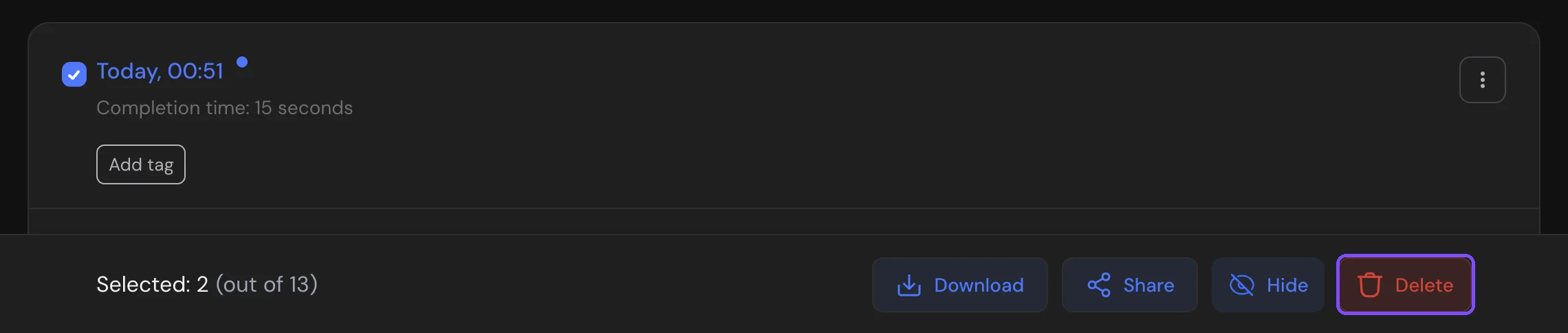
- Tick the checkboxes on the cards you need. To select everything on the tab, tick Select all responses.
- In the bar at the bottom of the page, click Delete.
- In Delete selected answers, tick I confirm that I want to delete replies (1) and click Delete (2).
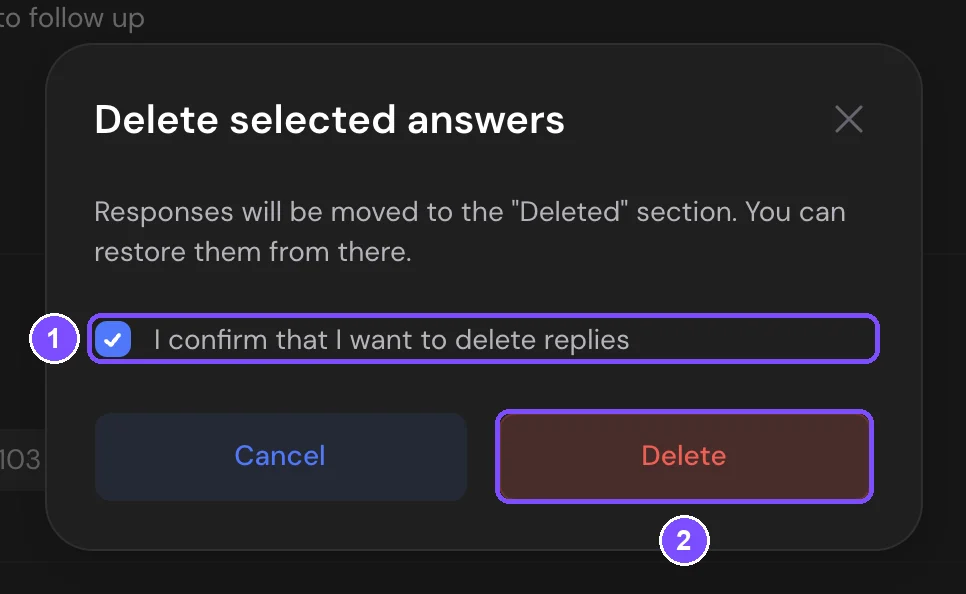
The selected responses move to Deleted.
Restoring a response
- Open the Deleted tab (1).
- On the card, click ⋮ and choose Restore (2). To restore several responses, select them and click Restore in the bottom bar.
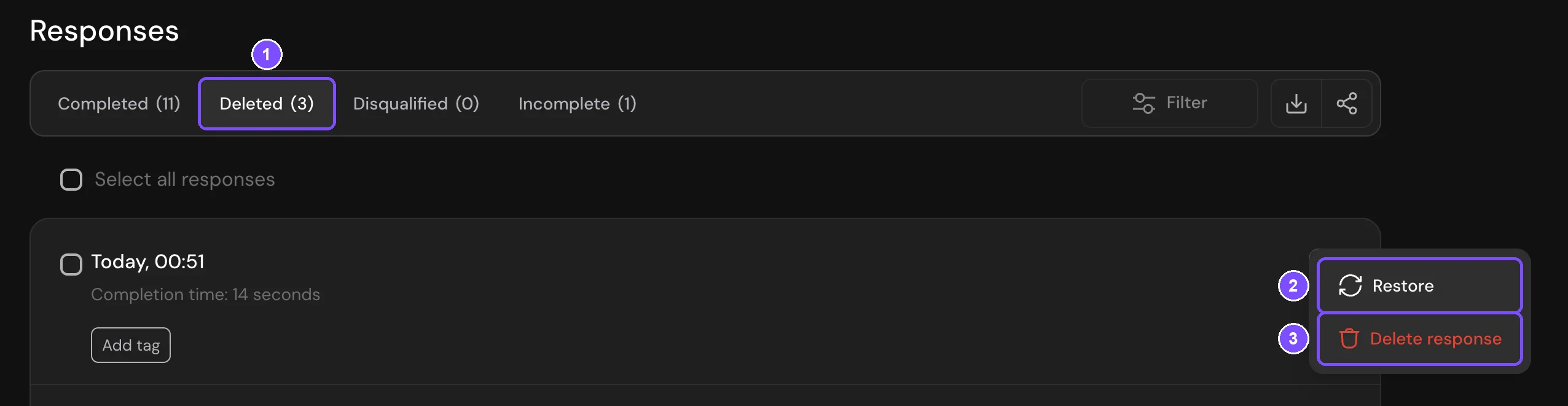
The response returns to its tab and counts in the report again.
Deleting a response permanently
- Open the Deleted tab.
- On the card, click ⋮ → Delete response (3).
- In Permanent deletion of responses, click Delete.
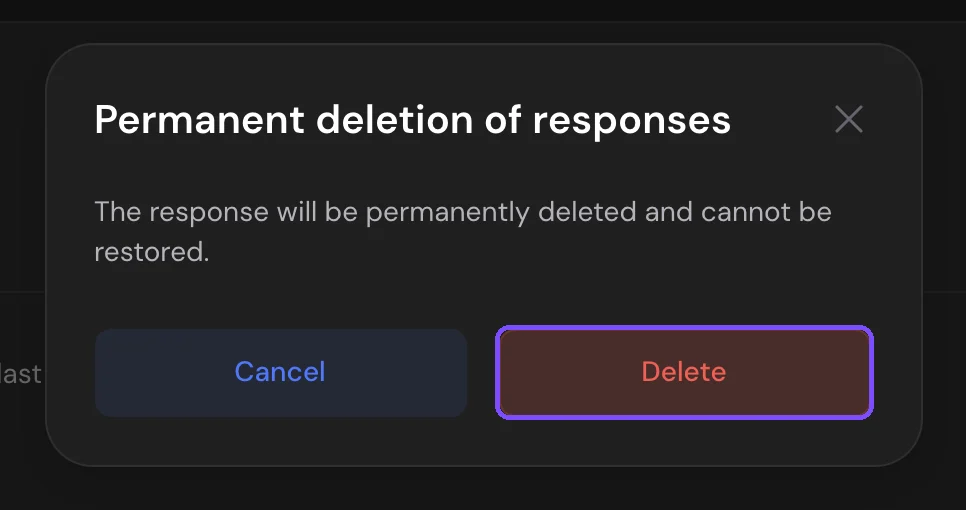
To delete several responses permanently, select them, click Delete in the bottom bar, tick I confirm that I want to delete replies and click Delete.
Important. A permanently deleted response can't be restored.
Hiding a response instead of deleting
If a response shouldn't affect the statistics but you want to keep it, hide it: click ⋮ on the card and choose Hide. The response stays in Responses, but the report and summary don't count it. To bring it back, choose Show in the same menu.
To hide several responses, select them and click Hide in the bottom bar.
Note. Team members can delete and restore responses only if their role allows it.