 WooCommerce Post-Purchase Survey: 7 Questions, When to Ask and What to Do Next
Sharing Your Survey on Social Media
Updated
On this page
When you post a survey link on a social network or in a messenger, it shows a preview card with a title, description and image. You can set up this card and share the survey without leaving SurveyNinja. The survey must be published first: until then the Share tab is inactive.
Setting up the survey link preview
- Open the survey and click Share in the top bar.
- Select Social media in the second row of tabs.
- Under Link preview settings, fill in the fields:
– Image: the picture of the card. The recommended size is 1200×630 px.
– Tab icon: the small icon in the browser tab, ICO, PNG or JPEG, 32×32 px.
– Post Title: by default, the survey name. A counter shows the recommended 60 characters.
– Description: a short text under the title. The recommended length is 160 characters.
The counters turn red when the text is longer than recommended, but the text is still saved. Networks may cut long titles and descriptions.
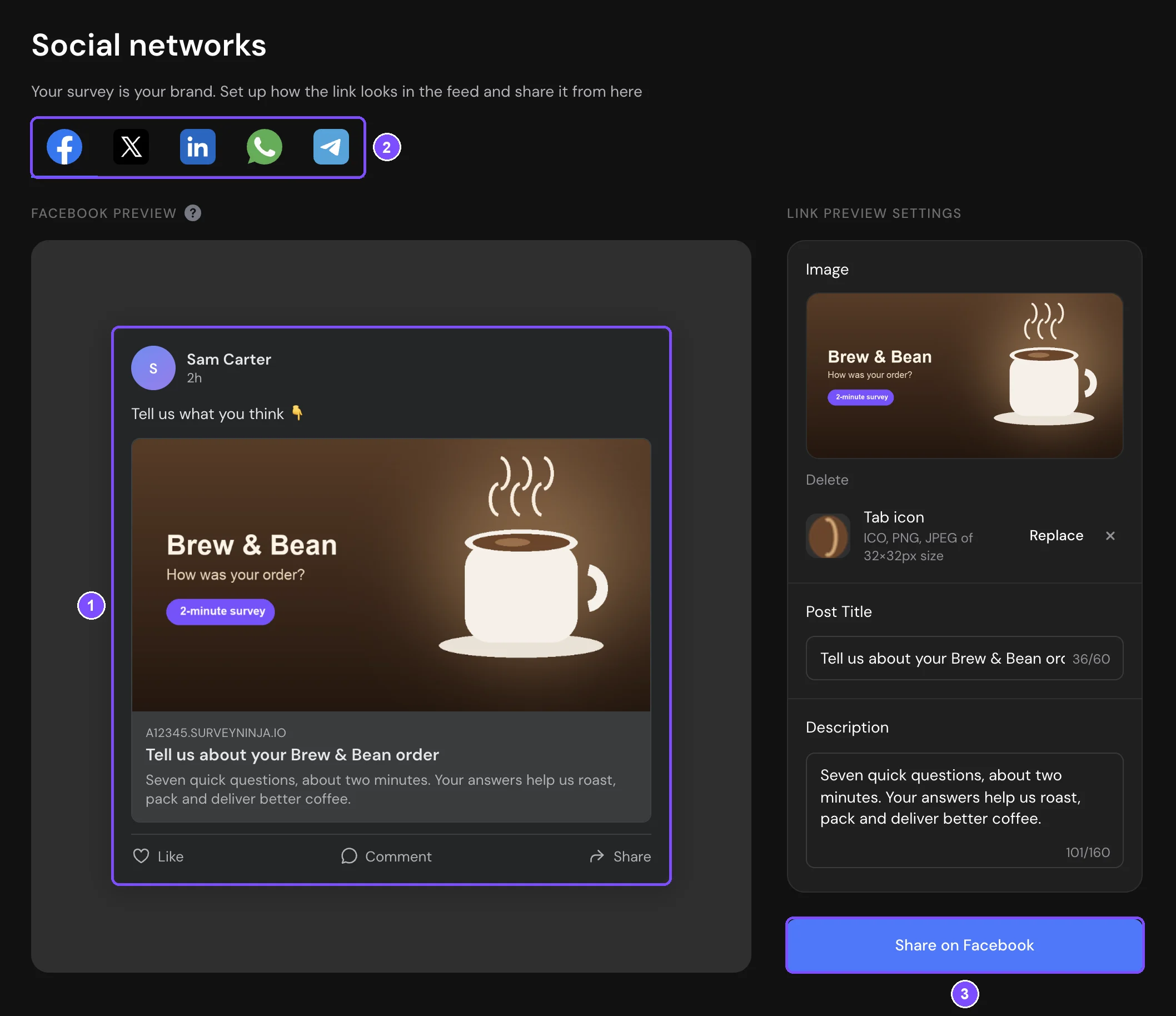
The card on the left (1) shows how the post will look in the network selected by the icons above it (2).
Note. The fields are saved automatically, but the survey link starts using them only after you publish the survey again. Go to Survey and click Publish.
Sharing the survey on a social network
- Select the network with the icons above the preview: Facebook, X, LinkedIn, WhatsApp or Telegram.
- Click Share on with the network name, for example Share on Facebook (3).
- In the window that opens, finish the post in the network itself.
Adding share buttons to the Thank You Screen
You can also add share buttons to the end of the survey, so respondents can pass it on.
- Go to Survey → Builder and select the Thank You Screen.
- Click the gear icon (Settings) next to it.
- Turn on Share button. On a new Thank You Screen it's already on.
After the survey is published again, the Thank You Screen shows buttons for Facebook, X, Telegram, LinkedIn, WhatsApp, Pinterest, Viber and Reddit. They share the survey link.
If something doesn't work
- The Share tab is inactive. The survey hasn't been published yet. Publish the survey, and the tab becomes available.
- The link shows the old title or image. The fields apply to the link only after you publish the survey again: go to Survey and click Publish. If you already shared the link, the social network may keep the old card in its cache for a while.
- The image or the tab icon doesn't upload. SurveyNinja accepts image files up to 3 MB for Image and up to 1 MB for Tab icon. Make the file smaller and upload it again.