 25 Questions for a Travel Agency Customer Satisfaction Survey
Previewing Your Survey
Updated
On this page
Preview lets you go through the survey the way a respondent will and check it on a phone, tablet and desktop screen. It shows the current version of the survey, including changes you haven't published yet.
Opening the survey preview
- Open the survey.
- Click Preview in the top bar.
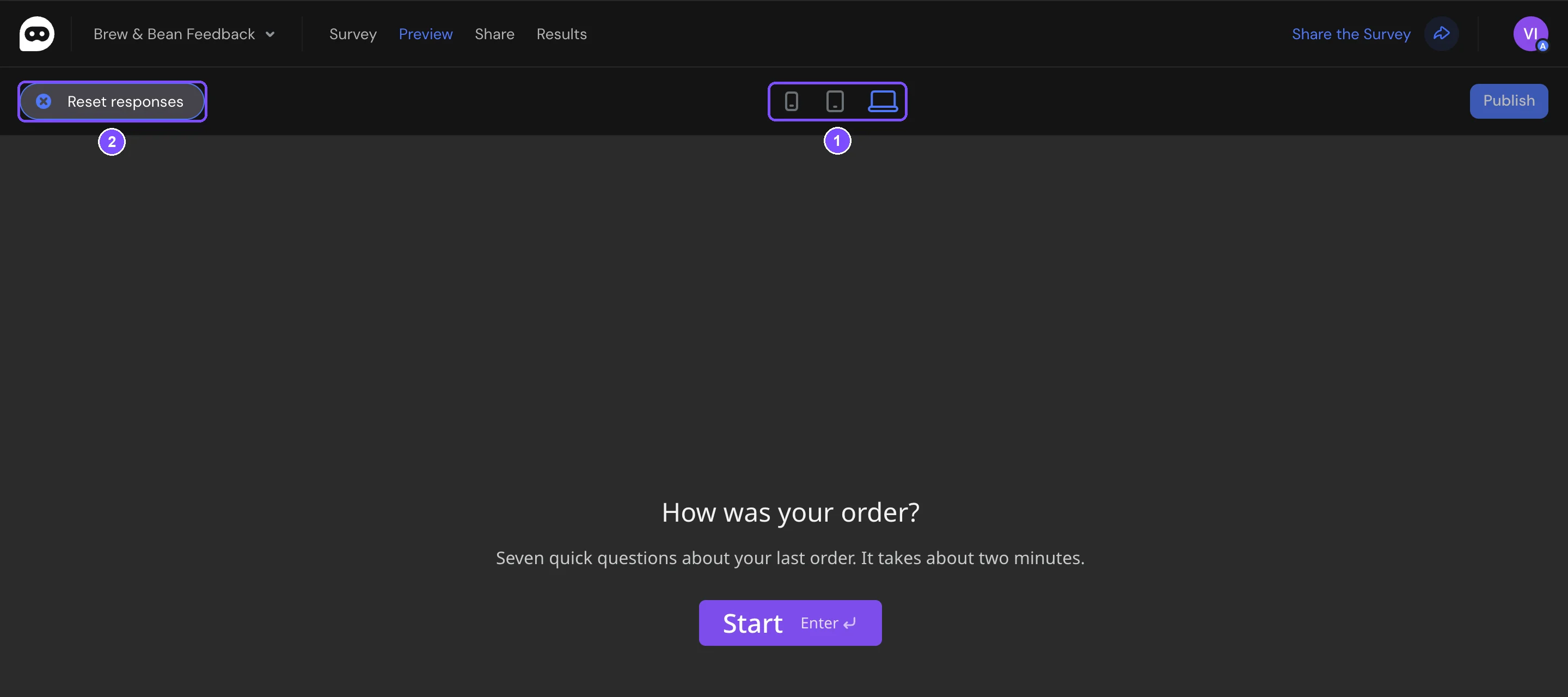
The survey opens at desktop size. You can answer questions, follow logic jumps and reach the Thank You Screen.
Switching the preview device
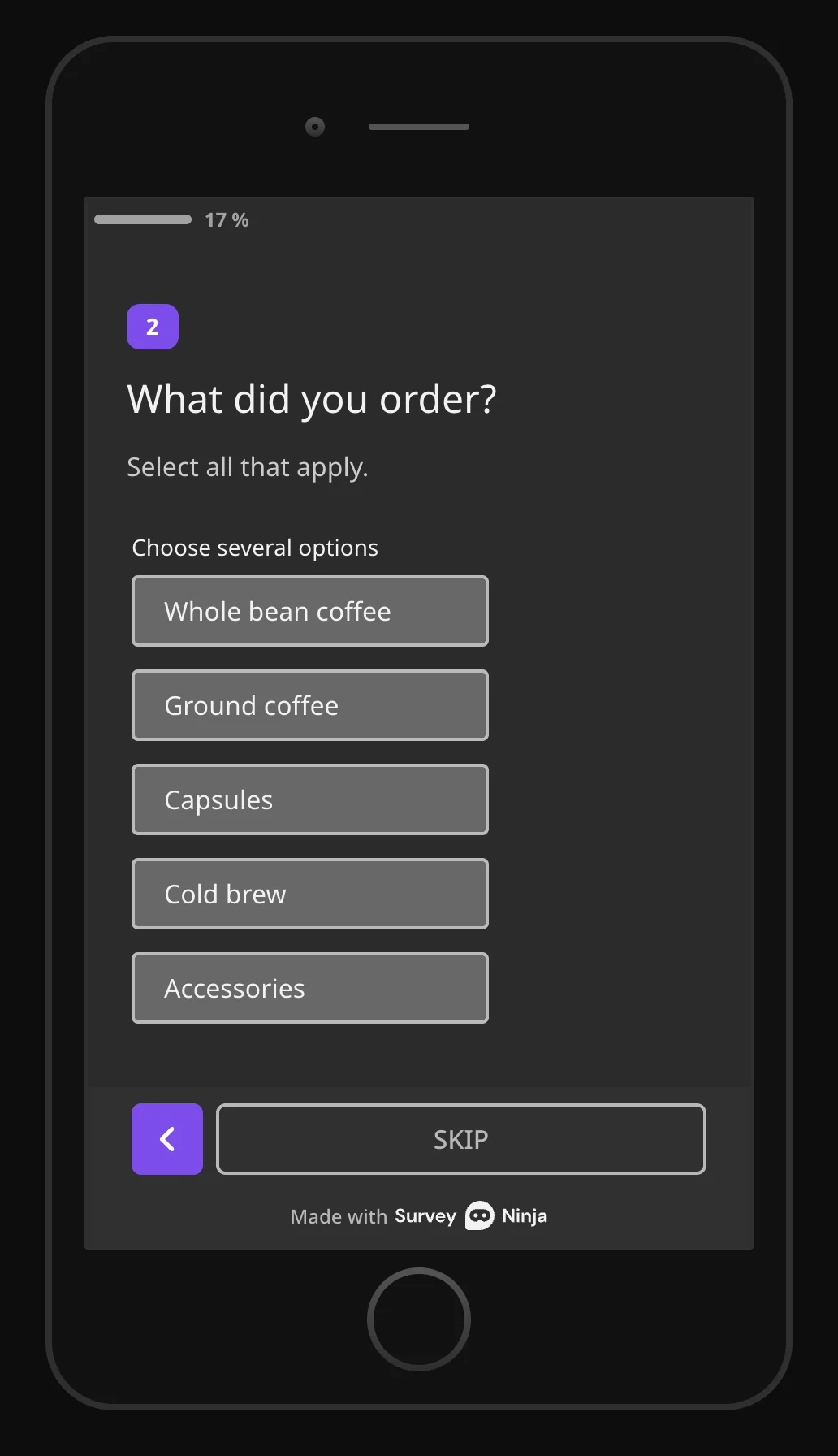
Use the 3 icons in the middle of the bar under the top menu (1) to switch between a phone, a tablet and a desktop screen. The survey is shown at the selected screen size.
Restarting the preview
Click Reset responses on the left of the bar (2 on the first screenshot) to clear your answers and start the survey from the first screen.
Note. Responses given in preview are not saved and don't appear in the results. Promo codes are not issued in preview either.
Preview doesn't open for an empty survey, so add at least one question first. When everything looks right, publish the survey so respondents get the latest version.