


 25 Questions for a Construction Customer Satisfaction Survey
SSO Configuration
Updated
-
Free: not included -
Basic: not included -
Standard: not included - Premium
- Enterprise
On this page
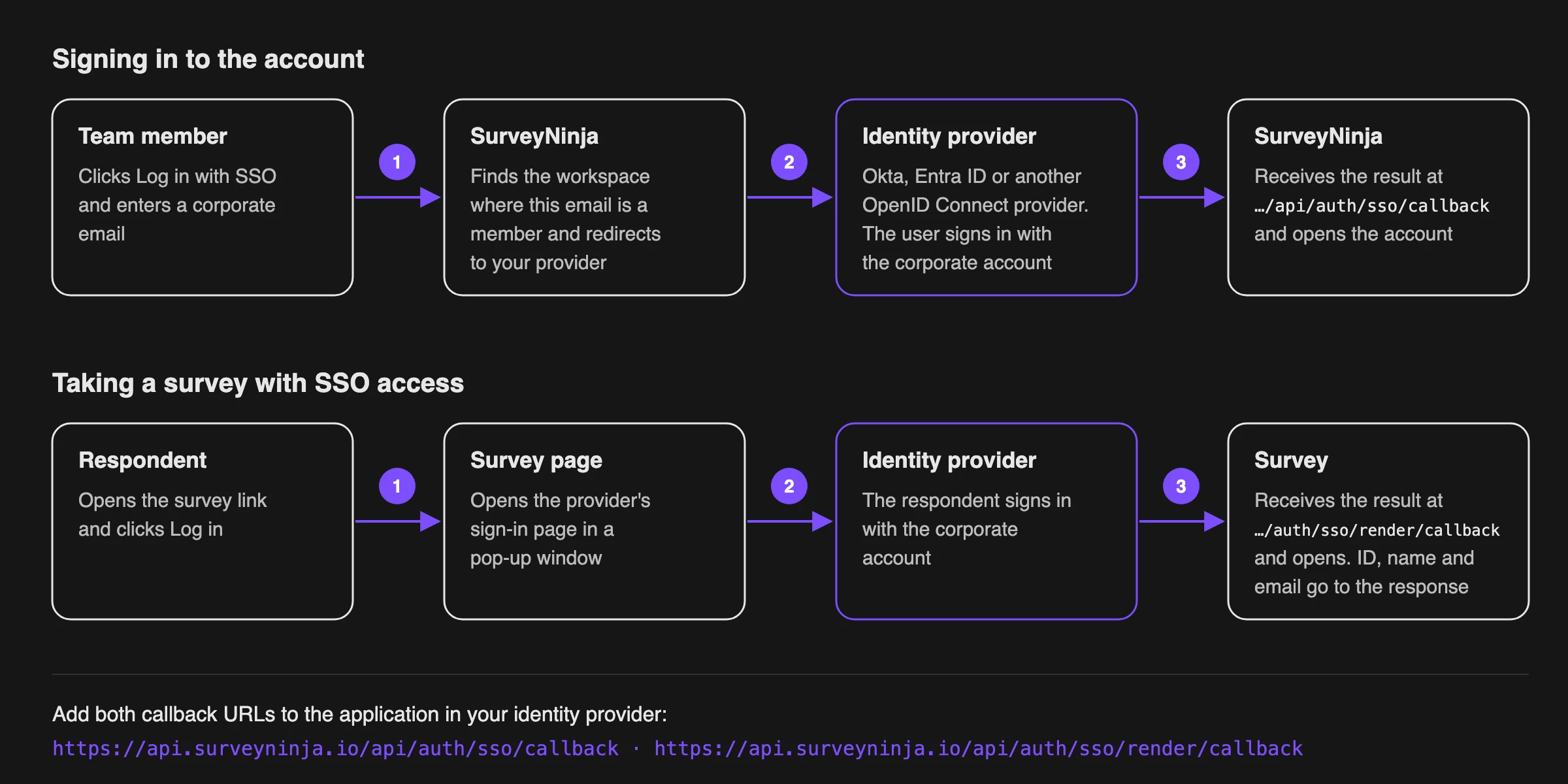
SurveyNinja supports single sign-on (SSO) through OpenID Connect (OIDC). You can use it in two ways:
- Sign-in to the account. Members of your workspace sign in with their corporate account instead of a password.
- Access to surveys. A survey opens only after the respondent signs in through your identity provider. The respondent's ID, name and email are added to the response automatically.
Before you start
Only the account owner can set up SSO. In your identity provider (IdP), create a web application that uses OpenID Connect and add two redirect (callback) URLs:
https://api.surveyninja.io/api/auth/sso/callback
https://api.surveyninja.io/api/auth/sso/render/callback
The first one is used for signing in to the account, the second one for surveys. SurveyNinja requests the openid, profile, email and offline_access scopes, so the application must be allowed to issue them.
From the application settings, copy three values: the OpenID Connect configuration URL (it usually ends with /.well-known/openid-configuration), the client ID and the client secret.
Connecting your identity provider
- Click your profile icon in the top right corner and choose Profile.
- In Sign-in and security, click Login via SSO.
- In the SSO Settings window, fill in the fields:
Field What to enter Publicly Accessible OpenID Connect (OIDC) Configuration URL (1) The configuration (discovery) URL of your IdP Client ID (2) The client ID of the application Client Secret (3) The client secret of the application Automatically Add Data to Response (4) The data to save with survey responses: ID, Name, Email. Choose at least one - Click Save (5).
- Turn on the Login via SSO switch (6) at the bottom of the window.
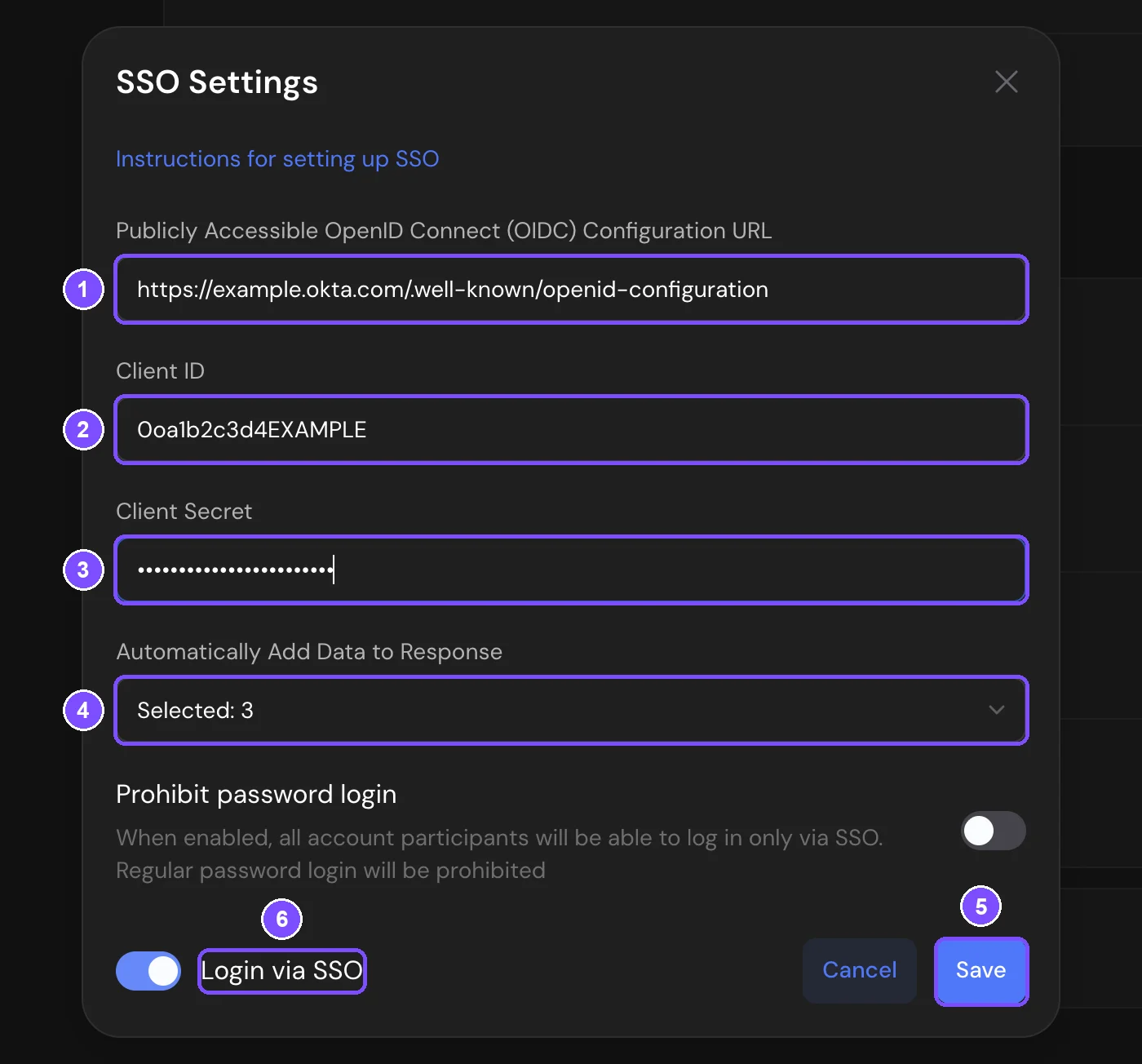
SSO is now on. In your profile, the Login via SSO row shows Connected. SurveyNinja doesn't check the provider settings when you save them, so test sign-in right away.
Signing in with SSO
SSO sign-in works only for members of your workspace. Invite each employee in Members using their corporate email. If an employee doesn't have a SurveyNinja account yet, it is created on their first SSO sign-in.
To sign in, an employee:
- Opens the SurveyNinja sign-in page and clicks Log in with SSO.
- Enters their Corporate email and clicks Log in.
- Signs in to the identity provider in the pop-up window.
The window closes, and the employee is taken to the account.
SurveyNinja checks the session with your identity provider every 5 minutes. If you block a user in the IdP, they also lose access to SurveyNinja.
Prohibiting password sign-in
In the SSO Settings window, turn on Prohibit password login. After that, all members of the workspace can sign in only through SSO. If they try to use a password, they see "SSO is enabled for the account. Log in via SSO".
Important. Before you turn this on, check SSO sign-in in a private browser window, including for your own email. If the provider settings are wrong, nobody in the workspace will be able to sign in with a password.
Restricting a survey to SSO users
- Open the survey and go to Settings.
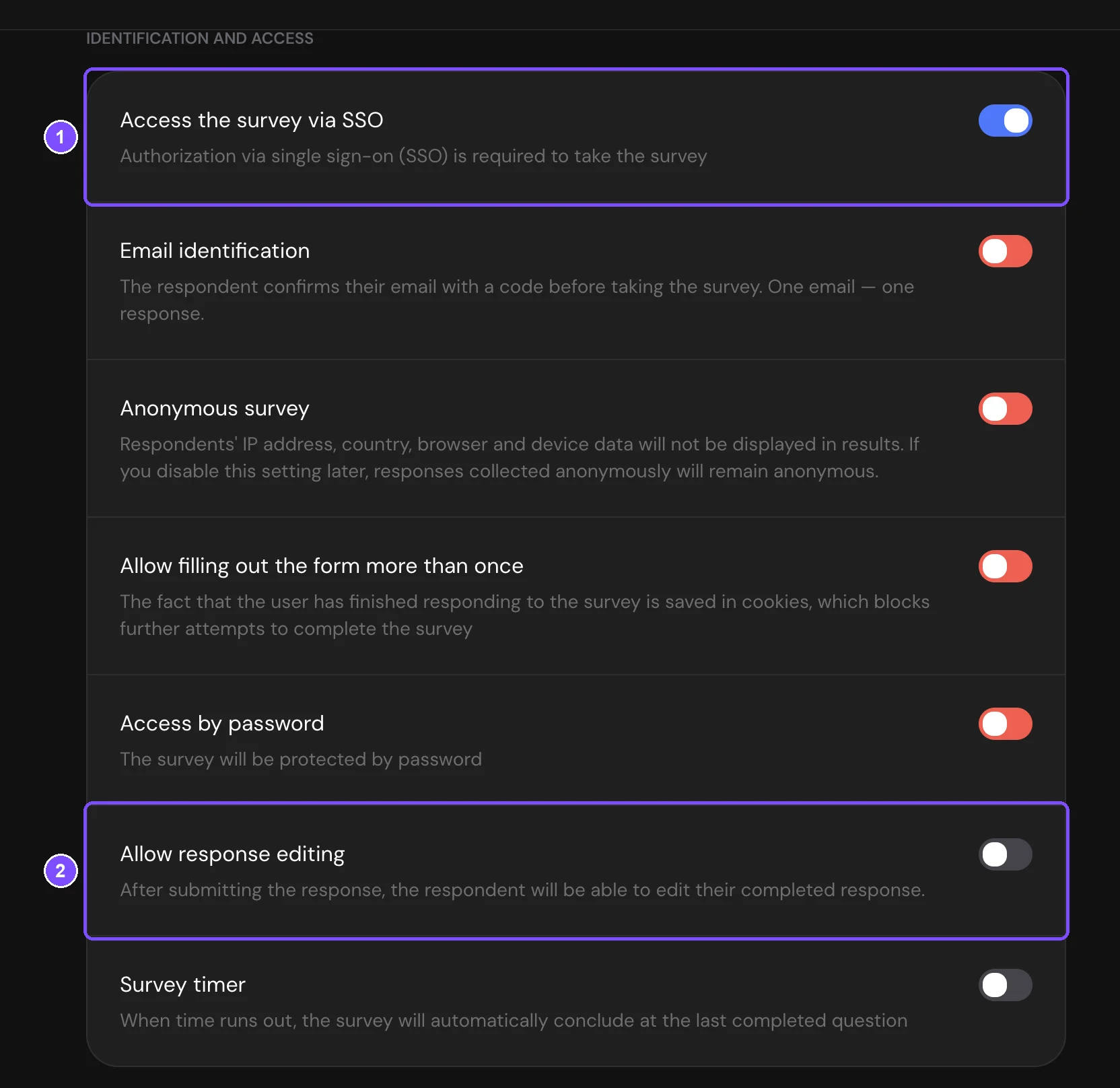
- In Identification and access, turn on Access the survey via SSO (1).
- Publish the survey to apply the change.
What respondents see:
- The survey opens with the Log in via SSO screen and the Log in button.
- After clicking it, the respondent signs in to your identity provider in a pop-up window.
- The window closes and the survey starts.
Respondents don't need to be workspace members, only users of your identity provider. Each person can respond once. If they open the survey again, they see You have already answered. To let them change a submitted response, also turn on Allow response editing (2) in the same section. The respondent then gets the Edit responses button.
The data you chose in Automatically Add Data to Response is saved with each response, so respondents don't have to type their name or email.
Setting up Okta
- In the Okta Admin Console, go to Applications → Applications and click Create App Integration.
- Select OIDC - OpenID Connect and Web Application, then click Next.
- In Grant type, keep Authorization Code and also select Refresh Token.
- In Sign-in redirect URIs, add both SurveyNinja callback URLs.
- In Assignments, choose who can use the application, then click Save.
- Copy the Client ID and Client secret into the SurveyNinja SSO settings.
- In the configuration URL field, enter the address below, replacing the domain with your Okta domain:
https://{your-okta-domain}/.well-known/openid-configuration
Setting up Microsoft Entra ID
- In the Azure portal, open Microsoft Entra ID → App registrations and click New registration.
- Enter a name, for example "SurveyNinja SSO". In Redirect URI, choose Web and paste the first callback URL. Click Register.
- Open Authentication and add the second callback URL.
- Copy the Application (client) ID into the Client ID field.
- In Certificates & secrets, create a new client secret and copy its Value into the Client Secret field.
- In API permissions, add the Microsoft Graph delegated permissions openid, profile, email and offline_access, then grant admin consent.
- In the configuration URL field, enter the address below. Replace {tenant-id} with your Directory (tenant) ID:
https://login.microsoftonline.com/{tenant-id}/v2.0/.well-known/openid-configuration
Limits
- Only OpenID Connect providers are supported. SAML is not supported.
- You can connect one identity provider.
- Access the survey via SSO can't be combined with Email identification, Anonymous survey, Allow filling out the form more than once and Access by password. While SSO access is on, their switches turn red and can't be turned on. If one of them is already on, the SSO switch is inactive.
If something doesn't work
- "This email is not linked to SSO in the personal account." The employee is not a member of a workspace with SSO. Invite them in Members with this email.
- "Single sign-on is disabled for your organization." The Login via SSO switch in SSO Settings is off, or the provider settings are incomplete. Check the fields and turn the switch on.
- Nothing opens after clicking Log in. The browser blocked the pop-up window. Allow pop-ups for SurveyNinja.
- The identity provider returns an invalid_scope error. The application is not allowed to issue all the scopes. Allow openid, profile, email and offline_access: in Okta, select the Refresh Token grant type; in Microsoft Entra ID, add the offline_access permission.
- The Save button in SSO Settings is inactive. The client secret is not shown after saving. Enter it again to save any change.
- The Access the survey via SSO switch is inactive. SSO is not set up, or Login via SSO is turned off in the profile. The tooltip on the switch says "SSO is not configured". If the tooltip names another setting, turn that setting off first (see Limits).