


 25 Questions for a Construction Customer Satisfaction Survey
Custom Templates
Updated
On this page
A template is a copy of a survey that you and your team can reuse. It's handy for surveys you run again and again: regular NPS or eNPS, onboarding forms, candidate evaluations, studies with the same structure.
Making a template
- On the dashboard, click the three dots in the bottom right corner of the survey card.
- Click Make template (1).
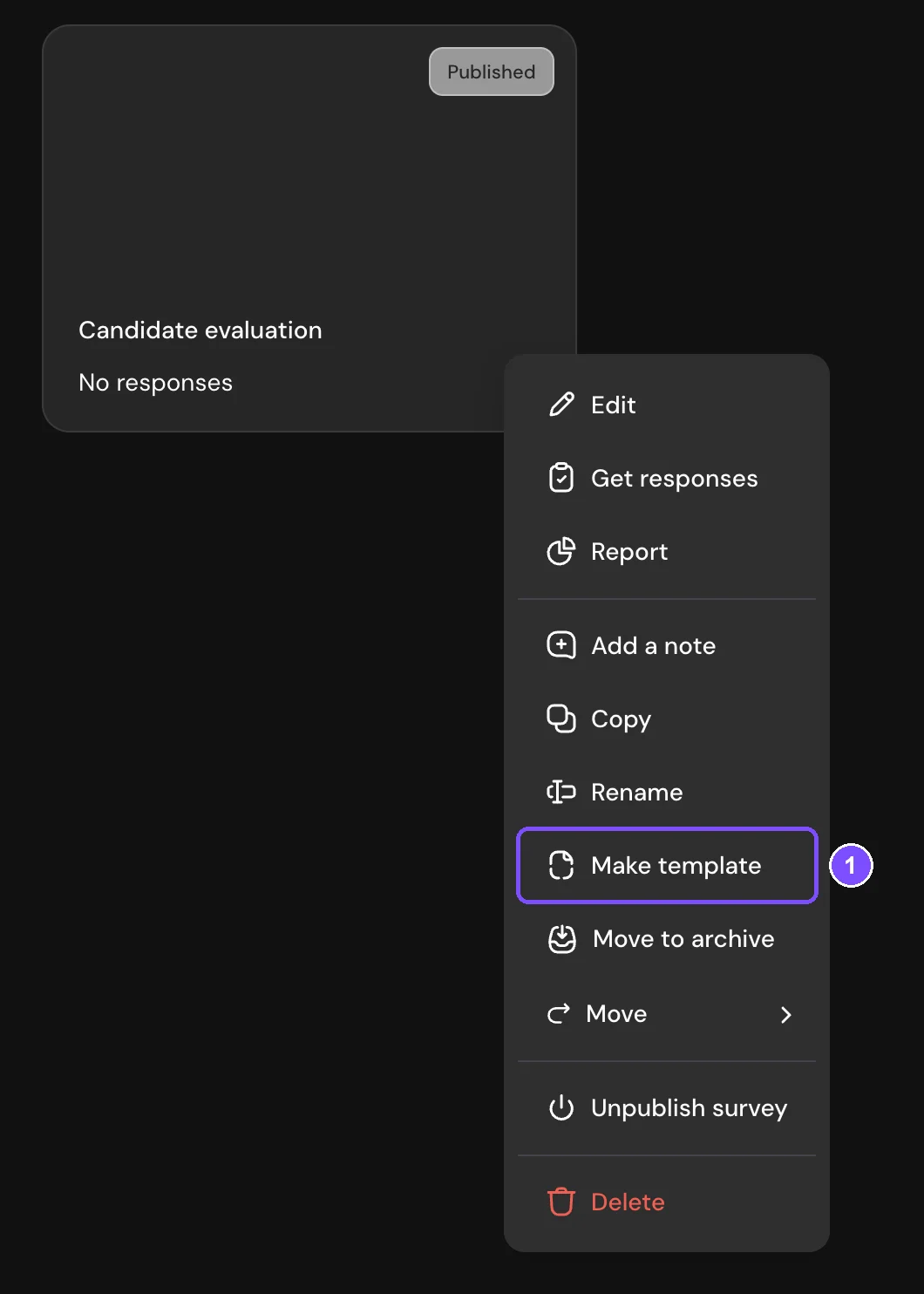
The message "Questionnaire saved as a template" appears, and the template shows up in My templates in the left panel of the dashboard. The original survey stays as it was.
What a template copies
A template copies the survey as it is in the builder:
- Questions, screens and answer options.
- Logic jumps and scores.
- The design theme.
- Survey settings and hidden variables.
Responses, email notifications and connected integrations such as Google Sheets, Telegram and webhooks aren't copied. Questions, logic and settings of the template and the original survey are independent: changes in one don't affect the other. The design theme is shared: if the survey uses your own theme and you edit that theme, the change shows up in both.
Note. Google Analytics and Meta Pixel codes are stored in the survey settings, so they are copied to the template and to every survey created from it. These surveys send data to the same counter, but their Integrations page doesn't show it. To avoid this, turn off Google Analytics and Meta Pixel in the original survey before you make the template, then turn them back on.
Creating a survey from a template
- On the dashboard, click Create new survey.
- Choose Survey from template. The Survey templates window opens.
- Open the My templates tab (1).
- Hover over a template and click Preview (2).
- Check the template in the preview and click Choose this template.
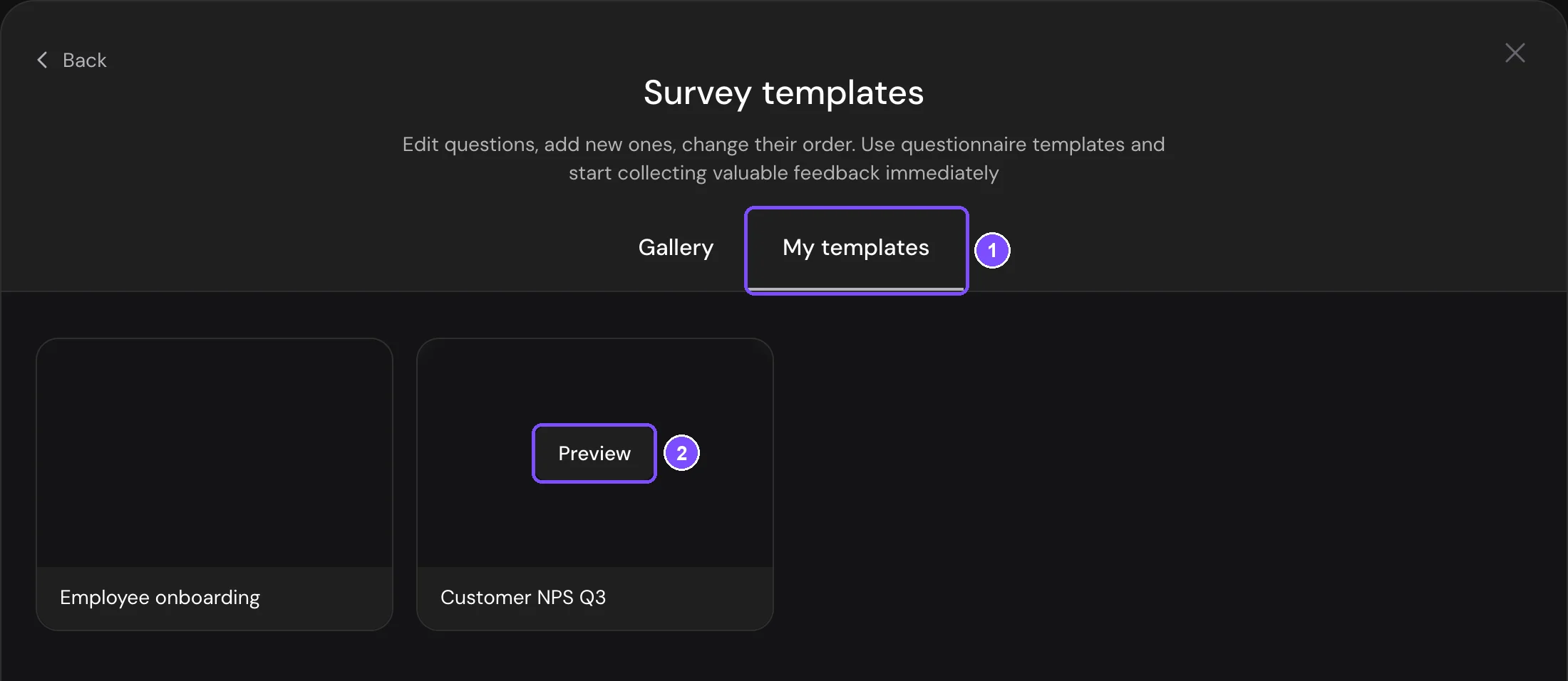
A new survey is created in the workspace that's open on the dashboard, and the builder opens. Edit the survey if needed and publish it.
Managing templates
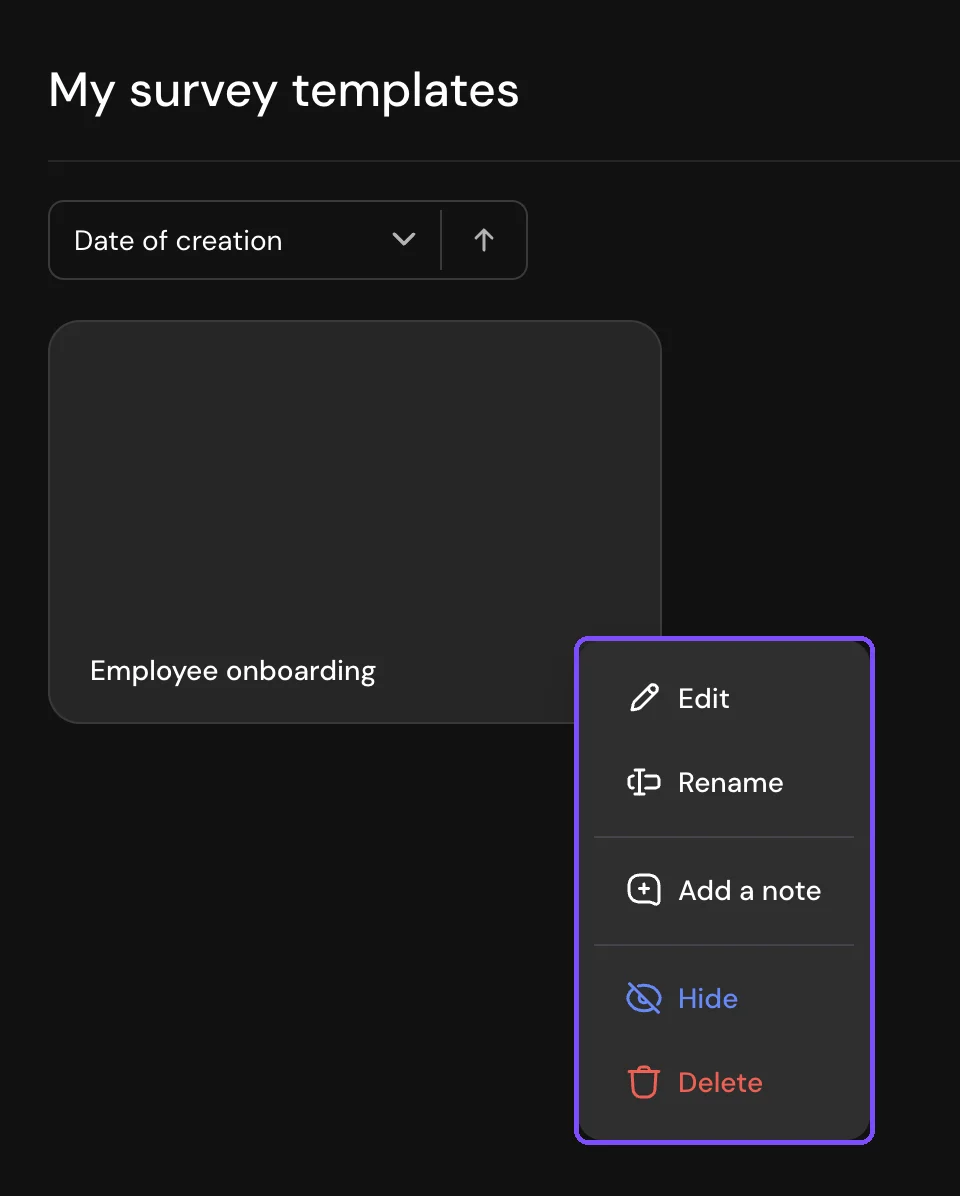
Click My templates in the left panel of the dashboard. The My survey templates page opens. Click the three dots on a template card to open its menu:
- Edit opens the template in the builder. While you edit a template, the top menu shows Template instead of Survey, there are no Share and Results sections, and the second row has only Builder, Logic map, Design and Settings.
- Rename changes the template name.
- Add a note adds a short note to the card. If the note exists, the item is called Edit a note.
- Hide removes the template from the My templates tab in the survey creation window. The template stays in My templates on the dashboard. Show returns it.
- Delete deletes the template. Confirm with Delete template. Surveys already created from it aren't affected.
Limits
- To make templates, open My templates on the dashboard and hide or show templates, a team member needs the Manage survey templates permission in their role. By default, the Owner and Administrator roles have it and the Member role doesn't. See Team Members and Roles.
- Templates belong to the whole account. Every member sees them on the My templates tab of the survey creation window, even without this permission and whatever workspaces they can open.
- The My templates tab in the survey creation window shows the 20 newest templates that aren't hidden. Hide the ones you don't use so that the others appear there. All templates stay on the My survey templates page.
- A survey created from a template counts toward your plan's survey limit. Templates don't.