 Google Forms Limits: Responses, File Uploads, Timers and Logic, With Workarounds
PDF to quiz with AI Beta
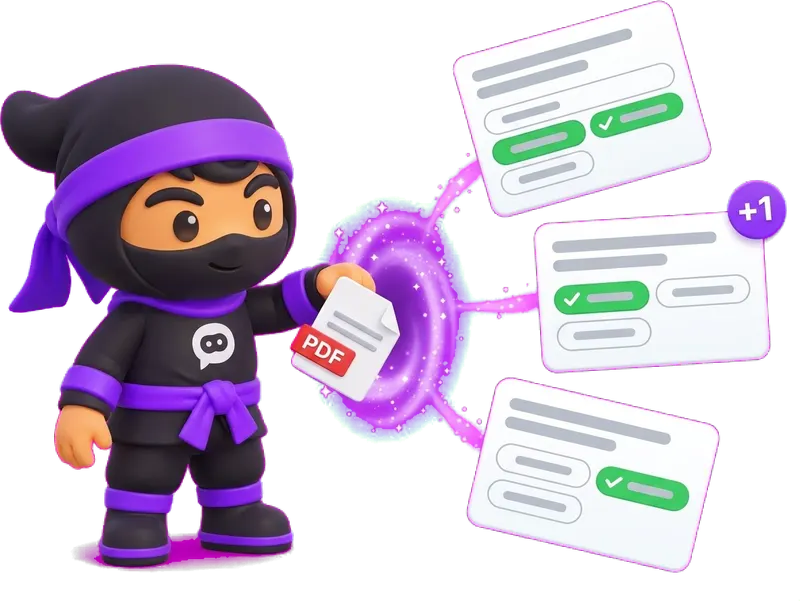
Turn a PDF into a quiz with the right answers already marked.
Attach a textbook chapter, a handbook or lecture notes to Ninja AI and ask for a quiz. It drafts the questions, marks the right answers and sets the points, and you check every question before it goes in.
Free plan: 50 surveys and 100 responses a month, Ninja AI included. What's free →
- PDF and WordFiles up to 10 MB, up to five in one message.
- Answers markedRight answers and points set for you.
- You approveNothing goes in until you click Add to survey.
- Free planNinja AI works on every plan.
How to turn a PDF into a quiz.
A few minutes from the file to a link you can send.
- 1
Attach the PDF
Create a survey, open Ninja AI with its button or ⌘J (Ctrl+J on Windows), click + and choose the file.
- 2
Ask for the quiz
Say how many questions, which chapter, one right answer each and how many points.
- 3
Check and add
Read the preview, ask for changes, then click Add to survey and share the link.
What to ask for.
The clearer the request, the closer the first draft. A few that work well:
- Chapter test
Ten multiple-choice questions on chapter 4, one right answer each, 1 point per question.
- Staff training
A short quiz on this safety handbook: eight questions with the right answers marked.
- Policy check
Six yes/no questions on the new expense policy, with the right answer marked.
- Product knowledge
A quiz for the sales team from this price list and spec sheet, two points for each right answer.
- Exam practice
Fifteen questions from these lecture notes, easy first, and shuffle the question groups.
- Course review
Five questions to check last week's module, then one open question: what is still unclear?
Then keep editing in the same chat.
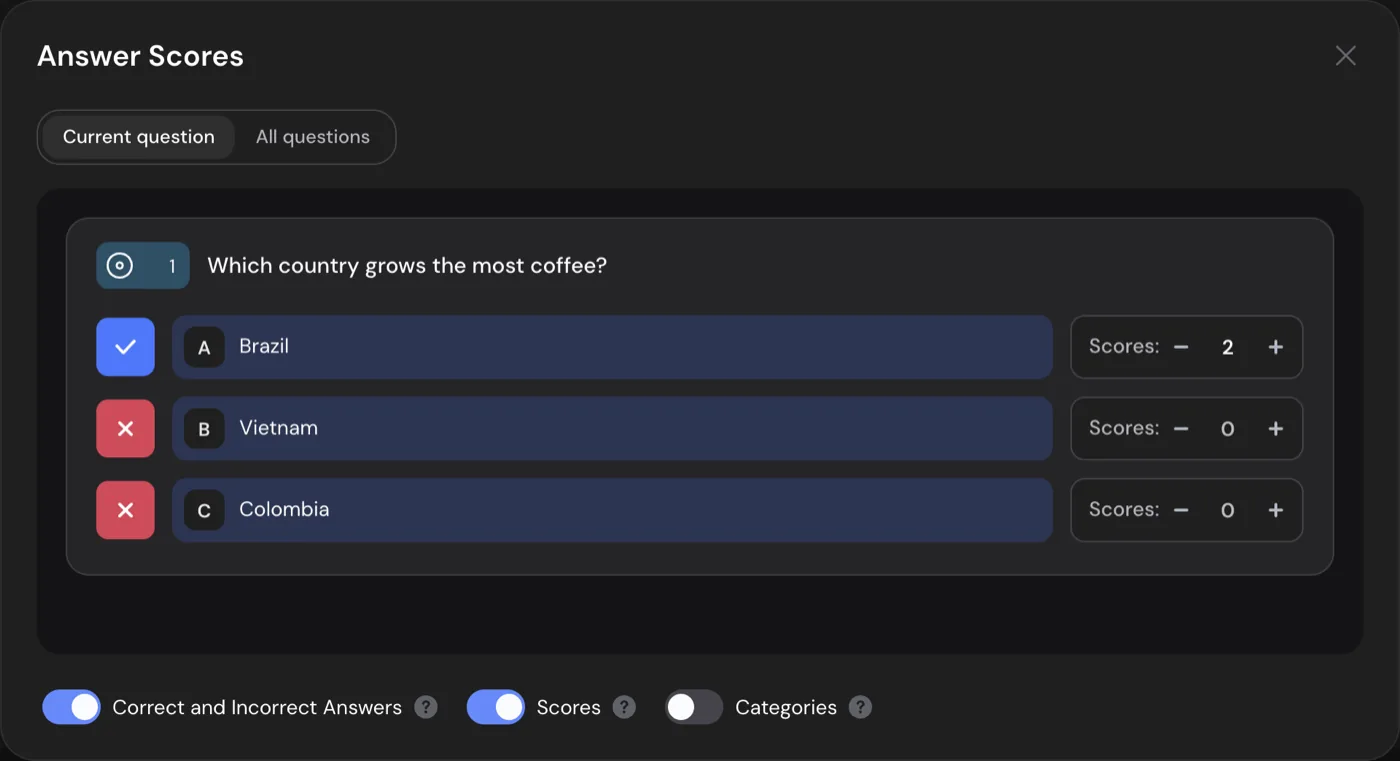
Ninja AI changes the quiz it just made: questions, answers, points and logic. Each change shows as a card with what will change, and you apply it or decline it.
- Mark or move the right answer in any question.
- Set points per answer, or turn scoring off for a warm-up question.
- Send people to a different message by their score.
- Or use the quick actions on a question to rephrase it, shorten it or make it more neutral.
What you can attach.
Up to five files in one message to Ninja AI.
- PDF and DOCXTextbook chapters, handbooks, policies and lecture notes, up to 10 MB each.
- PicturesA photo of a page, a slide or a diagram: PNG, JPG, WebP or GIF up to 10 MB.
- Text and tablesTXT, Markdown, CSV and JSON up to 1 MB, for a glossary or a list of terms.
- Or just describe itNo file at hand? Describe the topic and the level, and Ninja AI drafts the quiz from that.
People see how they did.
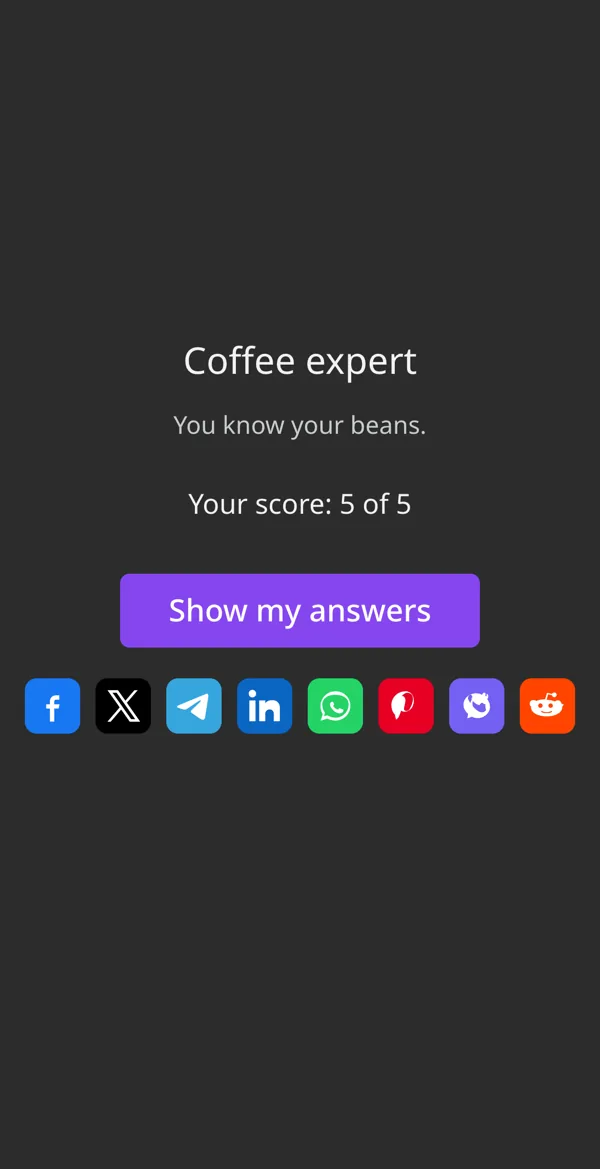
The quiz scores itself as people answer. Show the score and a message for each score range at the end, or send people to a message screen by their score.
- Right answers, points and logic by score on every plan, Free included.
- The score, a message for each score range and the answers marked right or wrong on the last screen from the Basic plan.
- Every response and score in Results, ready to export.
What's free, and what comes next.
Ninja AI, right answers, points and logic by score are free. Paid plans add the result screen, more responses and no branding.
| What you get | Free | Basic | Standard | Premium |
|---|---|---|---|---|
| Price | $0 | $10.50/mo | $25.90/mo | $48.30/mo |
| Responses a month | 100 | 1,000 | 5,000 | 20,000 |
| Surveys | 50 | 100 | 500 | Unlimited |
| Ninja AI with PDF and Word files | Yes | Yes | Yes | Yes |
| Right answers and points | Yes | Yes | Yes | Yes |
| Logic by score | Yes | Yes | Yes | Yes |
| Score and message by score range on the last screen | No | Yes | Yes | Yes |
| Show people their answers, right and wrong | No | Yes | Yes | Yes |
| Without SurveyNinja branding | No | No | Yes | Yes |
Prices per month, billed yearly, in USD. All plans and prices →
More ways to build a quiz.
Already paying for a quiz tool?
Send us a screenshot of your invoice and get a month of Premium free. Our team also helps you move your quizzes to SurveyNinja.
Questions and answers
How do I turn a PDF into a quiz?
Create a survey in SurveyNinja, open Ninja AI, click + to attach the PDF and ask for a quiz, for example ten multiple-choice questions with one right answer each. Check the preview and click Add to survey.
Is it free?
Yes. Ninja AI works on every plan, and the Free plan includes 50 surveys and 100 responses a month, with right answers, points and logic by score. No credit card.
Which files can I use?
PDF and DOCX up to 10 MB, pictures (PNG, JPG, WebP, GIF) up to 10 MB, and TXT, Markdown, CSV and JSON up to 1 MB. You can attach up to five files in one message.
Does it mark the right answers?
Yes, if you ask. Ninja AI turns on right answers and points and sets them for each option. Check them in the preview: you know the material, and nothing goes into the quiz until you approve it.
Can I make a quiz from a Word document or a photo?
Yes. Attach a DOCX file the same way as a PDF, or a photo of a page or a slide as a picture.
Can I edit the questions afterwards?
Yes. Ask Ninja AI for changes in the same chat, use the quick actions on a question to rephrase or shorten it, or edit it by hand in the builder.
In which languages does it work?
Ninja AI answers in the language of your message: English, Spanish or Portuguese. Write the request in the language the quiz should be in.
Do people see their score?
From the Basic plan, the last screen shows the score, a message for each score range and the answers marked right or wrong. On the Free plan, logic by score sends people to a message screen for their result.
Didn't find the answer? Write to team@surveyninja.io or use the contact page.

Your PDF can be a quiz in minutes.
Start free with no credit card, attach the file to Ninja AI and send the link.