 25 Questions for a Travel Agency Customer Satisfaction Survey

Ninja AI: the Assistant in the Builder
Updated
On this page
Ninja AI is a chat assistant inside the survey builder. Describe what you need, and it builds the survey or changes the one you have: questions, logic, design, settings and notifications. Nothing changes until you apply it. Ninja AI works on every plan, Free included. The feature is in beta.
Ninja AI works only in the survey builder. The results page doesn't have it. To get a draft from the dashboard instead, see Creating a Survey with AI.
Opening Ninja AI
- Open a survey in the builder.
- Click Ninja AI in the header (1), or press ⌘J on a Mac or Ctrl+J on Windows.
The chat opens in a panel next to the survey. On screens narrower than 1000 px, Ninja AI is a round button, and the chat opens as a sheet from the bottom of the screen.
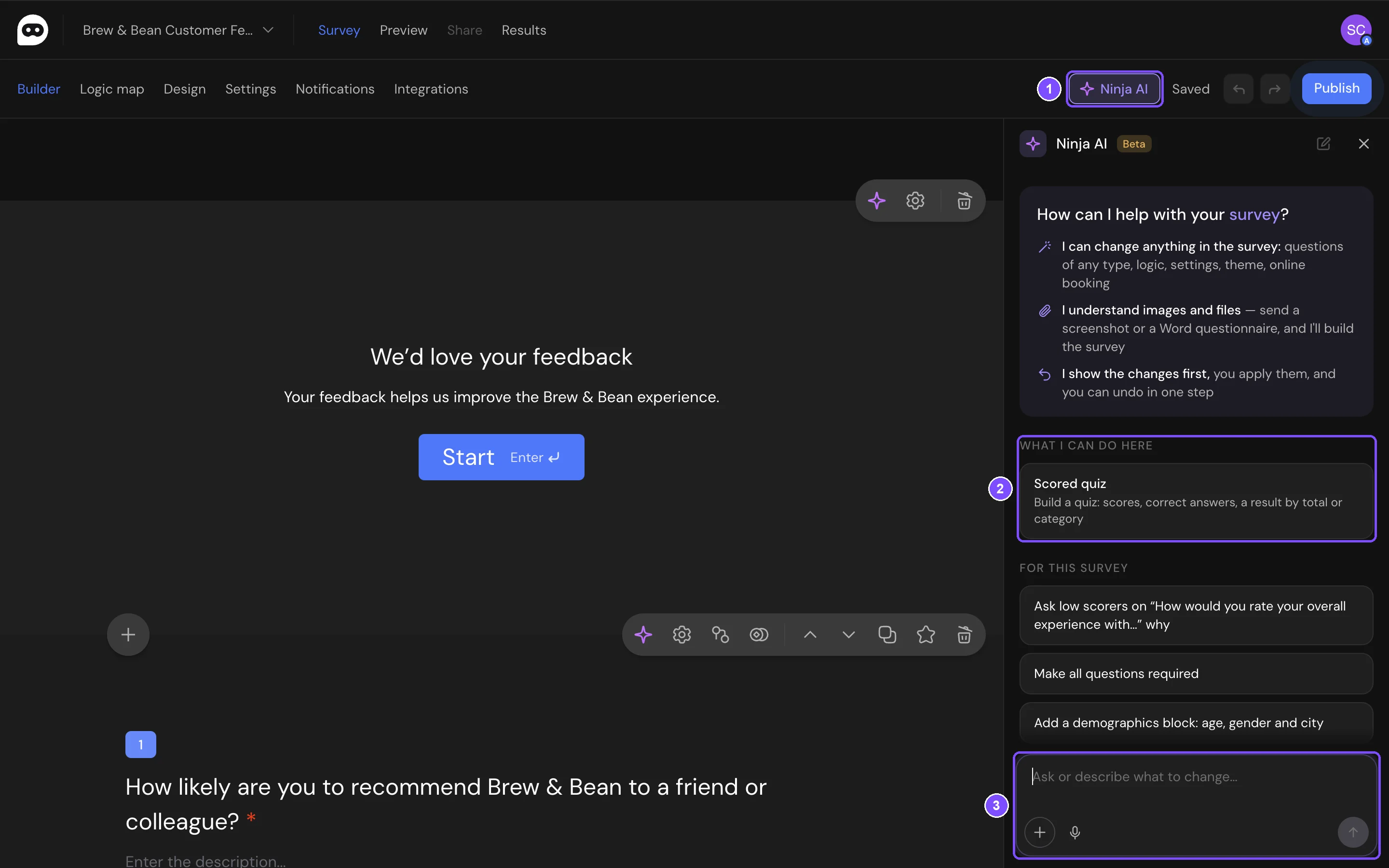
In a new chat, the What I can do here block lists what the assistant can do on the current tab (2). Click a suggestion to send it as a message, or type your own request in Ask or describe what to change… (3).
Building a survey from a description or a file
In an empty survey, Ninja AI shows its own field: Describe your survey and Ninja AI will build it.
- Describe the survey: who answers it, what you want to find out and how many questions you need. You can also click one of the examples under the field.
- To build a survey from a questionnaire you already have, click the paperclip Upload a questionnaire in the field and choose a Word or PDF file or a screenshot.
- Click the arrow Build survey.
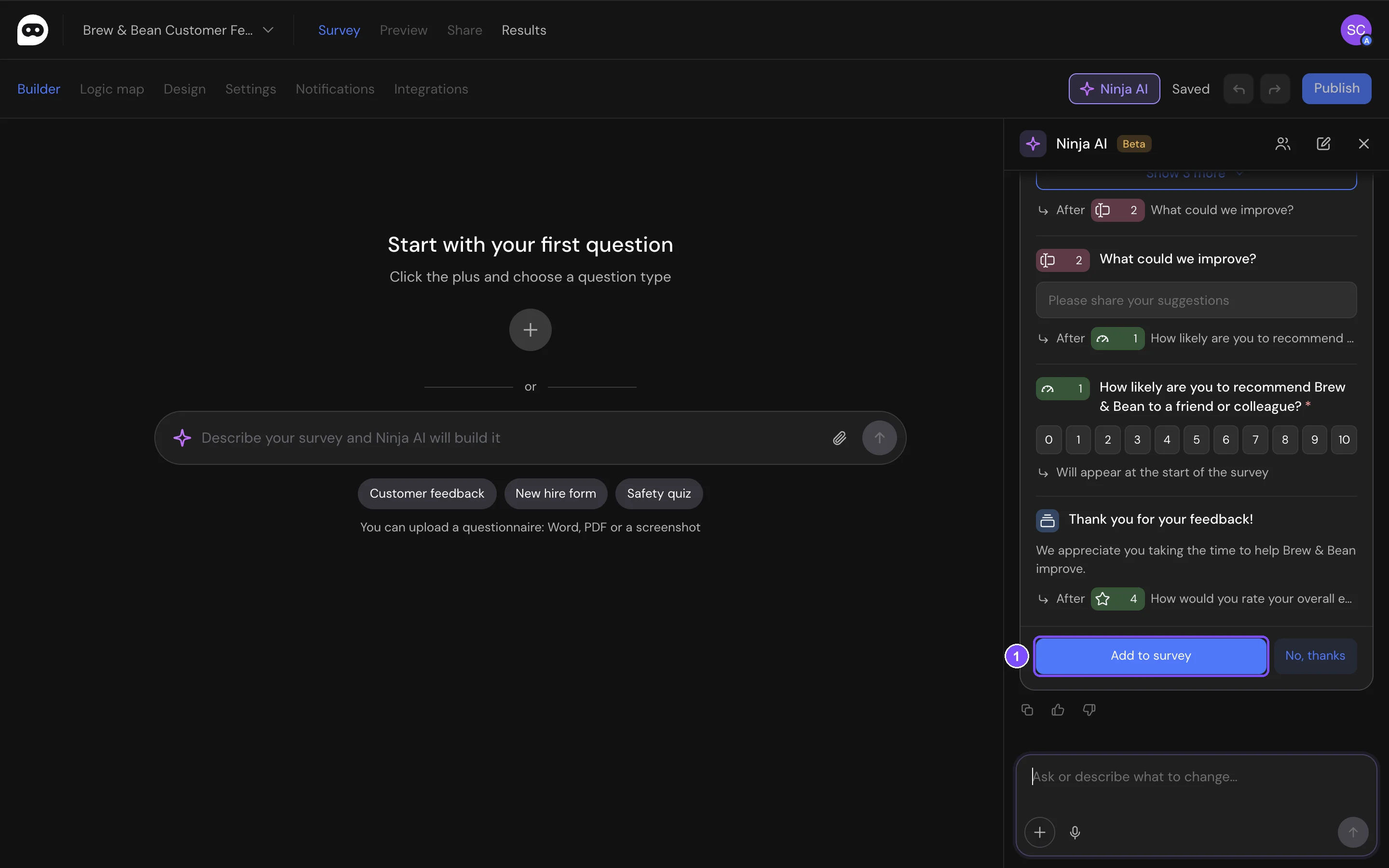
Ninja AI shows the new survey as a card with its screens and questions. Check it and click Add to survey (1), or No, thanks to drop it. The new questions appear on the canvas with the Added by AI label.
Asking for changes
Write what to change in plain words, for example:
- Add an open question at the end: what should we improve.
- Show the open question only to people who rate the taste 3 or lower.
- Make all questions required.
- Use a dark theme with a purple accent.
- Send new responses to anna@example.com.
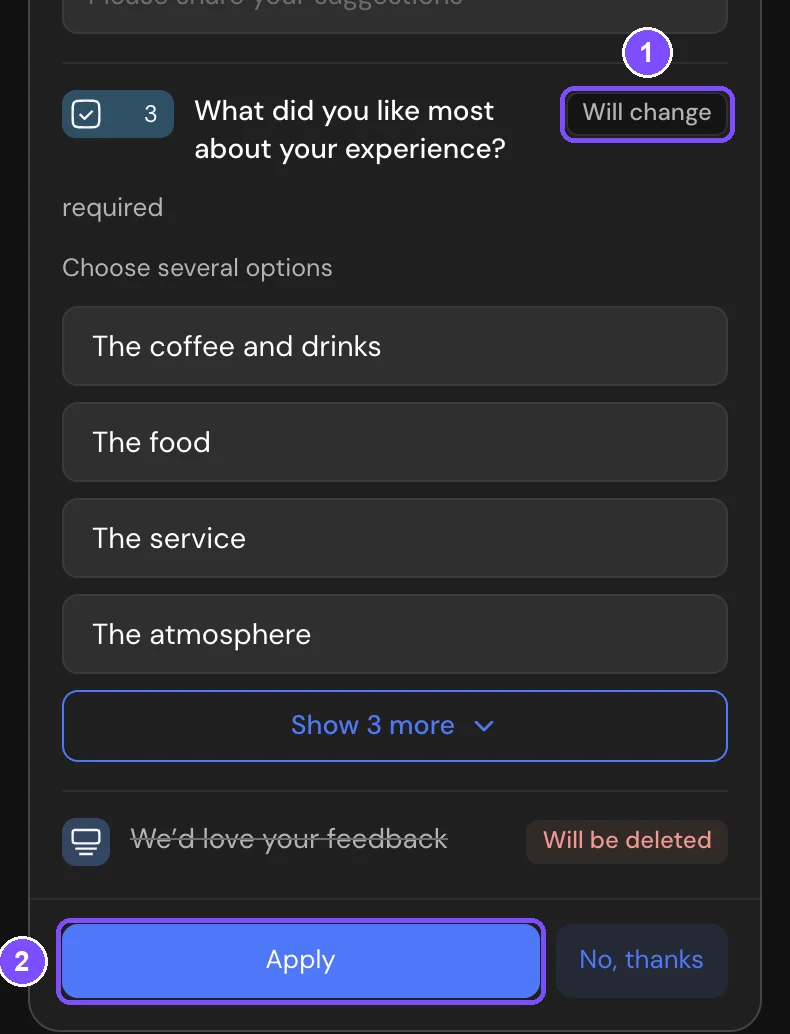
Ninja AI answers with a card that shows each change before it happens. Labels on the card say what will happen to each item (1): New, Will change, Will move or Will be deleted.
- Read the card. If the change affects other questions, for example removes part of their logic, the card says so.
- Click Apply (2). The card shows Applied.
- To see the result, click Show on canvas. To roll the change back, click Undo.
To drop a suggestion without applying it, click No, thanks.
If you edit the survey while a card is open, Ninja AI recalculates the change and asks you to review it again.
What Ninja AI can change
- Questions: add, edit, move and delete questions and answer options.
- Logic: jumps, ending the survey, disqualification, showing and hiding questions, quotas.
- Tests: scores, correct answers and test results.
- Variants: A/B wording and random order of question groups.
- Design: the theme, colors and the look of the survey.
- Settings: button texts, passwords, promo codes, unique links, the survey address and the preview for social networks.
- Notifications: new response emails and their recipients.
- Integrations: a webhook, with a test request. An integration that needs signing in to another service you connect yourself.
- Booking: the schedule for online booking.
Attaching files, images and questions
Click + next to the message field. You can add up to 5 attachments to one message.
- Image or screenshot: PNG, JPG, WebP or GIF, up to 10 MB. For example, a photo of a paper questionnaire or a screenshot of a survey you like.
- Text file: TXT, MD, CSV or JSON up to 1 MB, DOCX or PDF up to 10 MB.
- Question from the survey: points the assistant to one question, so you can write "rephrase this" or "add options".
- Skills: ready requests for common tasks.
To dictate a message instead of typing it, click Dictate. The first time, the browser asks for access to the microphone.
Improving one question
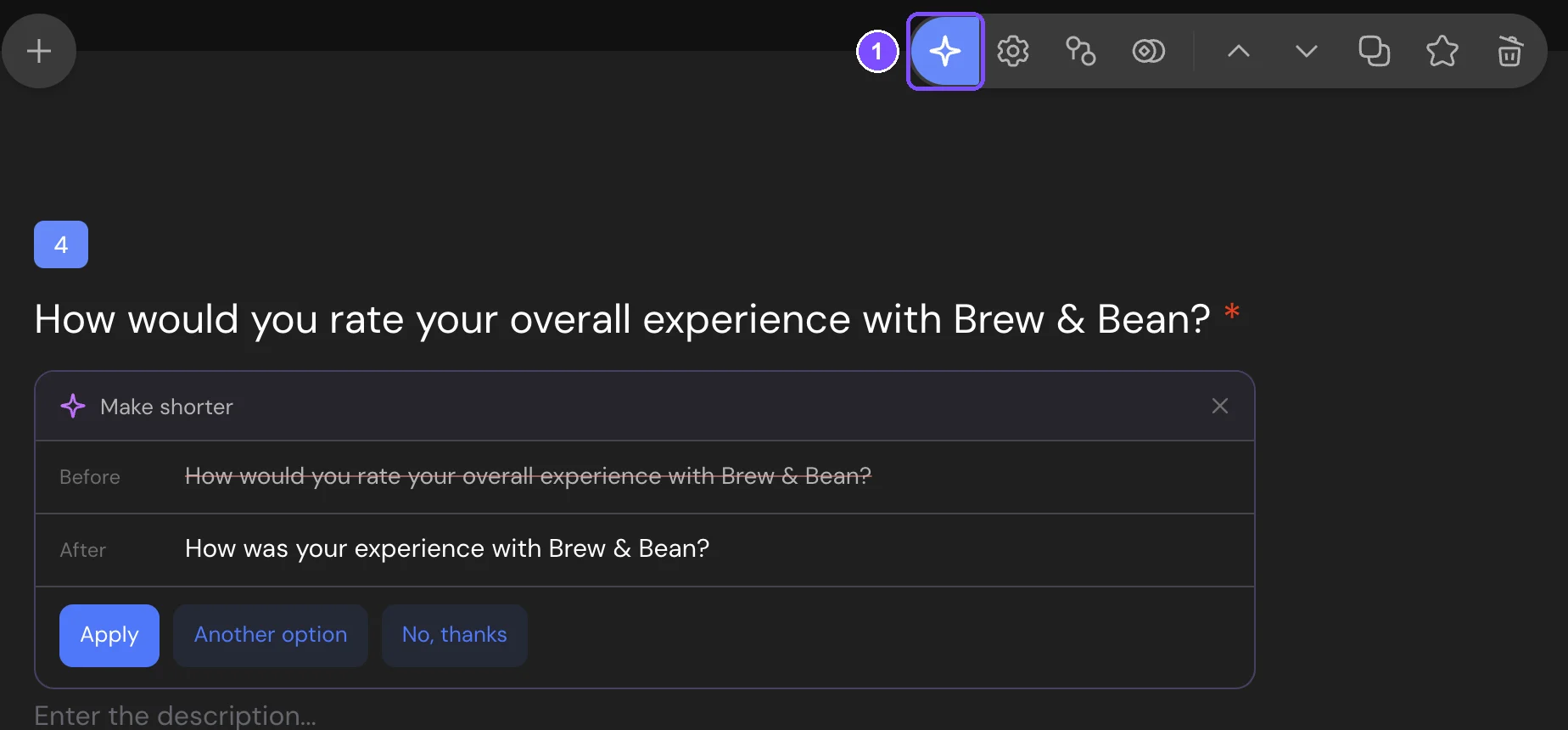
Each question on the canvas has an AI for question button.
- Click AI for question (1) in the question's toolbar.
- In the AI for this question menu, choose an action: Rephrase, Make shorter, Make more neutral or Check for errors. To discuss the question in the chat, choose Open in chat.
- Compare Before and After. Click Apply to keep the new version, Another option to get a different one, or No, thanks to leave the question as it is.
Publishing
Ninja AI doesn't publish a survey by itself. When the survey looks ready, it suggests a Publish the survey? card. The card shows the number of questions and the result of the logic check, and it names what blocks publishing, such as a question without options or a logic error. Click Publish on the card when you're ready. Respondents see the new version right away, and the link stays the same.
Starting a new chat
To start from scratch, click New chat and confirm with Start new. The assistant won't remember the old conversation. Changes you already applied stay in the survey.
If something doesn't work
- "I can't read this format yet". Save the file as PNG, JPG, WebP, GIF, TXT, CSV, DOCX or PDF and attach it again.
- "Over 10 MB — compress it or send part of it". Compress the image, or split the document and send the part with the questions.
- "Too many attachments". Send the message with up to 5 attachments, then attach the rest to the next one.
- "The previous message is still in progress". The assistant is still answering, maybe in another browser tab. Click Stop that response, then send your message again.
- "No access to the microphone". Allow microphone access for app.surveyninja.io in your browser settings.
- "The survey changed while you were viewing the suggestion". The survey was edited after the card appeared. Review the recalculated card and click Apply again.