Google Forms Limits: Responses, File Uploads, Timers and Logic, With Workarounds
Tools and comparisons  Mike Taylor Nov 17, 2026 Reading time ≈ 18 min
Contents
- Google Forms limits at a glance
- How many responses can Google Forms handle?
- How to limit responses in Google Forms
- How many questions can a Google Form have?
- Google Forms file upload limits
- Does Google Forms have a timer?
- One response per person and the sign-in rule
- Branching and logic limits in Google Forms
- Design and analysis limits
- When Google Forms is enough, and when to switch
- How to handle these limits in SurveyNinja
- Frequently asked questions

Google Forms limits come in two kinds: hard caps and missing features. A form holds up to 300 items and 75 sections, takes up to 500,000 responses and 1 GB of data, and asks anyone who uploads a file to sign in to a Google account. It has no built-in timer or quotas. Below is every limit with the number from Google's own help pages, a workaround inside Google Forms, and the point where another tool makes more sense.
For a sign-up sheet or a class poll these limits never show. They matter when a form runs for months, collects files, works as a timed test or feeds a report someone has to defend. All numbers were checked on Google's help center on November 17, 2026; Google changes Forms often, so re-check before a big launch.
Key points
- Since September 2026 a Google Form accepts up to 500,000 responses and 1 GB of form and response data; uploaded files don't count toward the 1 GB.
- Some views stop earlier: above 10,000 responses the CSV is no longer sorted by time, above 50,000 the Summary tab may not load, above 100,000 the linked Sheet may stop syncing.
- Since January 2026 you can close a form automatically on a date or after a set number of responses, with no add-on.
- File uploads and "Limit to 1 response" both make respondents sign in to a Google account.
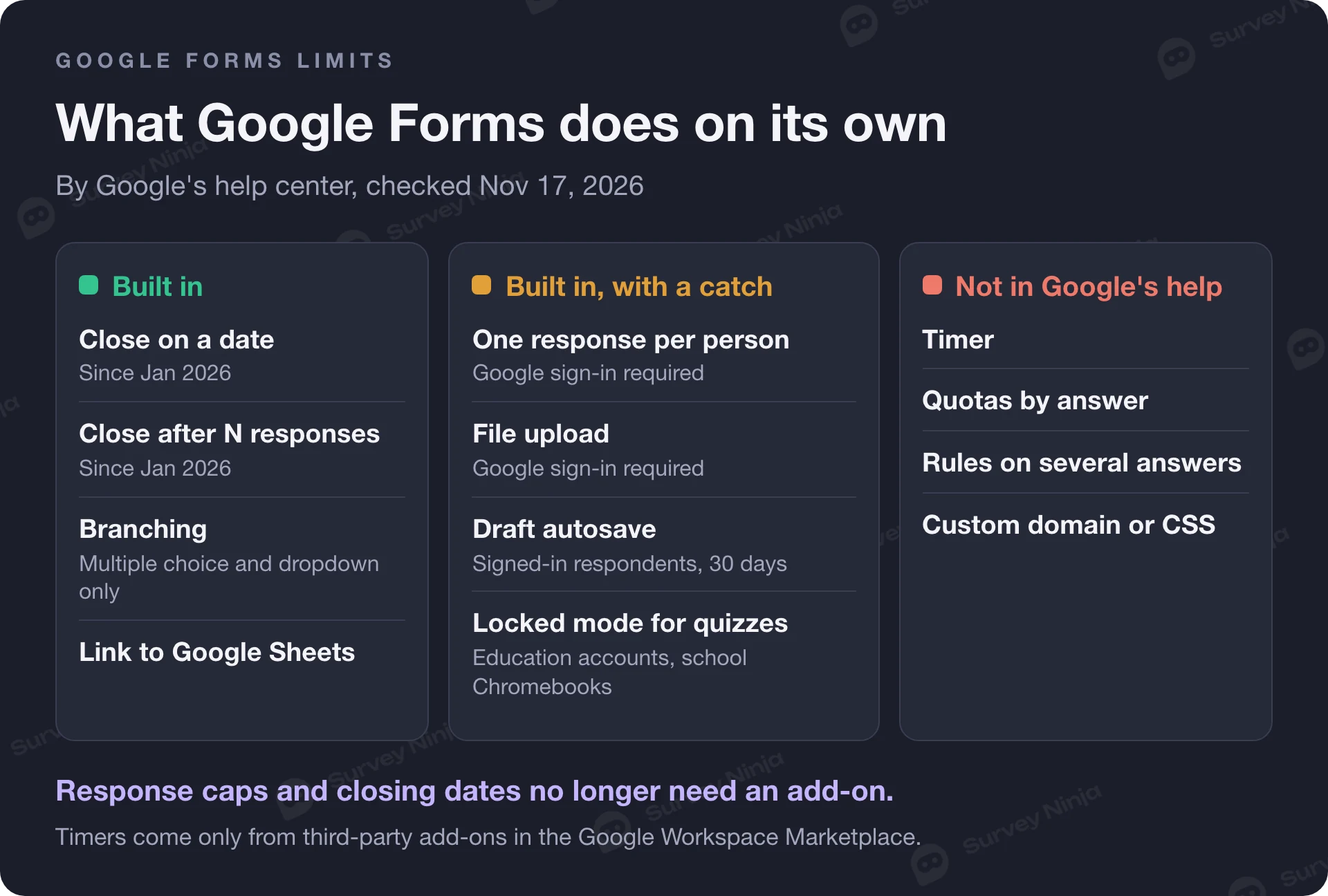
- Google's help describes no timer, no quotas and no rules that combine several answers; branching works only on multiple choice and dropdown questions.
Google Forms limits at a glance
The table lists each limit as Google documents it and the quickest workaround that stays inside Google Forms. Where Google's help gives no number, the table says so instead of repeating figures from third-party blogs.
| Limit and what Google's help says | Workaround in Google Forms |
|---|---|
| Responses per form. Up to 500,000 since September 2026 | Download, then delete old responses, or start a new form per wave |
| Data per form. 1 GB of form and response data, uploaded files not included | Same as above |
| Items and sections. Up to 300 pieces of content and 75 sections | Split a long questionnaire into two forms |
| Close after N responses or on a date. Built in since January 2026 | Published, then "Set close date or response limit" |
| One response per person. "Limit to 1 response" requires a Google sign-in | Accept the sign-in, or remove duplicates by email later |
| File upload size and count. Owner sets types, number of files, size per file and a total for the form; respondents must sign in | Ask for a shared link to the file instead of the file |
| Answer length. Minimum and maximum characters through response validation; no fixed limit published | Set your own maximum with a Length rule |
| Timer. Not described in Google's help | Third-party add-ons |
| Branching. "Go to section based on answer" on multiple choice and dropdown only | One deciding question per section |
| Quotas by answer. Not described in Google's help | Watch the Sheet and close the form by hand |
How many responses can Google Forms handle?
Since September 2026 a single form accepts up to 500,000 responses and stores up to 1 GB of form and response data, according to Google's article View & manage form responses. Files that respondents upload are not counted in the 1 GB. Existing forms on enterprise Workspace accounts that were already over the new limits keep receiving responses until March 2027, after which Google prepares a Takeout archive of their responses for owners or admins. Any other form stops taking new responses once it reaches a limit.
Google's fix is simple: download the responses, then delete them from the form to free room. Deleting responses does not delete uploaded files, and Google recommends closing the form first so nothing arrives between the download and the deletion.
The 500,000 ceiling is far away for most surveys. The lower thresholds in the same article matter more in practice:
- Above 10,000 responses, a CSV download is no longer sorted by submission time, and the Question and Individual views in Forms may disappear.
- Above 50,000 responses, the Summary tab may not show.
- Above 100,000 responses, the linked Google Sheet may stop syncing.
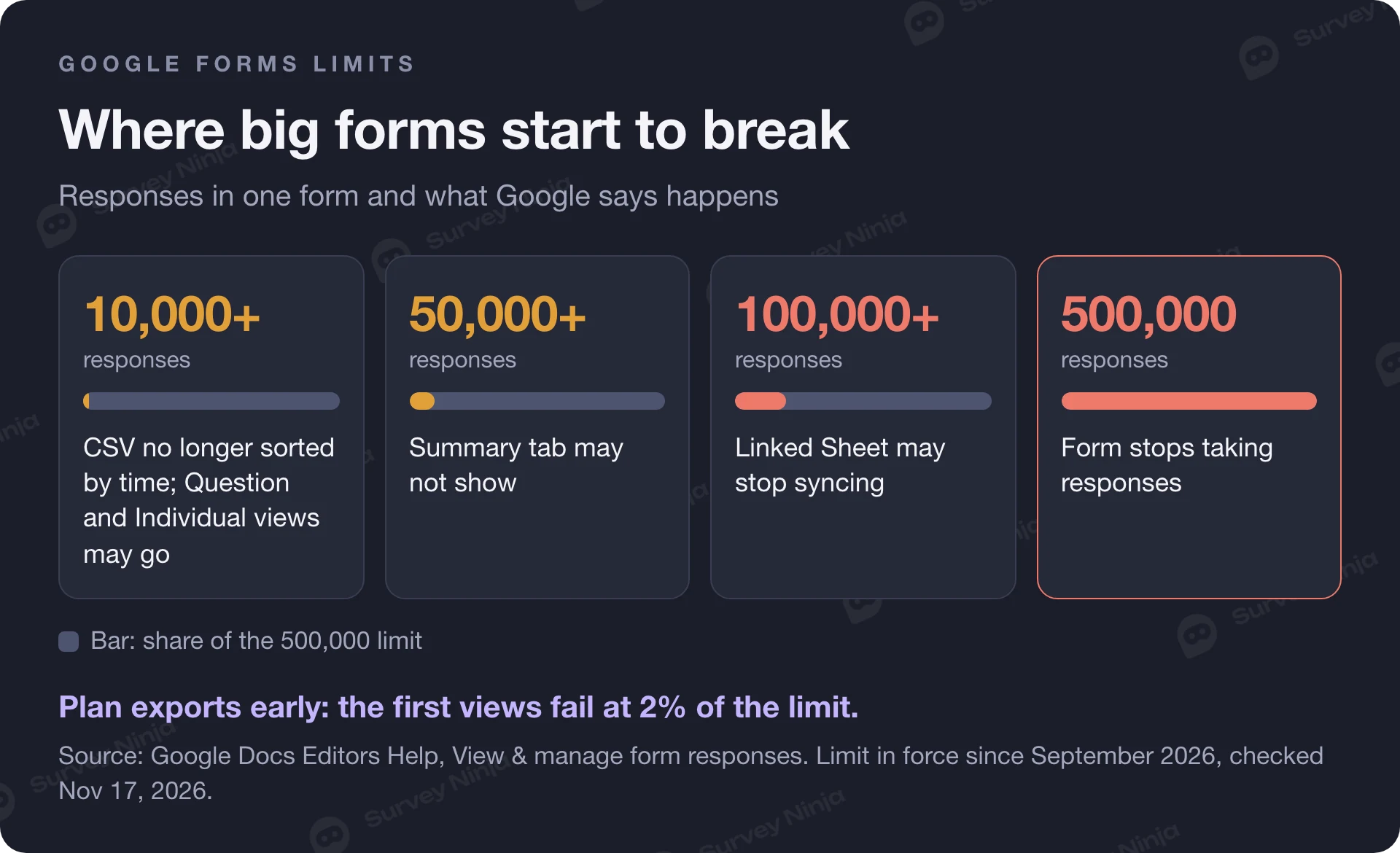
A feedback form on a busy website can lose its handiest views long before the hard limit. If you expect thousands of answers, link the Sheet on day one, download every month or quarter, and use one form per wave of a tracking study. A response rate calculator links invitations, an expected rate and completed surveys, so you can see early how close a mailing will get to these numbers.
How to limit responses in Google Forms
You can now cap responses without an add-on. Google added the setting in January 2026 for personal accounts and every Workspace edition. In a published form, click Published at the top right, then "Set close date or response limit" under "Accepting responses". Choose "After a number of responses" and type the maximum, or pick a date and time under "On a date". You can also edit the message people see once the form is closed.
Three details from Google's help are worth knowing before you rely on it for a workshop with 30 seats:
- If the form already has responses, the new limit must be higher than the number received.
- If several people submit at the exact same moment, the form accepts all of them, even past the limit. Keep a waiting list.
- The cap counts all responses together. Google's help describes no limit per answer option, so "20 places on Tuesday, 20 on Thursday" still needs a manual check or an add-on.
To close the form by hand at any time, turn off "Accepting responses" in the same menu.
How many questions can a Google Form have?
A form can hold up to 300 pieces of content and up to 75 sections, according to Google's Edit your form article. Content means every item you add: questions, but also title and description blocks, images and videos. A questionnaire with 150 questions and an image after every ten already uses 165 of the 300.
For a survey this rarely bites, because completion drops long before question 300 (see our guide on reducing survey dropout). It bites on big exam banks and forms that teams keep extending for years. Split those into two forms and link the second from the confirmation message of the first.
Is there a character limit in Google Forms?
Google does not publish a fixed character limit for answers. Its question type guide says you can set rules such as a maximum or minimum character count on short answer and paragraph questions through response validation. Choose Response validation in the question menu, then Length, and enter your number. Respondents who go over see your error message. Third-party sites quote various maximums; none of them comes from Google, so treat them as untested.
Google Forms file upload limits
The file upload question is the one with the most conditions. According to Google's articles on question types and customizing forms:
- Respondents must sign in to a Google account to answer it.
- The owner chooses the allowed file types, the maximum number of files per question and the maximum size per file, and can set a maximum size for all files the form collects.
- Files go to a new folder in the owner's Google Drive, with a subfolder per question.
- The question can't be used when the form sits in a shared drive or when the administrator has turned on data loss prevention.
Google's help pages name these settings but don't list the size options, so we don't repeat numbers here. Open the question settings in the editor to see what your account offers. Google's sharing guide adds one more catch: a form with a file upload question can't be embedded in an email.
The sign-in rule is the real limit. Customers, parents or job applicants without a Google account can't send a file at all, and some people stop at the sign-in screen even when they have one. If files are optional, ask for a link to a file in their own cloud storage in a short answer question instead.
Does Google Forms have a timer?
No. Google's help center describes no time limit for a form or a quiz. The closest built-in feature is locked mode for quizzes, which works only with a Google Workspace for Education account and school-managed Chromebooks. It stops students from opening other tabs and apps while they take the quiz, but it doesn't count time.
What you can do inside Google Forms:
- Set a close date and time so the quiz stops accepting answers at the end of the class. Everyone gets the same deadline, wherever they started.
- Look at the timestamp of each response in the linked Sheet to see who submitted late.
Per-person countdowns come from third-party add-ons in the Google Workspace Marketplace. They are built by other companies, often have their own pricing, and ask for access to your forms and responses. Some send respondents through their own link instead of the Google Forms one. Read the permissions before installing one on a school or company account, especially when the form collects personal data. For the quiz settings themselves, see our step-by-step Google Forms quiz guide.
One response per person and the sign-in rule
"Limit to 1 response" is the only built-in way to stop repeat answers, and it requires everyone to sign in to a Google account, as Google's publish and share article states. Usernames aren't recorded unless you also turn on email collection.
That trade-off shapes the data. A sign-in screen can lower completion among people who aren't already signed in, which is common on phones and shared computers. And even when emails aren't collected, respondents may assume they are, which can push answers toward the polite side on sensitive topics like pay or management. If honesty matters more than duplicates, leave the limit off and clean duplicates after fieldwork; the survey data cleaning calculator shows how many valid responses remain after you remove duplicates and incomplete answers.
Signed-in respondents get one perk: Google autosaves their draft for 30 days, unless the form's owner has turned autosave off, so a long form can be finished later.
Branching and logic limits in Google Forms
Google Forms branches between sections, not between single questions. You can send people to a section based on their answer, or set which section follows another, as the branching article explains. "Go to section based on answer" is available only for multiple choice and dropdown questions.
In practice that means:
- A checkbox, scale or grid answer can't decide where someone goes next.
- To skip one question, it has to sit in its own section.
- Google's help describes no rule that combines two answers, such as "manager AND more than 3 years in the company", and no quotas that close a group once it's full.
The workaround is to plan the form on paper first: put each deciding question at the end of its own section and draw the paths. For a screener with two or three conditions, chain the sections so each one checks one condition. Past four or five paths the map gets hard to test, and that's usually the moment to move to a tool with question-level logic.
Design and analysis limits
Design options are short. Google's theme article lists a theme color, a background color, a header image and the font and size for headers, questions and text. It doesn't describe custom CSS, a logo outside the header image or your own domain, so forms open on Google's own address or as an embed on your website. A header image with your logo is the usual workaround.
For analysis, Forms gives a Summary tab with a chart or a list of answers for each question, a Question view and an Individual view. You can show respondents the summary after they submit. To filter by group or compare answers between groups, you work in the linked Google Sheet with filters and pivot tables. Gemini can summarize open answers, but only with an eligible Workspace or Google AI plan, once a form has 3 to 200 responses, and not for quiz responses.
When Google Forms is enough, and when to switch
Google Forms wins on price and volume. It has no monthly response cap, a live link to Sheets at no cost, and it runs inside Google Workspace if your company already uses it. Stay with it when the job is simple. Look further when the limits above start to shape your questions or your sample.
- Registration, RSVPs and internal polls with one total cap or a closing date
- Class quizzes where every student has a school Google account
- Collecting files from colleagues inside your own Workspace
- Timed tests for people outside your organization
- File uploads from customers or applicants who may not have a Google account
- Screeners that need quotas or logic on several answers
- Surveys with your brand and domain, or reports filtered by group without exporting to Sheets
Our side-by-side SurveyNinja vs Google Forms page lists each feature with Google's source and check date.
How to handle these limits in SurveyNinja
If you hit one of the walls above, you don't have to rebuild your form from scratch. SurveyNinja imports a Google Form in one click on every plan, Free included, and past responses come over on paid plans. The Google Forms migration guide walks through it.
- Sign up and import your Google Form, then check the logic: show and hide questions, skips, ending the survey and screening people out work on every plan, together with quotas that close a group once it's full.
- Set who can answer: one response per person by cookie, IP address or a link parameter, a password or a CAPTCHA, on every plan. Unique links per respondent come with Standard.
- Add the limits Google Forms lacks: a survey timer that submits the answers when time runs out and a question timer that locks the question, plus closing by date or by number of responses, from Standard. Closing a survey by hand works on every plan.
- Collect files with the file upload question from Basic; the size per file depends on the plan.
- Analyze in place: filters by answer from Basic, export to CSV, XLSX, SPSS or PDF and a public report link on every plan.
Plans count responses per month, and the numbers are on the pricing page. A survey that goes over its plan's limit keeps accepting answers: the extra responses are stored hidden, and you can open them by paying for them in Billing or move to a plan with a larger limit for the next ones. For a new survey rather than a migrated one, start in the survey maker.
Frequently asked questions
How many responses can a Google Form take?
Since September 2026 a Google Form accepts up to 500,000 responses and 1 GB of form and response data, not counting uploaded files. Some views stop earlier: above 50,000 responses the Summary tab may not load, and above 100,000 the linked Google Sheet may stop syncing. To keep collecting past the limit, download and delete old responses.
Can you limit the number of responses in Google Forms?
Yes. Since January 2026, a published form has a "Set close date or response limit" option in the Published menu. Choose "After a number of responses" and enter the maximum. Responses submitted at exactly the same moment can still go past the cap, and Google's help describes no limit per answer option.
Does Google Forms have a timer?
No, Google's help center describes no time limit for forms or quizzes. You can set a close date and time so the whole form stops at a deadline, and locked mode on school-managed Chromebooks blocks other tabs during a quiz. Per-person countdowns need a third-party add-on from the Google Workspace Marketplace.
What is the file upload limit in Google Forms?
The form owner sets the file types, the number of files per question, the maximum size per file and a total size for all files the form collects. Google's help pages don't list the size options. Respondents must sign in to a Google account to upload, and files land in the owner's Google Drive.
How many questions can you have in a Google Form?
Up to 300 pieces of content and 75 sections per form. The 300 includes every item, so title and description blocks, images and videos count along with questions. If you need more, split the questionnaire into two forms and link the second one from the confirmation message of the first.
Is there a character limit for answers in Google Forms?
Google doesn't publish a fixed limit. You can set your own minimum or maximum number of characters on short answer and paragraph questions with response validation: choose Length, enter the number and add an error message. Figures quoted on other websites don't come from Google's documentation.
Published: Nov 17, 2026