 Google Forms Limits: Responses, File Uploads, Timers and Logic, With Workarounds
Google Forms Quiz: How to Make a Quiz That Grades Itself
Tools and comparisons  Mike Taylor Nov 17, 2026 Reading time ≈ 18 min
Contents
- How to make a quiz in Google Forms, step by step
- Which questions Google Forms grades automatically
- Release grades immediately or after manual review?
- What respondents see after a Google Forms quiz
- How to limit a Google Forms quiz to one attempt
- How to grade and read the results
- How to import questions into a Google Forms quiz
- What a Google Forms quiz can't do, and the workarounds
- Checklist before you share a Google Forms quiz
- How to build the same quiz in SurveyNinja
- Frequently asked questions
A Google Forms quiz is an ordinary form with quiz mode switched on: open Settings, turn on Make this a quiz, then mark the correct answer and its points in each question's Answer key. Google Forms then grades short answer, multiple choice, checkbox, dropdown and grid questions by itself. Below are the exact steps, the settings that decide what people see after submitting, and what to do where quiz mode stops.
Every setting name in this guide was checked against Google's own help pages on 17 November 2026. Google renames buttons from time to time, so if a label reads slightly differently on your screen, look for it in the same place. If you are new to the format, our glossary has a short definition of a quiz. For the quiz itself, such as writing wrong options that tempt and choosing a pass mark, see our guide to building an online quiz that scores itself.
Key points
- Quiz mode lives in Settings under Make this a quiz, and each question's Answer key holds the correct answer, the points and optional feedback.
- Short answer, multiple choice, checkboxes, dropdown and the two grid types can have an answer key; paragraph and file upload answers are graded by hand.
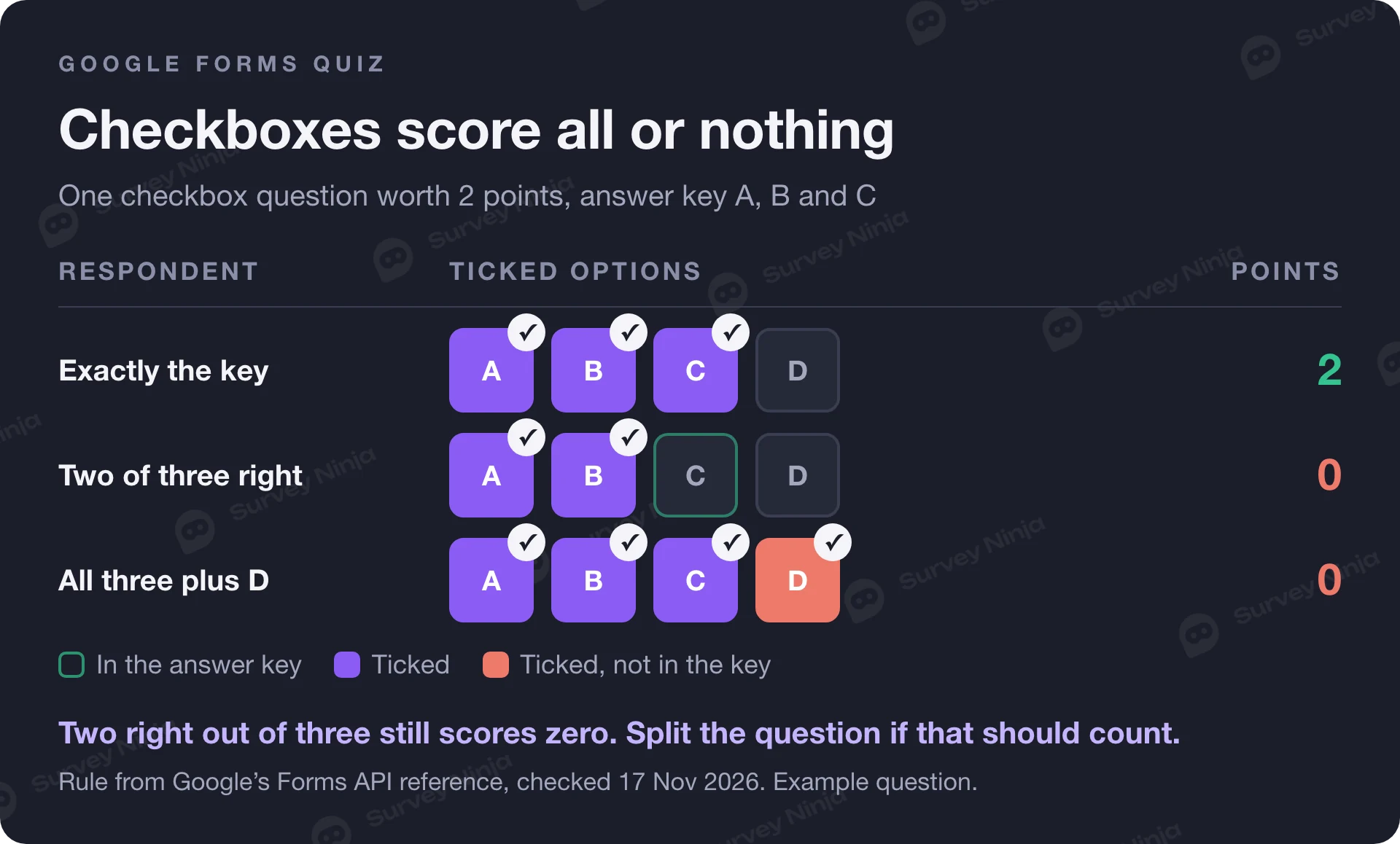
- A checkbox question earns its points only when the exact set of correct options is ticked, so there is no automatic partial credit.
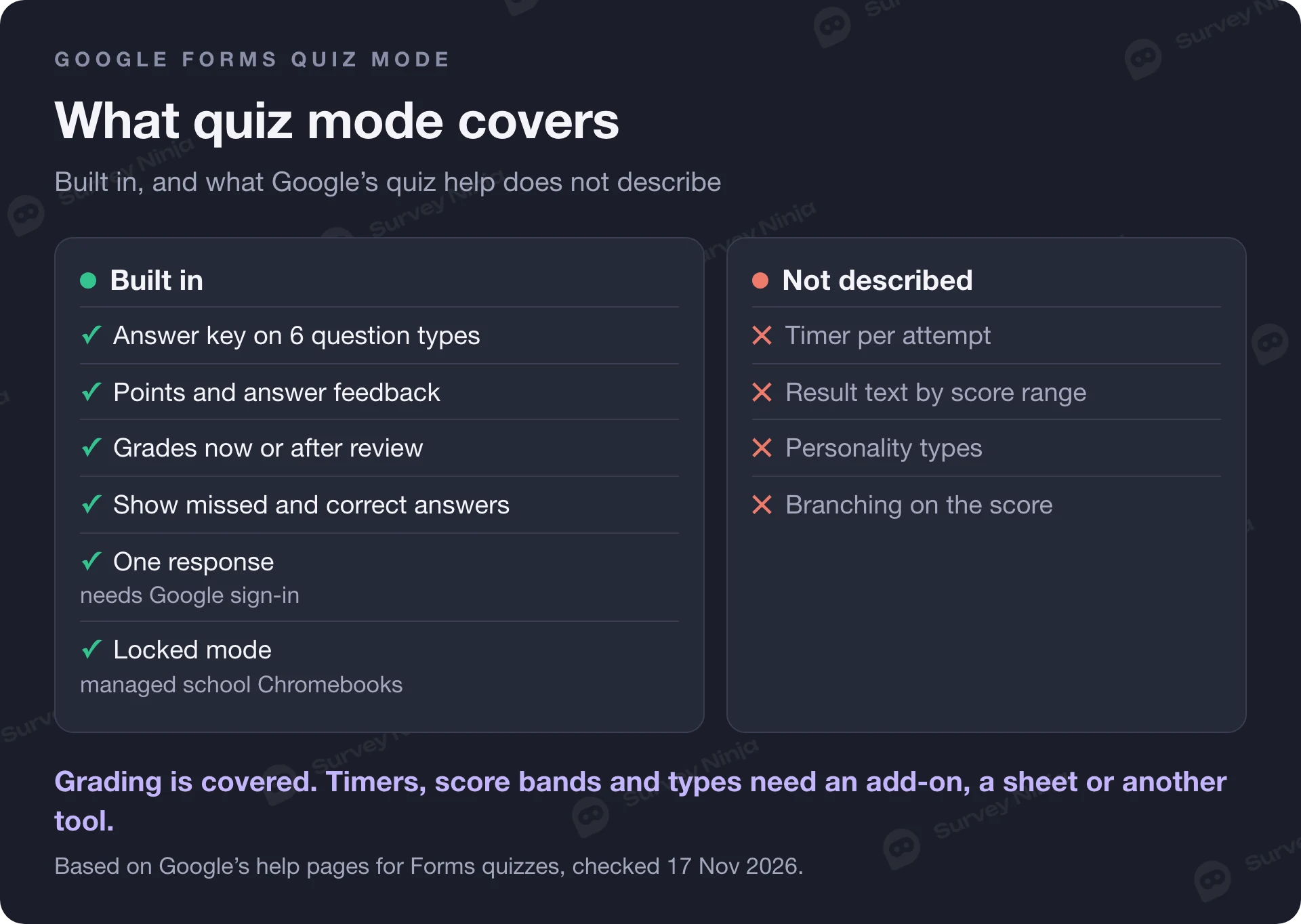
- Limit to 1 response makes every respondent sign in to a Google Account, and Google's quiz help describes no timer, no result by score range and no personality types.
How to make a quiz in Google Forms, step by step
Making a quiz in Google Forms takes five steps. The first two turn a form into a graded quiz; the other three decide what people see and who can answer. The labels below follow Google's help article Create & grade quizzes with Google Forms.
- Turn on quiz mode. Open a form, click Settings at the top and turn on Make this a quiz. The short link g.co/createaquiz opens a new quiz directly.
- Add questions and the answer key. Write a question and its options, click Answer key in the bottom left of the question, choose the correct answer or answers and set the points in the top right. Add answer feedback attaches a written explanation or a YouTube video.
- Choose what respondents see. In Settings, under Respondent settings, decide whether people see the questions they missed, the correct answers and the point values.
- Choose when grades go out. Under Release grades, pick Immediately after each submission or Later, after manual review. Immediately is the default.
- Control who answers, then test it. Under Responses, turn on Collect email addresses and, for one attempt per person, Limit to 1 response. Open the preview, submit once with a deliberate mistake and check the score you get. Then publish the form and share the link: an unpublished form does not accept responses.
Two settings save time on longer quizzes. Global quiz defaults in Settings sets one point value for all questions, so you only change the ones worth more. And marking a question Required stops people from skipping it, which matters when a blank answer simply scores zero and tells you nothing about what the person knows.
Which questions Google Forms grades automatically
Six question types can carry an answer key, and those are scored the moment someone submits: short answer, multiple choice, checkboxes, dropdown, multiple choice grid and checkbox grid. Every other type, such as paragraph or file upload, can still get points and feedback, but you enter them by hand in the Responses tab.
| Question type | How it is scored | Tip |
|---|---|---|
| Multiple choice | The correct option earns the full points | The workhorse of a quiz; you can write one feedback for right answers and another for wrong ones |
| Dropdown | Same as multiple choice | Handy when the list of options is long |
| Checkboxes | Points only when the ticked options match the key exactly | Split it into separate questions if partial knowledge should count |
| Short answer | The answer has to match one of the accepted answers exactly | Add every form you accept, such as "12" and "twelve" |
| Multiple choice grid, checkbox grid | Graded on submit | The grade-by-question view does not work for grids, so check them per person |
| Paragraph, file upload and other types | No answer key: you type in the points yourself | Release grades later, after you have read the answers |
The checkbox rule catches many teachers out. Google's Forms API reference states that a checkbox answer counts as correct only when it contains exactly the options in the key. A student who ticks two of the three right options gets zero, and so does one who ticks all three plus a wrong one. If knowing two out of three should earn something, ask three separate multiple choice questions, or give partial points by hand in the question view.
Short answer works the other way round: the same reference says a response is marked correct if it matches any value in the key, so you can list several accepted answers. Keep these questions narrow, asking for a number, a date or a single term, because any extra word turns a right answer into a wrong one. For choice questions you can write separate feedback for correct and incorrect answers; a short answer question gets one general feedback for everyone.
Release grades immediately or after manual review?
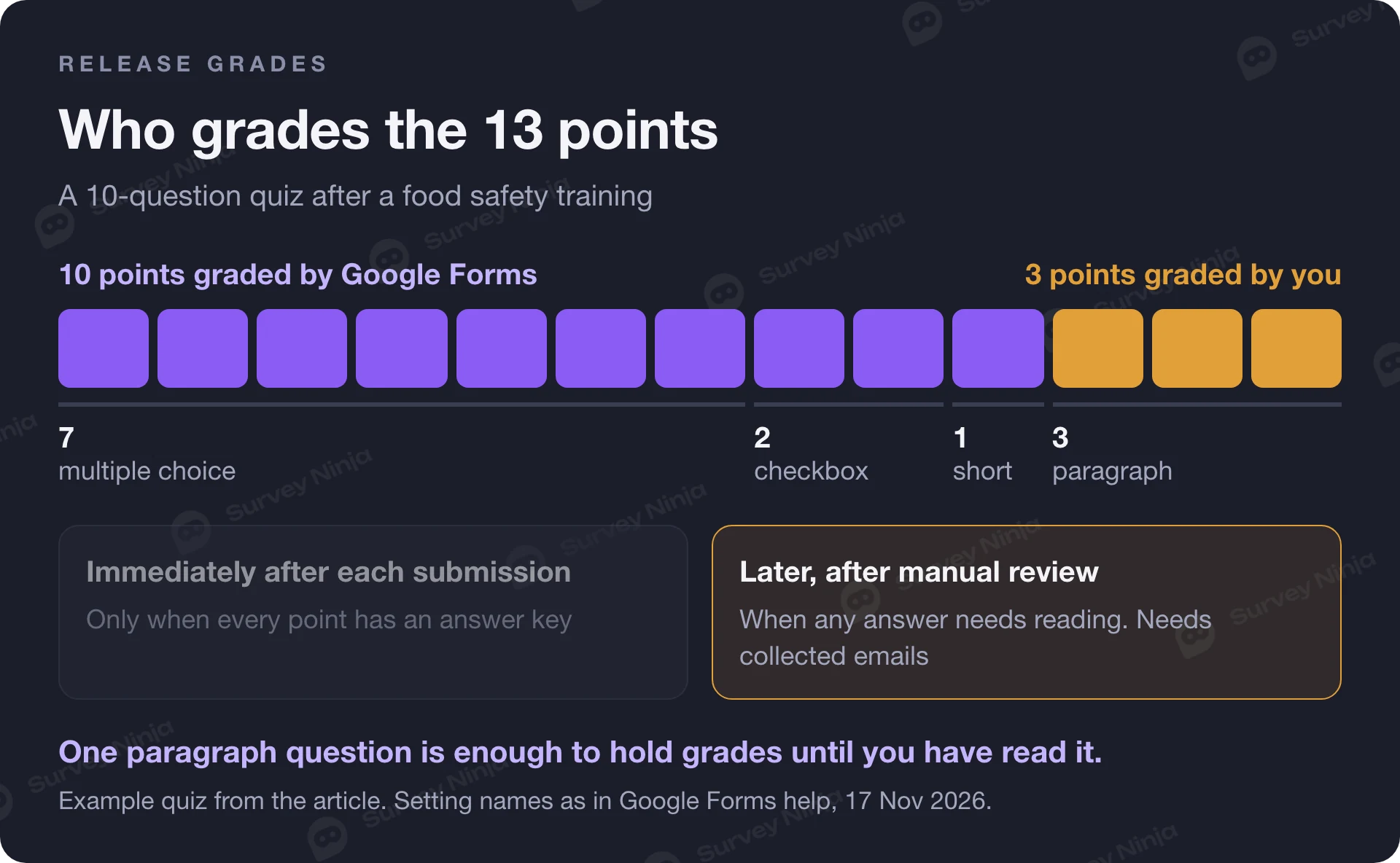
Release grades immediately when every question has an answer key. Choose Later, after manual review as soon as one answer needs a human: a paragraph, a file upload, or a question where you plan to give partial credit. Otherwise people see a score before you have graded part of their work.
Take a 10-question quiz after a food safety training session. Seven multiple choice questions are worth 1 point each, one checkbox question 2 points, one short answer 1 point, and one paragraph question, "Describe what you do when a chilled delivery arrives warm", 3 points. The form has 13 points in total, and Google Forms can score 10 of them on its own. The remaining 3 points depend on your reading of the paragraph, so this quiz belongs on Later, after manual review.
Releasing later goes through email. Open Responses, then Individual, click Release score, tick the people who should get their results and click Send emails and release. Grading person by person and emailing grades both need collected email addresses, so turn on Collect email addresses before you share the quiz, not after the first answers arrive.
What respondents see after a Google Forms quiz
After submitting, respondents see their score plus whatever you allow under Respondent settings: the questions they missed, the correct answers and the point value of each question.
Which of these to show depends on what the quiz is for. A practice quiz teaches more when people see the correct answers and your feedback right away. A graded test that several groups take over a week works differently: if the first group sees the correct answers, the key travels by screenshot, so hide them until the last group has finished and switch them on afterwards. Feedback is the cheapest teaching tool in the whole form. One sentence explaining why the wrong option is wrong, or a link to the slide that covers it, turns a 4 out of 10 into a revision plan.
How to limit a Google Forms quiz to one attempt
Turn on Limit to 1 response under Responses in Settings. Google's help on publishing and sharing a form adds the catch: to open and fill out the form, people must sign in to their Google Account. In a school where every student has a Google Workspace for Education account this is fine. For a public quiz, or a training quiz for staff who use other email providers, it shuts out everyone without a Google Account.
The other settings that make copying harder:
- Shuffle question order in Settings, under Presentation, and Shuffle option order in each question's menu. Do not shuffle when questions build on each other or when options are ordered, like "None, 1–2, 3 or more".
- Restrict to users in your domain, for Workspace accounts, keeps the quiz inside your school or company. Turn it off under Responses to send the quiz to anyone outside.
- Locked mode, under Chromebook settings, stops students from opening other websites or apps during the quiz. It needs a Google Workspace for Education account and a Chromebook managed by the school for each student, and the teacher gets an email if a student leaves the quiz or opens another tab (Google's locked mode help).
If you teach through Google Classroom, create the quiz from Classwork with Create, then Quiz assignment. Classroom imports grades only when the quiz is the single attachment on the assignment, students are limited to one response and are in the teacher's domain, and the form collects email addresses. Ask only for the data you need, and with students under 18 follow your school's rules on personal data.
How to grade and read the results
The Responses tab gives you three views of a Google Forms quiz. Summary shows the questions people missed most often, charts with the correct answers marked, and the average, median and range of scores. Question lets you go through one question for everyone: Mark correct gives full points, a typed number gives partial points, Mark incorrect gives none. Individual shows one person's whole quiz, where you add points and feedback and click Save.
Read the most-missed list before you blame the class. When most people who did well overall still missed the same question, the problem is usually the question or the key: an ambiguous wording, two defensible answers, or a wrong option marked as right. Correct the key, then check the scores again. For anything beyond the summary, click Link to Sheets and work with the scores in a spreadsheet; the logic of totals and weights is explained in our glossary entry on scoring.
How to import questions into a Google Forms quiz
To reuse questions, open the quiz, click Add question in the menu on the right and choose Import questions. Pick the form that has the questions, click Select, tick the questions you want and click Import questions. This is the quickest way to build a final test from the weekly quizzes of a term.
One warning before you experiment with settings. The Google Workspace Learning Center says that if you turn off the quiz setting, the grading settings and any grades you entered by hand are not kept. If you want an ungraded survey version of a quiz, work on a copy of the form and leave the original as it is.
What a Google Forms quiz can't do, and the workarounds
Google's quiz help covers answer keys, points, feedback and grade release. It describes no time limit, no result message that changes with the score, no personality-type results and no branching on the score. Here are those four gaps, with the usual way around each.
| What's missing | Usual workaround |
|---|---|
| A time limit per attempt. Google's quiz help lists no timer setting | A Google Workspace Marketplace add-on, or a close date and time for the whole form so the group finishes at the same moment |
| A message per score range, like "0–5: repeat module 2". Everyone sees a score and the details you allowed | Work out the ranges in the linked sheet and send results yourself |
| A personality quiz with types instead of right answers. One total score per person | Route people with one deciding question, or count types with sheet formulas after the fact |
| Different next questions for high and low scorers. Go to section based on answer works on a single multiple choice or dropdown answer | Split the quiz into two forms, or branch on one key question |
Add-ons are the common route to a timer. Many of them run the quiz through their own link and ask for access to your Google account, so read what each one requests before you install it on a school or company account. The close date is a blunter tool: it ends the quiz for everyone at once, which works for a class sitting together and not for people starting at different times. Response caps, file upload sizes and other numeric limits are covered in our article on Google Forms limits.
Checklist before you share a Google Forms quiz
Run through this list once with the quiz open in preview. It takes five minutes and catches the problems that otherwise show up in the first twenty submissions.
- Every gradable question has an answer key, and the total points match what you announced.
- Checkbox questions are either all-or-nothing on purpose or split into separate questions.
- Short answer keys list every spelling or format you accept.
- Release grades is set to Later, after manual review if any answer needs reading.
- Collect email addresses is on if you plan to grade per person or email results.
- Respondent settings show or hide correct answers to match whether other groups still have to take the quiz.
- Limit to 1 response is on for a public audience without Google Accounts.
- You submitted one test attempt with a wrong answer and the score came out as expected.
How to build the same quiz in SurveyNinja
When a quiz needs a timer, a result by score range or personality types, you can build it in the SurveyNinja quiz maker and keep your Google Forms work. Create a new survey, choose Google Forms, sign in to the Google account that owns the form and pick it: the questions come over in one click on every plan, including Free (the steps are in our guide to moving from Google Forms). Then set the correct answers and points on the choice questions. To start from scratch instead, pick one of the ready quiz templates.
Correct answers, points and categories for personality quizzes work on all plans, including Free, and so do logic jumps by score, for example sending people with 0–5 points to one message screen and 6–10 to another. From the Basic plan, the thank-you screen shows a text for each score range or the winning category, the score and time taken, a Show answers view with each answer marked right or wrong, and share buttons. From Standard, a timer for the whole quiz sends the answers when time runs out, and a timer per question locks it. One attempt per person works on every plan by cookie, IP or a link parameter, with no Google Account needed. Moving a whole library of forms is covered in how to migrate from Google Forms. For exams there is the online test creator, and a side-by-side view of both tools is on the Google Forms comparison page.
Frequently asked questions
How do I make a quiz in Google Forms?
Open a form, click Settings and turn on Make this a quiz. For each question, click Answer key, choose the correct answer and set the points. Then pick what respondents see after submitting and whether grades are released immediately or after manual review. Preview the quiz and submit one test attempt before sharing the link.
Can Google Forms grade short answer questions automatically?
Yes. Short answer is one of six question types that accept an answer key. The response has to match an accepted answer exactly, and you can list several accepted answers for one question. Keep these questions narrow, such as a number or a single term. Paragraph and file upload answers are always graded by hand.
Does Google Forms have a timer for quizzes?
Google's help for quiz settings lists no time limit per attempt. Teachers either install a timer add-on from the Google Workspace Marketplace, which often runs the quiz through its own link, or set a close date and time for the whole form so a class that starts together also stops together.
How do I stop people from taking a Google Forms quiz twice?
Turn on Limit to 1 response under Responses in Settings. Google then requires everyone to sign in to a Google Account before they can open the form, so people without one cannot take the quiz. Collecting email addresses and shuffling questions make copying harder but do not prevent it.
Can you make a personality quiz in Google Forms?
Not directly. Quiz mode adds up one total score, and Google's quiz help describes no categories or result types. The usual workarounds are routing people to a result section with one deciding multiple choice question, or counting answers per type with formulas in the linked Google Sheet, which means people get their type later rather than on screen.
Why can't respondents see their score in Google Forms?
Release grades is probably set to Later, after manual review. In that case scores stay hidden until you open Responses, click Release score and send the emails, which requires collected email addresses. If scores appear but correct answers do not, check what Respondent settings allow people to see.
Published: Nov 17, 2026