 SurveyNinja Joins ChatGPT Plugins, Claude Connectors, and Cursor
Ninja AI Now Assists in Both the Survey Builder and Results
Product updates  Mike Taylor Nov 25, 2026 Reading time ≈ 10 min
Contents
Ninja AI (Beta) now covers both survey building and results review in SurveyNinja. After launching in the builder on October 22, 2026, the assistant arrived in the Reports and Responses tabs on November 12, 2026 in strictly read-only mode. Both capabilities are included on every plan, including Free.
Key points
- Draft and edit surveys from text, voice dictation, or up to 5 files or screenshots (DOCX, PDF, images, and text formats).
- Inspect every edit in a card with Will change and Will be deleted labels before clicking Apply, with one-step Undo and human-only publishing.
- Ask read-only questions in Reports and Responses to count answers, summarize open text, apply AI filters, click Explain, or compare selected rows.
- Included on every plan, including Free, alongside Smart Analytics reports on Premium and Enterprise.
Draft and edit surveys from text, files, or screenshots
With Ninja AI in the survey builder, describe what you need in plain words and let the assistant assemble or update the questionnaire beside your canvas. Open it from the Ninja AI top bar button or press ⌘J on Mac (Ctrl+J on Windows). Below 1,000 px, a circular button opens the chat as a bottom sheet. Empty surveys also display a prompt box right on the canvas. Prompts and replies work in English, Spanish, and Portuguese, matching the language you write or dictate.
Click + next to the composer to attach up to 5 items per message: PNG, JPG, WebP, or GIF images up to 10 MB; DOCX and PDF files up to 10 MB; or TXT, MD, CSV, and JSON files up to 1 MB. Drop in a photo of a paper form, a Word draft, or notes to create a scored quiz from a PDF. The same + menu offers ready-made Skills and lets you pick a specific survey question to target edits cleanly.
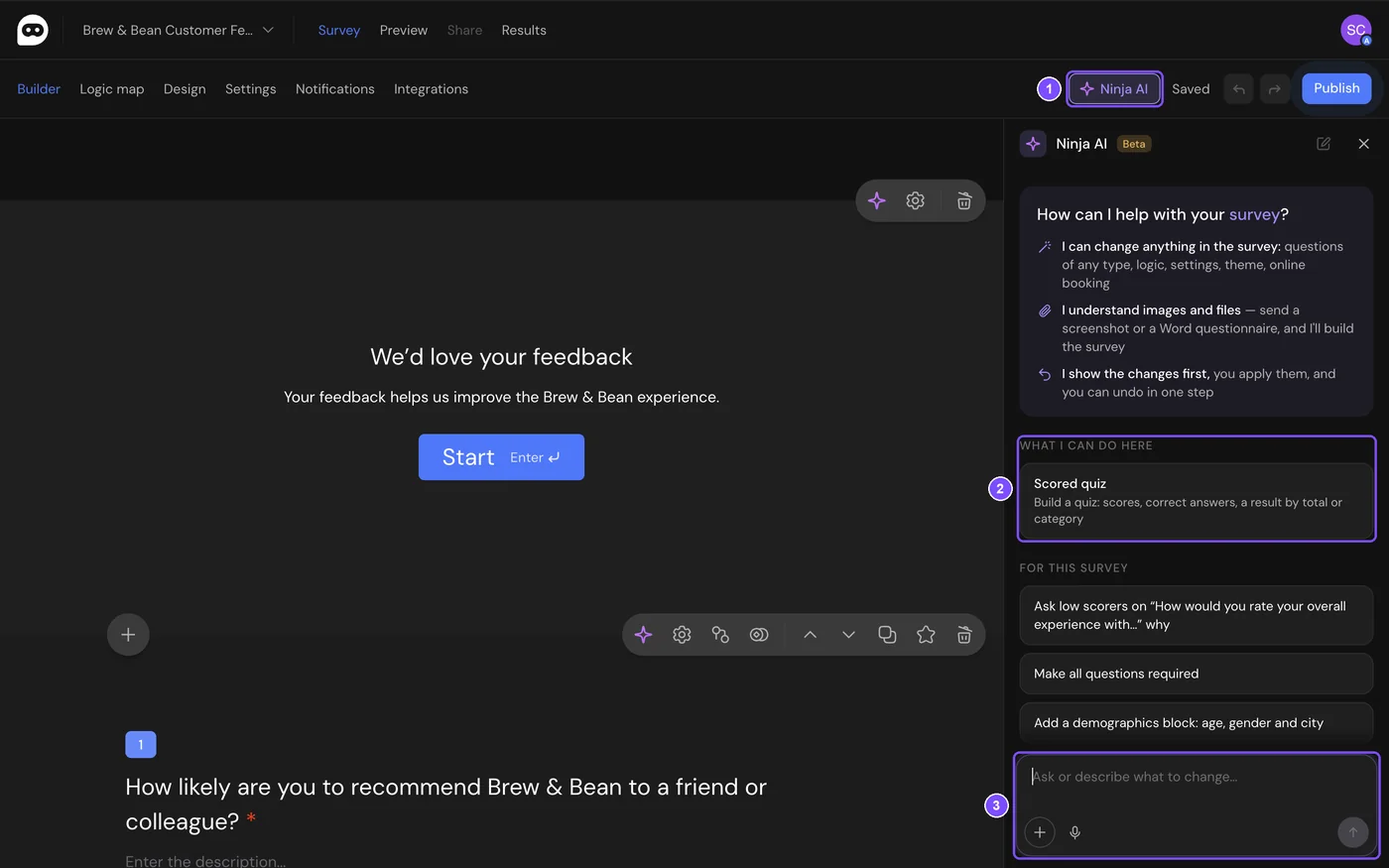
Once a survey exists, Ninja AI edits nearly every builder area on request:
- Questions and logic: add, edit, move, or remove questions; set skip jumps, end rules, disqualification, show/hide conditions, and quotas.
- Scoring and testing: configure quiz modes (points, correct answers, categories), A/B wording tests, and random order for question groups.
- Design and settings: update themes, button texts, passwords, promo codes, unique links, social share previews, and the survey URL.
- Notifications, webhooks, and booking: set email alerts and recipients, configure a webhook with a test request, or build an online booking schedule.
Review every change before it touches your survey
Nothing changes on your canvas until you approve it. New surveys appear as a preview card of screens and questions with Add to survey, and added blocks carry an Added by AI tag on the canvas. Edits show Will change and Will be deleted labels alongside Apply and No, thanks.
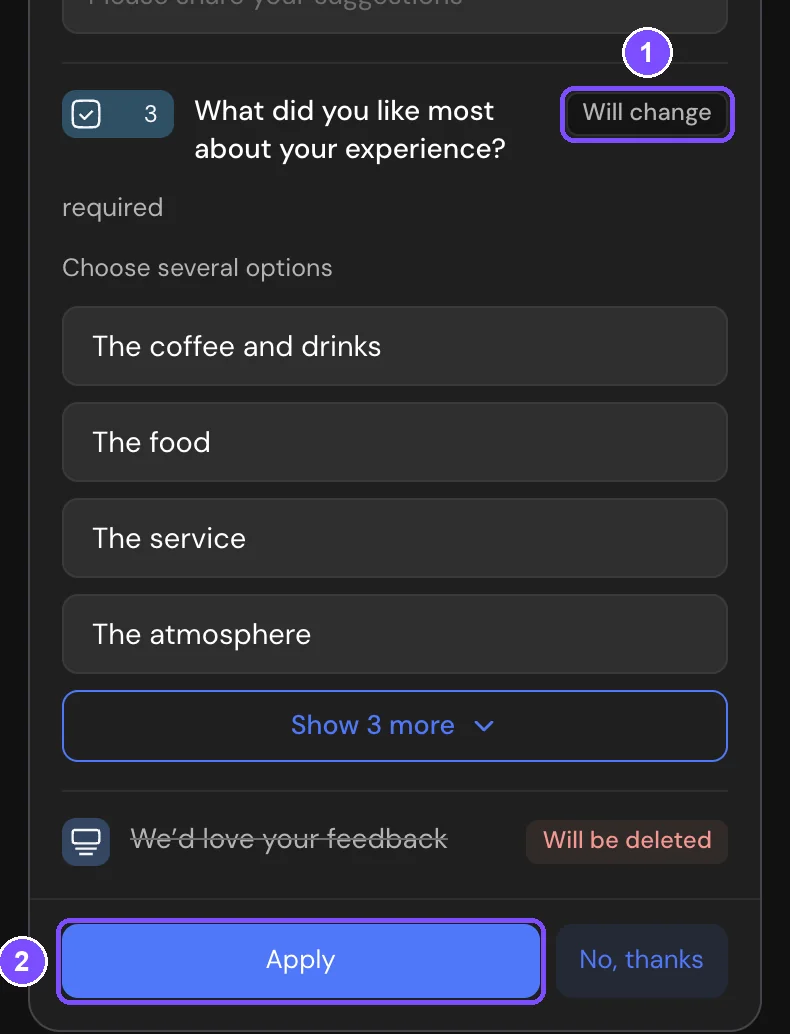
After clicking Apply, the card offers Show on canvas and one-step Undo. Only a human publishes: Ninja AI displays a Publish the survey? card with a logic check, and your survey goes live only when you click Publish.
For quick wording tweaks on one item, click AI for question on any canvas block. Pick Rephrase, Make shorter, Make more neutral, Check for errors, or Open in chat. Review Before and After side by side and request Another option anytime.
Ask read-only questions about your data in Results
On November 12, 2026, Ninja AI expanded into Results on both the Reports and Responses tabs, opening via the same Ninja AI button or ⌘J / Ctrl+J. The panel runs strictly in read-only mode (Read-only: I don't change the survey or responses), never editing questions or submitted data. Survey edit requests link you back to the editor.
- Count by condition or date range: check how many respondents chose a rating, filter by exact dates, or compare two timeframes.
- Summarize open answers: see what respondents write in free-text fields and how often each topic appears.
- Jump from numbers to answers: counts in Ninja AI replies act as clickable links that open those matching responses.
- Apply an AI filter: narrow the view from chat, adding an AI filter chip above your report or table that you can edit or clear (response filters start on Basic).
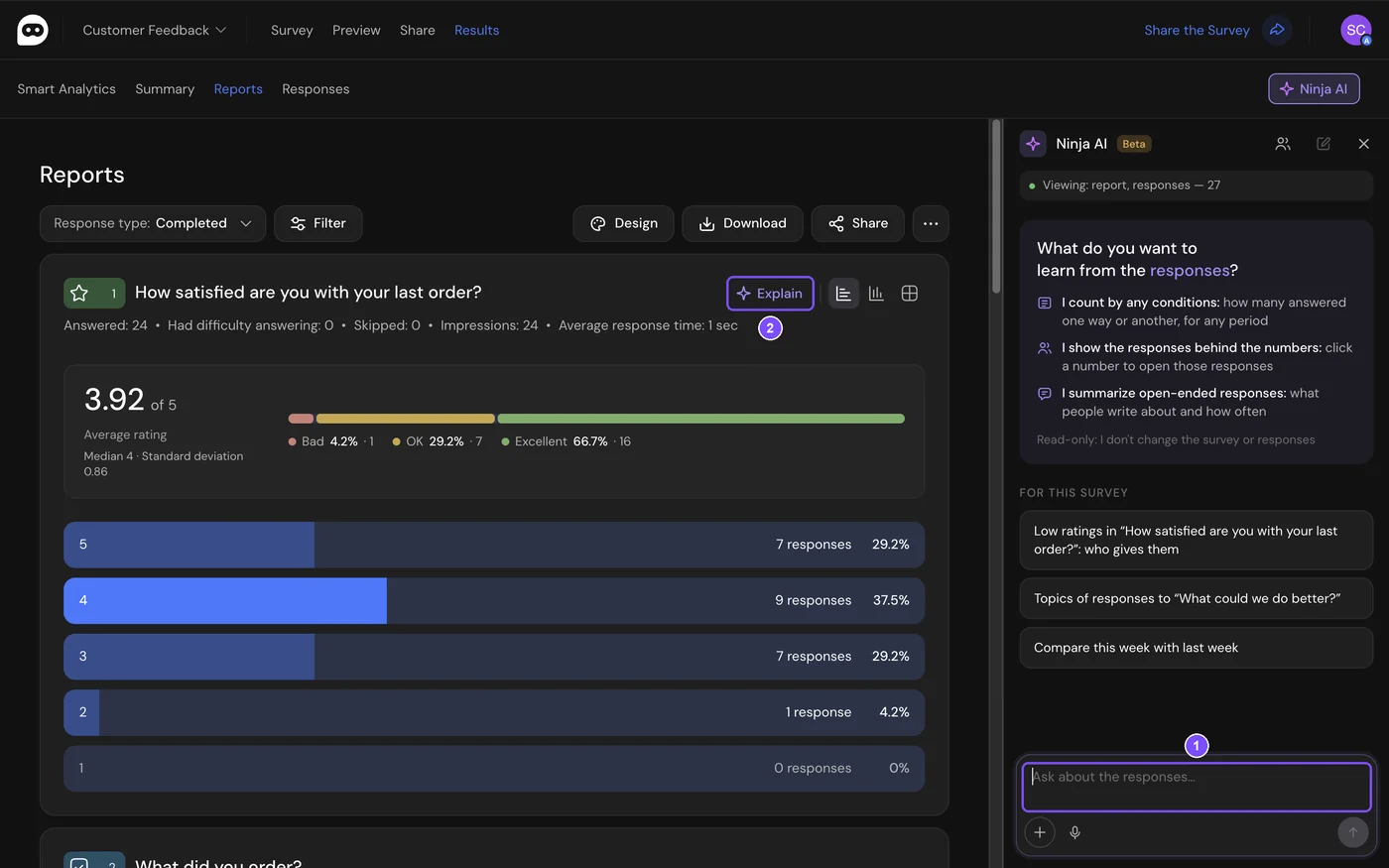
Two one-click actions speed up routine checks. On Reports, click Explain on any answered question card to get a short read of what its answers show. On Responses, select two or more rows and click What they have in common in the bottom bar to inspect shared answers. Both shortcuts save time on recurring forms like a customer feedback form or an NPS survey.
Ninja AI vs. Smart Analytics: plans and when to use each
Ninja AI (Beta) is included on every plan, including Free and paid plans. Review full tiers on the SurveyNinja pricing page. Underlying features keep their own plan rules: webhooks, online booking, and response filters start on Basic; unique links and incomplete responses start on Standard.
Ninja AI in Results complements Smart Analytics for AI survey analysis. Use Ninja AI for interactive exploration inside Reports and Responses. Use Smart Analytics (Beta, Premium and Enterprise, from 5 completed responses) for a standalone three-section report (text themes, sentiment, and quotes; two-group Cohen's d comparisons; and code-computed quantitative summaries) ready to share via public link or export as an A4 PDF.
| Tool | Where it opens | What it does | Plans |
|---|---|---|---|
| Ninja AI in builder (Beta) | Editor (⌘J / Ctrl+J) | Drafts from text, files, or images; edits questions, logic, scoring, design, and settings with approval cards and Undo | All plans, including Free |
| Ninja AI in Results (Beta) | Reports and Responses | Read-only chat to count answers, apply AI filters, open linked responses, click Explain, or compare rows | All plans, including Free (filters from Basic; incomplete from Standard) |
| Smart Analytics (Beta) | Smart Analytics tab | Standalone three-section AI report with themes, sentiment, quotes, Cohen's d comparisons, public link, and A4 PDF | Premium and Enterprise (from 5 completed responses) |
How to go from draft to results analysis
Follow these five steps to build, verify, and explore a survey with Ninja AI while keeping final approval in your hands:
- Launch Ninja AI in the builder Type into the empty canvas prompt box, or open an existing survey and press ⌘J (Ctrl+J on Windows).
- Describe or attach source material Write your prompt, dictate it, or attach up to 5 PDFs, Word files, text files, or screenshots.
- Approve edits and polish questions Check Will change and Will be deleted labels before clicking Apply, and use AI for question for wording edits.
- Run the logic check and publish Inspect the Publish the survey? card and click Publish yourself.
- Explore responses in Results Open Reports or Responses to query the chat, apply AI filters, click Explain, or compare selected responses.
For full interface details, read the Ninja AI help guide or the walkthrough on creating a survey with AI. Both releases appear on the SurveyNinja roadmap, where you can vote on upcoming updates.
Frequently asked questions
Is Ninja AI available on the Free plan?
Yes. Ninja AI is included on every SurveyNinja plan, including Free and all paid plans. Individual features it configures or uses keep their own plan access: webhooks, online booking, and response filters start on Basic, while unique links and incomplete responses start on Standard.
Can Ninja AI edit my survey or change responses without asking?
No. Inside the builder, every draft or edit appears in a preview card and waits until you click Add to survey or Apply, with one-step Undo afterward, and only you click Publish. In Results, Ninja AI runs strictly in read-only mode and never alters your survey or responses.
Which file and image formats can I attach in Ninja AI?
You can attach up to 5 files in one message. Supported formats include PNG, JPG, WebP, and GIF images up to 10 MB, DOCX and PDF documents up to 10 MB, and TXT, MD, CSV, or JSON files up to 1 MB. Voice dictation is supported as well.
How is Ninja AI in Results different from Smart Analytics?
Ninja AI in Results is an interactive read-only chat on the Reports and Responses tabs across all plans. You ask follow-up questions, apply AI filters, click Explain, or compare selected responses. Smart Analytics builds a standalone shareable and PDF AI report on Premium and Enterprise from 5 completed responses.
Which languages does Ninja AI support?
Ninja AI understands prompts, builds surveys, and answers questions about your results in English, Spanish, and Portuguese. It replies in the language of your message, both when you draft a survey in the builder and when you review open-ended answers on the Reports and Responses tabs.
Published: Nov 25, 2026