 SurveyNinja Joins ChatGPT Plugins, Claude Connectors, and Cursor
SurveyNinja Plugin for WordPress and WooCommerce Is Now Live on WordPress.org
Product updates  Mike Taylor Nov 25, 2026 Reading time ≈ 10 min
Contents
- Draft surveys with AI inside the WordPress block editor
- Four display modes, Elementor, shortcodes, and micro-surveys (Beta)
- WooCommerce post-purchase surveys that keep buyer emails in your store
- One-click connection, tracking, dashboard widget, and WordPress 6.9+ abilities
- How to install, connect, and publish your first survey
- Frequently asked questions

The official SurveyNinja plugin for WordPress (v1.0.0, released October 27, 2026) is now live on WordPress.org. Draft surveys with AI directly inside the block editor, pick from four display modes, run WooCommerce post-purchase surveys without sending buyer emails to SurveyNinja, and enable website micro-surveys (Beta) in one switch.
Key points
- Official WordPress.org release (v1.0.0) requiring WordPress 6.7+, PHP 7.4+, and HTTPS (or localhost), working on every SurveyNinja plan including Free.
- Gutenberg block drafts surveys or scored tests in about half a minute from a prompt, the open page text, or an existing survey.
- Four display modes (In the text, Popup with desktop exit intent, Button, Side panel), plus an Elementor widget, shortcodes, and a switch for website micro-surveys (Beta).
- WooCommerce surveys appear on the Thank you page and by store-sent email after N days, saving answers inside each order without sending buyer email addresses to SurveyNinja.
Draft surveys with AI inside the WordPress block editor
Adding a survey to a post used to mean switching tabs, writing questions elsewhere, and pasting an embed snippet. With the SurveyNinja Gutenberg block, drafting happens right inside the post you are editing. No separate OpenAI API key is needed because AI drafting runs within your SurveyNinja plan.
Insert the SurveyNinja block to see three tabs: Describe, From the page text, and Choose existing. On Describe, enter a short brief or click one of four presets: NPS, Feedback, Lead quiz, or Knowledge test. Use the bottom-right toggle to choose Survey or Test with score. Clicking Create with AI generates questions, answer options, and a thank-you screen in about half a minute.
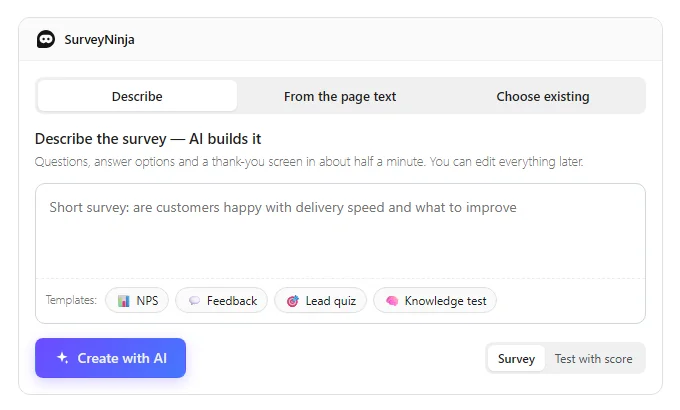
From the page text reads the title and body of the post open in your editor, even before saving, to draft matching questions. If you already built a questionnaire in SurveyNinja, such as an NPS survey template or a feedback form template, pick it under Choose existing. Clicking Edit opens that survey in SurveyNinja whenever you want to refine logic or styling.
Four display modes, Elementor, shortcodes, and micro-surveys (Beta)
After selecting a survey, choose how visitors see it under How to show on the site. You can switch between four layouts without touching custom JavaScript or theme files.
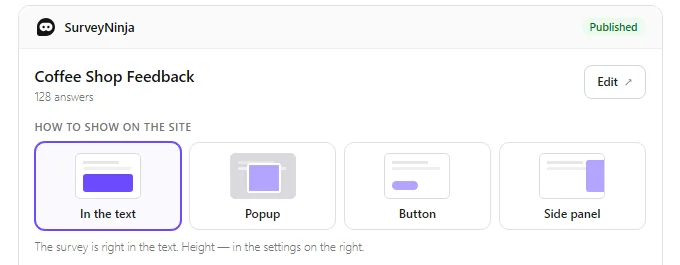
In the text embeds the survey inside your post, with height controls in the sidebar. Popup opens on page load, after a timer, or on exit intent on desktop. Button adds an inline button that opens the survey in a popup. Side panel slides in after the visitor scrolls.
Sites outside Gutenberg are supported too. The plugin includes an Elementor widget with the same four display modes and shortcodes copied from SurveyNinja → Surveys for the Classic editor or page builders, such as [surveyninja id="123" mode="popup"]. In SurveyNinja → Settings, one switch turns on website micro-surveys (Beta), while targeting rules stay in SurveyNinja as outlined in the micro-surveys (Beta) help guide.
| Placement | Trigger | When to use |
|---|---|---|
| In the text | Inline in post | Article polls, quizzes, reader feedback |
| Popup | Load, timer, desktop exit | Short prompts on landing or pricing pages |
| Button | Click trigger | Optional forms that stay out of the way |
| Side panel | After scrolling | Engaged readers on long guides |
| WooCommerce Thank you | Inline or popup | Checkout ease right after payment |
| WooCommerce email | N days after order | Product match and delivery feedback |
Matching the trigger to the page avoids interrupting visitors before they have context.
WooCommerce post-purchase surveys that keep buyer emails in your store
Stores have two feedback moments: right after payment, when checkout is fresh, and days later, after delivery. Under SurveyNinja → WooCommerce, you pick one survey and configure both moments on the same screen.
On the WooCommerce Thank you page, the survey displays inline under the thank-you message or as a popup, with your custom heading above it. Tick Email after the order to send a follow-up N days after the order is placed or completed. Edit the subject, body, and button text using {name}, {order}, and {shop}, and click Save and send me an example to preview the message.
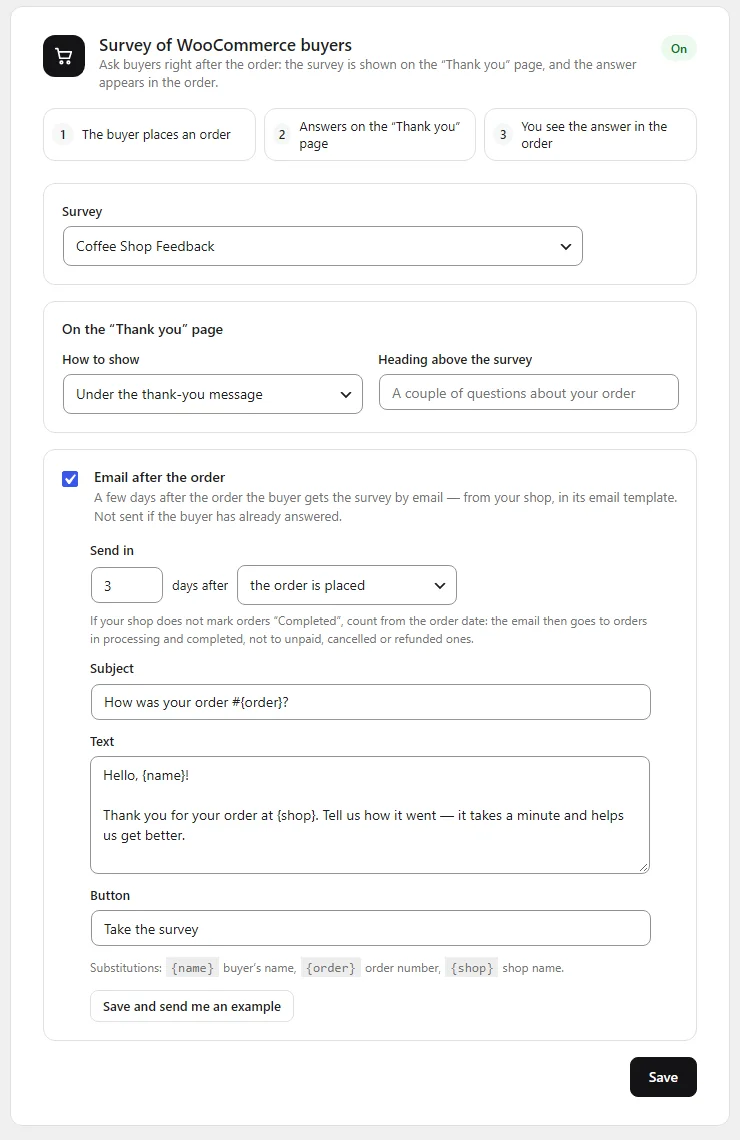
Your store sends the email directly through WooCommerce using your shop template, skipping buyers who already answered on the thank-you page and skipping unpaid, cancelled, or refunded orders. Each answer appears inside its WooCommerce order alongside purchased items. SurveyNinja receives only the order number with your site's signature, never the buyer's email address. Because the follow-up asks for order feedback without a separate newsletter opt-in, note it in your store privacy policy if local law requires it.
For ready-to-use questions and routing logic between checkout and delivery, see our guide to WooCommerce post-purchase surveys or start with the online store feedback template.
One-click connection, tracking, dashboard widget, and WordPress 6.9+ abilities
No API keys need to be copied manually. In SurveyNinja → Settings, click Connect account, sign in, and pick one workspace. Access tokens are stored encrypted in your WordPress database. Requirements are WordPress 6.7+, PHP 7.4+, and HTTPS (or localhost while developing).
Responses capture page UTM parameters automatically, and you can optionally forward logged-in WordPress user ID, role, or email. A built-in WordPress dashboard widget summarizes responses inside wp-admin; on Premium and Enterprise plans, it also shows the AI summary of a survey.
On WordPress 6.9 and newer, v1.0.0 registers private abilities for AI agents. They stay private by default and are exposed only if a site enables them via the surveyninja_abilities_public filter. Review the overview on the WordPress integration page and track upcoming releases on the SurveyNinja roadmap.
How to install, connect, and publish your first survey
You need WordPress administrator permissions and a SurveyNinja account. Every plan works with the plugin, including Free (50 surveys, 100 responses/month, 30 questions, logic, notifications, and exports). Full setup screenshots live in the WordPress plugin help guide.
- Install from WordPress.org Open Plugins → Add New Plugin, search for SurveyNinja, click Install Now, and activate it.
- Connect one workspace Go to SurveyNinja → Settings, click Connect account, sign in, and pick your workspace.
- Draft or select a survey Add the SurveyNinja block in a post and use Describe, From the page text, or Choose existing. For Elementor or Classic editor, use the widget or copy a shortcode from SurveyNinja → Surveys.
- Pick placement or store triggers Select In the text, Popup, Button, or Side panel. Configure SurveyNinja → WooCommerce for orders, or switch on website micro-surveys (Beta) in Settings.
- Publish and test Publish the post or save WooCommerce settings, submit a test answer, and verify it appears in SurveyNinja and inside the test order.
Gutenberg AI drafting, all four display modes, Elementor, shortcodes, WooCommerce surveys, and website micro-surveys (Beta) work on all plans, including Free. The AI summary in the WordPress dashboard widget requires Premium or Enterprise. Compare limits on the SurveyNinja pricing page.
Frequently asked questions
Is the SurveyNinja WordPress plugin free, and which plans work with it?
Yes. The plugin is free on WordPress.org and works on every SurveyNinja plan, including Free (50 surveys, 100 responses per month, 30 questions, logic, notifications, and exports). AI drafting runs inside your plan without an OpenAI key, and website micro-surveys (Beta) work on all plans. The AI summary in the WordPress dashboard widget requires Premium or Enterprise.
Do I need to copy API keys manually to connect WordPress?
No. Open SurveyNinja Settings in WordPress, click Connect account, sign in, and pick one workspace. Access tokens are stored encrypted in your WordPress database, and you can disconnect anytime to switch workspaces. Your site needs WordPress 6.7+, PHP 7.4+, and HTTPS (or localhost during local development) for the connection button to appear.
Does the WooCommerce integration send buyer email addresses to SurveyNinja?
No. SurveyNinja receives only the order number with your site's signature so each answer appears inside its WooCommerce order. Post-order follow-up emails are sent directly by your store through WooCommerce, skipping buyers who already answered on the thank-you page and skipping unpaid, cancelled, or refunded orders.
Can I use SurveyNinja with Elementor or the Classic editor?
Yes. Alongside the Gutenberg block, the plugin ships with an Elementor widget supporting the same four display modes: In the text, Popup (on load, after a timer, or on exit intent on desktop), Button, and Side panel. For the Classic editor or other builders, copy a shortcode such as [surveyninja id="123" mode="popup"] from SurveyNinja Surveys.
What do the WordPress 6.9+ abilities do in v1.0.0?
On sites running WordPress 6.9 or newer, the SurveyNinja plugin exposes abilities for AI agents. They are registered as private by default so external agents cannot invoke them automatically. Developers who want to expose those abilities on a specific site can opt in through the surveyninja_abilities_public WordPress filter.
Published: Nov 25, 2026