 25 Questions for a Travel Agency Customer Satisfaction Survey
Creating a Survey with AI
Updated
On this page
The AI assistant builds a draft survey from a short description: questions, answer options and logic jumps. You then edit the draft in the builder like any other survey. The feature is in beta.
To build or change a survey by chatting right in the builder, use Ninja AI.
Generating a survey
- On the dashboard, click Create new survey.
- In the Create a survey window, choose With the help of AI.
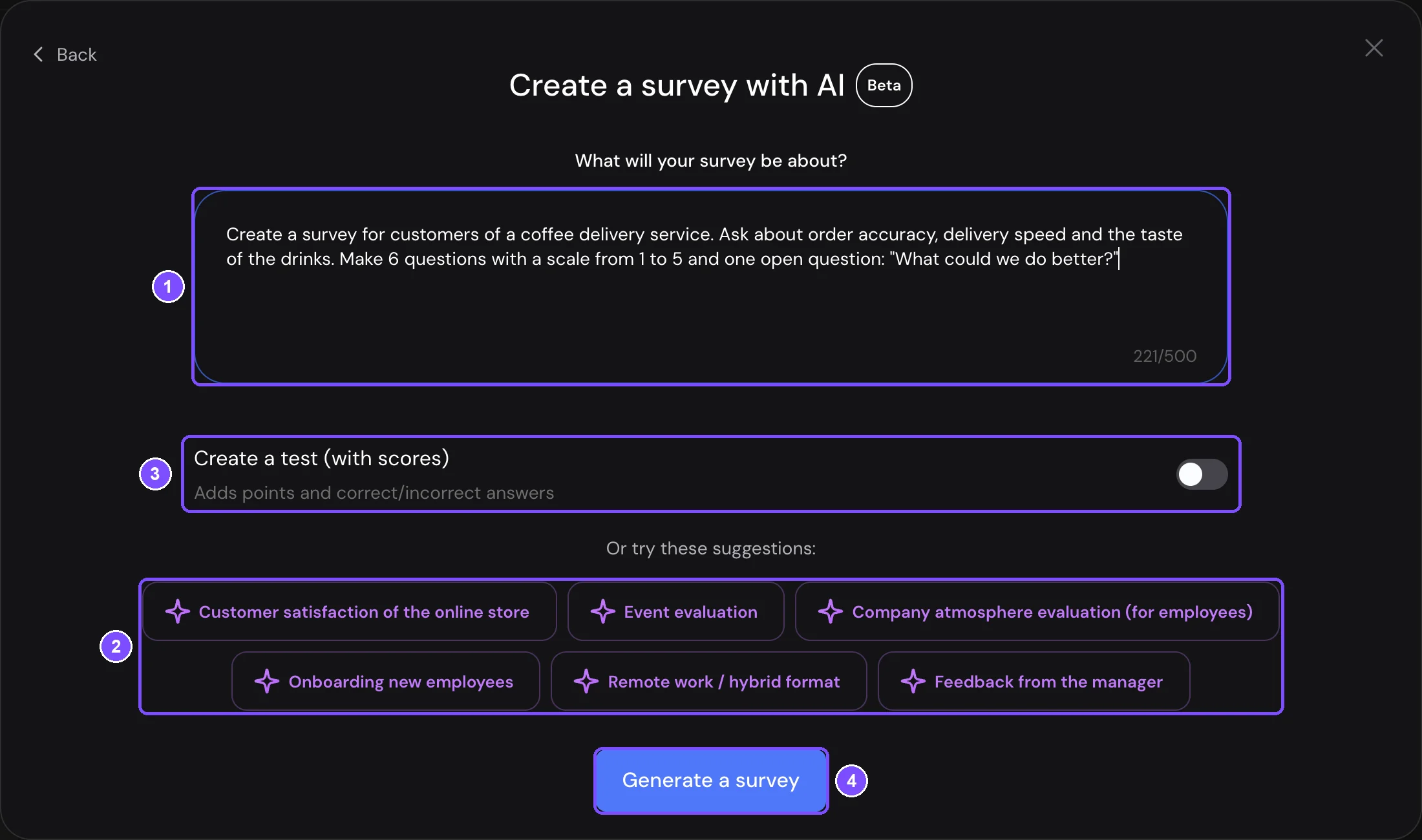
- In What will your survey be about?, describe the survey (1). To start from an example, click one of the topics under Or try these suggestions: (2). The example text goes into the field, and you can change it.
- To create a test with scores and correct answers, turn on Create a test (with scores) (3).
- Click Generate a survey (4).
While the AI works, the window shows "Magic is happening...". Keep the window open. When the survey is ready, the builder opens with the new survey. If you close the window, the AI keeps working, but the builder doesn't open: find the survey in the workspace later.
Writing a good description
The AI only knows what you write in the field. A good description answers four questions:
- Who answers the survey: customers after a purchase, new employees, event guests.
- What you want to find out: delivery speed, product quality, what to improve.
- How many questions you need.
- What kind of questions: answer options, a scale from 1 to 5, an open question at the end.
Tip. A description that covers all four: Create a survey for customers of a coffee delivery service. Ask about order accuracy, delivery speed and the taste of the drinks. Make 6 questions with a scale from 1 to 5 and one open question: "What could we do better?"
What the AI creates
- A survey title and a Welcome Screen with a short description.
- Questions with answer options. The AI uses common question types: Radio Button, Multiple Choice, Dropdown, Yes or No, Rating, Opinion Scale, NPS, Slider, Ranging, Matrix, Enter Text, Email, Phone Number, Numerical Response, Date and Time, File Upload and Message. You add other types, such as Booking or Click Test, yourself.
- Logic jumps between questions, when the topic needs them.
- With Create a test (with scores) turned on: scores for answer options and correct answers for each question.
The new survey is saved as a draft in the workspace that is open on the dashboard.
Before you publish
The AI writes a draft, not a finished survey. Check it before sending it to respondents:
- Read every question and answer option. Fix the wording and remove what you don't need.
- Open Survey → Logic map and check where each answer leads. See Logic Map, Disqualification and Quotas.
- For a test, check the scores and the correct answers. See Scores, Correct Answers and Personality Tests.
- Set up the look in Design. See Design Setup.
- Go through the survey in Preview, then click Publish.
Limits
- The description must be from 3 to 500 characters. The counter under the field shows how many you've used.
- The window waits for the AI for up to 3 minutes.
- Each generated survey counts toward your plan's survey limit. The AI assistant itself works on every plan.
If something doesn't work
- "The AI didn't respond in time. Please try again". The AI didn't finish in 3 minutes, but it may still finish in the background. Refresh the dashboard and check the workspace before you try again, so you don't get two copies. To try again, click Generate a survey. A shorter description or fewer questions also help.
- The "AI-powered surveys" upgrade window opens instead of a new survey. Your plan's survey limit is reached. Delete or archive surveys you don't need, or upgrade the plan.
- A question shows "Widget isn't available". Your plan doesn't include this question type. Delete the question and add one of a type your plan includes, or click Upgrade.