
WooCommerce Post-Purchase Survey: 7 Questions, When to Ask and What to Do Next
Useful  Mike Taylor Nov 5, 2026 Reading time ≈ 15 min
A WooCommerce post-purchase survey asks buyers about their order at two moments: on the "Thank you" page right after checkout, and by email once the parcel has arrived. The first moment suits questions about checkout, the second about the product and the delivery. Below are seven ready questions, how many to ask where, when to send the email, what to do with low scores and how to set it all up in WordPress.
A buyer whose parcel came late or whose product looked different from the photos may never write to you. They simply don't order again, and you never learn which step lost them. The question set at the center of this guide is short on purpose. Each question is tied to something you can change in your store: a checkout step, a product page, a carrier, a policy. If your store runs on another platform, the same questions work through a survey link or an embed; our page on post-purchase surveys covers that route.
Thank-you page or email: when to ask buyers
Ask about checkout on the thank-you page and about the product and delivery after the parcel arrives. A buyer who has just paid remembers every field of the checkout form and knows what almost made them leave. The same buyer has not seen the product yet, so a question like "Did the product match its photos?" collects guesses on that page.
| Thank-you page | Email after delivery | |
|---|---|---|
| When | Seconds after payment | A few days after the order ships |
| What the buyer knows | Checkout, payment, how they found you | The product, the packaging, the delivery |
| Ask about | Ease of ordering, what almost stopped them | Match with the description, delivery, recommendation |
| Length | 2–3 questions | Up to 7, with logic |
| Who you miss | Buyers who close the tab right away | Buyers who ignore store email |
Most stores need both moments. They answer different questions, and each one reaches buyers the other misses. If you run the survey with the SurveyNinja plugin, both moments share one survey, and the email goes only to buyers who did not answer on the thank-you page. That shapes how you build it: the questions have to make sense at either moment, and logic decides who sees the product and delivery part. The next two sections show how.
Post-purchase survey questions: a ready set of seven
These seven post-purchase survey questions cover checkout, product, delivery and loyalty. Questions 1 to 3 work at any moment. Questions 4 to 7 appear only to buyers whose order has arrived.
| Question | Answer format | Why it is there |
|---|---|---|
| 1. How easy was it to place your order? | Scale 1–7, from "very difficult" to "very easy" | Customer Effort Score for checkout. A low score points at a step you can fix. |
| 2. What almost stopped you from ordering? | Open text, optional | Names the friction in the buyer's words: shipping cost, payment options, doubts about size. |
| 3. Has your order arrived? | Yes, not yet | Routes the survey. "Not yet" ends it, "yes" opens the product and delivery questions. |
| 4. Did the product match its description and photos? | Exactly, mostly, no | Shows which product pages promise something the product does not deliver. |
| 5. How was the delivery? | Single choice: on time and intact, late, damaged or incomplete, other | Separates carrier problems from product problems. |
| 6. How likely are you to recommend [store] to a friend? | NPS, 0–10, then "What is the main reason for your score?" | The loyalty trend you compare month to month, with the reason behind each score. |
| 7. May we contact you about your answer? | Yes, no | Permission to follow up on a problem. |
Question 1 is the standard effort question applied to checkout; our guide to Customer Effort Score covers the scale and how to calculate it. Keep question 2 optional: buyers who had no doubts skip it, and the answers you do get are specific. For question 6, the reason matters more than the number. A 6 with "shipping took two weeks" tells you what to fix, and the NPS calculator turns the scores into one figure you can track.
Adapt the set to what you sell. A store with digital downloads drops question 5, because a download has no delivery. A store that sells clothing can add "How does the size fit?" after question 4, with "smaller than expected, as expected, larger than expected". Every added question should change a decision: if you cannot say what you would do differently after reading the answers, leave it out.
How many questions should a post-purchase survey have?
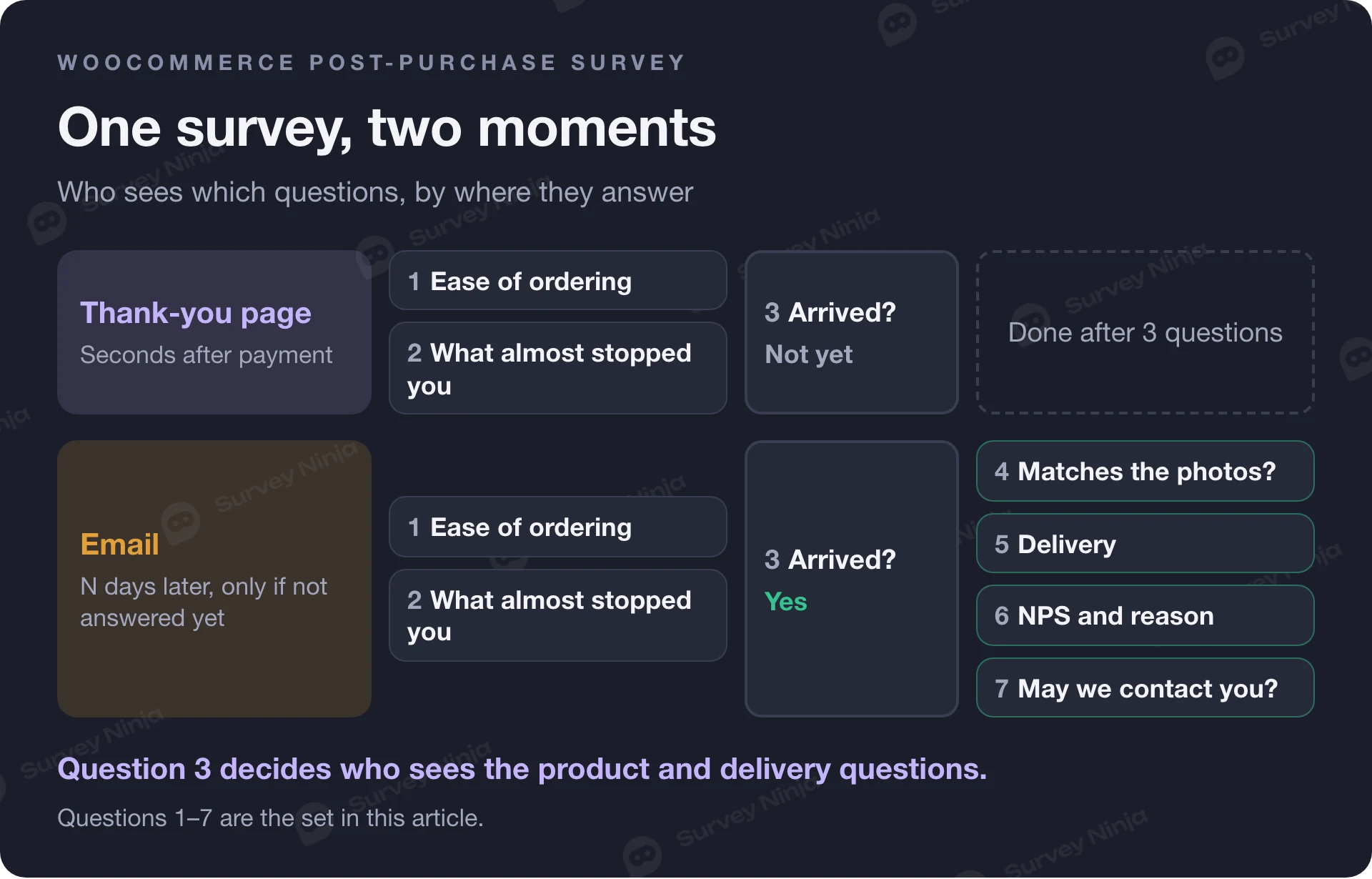
Two or three on the thank-you page, up to seven in the email, and each buyer sees only the questions that apply to them. The thank-you page interrupts a buyer who is about to leave, so it has to be quick. An email is opened on purpose, by someone who has the product in hand and something to say about it.
Question 3 does the routing. A buyer who answers on the thank-you page picks "not yet" and is done after three taps and one optional text field. A buyer who skipped the survey there gets the email a few days later, picks "yes" and sees all seven.
Write the heading above the survey to match its length. "A couple of questions about your order" is a fair promise for three questions and an unfair one for seven. Put the full number of questions in the email instead, where the buyer decides whether to start. Our guide to triggered surveys covers the same principle for other events: the survey fires at the moment, and its length fits the moment.
When to send the post-purchase survey email
Send it two or three days after the buyer receives the parcel. WooCommerce does not know when a parcel arrives, so the order status is the closest signal you have. According to the WooCommerce documentation on order statuses, an order moves to Processing once payment is received and to Completed when the store marks it as fulfilled, usually after shipping.
| Your store | Count the days from | How many days |
|---|---|---|
| Marks orders Completed when the parcel ships | Completion | Your usual delivery time plus two or three days |
| Never marks orders Completed | The order date | Time to pack, plus delivery time, plus two or three days |
| Sells digital products only | The order date | Enough time to use the product, often about a week |
If your delivery times vary a lot by region, set the delay for the slower regions. A buyer who answers question 3 with "not yet" still gives you checkout feedback, while an email that arrives before the parcel only annoys the buyer.
The plugin sends the email only to orders that are processing or completed, so unpaid, cancelled and refunded orders do not get a "How was your order?" message. It also skips buyers who already answered on the thank-you page.
Keep the email about the order. One sentence on why you ask, the order number, one button. Leave discounts and new arrivals for your newsletter: the buyer did not sign up for marketing by placing an order. The plugin's email asks for feedback without a separate newsletter consent, so mention it in your store's privacy policy if the law that applies to you requires it. Check the rules in the countries you sell to.
What to do with low post-purchase scores
Read low answers within one working day, fix the cause, and contact only buyers who said yes to question 7. A low score is usually about one specific thing, and the answers in the set tell you which one.
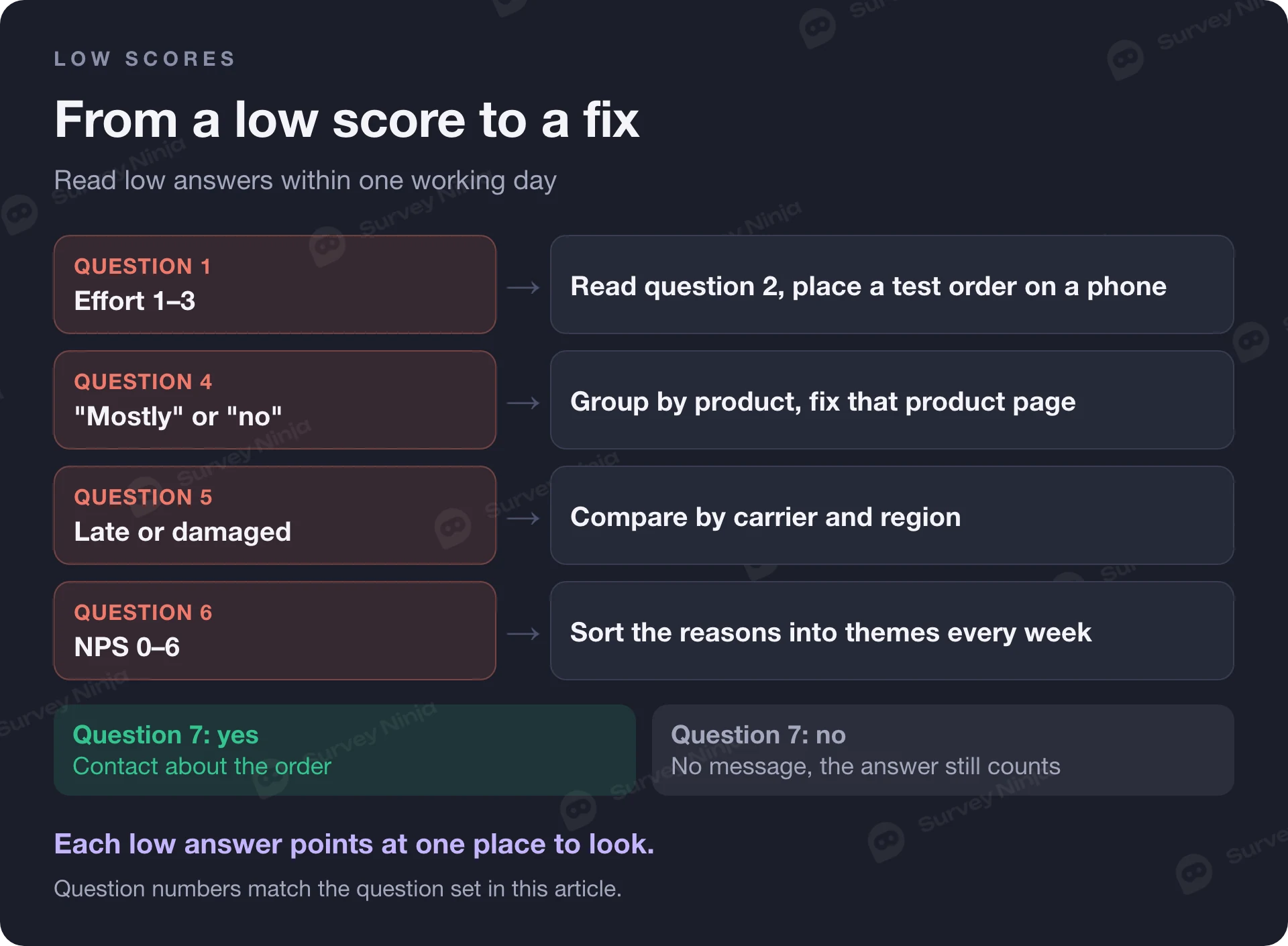
- Effort of 1 to 3 on question 1. Read question 2 for the same buyers, then place a test order on a phone and go through every step they mention. Start with two suspects: extra costs that appear only at the last step and a forced account sign-up are among the most common reasons for abandoned checkouts in Baymard Institute's checkout research.
- "Mostly" or "no" on question 4. Group the answers by product. When the low answers cluster on one product, the product page is the fix: photos in daylight, real dimensions, a size table.
- "Late" or "damaged" on question 5. Compare the answers by carrier and by region before you change anything. If one carrier collects most of the complaints, the conversation is with that carrier. If delivery is late everywhere, the promise on the product page is too optimistic.
- NPS of 0 to 6 on question 6. Read the reasons every week and sort them into themes. When the reasons repeat, you have a list of fixes in the order of how often buyers mention them.
When you do contact a buyer, write about their order, say what you will do, and do it. Do not ask them to change their score or argue with their answer. Buyers who answered no to question 7 still count: their answers go into the weekly themes, and they do not get a follow-up message.
For open answers in bulk, paste them into the free AI Survey Summary. It groups them into themes and lists positive and negative signals and suggested actions, and it works without an account. Read a sample of the original answers next to the summary before you act on it.
Five mistakes with post-purchase surveys
- Asking about the product on the thank-you page. The buyer has not received it yet. Keep product and delivery questions behind question 3.
- A long survey under a short heading. A heading that promises two questions and a survey that shows seven teaches buyers to skip your surveys.
- Calling the survey anonymous. The answer is saved with the order, so it is not anonymous. Say so in the survey's welcome text: "Your answer is saved with your order so we can help if something went wrong."
- Rewarding high scores. A coupon only for 9s and 10s, or a review request sent only to happy buyers, fills your data and your reviews with answers you paid for. If you thank buyers with a coupon, give it to everyone who answers, whatever the score.
- Answers nobody reads. Name one person who reads low scores every working day and one weekly slot for the themes. Without them, the survey only collects data.
How to set up a WooCommerce post-purchase survey with SurveyNinja
The SurveyNinja plugin for WordPress shows a survey on the WooCommerce "Thank you" page and, a few days later, sends it by email from your store. First write the survey in SurveyNinja: add the seven questions yourself, start from the free post-purchase survey generator, or describe the survey to Ninja AI in the builder and apply the draft it proposes. Logic is on every plan, including Free, so "not yet" on question 3 can end the survey. The NPS question can show its own reason question under the score, with different wording for low, middle and high scores.
- Install and activate the SurveyNinja plugin in WordPress, open SurveyNinja → Settings and click Connect account. You sign in and choose a workspace. The site needs HTTPS for the connection, and the free plan works with the plugin.
- Open SurveyNinja → WooCommerce and choose your survey in Survey.
- Under On the "Thank you" page, pick How to show (under the thank-you message or as a popup) and write the Heading above the survey.
- Tick Email after the order, set the number of days and whether to count from when the order is placed or completed, and edit Subject, Text and Button.
{name},{order}and{shop}insert the buyer's name, the order number and your store name. - Click Save and send me an example to see the email as a buyer will, then Save.
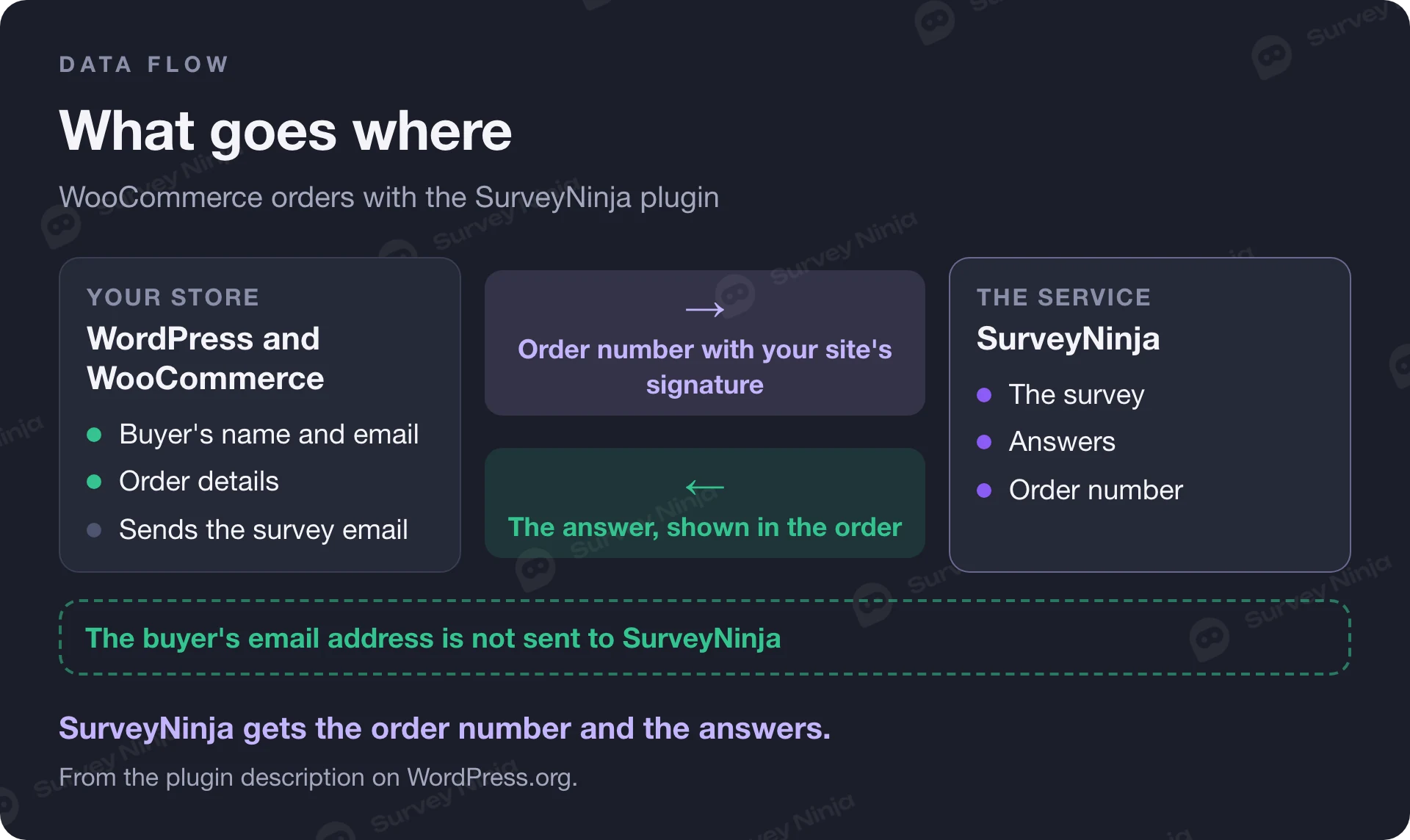
Each answer appears inside its WooCommerce order, in the Customer survey box, so whoever handles the order sees what the buyer said next to what they bought. SurveyNinja receives only the order number with your site's signature, which links the answer to the order. Your store sends the email itself through WooCommerce, and the buyer's address is not sent to SurveyNinja.
Email notifications about new answers are on every plan, so a low score reaches you the day it is given. On Premium and Enterprise, the plugin's WordPress dashboard widget also shows the AI summary of a survey. Step-by-step setup with screenshots is in the WordPress plugin help article. If you also want a longer survey about shopping habits, support and returns, the online store feedback template has eleven questions you can send separately. Plans and response limits are on the pricing page.
Frequently asked questions
What is a post-purchase survey?
A post-purchase survey asks buyers about their order after they pay: on the thank-you page about checkout, and by email after delivery about the product and the delivery itself. It tells an online store what its analytics cannot show, such as what almost stopped the purchase and whether the product matched its description.
What questions should I ask after a purchase?
Ask how easy it was to place the order, what almost stopped the buyer, whether the order has arrived, whether the product matched its description and photos, how the delivery went, how likely they are to recommend the store and why. End by asking for permission to contact them about the answer.
When should I send a post-purchase survey email?
Two or three days after the parcel arrives. In WooCommerce, count from the Completed status if you mark orders completed when they ship, and add your usual delivery time. If you never mark orders completed, count from the order date and add packing and delivery time.
How many questions should a post-purchase survey have?
Two or three on the thank-you page and up to seven in the email after delivery. Use logic so each buyer sees only the questions that apply: a buyer whose order has not arrived yet answers about checkout and is done. Cut any question whose answer would not change what you do.
Can I add a survey to the WooCommerce thank-you page?
Yes. With the SurveyNinja plugin for WordPress, you choose a survey in SurveyNinja → WooCommerce and show it under the thank-you message or as a popup. The same settings page can send the survey by email a few days after the order, and each answer appears inside the WooCommerce order.
Does the plugin send customer data to SurveyNinja?
For WooCommerce orders, SurveyNinja receives only the order number with your site's signature, so the answer can be matched to the order. The email after the order is sent by your store through WooCommerce, and the buyer's email address is not sent to SurveyNinja.
Published: Nov 5, 2026