 25 Questions for a Travel Agency Customer Satisfaction Survey
Micro Surveys on Your Website
Updated
On this page
A micro survey is a short survey that appears right on your website: a card in a corner of the page or a window in the center. It suits one or two quick questions, such as a rating, an NPS question or a short comment. Micro surveys are available on all plans. The format is in beta.
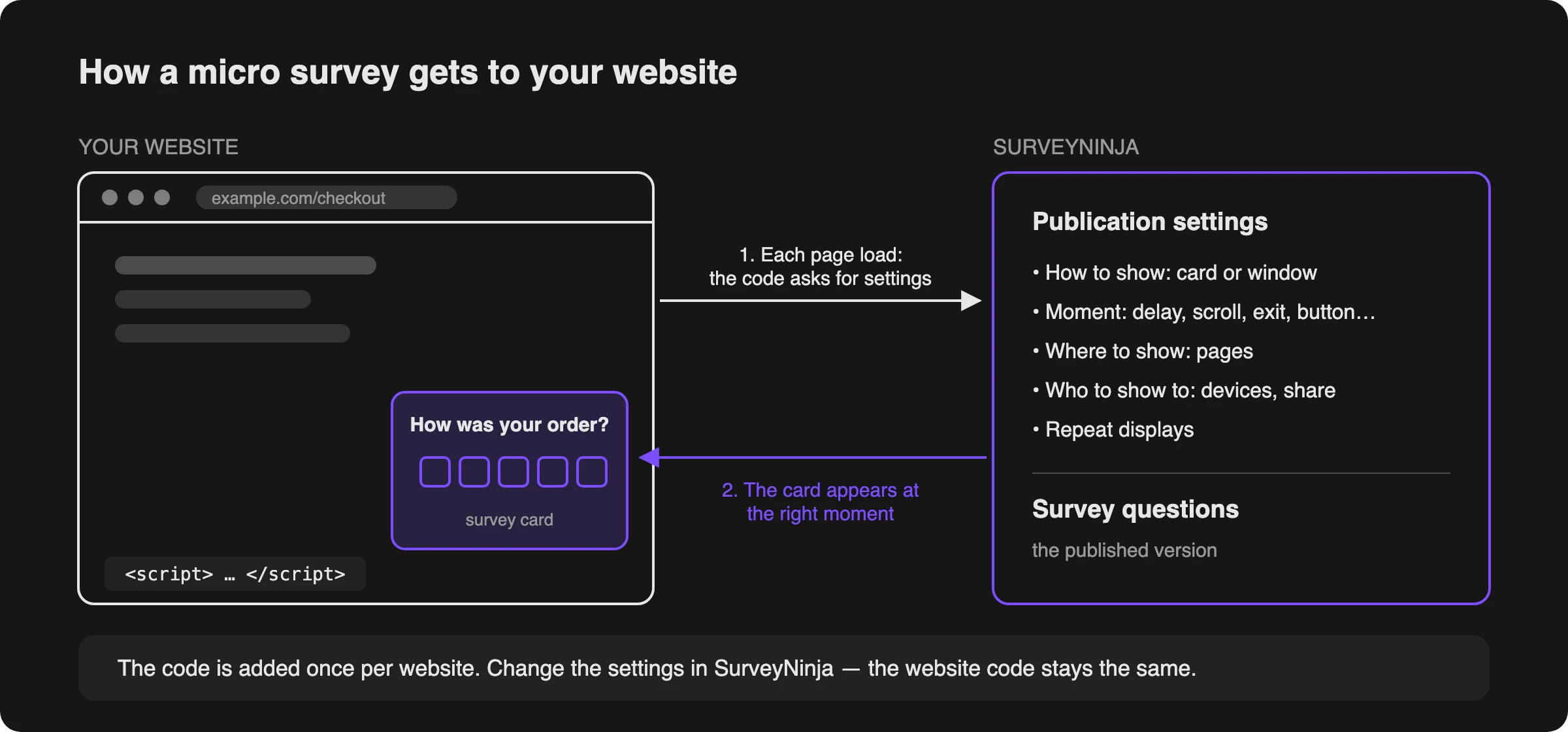
You add one code to your website once. After that, every micro survey for this website is turned on and set up in SurveyNinja: when it appears, on which pages and to whom.
Creating a micro survey
- On the dashboard, click Create new survey.
- In the Create a survey window, click Micro survey.
- Enter a name and click Create survey. Only you see the name: in the survey list and in reports.
- Add the questions in the builder.
The card is about 400 px wide, so the builder offers only question types that fit it: Radio Button, Multiple Choice, Yes or No, Dropdown, Rating, Smile rating, Opinion Scale, NPS, Slider, Enter Text, Numerical Response, Email, Phone Number, Full name, Date and Time and File Upload. You can also add a Welcome Screen, Message, HTML Code, Thank You Screen and Disqualification screen.
The card has no Next button: the answer itself moves the respondent forward. In Settings, you can turn on the Step counter ("1 / 3" in the card header) and the "Back" button.
Connecting your website
- Click Publish. A window opens: "Survey published. All that's left is to connect the website".
- Enter your website's domain, for example, example.com, and click Add, then Continue. If websites are already connected for other micro surveys, the window shows Choose a website with a list: choose the website and click Set up display, or click Add another website.
- Click Copy code (1) and paste the code before the closing body tag on all pages of the website. Usually it goes into a shared template or the footer. If someone else edits your website, click Send to developer (3): an email with the code opens in your mail app.
- Click Code added, next (2).
- On the Let's check the installation step, open any page of your website that has the code. SurveyNinja checks the installation by itself and shows "The code on the website works".
- Click Set up display.
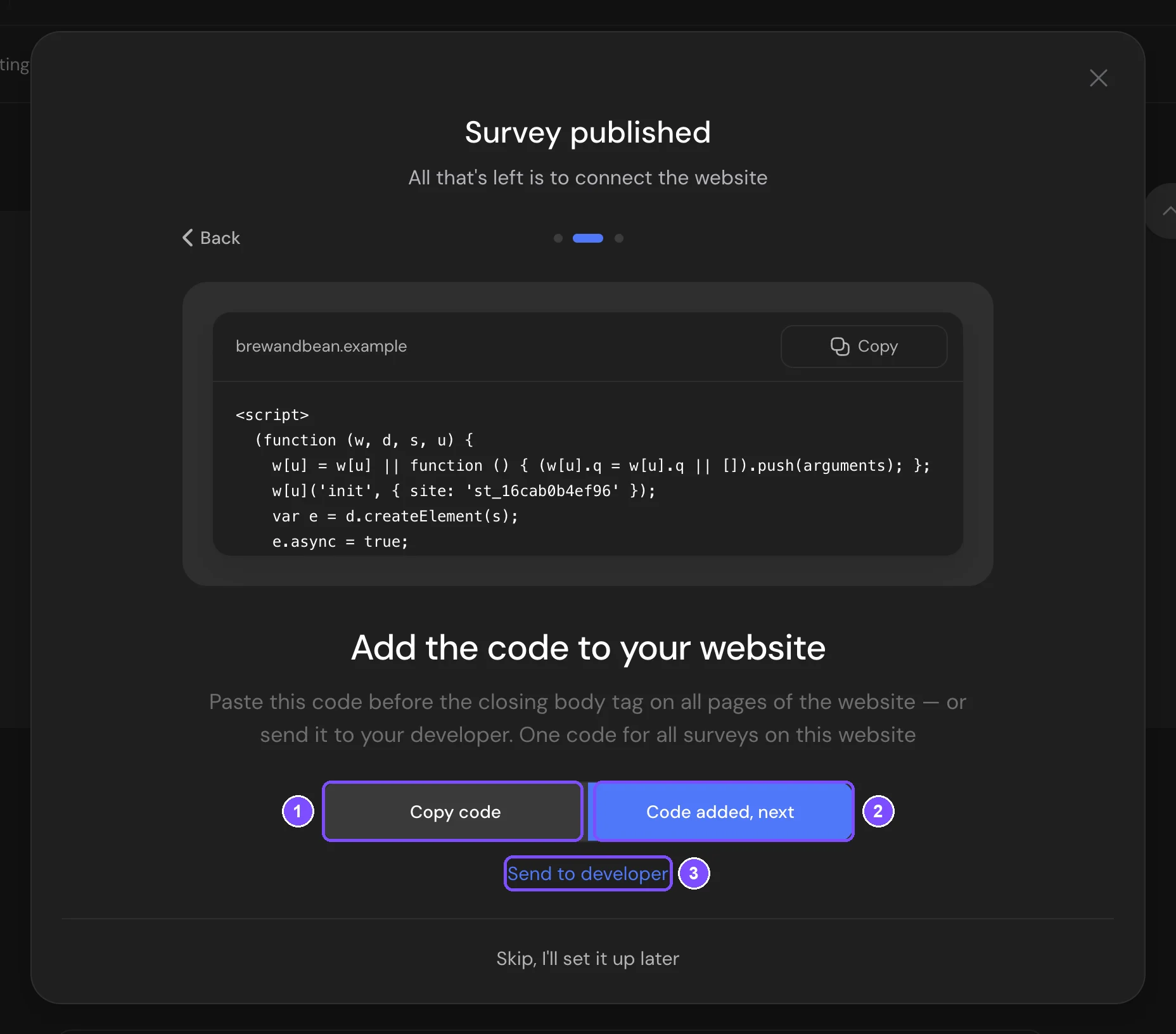
All micro surveys on one website use the same code. If the website already has it, SurveyNinja skips steps 3–5.
Note. To connect the website later, click Skip, I'll set it up later. The setup will wait for you in the Publication tab of the survey.
Setting up the display
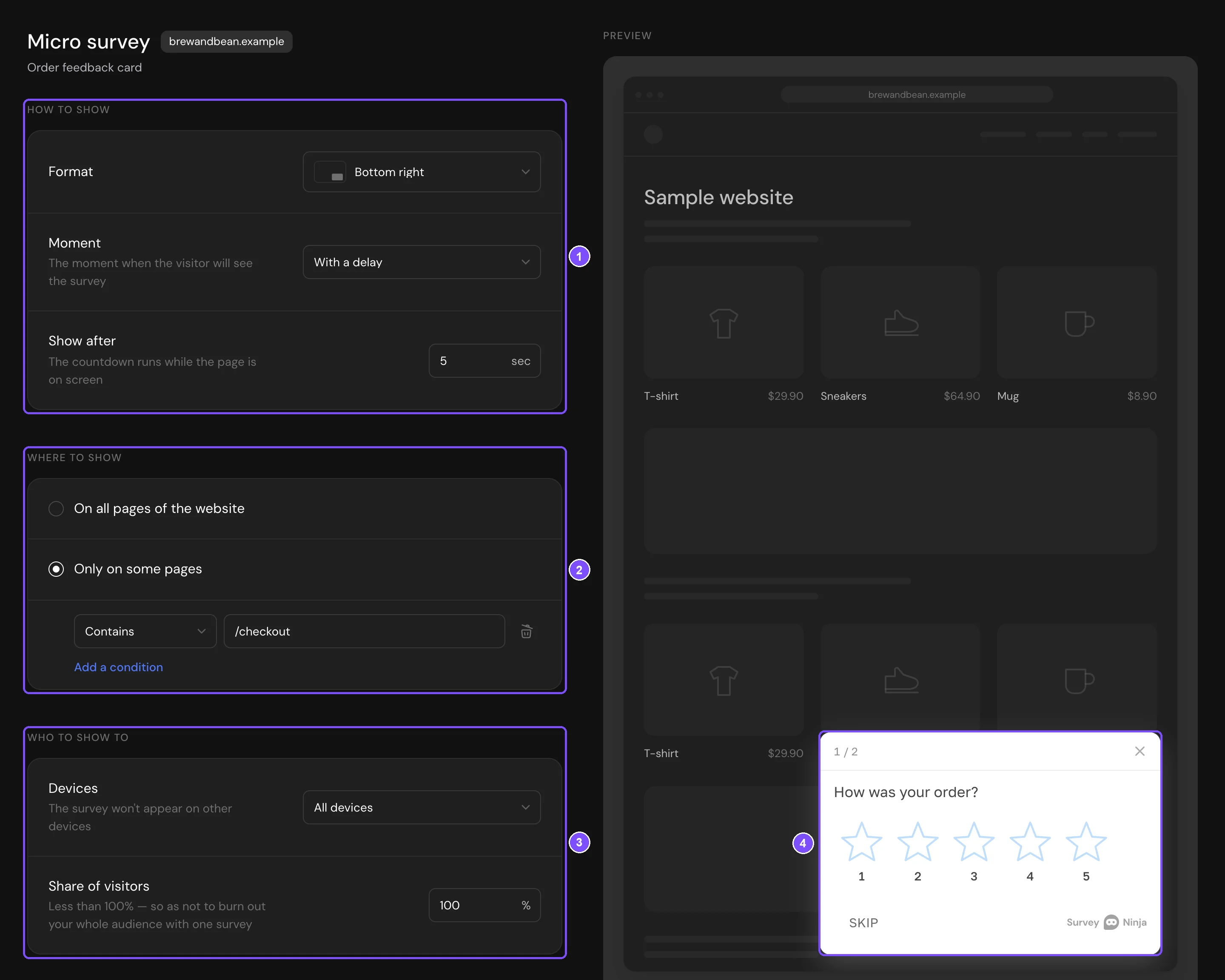
The Publication tab has the settings on the left: How to show (1), Where to show (2), Who to show to (3) and Repeat displays. The Preview on the right shows the card on a sample website (4). Changes are saved automatically and reach the website without changing its code.
How to show
Format — a card in one of the corners (Top left, Top right, Middle left, Middle right, Bottom left, Bottom right) or a Modal window in the center.
Moment — when the visitor sees the survey:
| Moment | How it works |
|---|---|
| With a delay | After the set number of seconds. The countdown runs while the page is on the screen. |
| After scrolling | When the visitor scrolls down the set share of the page. |
| On leaving the page | When the cursor moves up to the address bar or tabs. Doesn't work on phones. |
| Via a button on the website | A button on the side or in a corner of the page opens the survey. Set the Button text, Button color, Text color and Icons. |
| On click of your element | A click on an element of your website opens the survey. Enter its Element CSS selector, for example, #feedback-button. |
| By javascript event | Your website code opens the survey. Enter the Event name, and give your developer the call shown below the field. |
For example, for the event name checkout_done the developer adds this call to the website code:
SurveyninjaSite('event', 'checkout_done');
Where to show
Choose On all pages of the website or Only on some pages. For some pages, add rules for the page address: Contains, Does not contain, Equals or Starts with, for example, contains /checkout. Click Add a condition to add another rule.
Who to show to
- Devices — All devices, Desktops or Phones. The same setting is in Settings → Device Access.
- Share of visitors — the percentage of visitors who can see the survey.
Repeat displays
- How often — how many times one visitor can see the survey: One display per visitor, Once per visit, Once a day, Once a week, Once a month or Always (on every page).
- Don't show after submission — the survey doesn't appear again to a visitor who has already answered it.
- Don't show if the visitor has already responded during this visit — useful when your website has several micro surveys.
The code for the website is at the bottom, in Website installation.
Stopping the survey
To remove the survey from the website, close it or move it to the archive. A survey also disappears from the website when it reaches its deadline or response limit, or is outside its scheduled access hours.
Results
Responses from the website go to the survey's Results, like responses from a link. The Summary tab of a micro survey shows the funnel (views, opens, started and finished answers, dismissals), Views and responses by day, Display pages and Where people close it (the question at which visitors leave).
Why it wasn't shown lists the reasons, for example, a different page or device, already shown, or not in the share of visitors. These numbers are approximate: they're counted for a sample of visitors.
Limits
- Show after: up to 600 seconds. Share of visitors: from 1 to 100%. Where to show: up to 20 page address rules.
- Micro surveys don't have Access by password, Access the survey via SSO, Email identification, Show captcha and Access by IP in Settings: a card on your website can't ask for them. See Survey Access and Protection for regular surveys.
If something doesn't work
- The installation check finds nothing. After about 2 minutes, the step shows "No requests from the website yet". Make sure the code is on all pages and the website changes are published, then click Check now. You can also click Set up display without checking and come back to it later.
- The survey doesn't appear on the website. Check that the survey is published and still accepts responses (see Stopping the survey). Then check the page rules in Where to show and the settings in Who to show to.
- The survey appeared once and doesn't show again. By default, How often is One display per visitor, and both switches in Repeat displays are on. Change these settings if visitors should see the survey more often.
- The survey doesn't appear on phones. Devices is set to Desktops, or the moment is On leaving the page.
- Nothing happens on the javascript event. The Event name field is empty, or the name in the website code is different. The names must match exactly.