 WooCommerce Post-Purchase Survey: 7 Questions, When to Ask and What to Do Next
A/B Test for Questions
Updated
On this page
An A/B test shows respondents different versions of a question's title and description. Each respondent sees one version, chosen at random by the shares you set, and the report shows how many of them finished the survey after each version.
Setting up an A/B test
- Open the survey in Builder, hover over the question and click Settings (the gear).
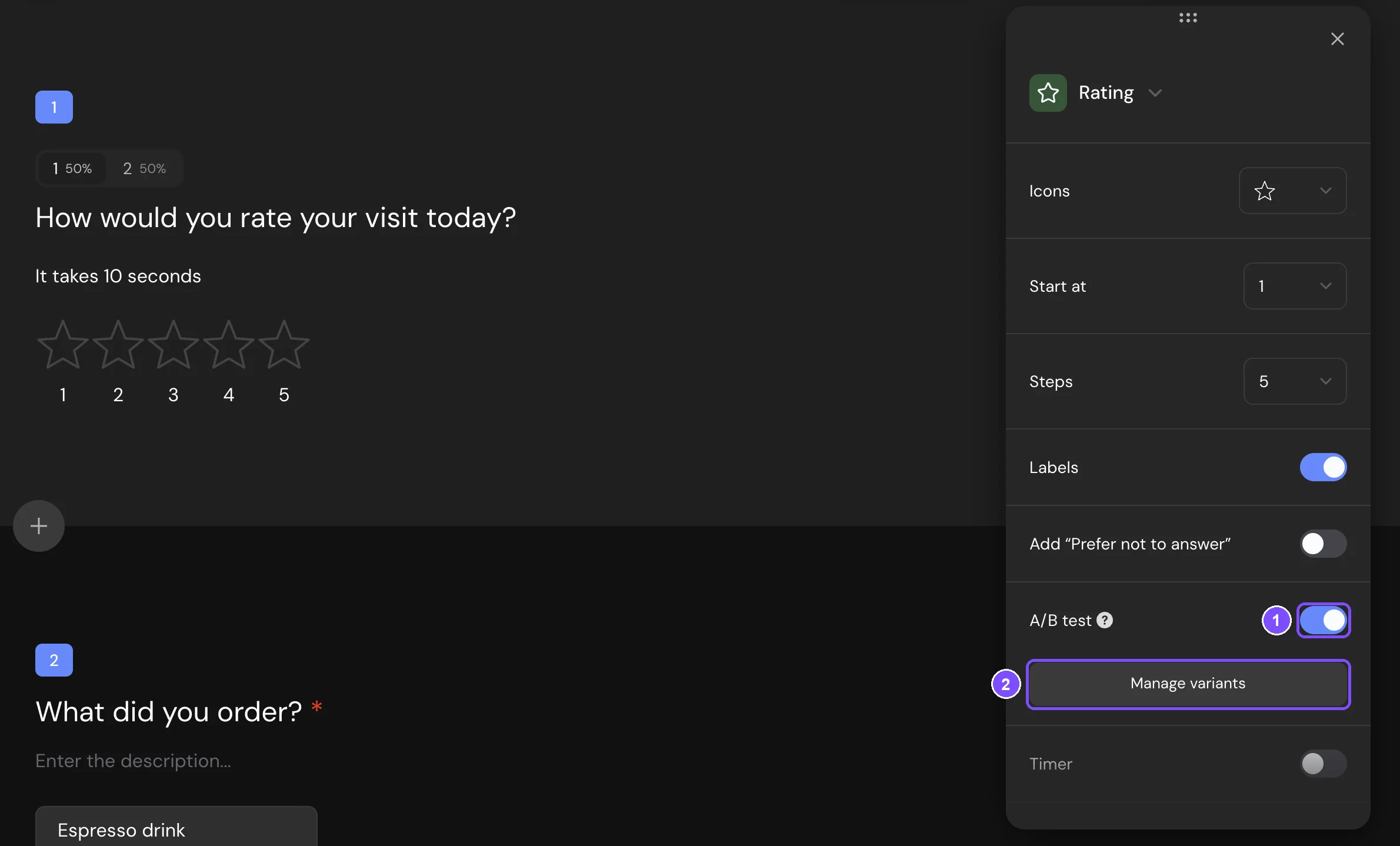
- Turn on A/B test (1). SurveyNinja creates 2 variants with 50% each. Variant 1 gets the current title and description, variant 2 is empty.
- Click Manage variants (2).

- In the A/B test variants window, open each variant tab and fill in its Title.
- To add a variant, click + after the tabs. Set the shares in Variant display frequency.
- Click Save.
The question on the canvas now shows variant tabs instead of one title. Click a tab to see and edit that variant right there.
Important. Fill in every variant. If a variant's title is empty, respondents who get it see the question without a title.
Variant settings
| Setting | What it does |
|---|---|
| Variant tabs | + (Add variant) adds a variant with an equal share, and the other shares shrink proportionally. × (Delete variant) deletes a variant after you confirm. Its share goes to the others. |
| Variant name (optional) | A name only you see: in the tabs, logic jumps, report and filters. Without it, the report shows Variant 1, Variant 2 and so on. |
| Variant display frequency | The share of respondents who see this variant, from 0 to 100%. When you change one share, the others change proportionally, so the total stays 100%. |
| Title | The question title in this variant, with the same formatting toolbar as the regular title. |
| Description | The description in this variant. Appears when Description is turned on for the question. |
Answer options, media and other question settings are the same for all variants. Turning off A/B test brings back the regular title. The variants are kept for the next time you turn it on.
What respondents see
- Each respondent sees one variant. When Autosave progress is on in the survey settings, SurveyNinja also gives a lagging variant more chances, so the actual split stays close to the shares.
- A respondent who comes back in the same browser gets the same variant, even if you changed the shares.
- Each A/B question picks its variant separately.
Tip. To check a variant, click its tab on the canvas. Your browser keeps getting the same variant in the preview and on the survey link.
Branching by variant
A question with an A/B test gets 2 more conditions in logic jumps: saw the option and did not see the option. In IF, choose the question, the condition and the variant. For example, respondents who saw the "Friendly" variant go to one follow-up question, everyone else to another. Message and HTML Code blocks appear in this list only when they have an A/B test.
Comparing variants in the report
Open Results → Reports. The question card is marked A/B test. Under the answer chart, each variant has a card:
- Impressions: how many respondents reached the question and saw this variant.
- Finished: how many of them completed the survey, for example "42 of 60 (70%)". Disqualified respondents don't count.
- The variant's title and description.
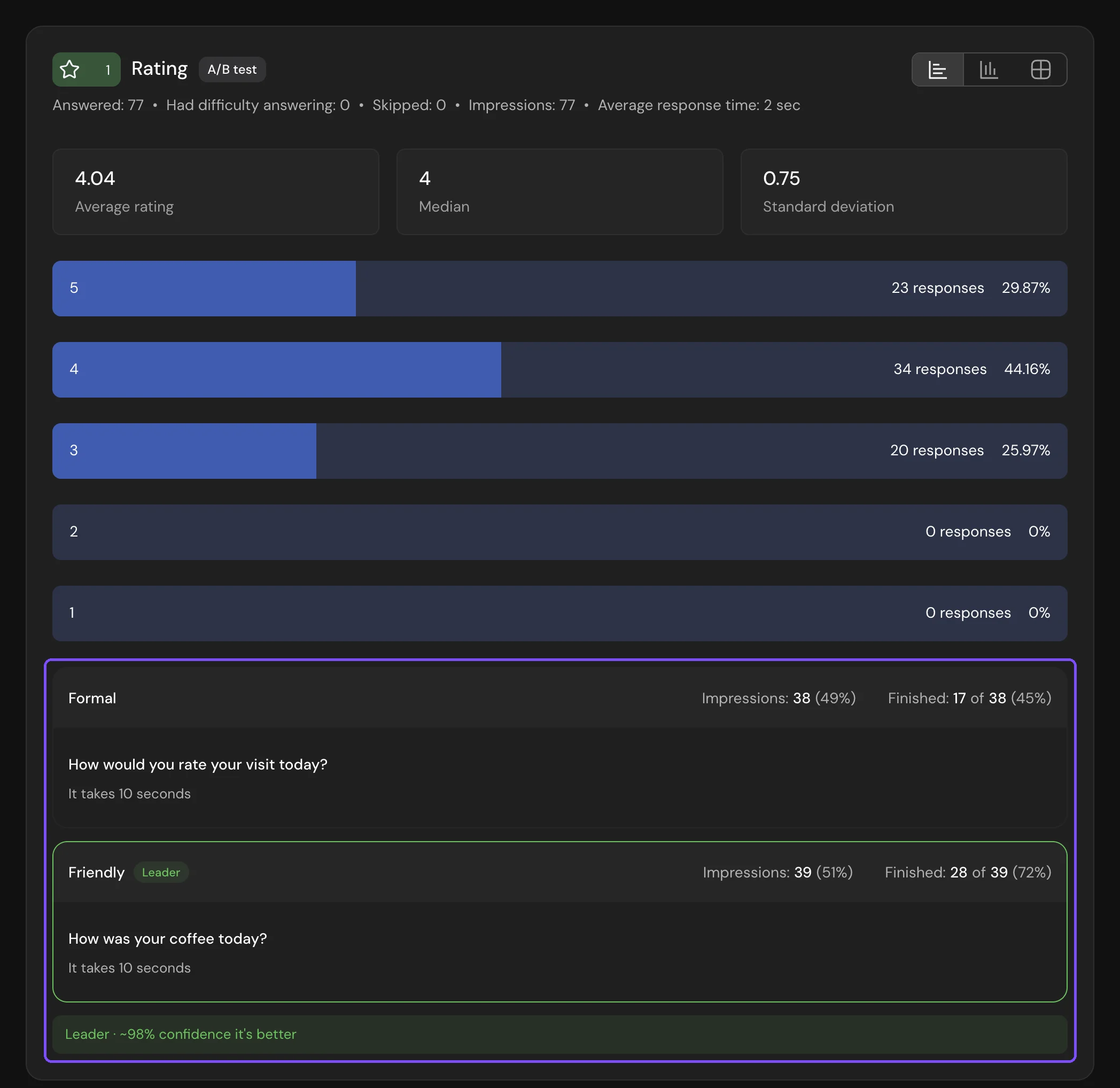
SurveyNinja compares the 2 variants with the highest share of finished respondents. When it is at least 80% confident that the difference is real, the better one gets the Leader tag, for example "Leader · ~85% confidence it's better". Until then, the block says why there's no leader yet.
Note. The block counts the responses chosen above the report. On Completed, everyone counted has finished, so all variants show 100%. To compare variants, choose All (Standard and higher). See Viewing the Survey Report.
The answer chart combines all variants. To see the answers to one variant, click Filter, open A/B test and select the question and the variant. In Responses, each response shows the title the respondent saw, and a downloaded file has a column with the variant name. See Viewing and Downloading Survey Responses.
Limits
- The A/B test is available on all plans. Report filters need Basic and higher, the All tab needs Standard and higher.
- Welcome Screen, Thank You Screen, Disqualification screen and Question Group can't have an A/B test, but questions inside a group can. Message and HTML Code can: their report card shows only the variant block.
- There's no set limit on the number of variants.
- The leader is found by completion only. The answers aren't compared.
- A deleted variant that respondents have seen stays in the report as (deleted).
- Saving a question to Favorites doesn't keep its variants.