 25 Questions for a Travel Agency Customer Satisfaction Survey
Custom SMTP Server
Updated
-
Free: not included -
Basic: not included -
Standard: not included - Premium
- Enterprise
On this page
By default, SurveyNinja sends survey emails from its own address, noreply@surveyninja.io. Connect your company's SMTP server, and emails about responses go out from your address and domain, through your mail service.
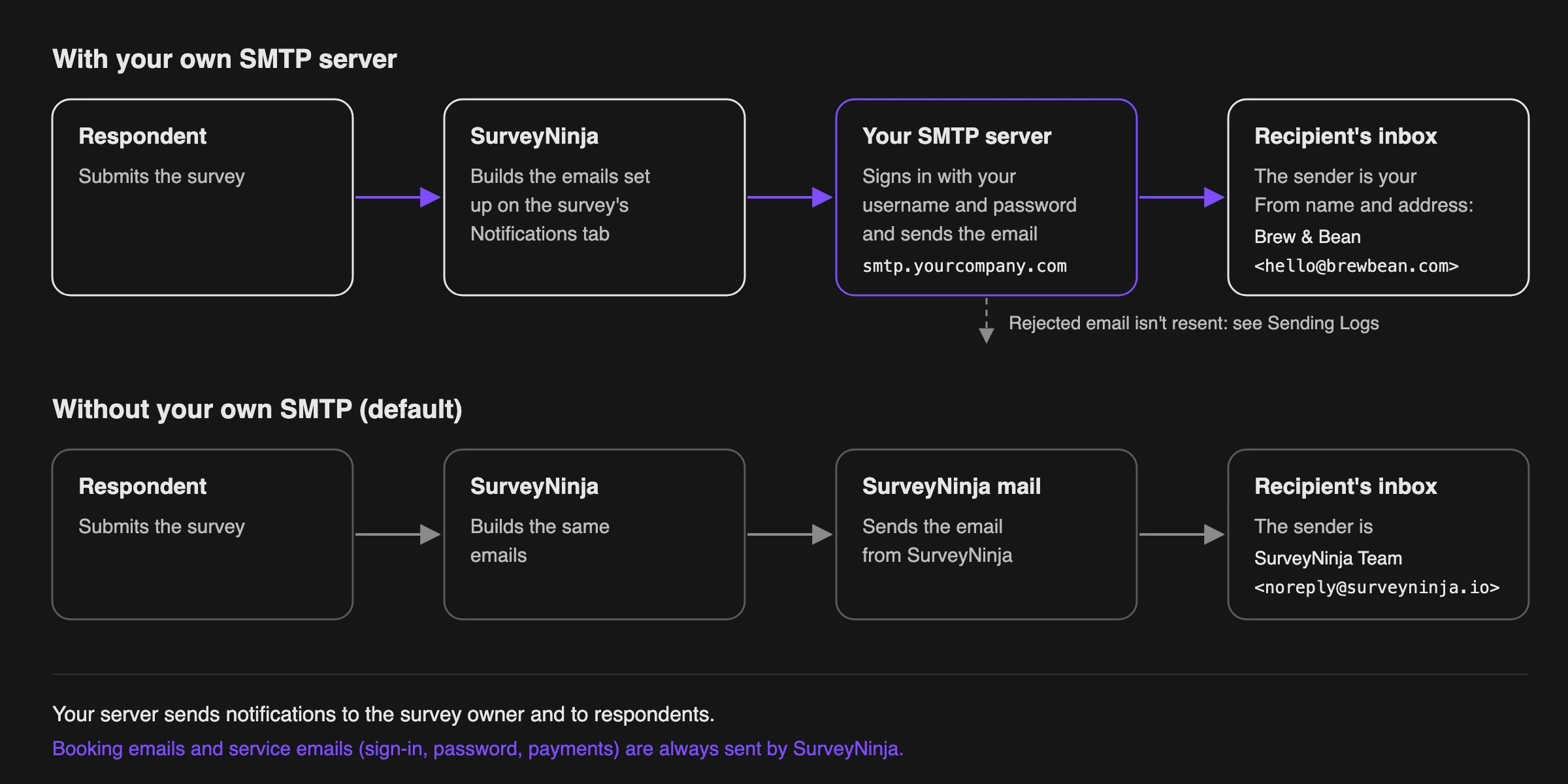
Which emails use your server
Your SMTP server sends the emails you set up on the survey's Notifications tab (see Email Notifications):
- Notifications to survey owner: the email about a new response to you and your colleagues.
- Notifications to respondent: the thank-you email to the respondent.
Your own SMTP also makes the HTML editor available for these emails, where you can paste a fully custom email template. Without it, the editor shows Available only with your own SMTP.
Emails about online bookings and service emails from SurveyNinja (sign-in, password reset, payments) are always sent from SurveyNinja.
Before you start
- The workspace owner and administrators can set up SMTP. Other members need a role with the Manage SMTP permission.
- Get the connection details from your email provider or IT team: server address, port, encryption type, username and password.
- Decide which address emails will come from. Your SMTP account must be allowed to send from it, otherwise the server rejects the emails.
Usual port and encryption pairs:
| Port | Encryption |
|---|---|
| 587 | TLS (STARTTLS) |
| 465 | SSL |
| 25 | None |
Connecting your SMTP server
- Click your profile icon in the top right corner and choose SMTP.
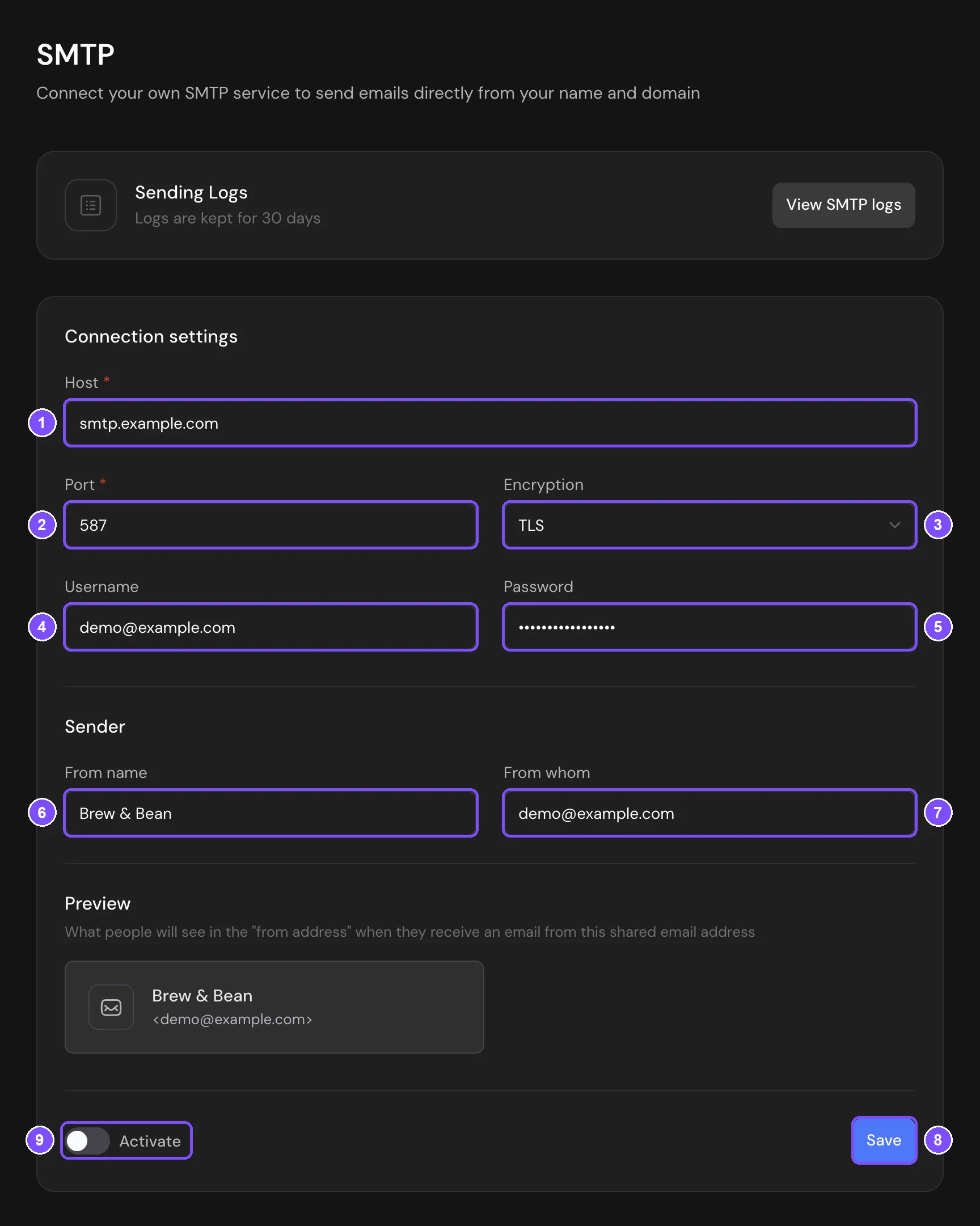
- In Connection settings, fill in Host (1), Port (2), Encryption (3), Username (4) and Password (5).
- In Sender, enter From name (6), for example your company name, and the address in From whom (7). Preview shows how recipients will see the sender.
- Click Save (8).
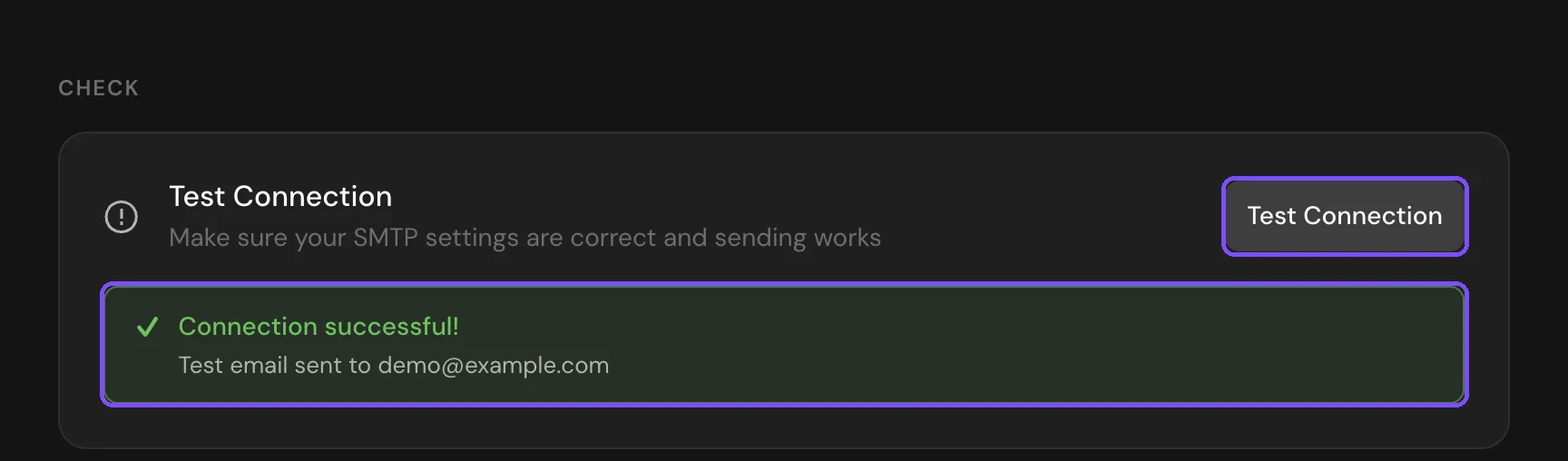
- In Check, click Test Connection.
- If the test is successful, turn on the switch next to Save (9). It's labeled Activate while SMTP is off and Disable while it's on.
The test connects to your server with the saved settings and then sends a test email to the address of your SurveyNinja account. Connection successful! means SurveyNinja has signed in to your server; the line below it shows where the test email went. The test works before you turn SMTP on, but only with saved settings: if you change a field, click Save first.
Note. The password isn't shown after saving. To keep it, leave the field as is. To replace it, enter a new password and click Save.
Sending logs
To see what was sent through your server, click View SMTP logs in Sending Logs. Each entry shows the status, Sent (1) or Failed (2), the date, the email subject, the Recipient and the Sender. Failed emails also show the error from your server at the bottom of the entry. Test emails appear here too.
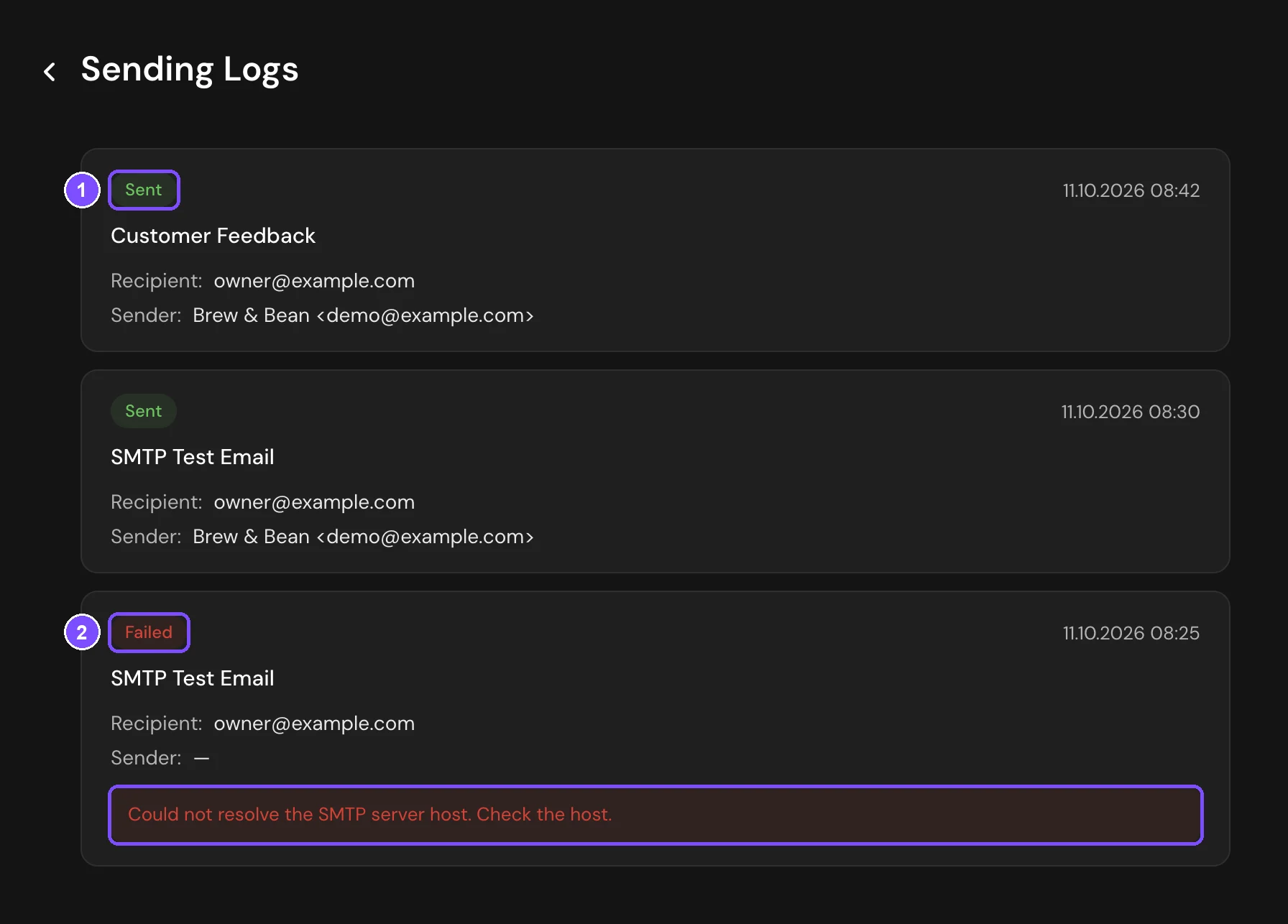
Important. While your SMTP is on, survey emails are sent only through your server. If your server rejects an email, SurveyNinja doesn't resend it through its own servers. Check Sending Logs if emails don't arrive.
Turning off your SMTP
Click the switch next to Save (it's labeled Disable while SMTP is on). Survey emails go back to being sent from SurveyNinja. Your settings stay saved, so you can turn SMTP on again later.
Limits
- A workspace has one SMTP server.
If something doesn't work
If Test Connection fails, the message tells what went wrong:
| Message | What to check |
|---|---|
| Invalid SMTP login or password. | The username and password. Some providers require a separate app password for SMTP |
| Encryption mismatch: use TLS (STARTTLS) on port 587, not SSL. | Choose TLS for port 587 |
| Encryption mismatch: use SSL on port 465. | Choose SSL for port 465 |
| The SMTP server is not accepting connections on this port. Check host and port. | The port number and that the server accepts connections from the internet |
| Connection to the SMTP server timed out. Check host and port. | The host and port, and that a firewall doesn't block incoming connections |
| Could not resolve the SMTP server host. Check the host. | A typo in Host |
| Failed to verify the SMTP server's SSL certificate. | The server's certificate must be valid and issued for the host name you entered |
If the connection is successful but the test email doesn't arrive, find it in Sending Logs. When it's marked Failed, the error usually means your server doesn't allow sending from the address in From whom. Use an address your SMTP account can send from.
If the SMTP page shows "SMTP is not available on your current plan", the workspace plan doesn't include custom SMTP. If it shows "Access denied" and "You don't have permission to access SMTP settings.", your role doesn't have the Manage SMTP permission. Ask the workspace owner to change your role.