 25 Questions for a Travel Agency Customer Satisfaction Survey
Opinion Scale and Slider
Updated
On this page
Opinion Scale shows a row of numbered buttons with labels at the ends, for example "How easy was it to place an order?" from 1 "Very difficult" to 5 "Very easy". It's the type for a Likert scale question. Slider lets respondents drag a handle to pick any whole number in a range, for example "How many hours a week do you study?" from 0 to 40.
For the 0–10 "How likely are you to recommend us?" question, use the NPS type: the report calculates the Net Promoter Score for it.
Adding a scale question
- In Builder, click + above or below a question.
- In the Scales and ratings section, click Opinion Scale or Slider.
- Type the question. For Opinion Scale, click the labels under the numbers and type your own text.
More about adding questions: Question Types.
Opinion Scale settings
Click Settings (the gear) on the question.
| Setting | What it does |
|---|---|
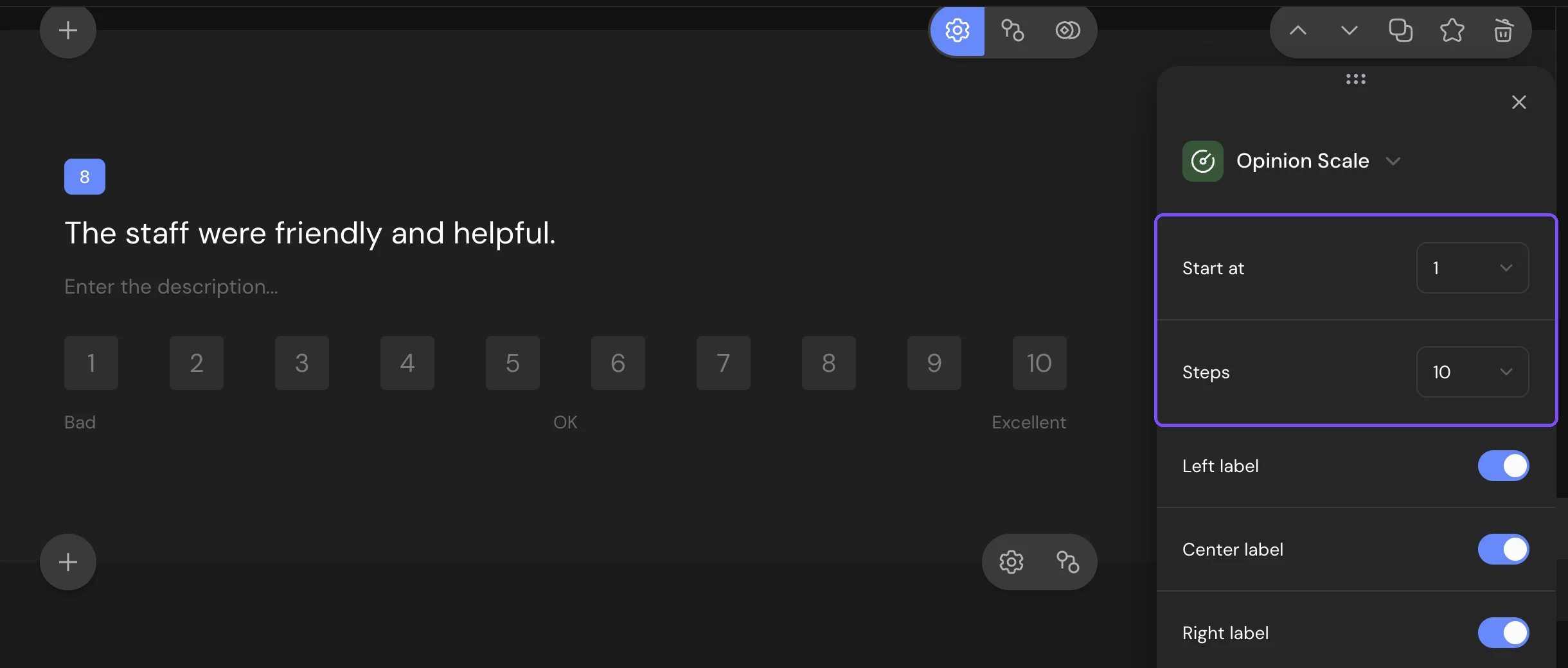
| Start at | The first number: 0 or 1. |
| Steps | The last number, from 3 to 10. With Start at 1 and Steps 5, the scale is 1 to 5. With Start at 0 and Steps 10, it's 0 to 10. |
| Left label | Text under the first number. "Bad" by default. |
| Center label | Text under the middle number. "OK" by default. |
| Right label | Text under the last number. "Excellent" by default. |
For a 5-point Likert scale, set Start at to 1 and Steps to 5, then type "Strongly disagree", "Neither agree nor disagree" and "Strongly agree" in the labels.
Slider settings
| Setting | What it does |
|---|---|
| From | The lowest value. 0 by default. |
| To | The highest value. 100 by default. |
| Step | How much the value changes with each move of the handle. 1 by default, the minimum is 1. |
Values are whole numbers from 0 to 1,000,000. If To ends up lower than From plus one Step, SurveyNinja raises To to fit.
Shared settings such as Required response and Add “Prefer not to answer” are described in Question Settings.
What respondents see
Opinion Scale shows a row of square buttons with the labels under them. If the row doesn't fit the screen, for example on a phone, the buttons join into one solid bar. When the Center label is on, the labels then move into a column with their numbers, like "1 > Strongly disagree". Clicking the chosen number again clears the answer. After a click, the next question opens by itself, unless Disable auto-advance to the next question is on in the survey settings or the question is in a Question Group.
Slider shows a track with the lowest and highest values under its ends. The respondent drags the handle, and the current value is shown above it. The answer is saved when the handle moves.
Responses and report
Opinion Scale. In Results → Reports, the card shows Average rating and splits the numbers into three groups named after your labels: the lowest third, the middle and the highest third. For a 1–5 scale, the groups are 1–2, 3 and 4–5. For each group, you see the number and the share of answers. Below, switch between Table (every number with its group) and Bars (colored by group). If the scale runs from 0 to 10, the report shows the NPS instead of the average, as for the NPS question.
Slider. The card shows a bar chart of the chosen values. If respondents gave more than 10 different values, the bars show ranges of values.
In CSV and XLSX files, both types are one column with the number. To keep only some answers in the report, use Filter by answers (Basic plan and higher) and enter a number. See Viewing the Survey Report.
Logic and scores
In logic jumps, both types have the conditions Less than, Less than or equal to, More than, More than or equal to, Equals, Does not equal and Is answered. Opinion Scale can give points for each number. Slider has no points. See Scores, Correct Answers and Personality Tests.
Limits
- Opinion Scale and Slider are available on all plans, including Free.
- Opinion Scale: 3 to 11 buttons (Start at 0 or 1, Steps 3 to 10).
- Slider: whole numbers only, no negative values, up to 1,000,000.