 25 Questions for a Travel Agency Customer Satisfaction Survey
Importing Surveys and Responses
Updated
On this page
You can move a form from Typeform or Google Forms to SurveyNinja: questions, answer options and, if you want, the responses already collected. Responses from any other tool can be uploaded into a survey from a CSV or Excel file.
Paid feature. Transferring responses is available on paid plans, but not during the trial. Moving the survey itself works on all plans. Compare plans
Moving a survey from Typeform
- On the dashboard, click Create new survey.
- At the bottom of the Create a survey window, click Typeform (1).
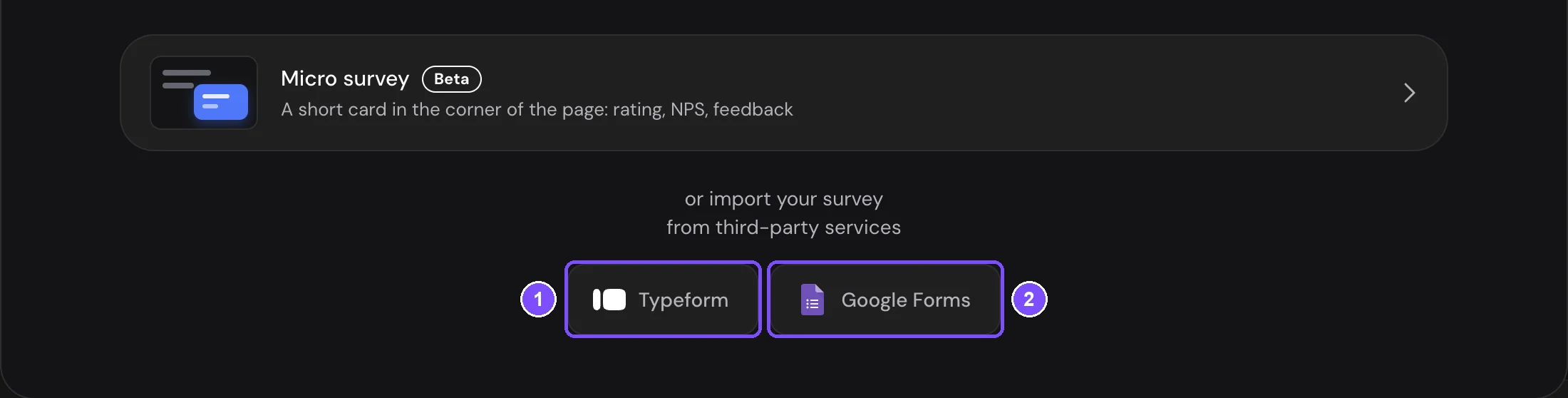
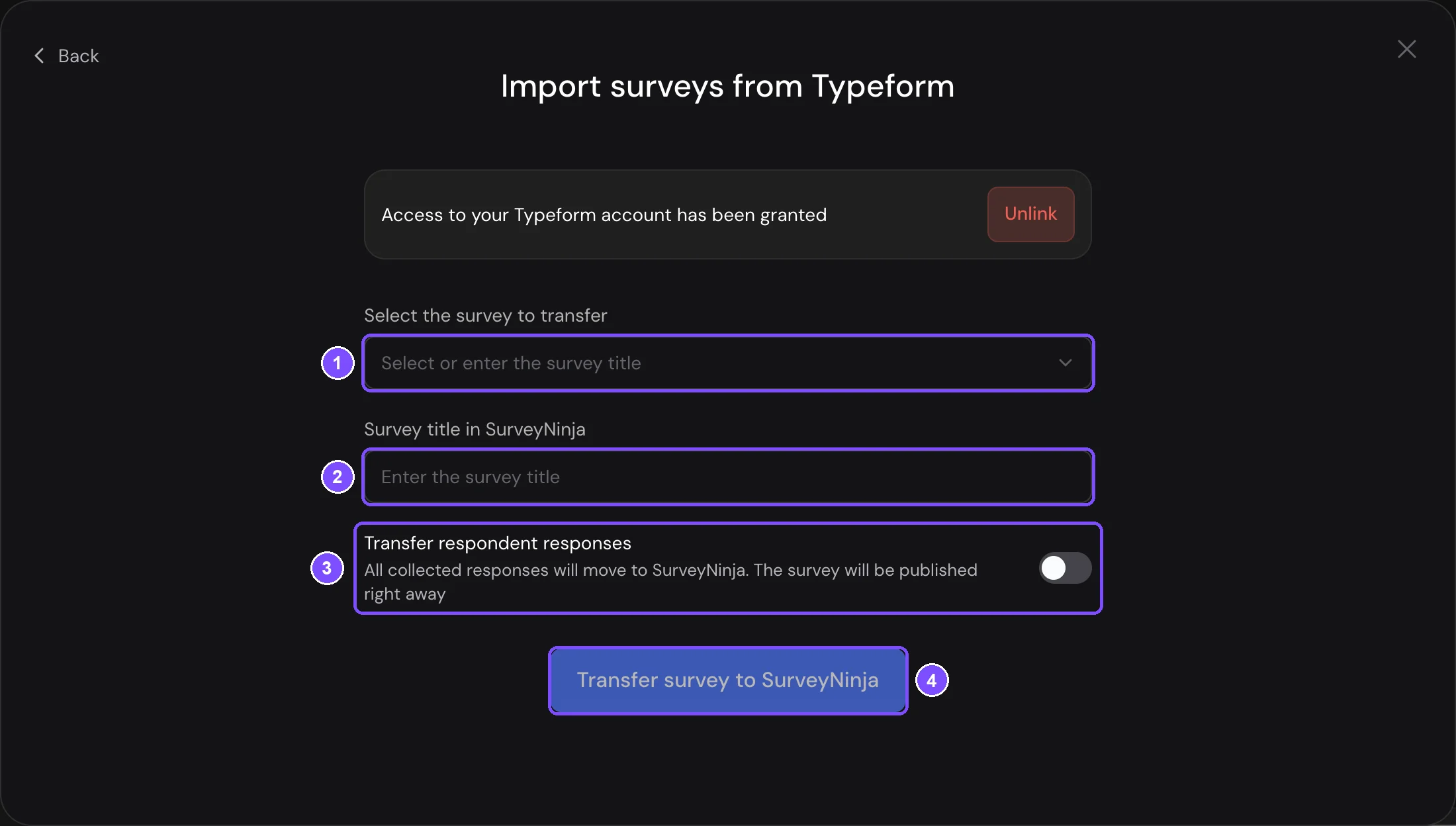
- Click Provide access and allow access in the Typeform window. You'll see "Access to your Typeform account has been granted". If Typeform is already connected in your account, this message appears right away. To disconnect Typeform, click Unlink and confirm.
- In Select the survey to transfer, choose the form (1). To find it faster, start typing its title.
- Check the name in Survey title in SurveyNinja (2). By default, it's the title from Typeform.
- To move the responses as well, turn on Transfer respondent responses (3).
- Click Transfer survey to SurveyNinja (4).
SurveyNinja moves the questions with their options, the Welcome Screen and end screens, logic jumps and answer scores. Typeform fields that have no exact match become the closest question type. For example, Contact Info turns into Full name and separate contact questions, Signature turns into Enter Text, and Video and Audio turns into File Upload.
Note. If you connected Typeform a while ago, the response switch may say "Reconnect Typeform to transfer responses". Click Reconnect and allow access again.
Moving a form from Google Forms
- On the dashboard, click Create new survey, then click Google Forms (2 on the first screenshot).
- Click Grant access and sign in to the Google account that owns the form.
- Click Choose from Google Drive and select the form. To pick a different one, click Select another survey.
- Check the name in Form name in SurveyNinja.
- To move the responses as well, turn on Transfer respondent responses.
- Click Move the form to SurveyNinja.
Questions are moved by type:
| Google Forms | SurveyNinja |
|---|---|
| Short answer, Paragraph | Enter Text |
| Multiple choice | Radio Button |
| Checkboxes | Multiple Choice |
| Dropdown | Dropdown |
| Linear scale | Opinion Scale |
| Rating | Rating |
| Multiple choice grid, Checkbox grid | Matrix |
| Date, Time | Date and Time |
| File upload | File Upload |
| Title and description, Image, Video | Message |
Sections aren't moved: all questions go into one list. Branching between sections and quiz points aren't moved either, so set them up again in the builder if you need them.
After the transfer
The builder opens with the new survey. It's saved in the workspace that was open on the dashboard.
- Without responses, the survey is a draft. Check it and publish it when you're ready.
- With responses, the survey is published right away, because responses are tied to the published version. The responses are then transferred in the background.
While the transfer runs, the survey's Results show "Transferring responses" with a counter, for example "Response import: 120 of 800". The numbers on the page are incomplete until the transfer ends. When it's done, the page shows "Responses transferred" and a message "Response import completed" with the number of responses. Click Refresh to see them in the results.
To stop the transfer, click Cancel, then Cancel import. The Cancel button is shown only if your role can delete responses. Responses that have already been transferred are deleted. The transfer can't be resumed, only started again.
Uploading responses from a file
Use this to move responses into SurveyNinja from a spreadsheet: an export from another survey tool or answers collected on paper. Responses are added to an existing survey, no new survey is created. Build the survey first, with the same questions as in the file.
- Open the survey and go to Results → Responses.
- On the Completed tab, click Import responses from a file. The button appears while the tab is empty and no filters are applied.
- Drag a file into the window or click Choose file. Supported formats: CSV, XLSX, XLS and ODS, up to 20 MB. The first row must contain headers, then one response per row.
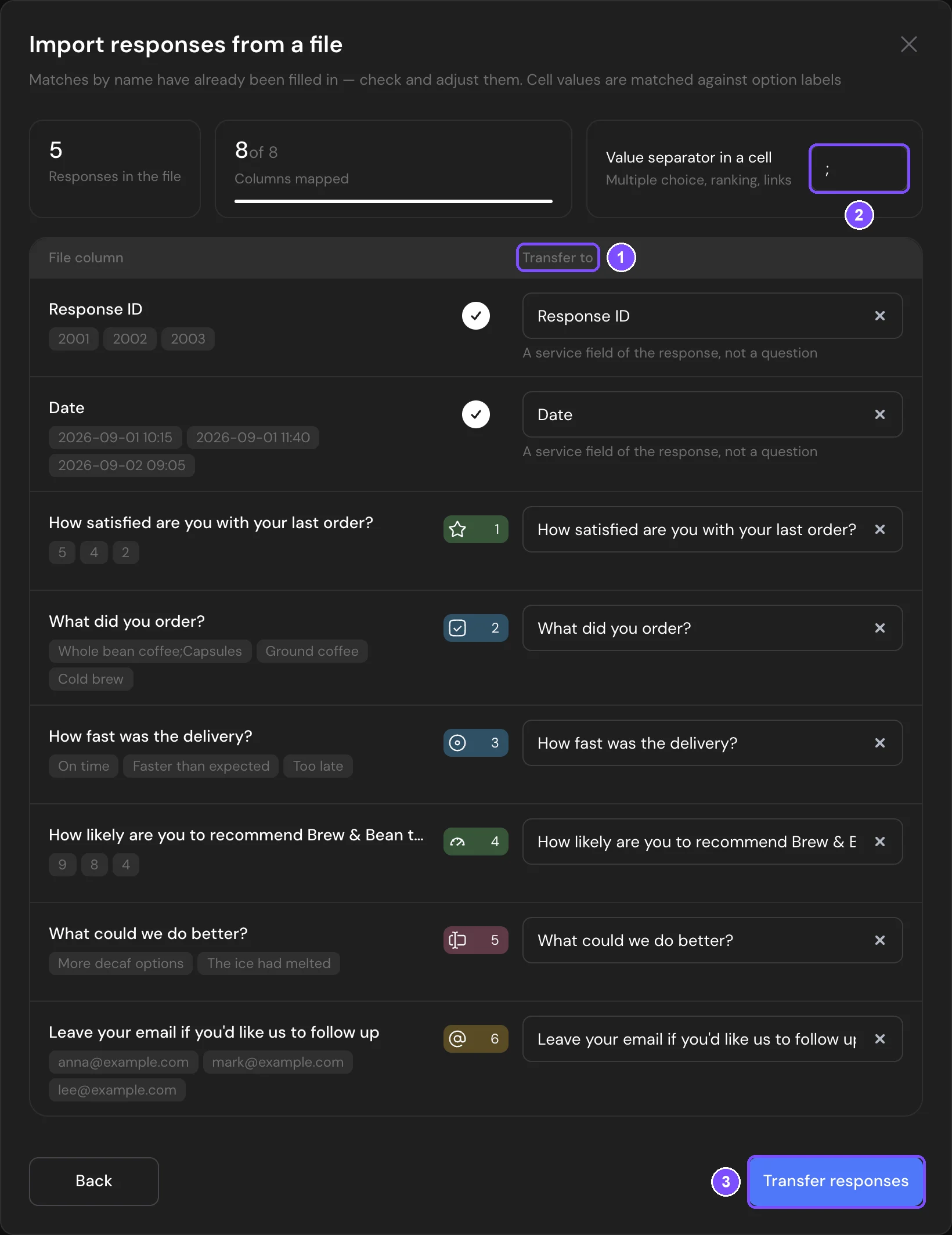
- Check the column mapping in the Transfer to column (1). SurveyNinja matches columns to questions by name. For each file column, choose a question or a service field in the list, or leave Don't transfer. Map service fields such as Date under Service fields.
- If a cell can hold several answers (multiple choice, ranking), set the character between them in Value separator in a cell (2). By default, it's a semicolon (;).
- Click Transfer responses (3).
How values are read:
- For choice questions, the cell must contain the option text as in the survey. Letter case doesn't matter. If none of the sample values shown under a column match the options, the column shows "Don't match the question options". Values that match no option are skipped, and the result shows "Values not parsed: N". If the question has Add "Other" turned on, values that don't match are saved as the Other answer instead.
- A matrix is mapped row by row: one column of the file for each matrix row.
- File Upload questions accept links to files.
- Questions inside a Question Group are mapped like regular questions.
- Service fields (Response ID, Date, Filled time, Response completed) fill in the response details instead of answers.
In Responses, each imported response shows "Source: Response import from a file". Its date comes from the Date service field if you mapped it.
If the survey isn't published yet, it's published when the transfer starts. If it is, responses go to the published version, and your unpublished changes in the builder stay in the draft. The Transfer to list also shows the questions of the published version, so publish the survey first if you've added questions.
Limits
- One transfer takes up to 10,000 responses. If the source has more, you'll see how many were transferred.
- One response transfer runs at a time in an account, whatever the source. If another one is in progress, wait for it to finish or cancel it.
- The survey itself is moved even when its responses can't be. The message on the screen says why.
- A survey moved from Typeform or Google Forms counts toward your plan's survey limit, like any new survey.
- Uploading responses from a file needs the Delete responses permission in your role.
If something doesn't work
- "The survey was transferred, but the responses weren't: another response transfer is already running in the workspace". Wait for the other transfer to finish and run the transfer again. It creates a new copy of the survey, so delete the copy without responses.
- "The survey was transferred, but the responses couldn't be retrieved". Typeform or Google Forms didn't return the responses. Run the transfer again later and delete the copy without responses.
- "Values not parsed: N — check the column mapping and option labels". Some cells didn't match the question options and were skipped. To upload them, delete the imported responses, fix the labels in the file and upload it again: the Import responses from a file button appears only while the Completed tab is empty.
- A message says that files from responses weren't transferred. The source didn't give SurveyNinja these files. Download them from the source manually.
- "Access denied. Please check that the selected form belongs to the connected Google account". The form was picked in a different Google account than the one connected to SurveyNinja. Click Select another survey and pick the form in the connected account, or click Unlink and connect the account that has the form.