 WooCommerce Post-Purchase Survey: 7 Questions, When to Ask and What to Do Next
Why Don't I See All Responses?
Updated
On this page
Open Results → Responses and look above the list. A "Filtered" bar means filters are on, and a "Maximum Number of Responses Exceeded" banner means your plan's response limit is reached. Also check the counts in brackets on the status tabs. Most missing responses are explained by one of these three.
Filters are applied
Above the list you see "Filtered: N parameters", or the page says "Failed to find answers with the specified filter parameters. Try changing or resetting the filter".
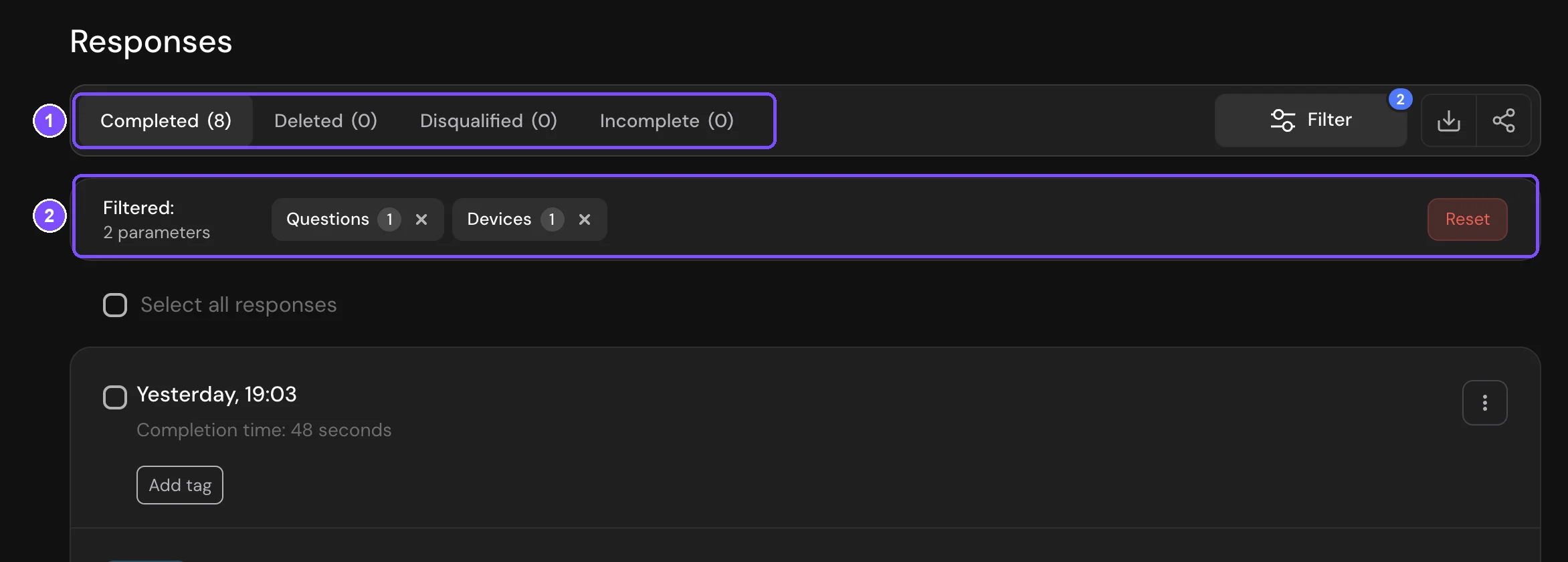
- Click Reset on the Filtered bar (2) to remove all filters, or the cross on one filter to remove only it.
- If the list is empty, click Change the filter or Reset filter.
Filters are saved with the survey, so they stay applied when you come back, and your teammates see the same filters. Reports and Responses have separate filters: resetting them in one tab doesn't reset the other. View responses in a set of unique links also saves a filter by that set.
The response is on another status tab
Responses opens on Completed (1): only respondents who reached the end of the survey. The other tabs:
- Incomplete: the respondent started but left. See Incomplete Responses.
- Disqualified: the respondent was screened out by the survey logic. See Logic Map, Disqualification and Quotas.
- Deleted: responses you or your teammates deleted.
Incomplete and Disqualified are available on the Standard plan and higher. On lower plans the tabs have a $ icon and show "Unavailable on your plan". Disqualified responses are saved on every plan and appear after an upgrade. Incomplete responses are saved only while the workspace is on Standard or higher.
In Reports, the same choice is above the report: Completed, Incomplete, Disqualified or All.
Your plan's response limit is reached
Responses shows the banner "Maximum Number of Responses Exceeded". When the monthly limit of your plan runs out, new responses are still saved, but hidden. Hidden responses don't appear in Summary, Reports, Responses or downloaded files. The first time this happens in a survey, the workspace owner also gets an email.
To see them:
- Click Purchase More Responses in the banner.
- Check the number of responses and the Total, then click Go to payment.
Buying a higher plan raises the limit for new responses but doesn't show the responses already hidden. The date when the limit resets is under Responses per month on the Billing page. See What Happens After the Trial Ends? and How to Buy a Plan.
The response was deleted or hidden
- A deleted response is on the Deleted tab. Click ⋮ on its card and choose Restore. A permanently deleted response can't be restored. See Deleting Responses.
- A response hidden with Hide stays in Responses but isn't counted in Summary and Reports. Click ⋮ on the card and choose Show.
The report shows an older version of the question
If you changed a question after it received responses, the report card shows only the responses to the current version. Click the history icon (Old responses) on the card to see earlier versions, or turn on Merge versions to count them together. Responses always shows every response. See Old Responses and Question Versions.
The numbers differ between Summary, Reports and Responses
Each place counts its own set of responses:
| Place | What it counts |
|---|---|
| Summary → Completed | All completed responses for the whole time. Filters don't apply. Responses hidden with Hide aren't counted. |
| Reports | Responses of the selected status with the report filters. Answered on a card counts only people who answered this question, not those who skipped it or didn't see it because of logic jumps. |
| Responses → Completed | Completed responses with the Responses filters, including the ones hidden with Hide. |
| Downloaded file | Responses from the open Responses tab with its filters. If you ticked responses, only those. Responses hidden with Hide are included. |
None of them count deleted responses or responses hidden by the plan limit. See Viewing the Survey Report and Viewing and Downloading Survey Responses.
The respondent hasn't finished yet, or the page is old
A response gets into Completed when the respondent finishes the survey. Until then it's on Incomplete. Reload the page to see new responses.
It was a test response
- Responses given in Preview aren't saved. To test the whole path, take the survey by its published link. See Previewing Your Survey.
- If a respondent reaches the end without answering any question, and the link passed no hidden variables, no response is saved.
A file in the response is hidden
The response is there, but a file shows "File hidden — out of space". The workspace storage is full: new files are saved but hidden. Free up space, move to a plan with more storage, or click Unlock. See File Upload Questions.
Still not working?
Write to support and include the survey link and what number you expect to see.