 25 Questions for a Travel Agency Customer Satisfaction Survey
File Upload Questions
Updated
On this page
A File Upload question lets respondents attach files from their device, for example "Attach your CV" or "Upload a photo of the damaged item". Files are stored in your workspace storage, and you can open and download them from the responses, the report and the file manager.
Adding a File Upload question
- In Builder, click + and choose File Upload in the Open-ended section. More about adding questions: Question Types.
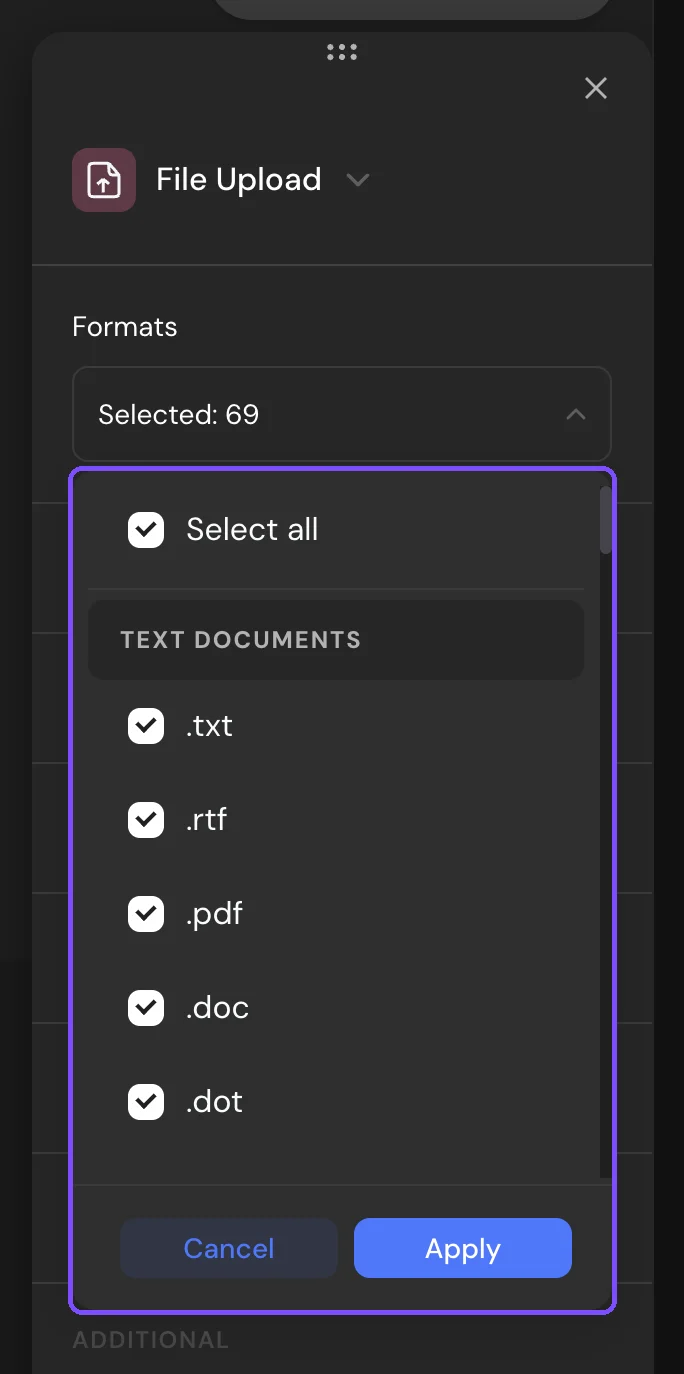
- Click the gear icon (Settings) and choose the allowed file types in Formats.
- To try the upload, open the survey preview. In Builder, the upload area doesn't accept files.
Formats
By default, Formats is set to All formats. Open the list to keep only some groups or single extensions. At least one format stays selected.
| Group | Extensions |
|---|---|
| Text documents | .txt, .rtf, .pdf, .doc, .docx, .odt and other Word and OpenDocument formats |
| Spreadsheets | .csv, .xml, .xls, .xlsx, .ods and other Excel formats, .mdb, and presentations: .ppt, .pptx and other PowerPoint formats |
| Images | .jpg, .jpeg, .png, .gif, .webp, .bmp, .svg, .heic, .tif, .tiff |
| Archives | .zip, .rar, .7z, .tar, .gz |
| Video/audio | .mp4, .mov, .avi, .mkv, .webm, .mpeg, .mpg, .flv, .3gp, .wmv, .mp3, .wav, .aac, .ogg, .m4a, .flac, .swf |
The settings that every question has are described in Question Settings.
What respondents see
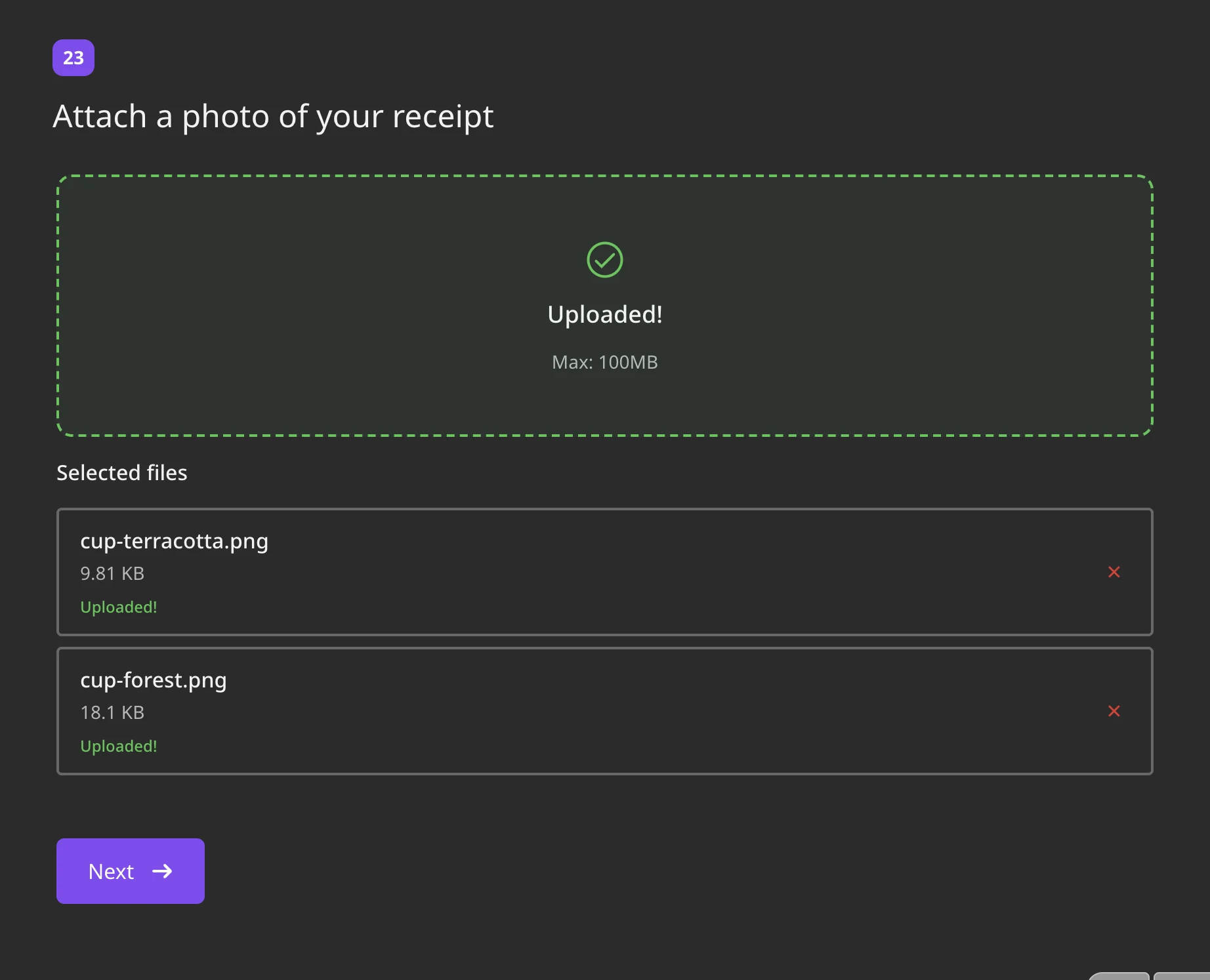
The respondent drops files on the upload area or clicks upload to choose them. Several files can be added at once. The area shows the maximum size of one file for your plan, for example "Max: 300MB". Each file uploads right away and gets a status: "Please wait", then "Uploaded!". The cross next to a file removes it.
If a file is too large, the respondent sees "The file is too large." If its format isn't allowed: "File format .exe is not supported". Such a file is removed with Choose another file. After a connection error, the respondent can click Try again.
Where to find uploaded files
- Results → Responses: each response shows its files. Images, videos and audio open in a preview, other files open in a new tab.
- Results → Reports: the File Upload card shows Total files and the list of files. Switch between List and Cards, search by name, filter by extension and click Download next to a file. See Viewing the Survey Report.
- In a CSV or XLSX export, the question takes one column with links to the files, separated by commas. See Viewing and Downloading Survey Responses.
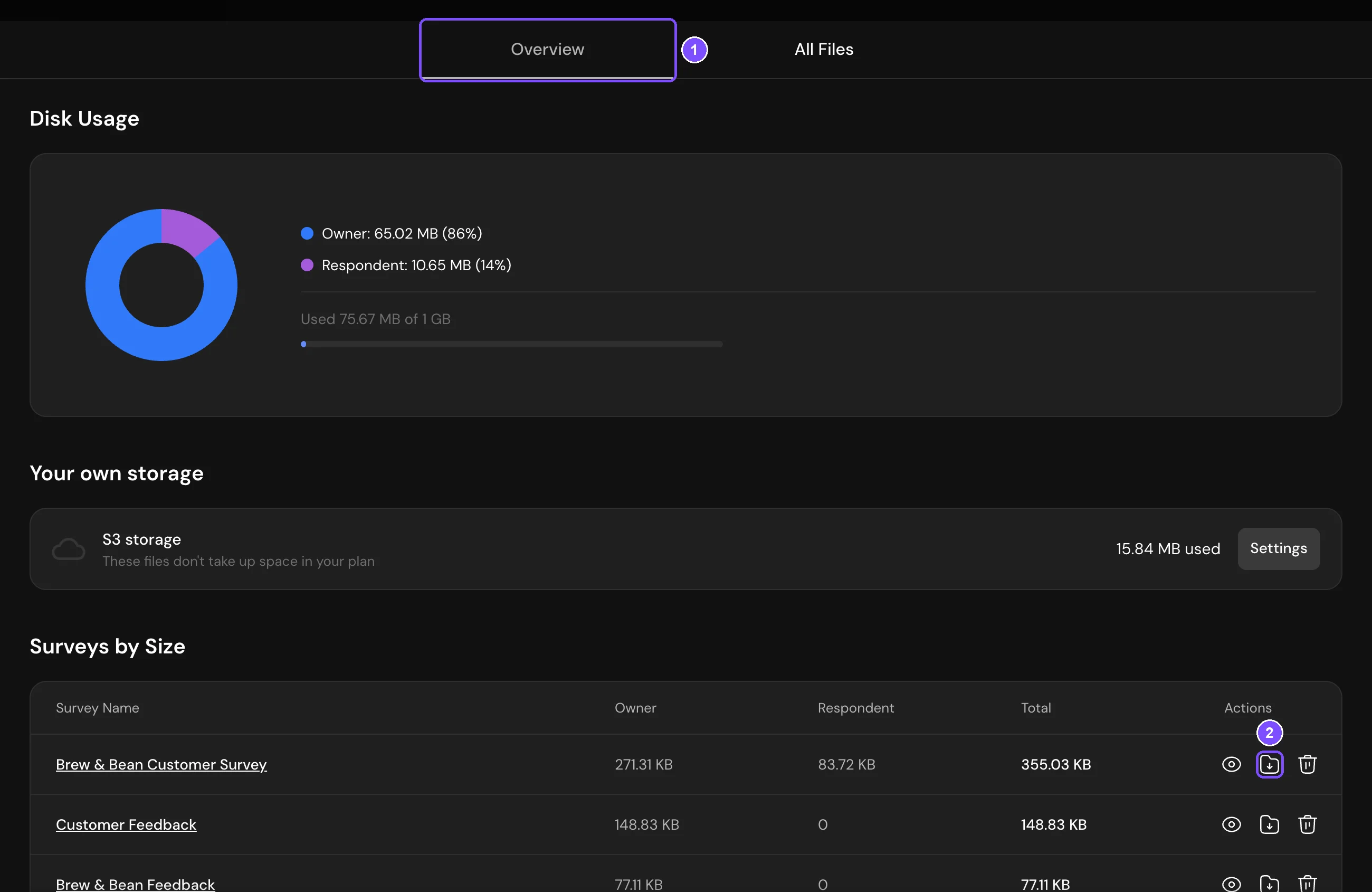
- All files of the workspace are in the file manager: click your profile icon in the top right corner, choose Billing and click All files in the Storage block. On the Overview tab (1), Surveys by Size lists your surveys. Click the download icon (Download) next to a survey (2) and choose All Files, Owner Files or Respondent Files to get them in one archive. The All Files tab lists every file with preview, download and delete.
You can filter responses by this question: Loaded, Not loaded, Extension or Titles (the file name).
Storage over the limit
Respondents' files and the images you add to surveys share the workspace storage: 1 GB on Basic, 3 GB on Standard and 6 GB on Premium. The Storage block on the Billing page shows how much is used.
When the storage is full, new files are still saved but hidden. In responses and the report, they show "File hidden — out of space" with a lock, and the file manager shows how many files are hidden. To see them:
- Free up space: delete files you don't need in the file manager. Hidden files open, oldest first, as space becomes free.
- Move to a plan with more storage. See How to Buy a Plan.
- Click Unlock to pay for viewing the hidden files. This opens the files hidden at the moment of payment, but doesn't add space, so new files are hidden again.
On the Premium plan and higher, you can connect your own cloud storage in the same Storage block. Files stored there don't count toward the limit. See Custom File Storage.
Logic
In logic, choose the File Upload question and the answer Uploaded or Not uploaded. For example, send respondents who didn't attach a photo to a reminder message. See Logic Jumps. Files can't get scores.
Limits
| Plan | Maximum size of one file | Storage |
|---|---|---|
| Free | File Upload isn't available | Not included |
| Basic | 100 MB | 1 GB |
| Standard | 300 MB | 3 GB |
| Premium | 500 MB | 6 GB |
| Enterprise | Set in the plan | Set in the plan |
When the workspace moves to the Free plan, for example after the trial, storage isn't included. See What Happens After the Trial Ends?