 WooCommerce Post-Purchase Survey: 7 Questions, When to Ask and What to Do Next
Why Don't I Get Email Notifications About New Responses?
Updated
On this page
Open the survey, go to Notifications and check that Email about survey completion is on and your address in Added addresses has its switch on. Then submit a response through the survey link, not in preview.
Notifications are off or the address isn't confirmed
Emails about new responses go only to addresses added in the survey's Notifications tab. Your account email and your team members don't get them automatically.
Check under Notifications to survey owner:
- Email about survey completion is on. If it's on but Added addresses is empty, nobody gets the email.
- The address isn't shown in red. A red address isn't confirmed, and its tooltip says "Confirm this email address". Click it and enter the 4-digit code from the email sent to that address.
- The switch next to the address is on. A switch that's off pauses emails to that address.
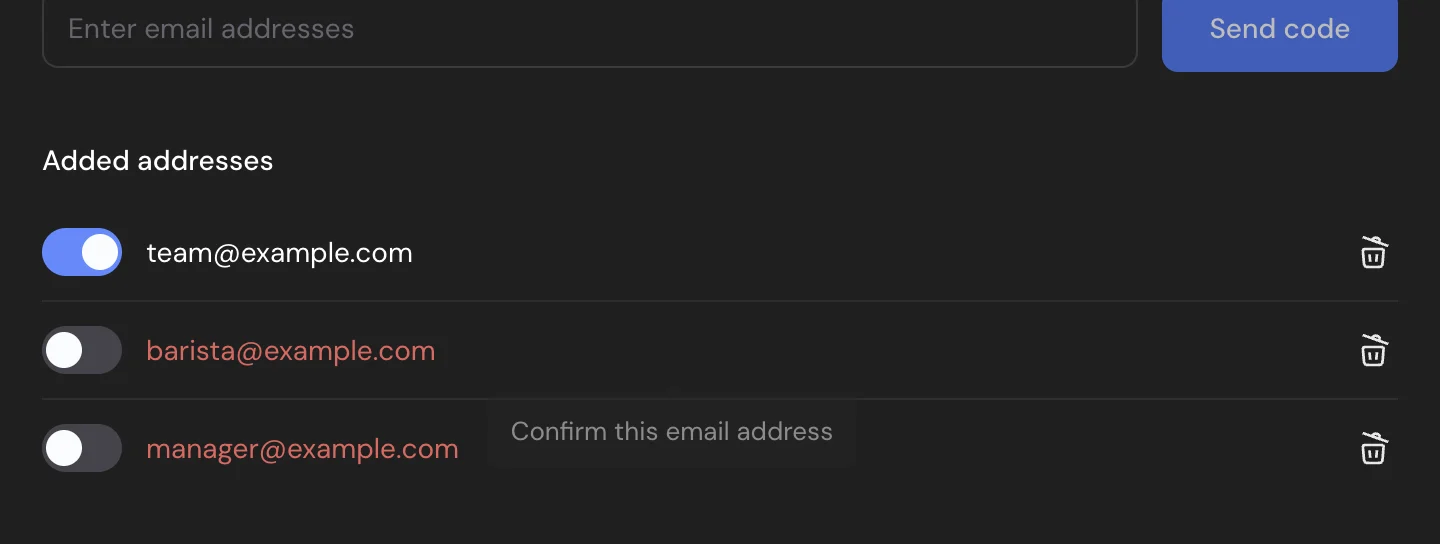
Settings are separate for each survey. Added addresses also lists addresses added in other surveys of the workspace, but in a new survey or a copy their switches are off. Turn on the switch for each address that should get emails from this survey. Adding an address step by step is described in Email Notifications.
The email is in the Spam folder
Notification emails come from noreply@surveyninja.io, and their subject is the survey name, unless you changed the Subject. Search your mailbox, including Spam, for the survey name. If the email is there, mark it as not spam and add noreply@surveyninja.io to your contacts. In a company mailbox, ask your IT team to allow this address. With your own SMTP server, emails come from the address in From whom, see below.
The response wasn't completed
An email is sent only when a respondent finishes the survey. No email is sent for:
- responses given in Preview. They aren't saved at all, see Previewing Your Survey;
- incomplete responses: the respondent left before the last screen;
- disqualified responses, see Logic Map, Disqualification and Quotas.
If the response appears in Responses as complete and the settings above are right, look at your plan limits.
Your plan limits
Emails about new responses work on all plans, but the number of addresses depends on the plan: 1 on Free, 3 on Basic, 5 on Standard and 10 on Premium. If the survey has more addresses than the plan allows, for example after a trial or a paid plan ended, only the addresses added to it last get emails. Paused addresses count toward this number too, so remove the addresses you don't need with the trash icon.
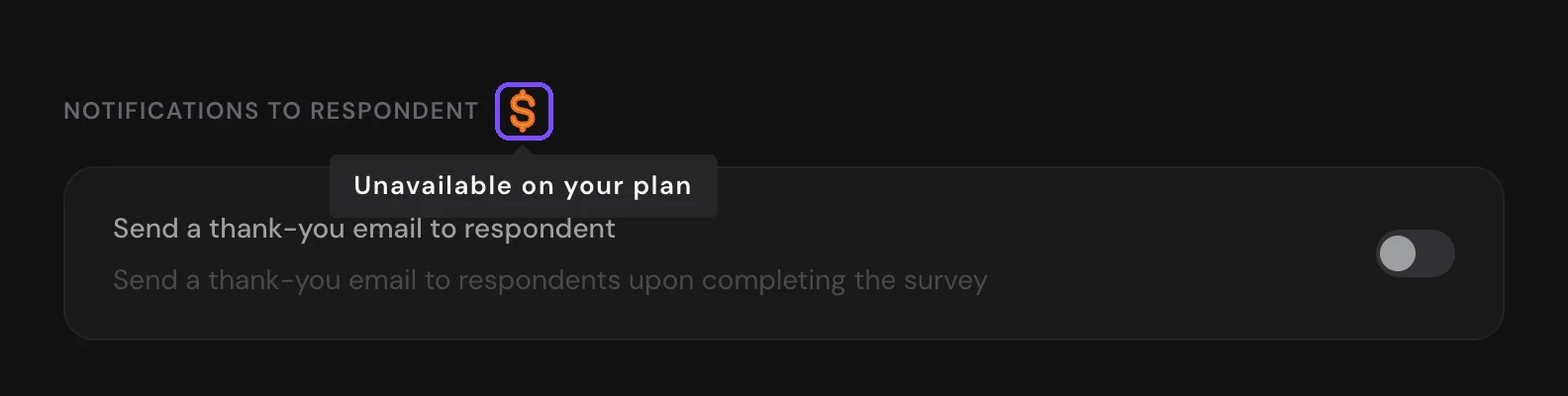
Thank-you emails to respondents are available on the Basic plan and higher. On the Free plan, Notifications to respondent has a dollar icon with the tooltip "Unavailable on your plan", and emails to respondents aren't sent even if the switch stays on.
When the monthly response limit of your plan is used up, new responses are saved but hidden, and no emails are sent for them. The Responses tab shows "Maximum Number of Responses Exceeded" and the Purchase More Responses button. Paying for hidden responses later doesn't send emails for them. See What Happens After the Trial Ends? and Compare plans.
The respondent doesn't get the thank-you email
The thank-you email goes to the address the respondent entered in the survey. Check that:
- The survey has an Email question, see Name, Email, Phone and Date Fields. Without it and without hidden variables, the section shows "To send an email to a respondent, you need to add the "Email" element to the survey".
- Send a thank-you email to respondent is on, and Send email notifications shows the right question or hidden variable.
- The respondent filled in the Email question. If an optional question was skipped, there's nowhere to send the email. Make the question required if every respondent should get it.
- If the address comes from a hidden variable, the survey link carries its value.
If you deleted the question the address was taken from, the field shows "Source deleted — please select again". Choose another source in Send email notifications.
Your own SMTP server rejects the emails
While your own SMTP server is on, survey emails go only through it. If your server rejects an email, SurveyNinja doesn't send it through its own servers.
- Click your profile icon and choose SMTP.
- Click View SMTP logs and find the email. A Failed entry shows the error from your server.
- Fix the settings and click Test Connection. The common errors are listed in Custom SMTP Server.
A frequent cause is the From whom address: your SMTP account must be allowed to send from it.
Still not working?
Contact support and send the link to the survey, the address that should get the emails and the date and time of a response that didn't trigger an email.