 25 Questions for a Travel Agency Customer Satisfaction Survey
Paired Comparison Questions
Updated
On this page
A paired comparison question shows options two at a time, and the respondent picks one in each pair. Picking one of two is easier than ranking a long list, so researchers use it to test logos, package designs, product names or features: "Which logo do you like more?" Each option meets every other option once. The method is a simpler relative of MaxDiff: instead of the best and the worst from a set, the respondent picks the better of two.
Paid feature. Paired Comparison is available on the Basic plan and higher. Compare plans
Adding a paired comparison question
- In Builder, click + above or below a question.
- In the Additional section, click Paired Comparison.
- Fill in the options: a label, an image or both, depending on the settings. Add more with Add.
You enter options, not pairs: SurveyNinja makes the pairs. A new question has 3 options, the minimum. More on adding questions: Question Types.
| Options | Pairs |
|---|---|
| 3 | 3 |
| 4 | 6 |
| 5 | 10 |
| 6 | 15 |
| 8 | 28 |
| 10 | 45 |
Settings
| Setting | What it does |
|---|---|
| Images | Options show pictures. Off by default. |
| Labels | Options show text labels. On by default. At least one of Images and Labels stays on. |
| Random order | Shows the pairs in a different order to each respondent. The order stays the same if the respondent goes back to the question. |
| Show one pair at a time | The next pair appears after the respondent answers the current one. Answered pairs stay on the screen above. On by default. |
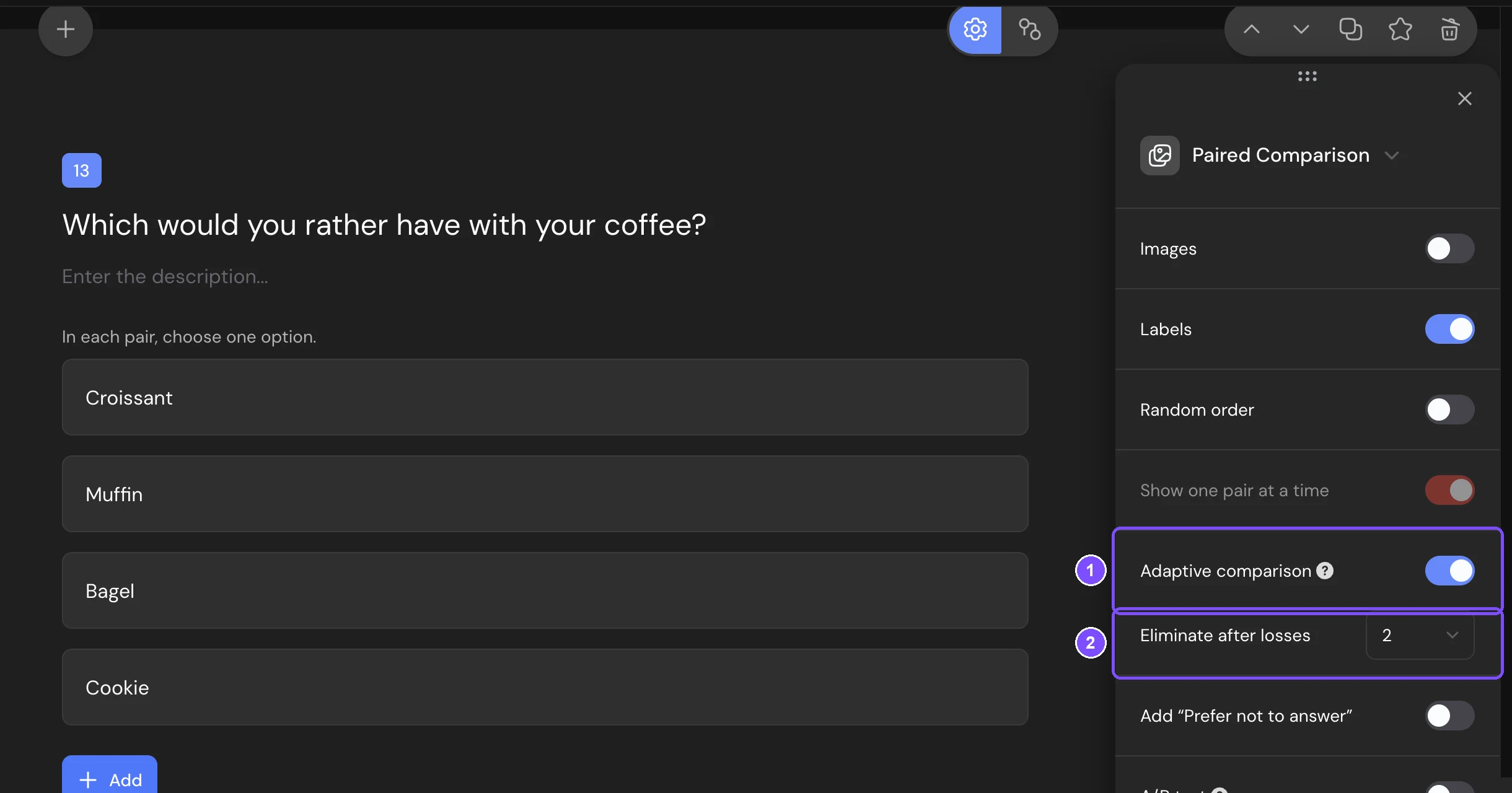
| Adaptive comparison | Options that lose are dropped, so the respondent goes through fewer pairs. Available with 4 or more options. While it's on, Show one pair at a time is always on. |
| Eliminate after losses | Appears with Adaptive comparison. After how many losses an option is dropped: from 1 to the number of options minus 2. The default is 2. |
Common settings such as Add “Prefer not to answer”, Timer and Required response are described in Question Settings.
How adaptive comparison works
Pairs go in a fixed sequence. Each time the respondent picks one option, the other gets a loss. When an option reaches the number of losses set in Eliminate after losses, every later pair with this option is skipped. With 6 options, the full question has 15 pairs. With Eliminate after losses set to 1, every answered pair drops one option, so the respondent answers 5 pairs and only the favorite is left.
If the respondent goes back and changes a choice, the sequence is recalculated. Answers to pairs that are no longer shown are removed from the response.
Use adaptive comparison when you need the favorite rather than a full comparison table. In the report, dropped options have fewer comparisons than the others.
What respondents see
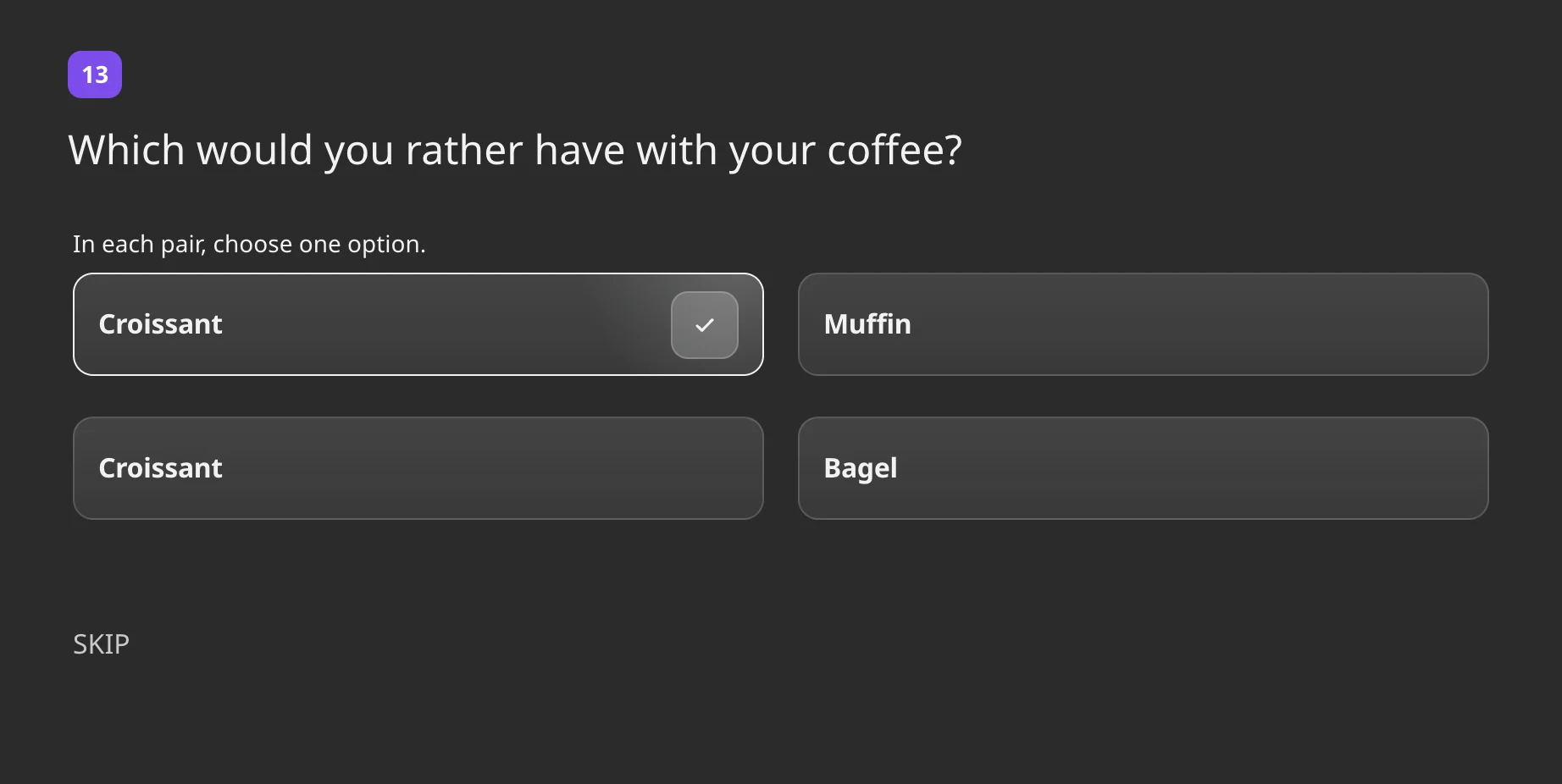
Above the pairs is the hint In each pair, choose one option. Each pair shows two cards side by side, on a computer and on a phone. The respondent clicks a card to choose it, and clicks it again to clear the choice. Images have a zoom button.
Once the respondent answers any pair, they must answer all the pairs shown to continue. A question that isn't required can only be skipped as a whole.
Responses and report
In Results → Reports, the question has four views:
- List and Bars: for each pair, how many respondents chose each option.
- Table: the same as a table with Count and Percent for each pair.
- Overall statistics: a grid of all options against each other. Each cell shows how often the row option won against the column option.
Percentages count only respondents who answered that pair. In a CSV or XLSX file, the question takes one column with every answered pair: "Logo A - Logo B: Logo A, Logo A - Logo C: Logo C". See Viewing and Downloading Survey Responses.
Logic and scores
In logic jumps, a paired comparison question has the Is answered condition. Conditions on a specific choice aren't available. Paired comparison questions don't have scores.
Limits
- From 3 options. The number of pairs grows fast: 10 options make 45 pairs.
- Adaptive comparison: from 4 options.
- Paired Comparison can't be used in micro surveys.