 25 Questions for a Travel Agency Customer Satisfaction Survey
Connecting AI Assistants (MCP)
Updated
On this page
The SurveyNinja MCP server connects AI assistants such as Claude, ChatGPT, Cursor or VS Code to your account over the Model Context Protocol (MCP). After that, you can create surveys, read responses, build reports and export data by asking in the chat.
Before you start
You need an assistant that supports remote MCP servers. Both ways to connect use the same server address:
https://mcp.surveyninja.io/mcp/v1
What the assistant can do
The assistant works with your surveys the same way you do in your account:
- create a survey from scratch, from a template or with AI, edit questions, logic, design and settings, and publish it;
- read responses, the summary and the report, build a report with filters and create a Smart Analytics report;
- export responses to CSV, Excel, Word or SPSS, and reports to PDF or Word;
- share public links to the report, the summary or the responses;
- tag responses, set up notifications, webhooks and integrations, invite members to the workspace.
Things you can ask, for example:
- "Create a 5-question customer satisfaction survey for a coffee shop with an NPS question and publish it."
- "Summarize the answers to 'What could we do better?' in the Customer Feedback survey."
- "Export all responses of Customer Feedback to Excel."
- "Build a report only for respondents who gave an NPS score of 6 or lower and give me a public link."
Important. The assistant works with your real data and has the same rights as you in the workspace. It can change and delete surveys and responses. Read what the assistant is going to do before you confirm the action.
Two ways to connect
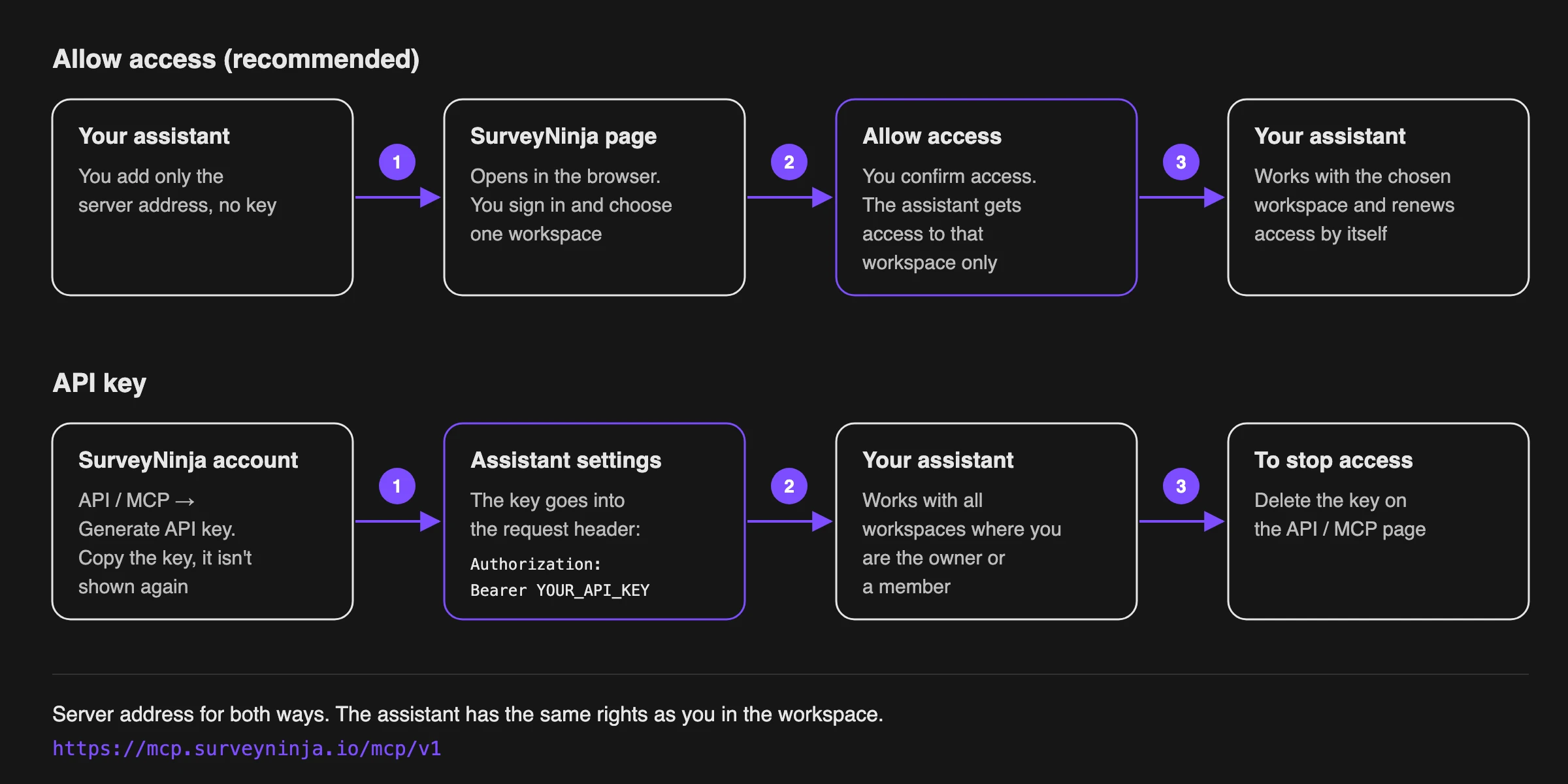
| Allow access (recommended) | API key | |
|---|---|---|
| What you need | Only the server address | A key from the API / MCP page |
| Which workspaces the assistant sees | The one workspace you choose | All workspaces where you're the owner or a member |
| How long access lasts | The assistant renews access by itself | Until you delete the key |
| Account settings (profile, sessions, affiliate program) | Not available | Available |
Connecting with Allow access
- Add the server address in your assistant. How to do it in popular assistants is described below.
- The assistant opens a SurveyNinja page in the browser. Sign in to your account if asked.
- Choose the workspace the assistant will work with. Workspaces whose plan doesn't include MCP are marked assistant is not included in the plan and can't be selected. If you have only one workspace, it's selected for you.
- Click Allow access.
The assistant returns to the chat and is ready to work. To connect it to another workspace, connect it again and choose that workspace. The assistant then works with the new workspace instead of the previous one.
Claude
In Claude on the web or in the desktop app:
- Open Settings → Connectors and click Add custom connector.
- Enter a name, for example SurveyNinja, and the server address.
- Click Add, then Connect and allow access in SurveyNinja.
On Claude Team and Enterprise plans, an organization owner adds the connector first, then each member connects it.
Claude Code
Run in the terminal:
claude mcp add --transport http surveyninja https://mcp.surveyninja.io/mcp/v1
Then type /mcp in Claude Code, select surveyninja and sign in.
ChatGPT
ChatGPT connects custom MCP servers in developer mode, which is available on some ChatGPT plans. Turn on developer mode in the ChatGPT settings, create a connector with the server address and OAuth authentication, then allow access in SurveyNinja.
Cursor
Add the server to ~/.cursor/mcp.json (for all projects) or .cursor/mcp.json (for one project):
{
  "mcpServers": {
    "surveyninja": {
      "url": "https://mcp.surveyninja.io/mcp/v1"
    }
  }
}
Open the MCP section in the Cursor settings and sign in to the surveyninja server.
VS Code
Add the server to .vscode/mcp.json in your project:
{
  "servers": {
    "surveyninja": {
      "type": "http",
      "url": "https://mcp.surveyninja.io/mcp/v1"
    }
  }
}
Start the server from the file and sign in when VS Code asks. The server works in GitHub Copilot Chat in agent mode.
Connecting with an API key
Use a key if your assistant can't sign in by itself or if it needs all your workspaces.
- Click your profile icon in the top right corner and choose API / MCP.
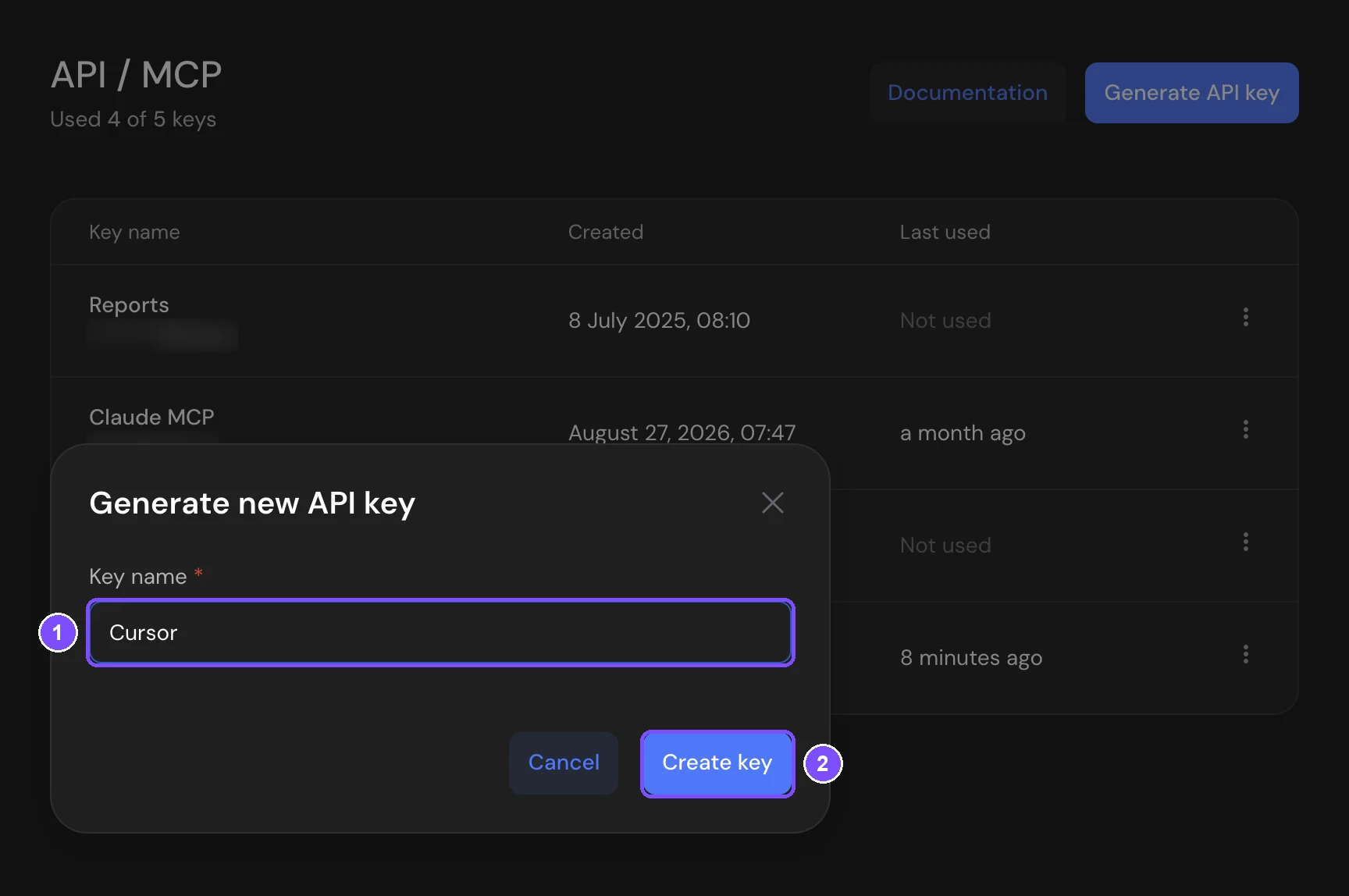
- Click Generate API key.
- In the Generate new API key window, enter a Key name (1), for example Cursor, and click Create key (2).
- In the API key generated window, copy the key and click I have saved the key, close the window. The key isn't shown again.
The assistant sends the key in the Authorization header:
Authorization: Bearer YOUR_API_KEY
Cursor (mcp.json):
{
  "mcpServers": {
    "surveyninja": {
      "url": "https://mcp.surveyninja.io/mcp/v1",
      "headers": {
        "Authorization": "Bearer YOUR_API_KEY"
      }
    }
  }
}
VS Code (.vscode/mcp.json):
{
  "servers": {
    "surveyninja": {
      "type": "http",
      "url": "https://mcp.surveyninja.io/mcp/v1",
      "headers": {
        "Authorization": "Bearer YOUR_API_KEY"
      }
    }
  }
}
Claude Code:
claude mcp add --transport http surveyninja https://mcp.surveyninja.io/mcp/v1 --header "Authorization: Bearer YOUR_API_KEY"
Claude Desktop (claude_desktop_config.json, requires Node.js):
{
  "mcpServers": {
    "surveyninja": {
      "command": "npx",
      "args": [
        "-y",
        "mcp-remote",
        "https://mcp.surveyninja.io/mcp/v1",
        "--header",
        "Authorization:${AUTH_HEADER}"
      ],
      "env": {
        "AUTH_HEADER": "Bearer YOUR_API_KEY"
      }
    }
  }
}
The API / MCP page shows how many keys you've created and the limit. To revoke a key, click the menu next to it and choose Delete. Assistants that use this key lose access at once.
Note. Keep the key secret: anyone who has it can work with all your workspaces. If the key leaks, delete it and create a new one. A key created in someone else's workspace belongs to the workspace owner, and the assistant gets the owner's access.
Disconnecting an assistant
- Connected with Allow access: remove the SurveyNinja connector or server in the assistant's settings.
- Connected with an API key: delete the key on the API / MCP page.
Limits
- Up to 180 requests per minute per user.
- Download links for exported files work for 1 hour. Ask the assistant for a new link if it has expired.
- With Allow access, access stops when you leave the chosen workspace or its plan no longer includes MCP.
- With an API key, the assistant works while at least one of your workspaces has MCP in its plan.
If something doesn't work
- "MCP API is not available on your current pricing plan." With Allow access, the plan of the chosen workspace doesn't include MCP. With an API key, none of your workspaces has MCP in its plan. Upgrade the plan or connect a workspace that has MCP.
- "None of your workspaces includes the assistant in its plan." on the Allow access page. None of your workspaces has MCP in its plan. Upgrade in Plans & Pricing and connect again.
- "Invalid API key. Create a new key in account settings or connect without a key." The key was deleted or copied with a mistake. Create a new key, or remove the Authorization header and connect with Allow access.
- The assistant can't find a survey. With Allow access, the assistant sees only the workspace you chose. Connect again and choose the workspace with this survey.