 WooCommerce Post-Purchase Survey: 7 Questions, When to Ask and What to Do Next
Account Settings
Updated
On this page
The Profile page holds the settings of your own SurveyNinja login: name, photo, email, password, sign-in methods, language, time zone and the emails you get from SurveyNinja. They belong to you, not to a team, so they're the same in every account you work in.
Opening your profile
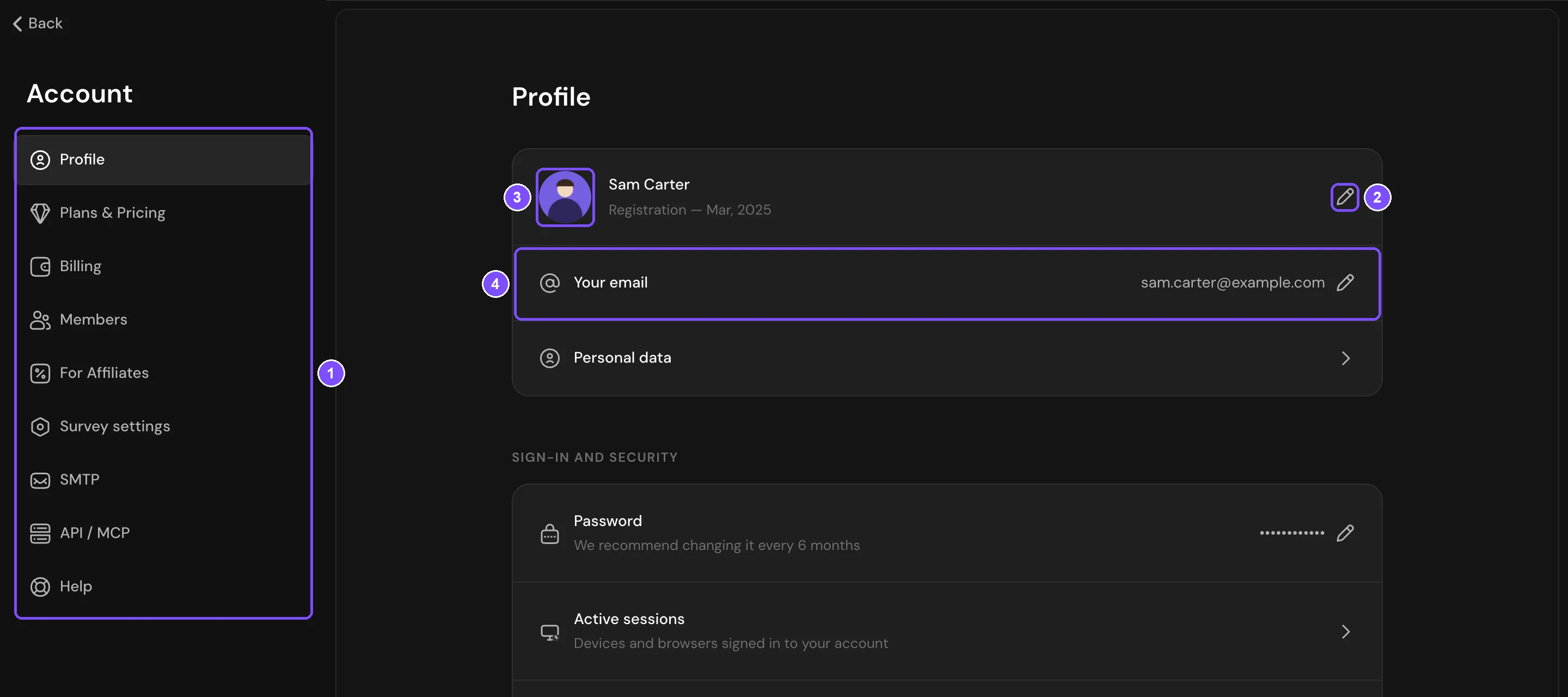
Click your avatar in the top right corner and select Profile. The Account page opens with the section list on the left (1) and your profile on the right.
Changes are saved as soon as you make them, except for the name and password, which have a Save button.
Name and photo
- Name. Click the pencil icon (2), enter a new name of at least 3 characters and click Save. Your name is also the name of your account: members you invite see it in the account switcher on the dashboard.
- Photo. Point to the avatar (3) and click the upload icon. Choose a JPG, PNG or GIF file up to 2 MB. To remove an uploaded photo, click the trash icon on it.
Personal data opens a short questionnaire about you and your work. The answers are saved as you fill them in.
Changing your email
- Click Your email (4).
- In the Changing email window, type the new address and press Enter.
- Follow the link in the email that SurveyNinja sends to the new address.
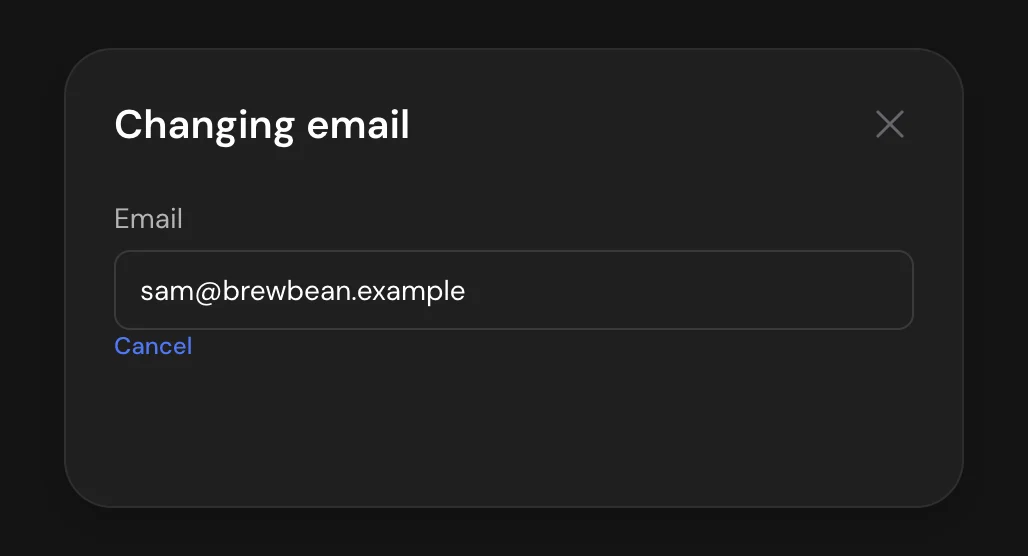
Until you follow the link, you keep signing in with your current address. The window shows the new address, and Cancel under it drops the change.
What happens next depends on your current address:
- It's confirmed. SurveyNinja also emails the current address. The new address takes over 7 days after you confirm it, or right away if you confirm the change from the current mailbox. If you didn't ask for the change, cancel it from that email and change your password.
- It was never confirmed. The new address takes over as soon as you follow the link.
Password
- In Sign-in and security, click Password.
- Enter your Current password and a New password of at least 6 characters.
- Click Save.
If you signed up with Google and never set a password, the window has only the Enter a new password field. A password lets you sign in with your email too, and two-factor authentication needs it.
Tip. If someone else might know your password, also end your other sessions after changing it.
Signing in with Google
The Google switch is on when you can sign in with your Google account. Turn it on and choose your Google account in the window that opens. Turn it off to unlink Google. If your account has no password, set one first: otherwise you'd have no way to sign in, and Google stays linked.
Two-factor authentication and SSO
- Two-Factor Authentication adds a one-time code from an authenticator app to every sign-in. See Two-Factor Authentication.
- Login via SSO lets your team sign in with corporate accounts through your identity provider. It's available on the Premium plan and higher. See SSO Configuration.
Active sessions
Active sessions opens a list of the devices and browsers signed in to your account, with the location, a partly hidden IP address and the last activity. The device you're using now is marked Current.
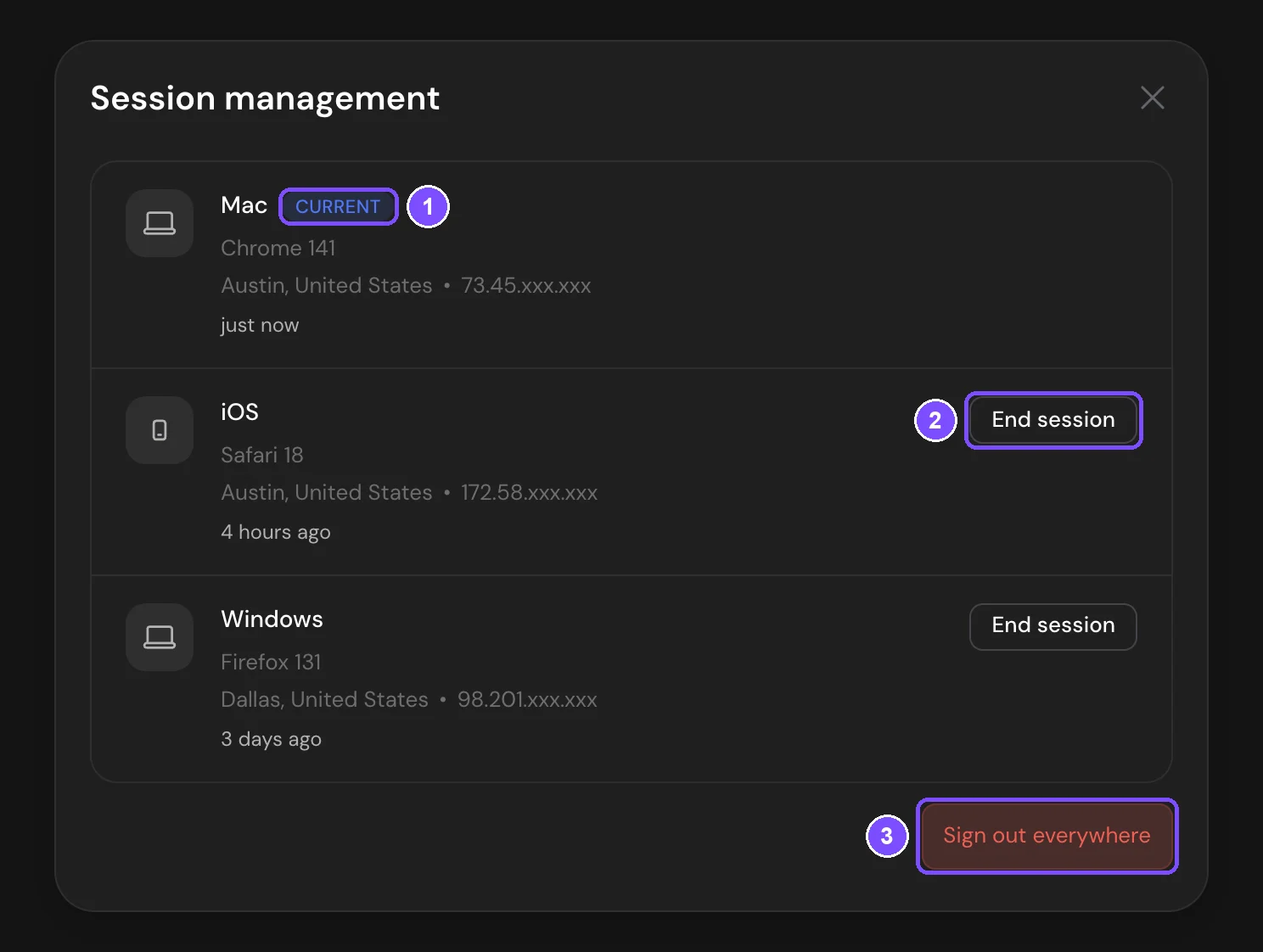
- To sign out one device, click End session next to it and confirm.
- To sign out all other devices, click Sign out everywhere and confirm. The button appears when more than 1 other session is active. Your current session stays open.
Language and time zone
Under Language and country:
- Interface language switches your account between English, Español and Português. It doesn't change the language of your surveys.
- Time zone is used for dates in reports and as the default for the survey deadline and scheduled access.
Email subscriptions
Under Subscription to emails, choose what SurveyNinja sends to your address:
| Switch | What it covers |
|---|---|
| System notifications | Service messages about your surveys, for example when a webhook or Google Sheets stops receiving responses |
| Payment information | Payments and reminders that your plan is about to end |
| Promotions and special offers | News and offers |
The unsubscribe link in an email turns off the matching switch. Emails about new responses are set up in each survey and don't depend on these switches. See Email Notifications.
Profile settings and account settings
The other sections on the left belong to the account you're working in, not to you: Plans & Pricing, Billing, Members, Survey settings, SMTP and API / MCP. Members can open and change them depending on their role. See Team Members and Roles. Access to surveys is given per workspace, see Workspaces (Folders).
Deleting your account
Important. The account is deleted immediately, and you can't restore it yourself. Before that, download the responses you need, turn off auto-pay, and transfer ownership if your team should keep working.
- Under Account deletion, click Delete account.
- In the Remove account window, type DELETE and click Continue.
- Click Yes, delete account.
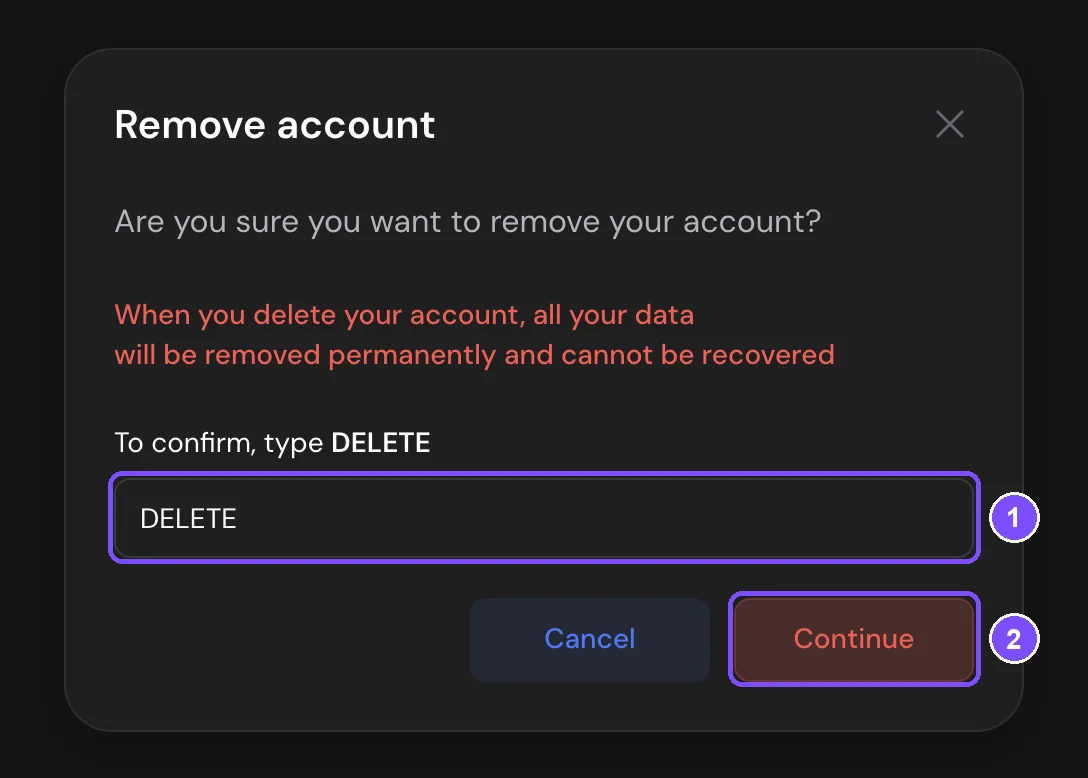
After that, you're signed out.
If something doesn't work
"This email is already taken". Another SurveyNinja account uses this address. Choose a different one.
"Image is damaged" when uploading a photo. The format isn't supported, for example SVG. Save the image as JPG, PNG or GIF.
"The old password doesn't match. Please try again". The current password is wrong. If you don't remember it, sign out and click Forgot password? on the sign-in page.