 25 Questions for a Travel Agency Customer Satisfaction Survey
Ranking Questions
Updated
On this page
A ranking question asks respondents to put options in order, from most to least important. Use it when you need priorities rather than separate ratings, for example "Rank these features from most to least useful: Calendar, Reports, Time tracking, Integrations". In the builder, this type is called Ranging.
Adding a ranking question
- In Builder, click + above or below a question.
- In the Scales and ratings section, click Ranging.
- Type the options. Add more with Add, or paste a list with Add to list. Drag options by the handle to change their starting order.
More on adding questions: Question Types.
Settings
| Setting | What it does |
|---|---|
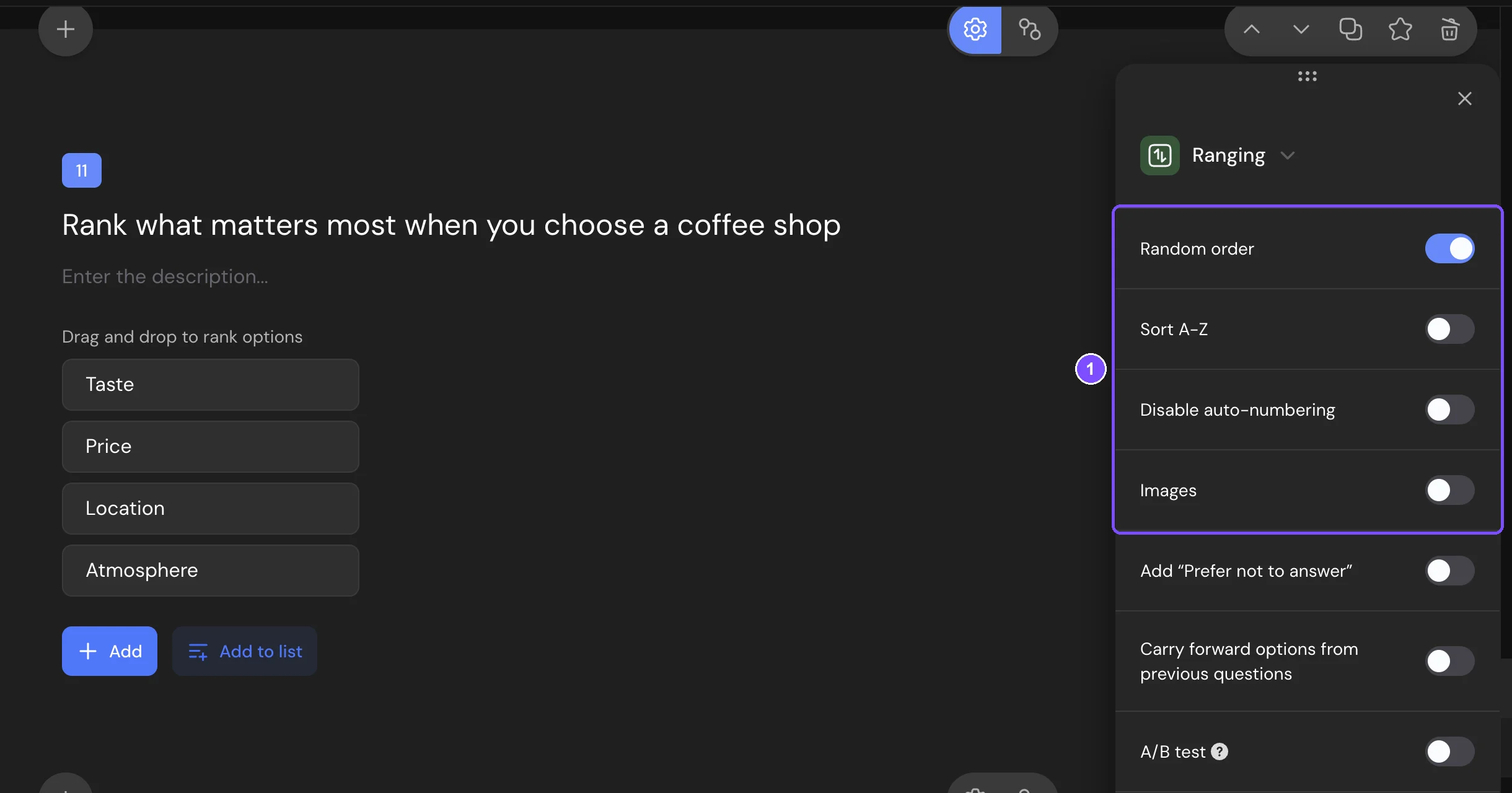
| Random order | Shows the options in a different order to each respondent, so the starting order doesn't push answers. Use Pin position on an option to keep it in place. |
| Sort A-Z | Shows the options in alphabetical order. |
| Disable auto-numbering | Turns off dragging. Respondents give each option a place number from a list instead. |
| Images | Adds a picture to each option. |
| Carry forward options from previous questions | Fills the list with options the respondent selected or didn't select in earlier choice questions, for example to rank only the features they use. Appears when the survey has suitable questions above. |
Common settings such as Add “Prefer not to answer”, Timer and Required response are described in Question Settings.
What respondents see
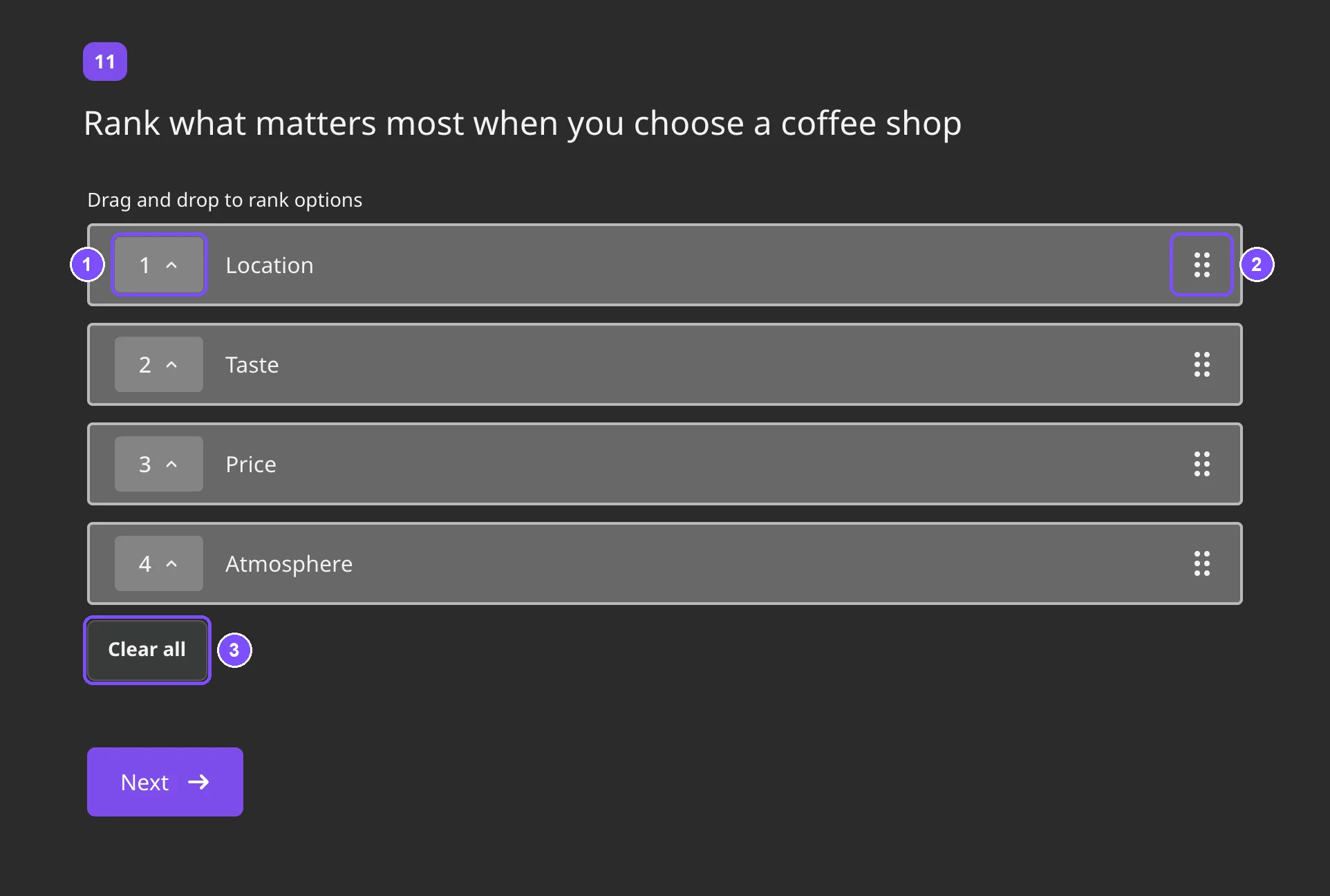
Above the list, respondents see Drag and drop to rank options. They drag an option by the handle on the right, or click the box on the left and pick a place number. The option moves to that place. Until the respondent changes the order, the boxes show "-". Clear all resets the answer.
With Disable auto-numbering on, options don't move. The respondent picks a number for each option, and the answer is complete when every option has a place. The list works the same way on a phone.
Tip. Long lists are hard to rank. With more than 6–7 options, consider a Paired Comparison question: respondents compare two options at a time.
Responses and report
In Results → Reports, a ranking question has three views:
- Summary: options sorted by average position, with "Average:" next to each. The lower the average, the higher respondents ranked the option. The average is the sum of all places given to the option divided by the number of respondents who answered.
- Bars: a chart of how many respondents put each option in each place.
- Positions: for each option, how many respondents put it 1st, 2nd and so on, as "X of Y" and a percentage.
In a CSV or XLSX file, the question takes one column with the ranked options separated by commas. See Viewing and Downloading Survey Responses.
Logic and scores
In logic jumps, pick an option, then In place, Higher or Below, and a place number. For example: "Reports" In place 1 sends fans of reports to a follow-up question. Ranking questions don't have scores.
Limits
- Ranking is available on all plans, including Free. Carry forward options from previous questions needs the Standard plan or higher.
- A ranking question can't be used in micro surveys.