 25 Questions for a Travel Agency Customer Satisfaction Survey
Unique Survey Links
Updated
On this page
Unique links are separate addresses of the same survey: one for each employee, department, branch or advertising channel. Every response shows which link it came from, and you can limit how many responses each link accepts. The main survey link keeps working as before.
Creating links
The survey must be published.
- Open the survey and go to Share → Link.
- At the bottom of the link card, click Unique links ("Need a separate link for a department or person?").
- Click Create links. The first set is named Set 1. If the survey already has links, click New set and enter the set name.
- In How many links to create, enter a number from 1 to 1000 (1). To give each person a personal link, list the names in Link names instead, one per line (2): the number of links changes to match the names. You can also click Upload from file: a .txt file with one name per line or a .csv file with the names in the first column.
- Leave Single-use links on if each link should accept only one response (3). Turn it off to allow more.
- Click Create (4).
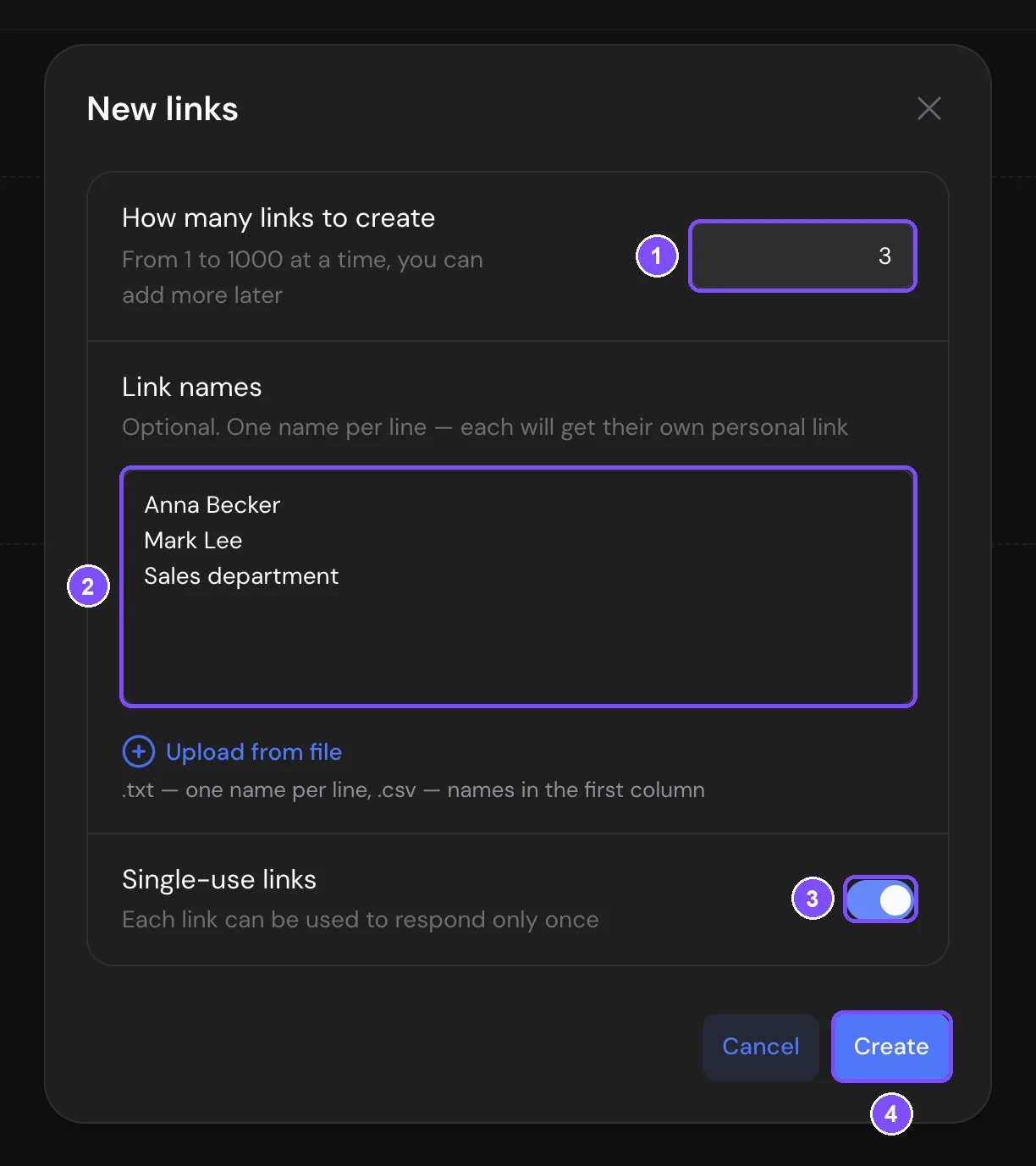
When the links are ready, click Copy all or Download Excel and send them to respondents. If you entered names, the links are copied together with the names, so they paste into a spreadsheet as two columns.
Links are grouped into sets, for example, one set per department.
Set settings
Open a set in the list on the left and go to the Settings tab. Changes apply to all links in the set.
| Setting | What it does |
|---|---|
| Close links | The links stop accepting new responses. Responses already received are kept. |
| Limit validity period | The links accept responses only between Start and End. |
| Schedule | The links accept responses only on the selected days and hours, in the selected time zone. If the survey has its own schedule, both must match. |
| Response limit per link | How many responses each link accepts. Turned off — no limit. |
| Password | Same as survey — the survey password is asked. Custom — the set's own password, survey passwords don't apply. No password — the links open without a password, even if the survey has one. |
| Message for a used link | The text respondents see when the link has reached its limit. If it's empty, a default text is shown. |
| Message for an invalid link | The text respondents see when the link is closed, deleted, or opened outside its period or schedule. |
If you lower the response limit, SurveyNinja first shows how many links will become used and stop letting respondents in.
Managing links
The Links tab lists all links in the set with their response counts.
- Search by code or label, and filter the list (1): All links, No responses, With responses. Limit reached appears when the set or a link has a response limit, Not working when some links don't accept responses.
- Click Add links to add more links to the set (2).
- Use the buttons in a link's row to open it, copy it or get its QR code in PNG or SVG (3).
- Open a link's settings with ⋮ at the end of the row to give it a Label, a Custom response limit, its own passwords (Access by password) or Hidden values. Hidden values are variables with fixed values. They're added to every response from this link and aren't visible in the address.
- Select several links to turn them on, off or delete them at once.
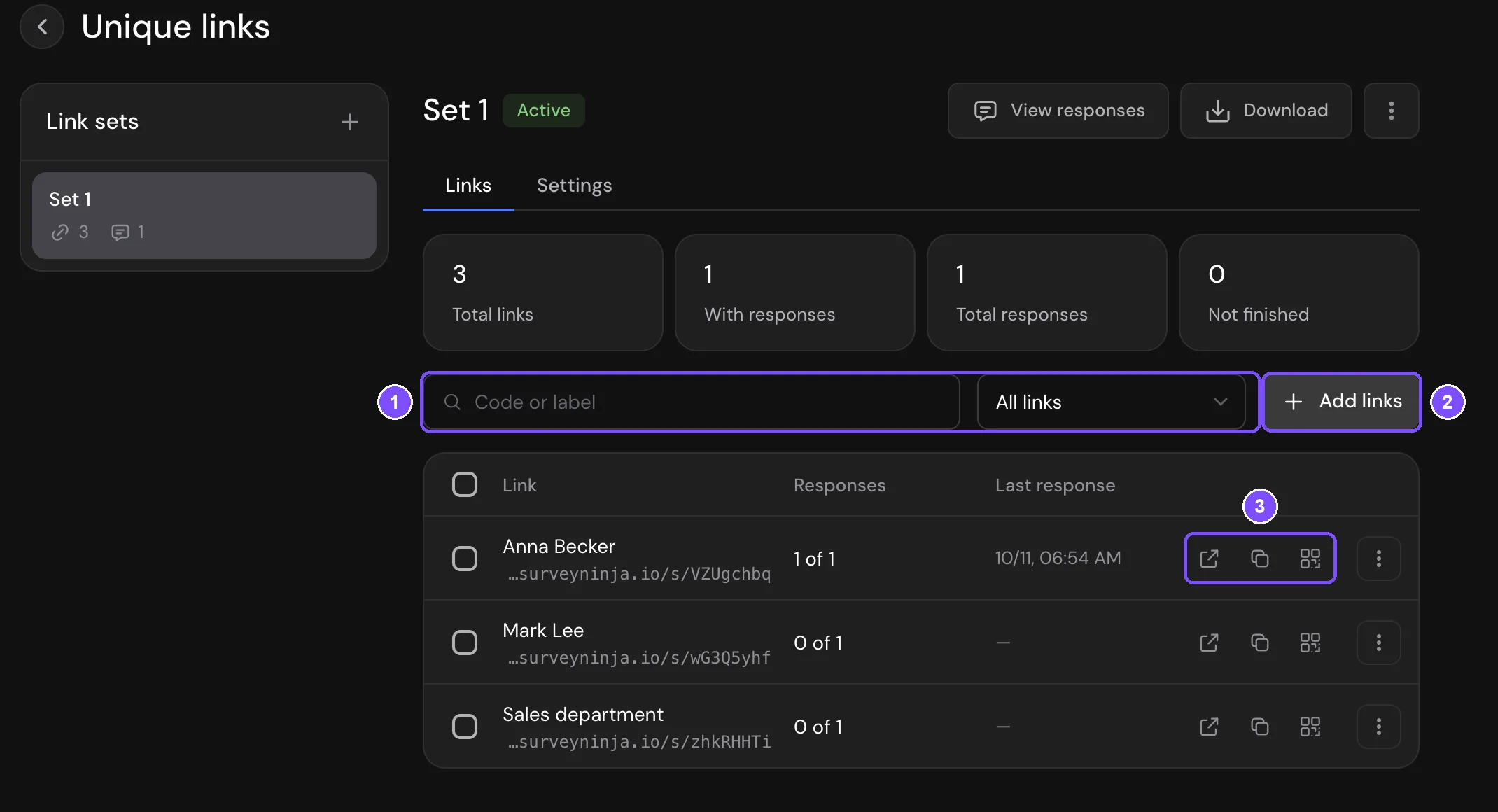
To download all links of a set, click Download and choose XLSX or CSV. The file has the link, code, label, number of responses and unfinished ones, the time of the last response and whether the link works.
Important. A deleted link stops working at once, and its code can't be issued again. Its responses stay in the results.
What respondents see
- If the link works, the survey opens as usual.
- If the link has reached its limit: "A response has already been submitted via this link. Thank you for participating!" or your own message.
- If the link is closed, deleted or outside its period or schedule: "This link is currently not active. If you think this is a mistake, contact the person who sent it to you." or your own message.
Responses by link
- Each response shows its link set and unique link.
- In Results, open the filter, expand Unique links, choose a set in Select a set, then the whole set or individual links. The filter works for both reports and responses. It doesn't need the Standard plan: response filters are available on the Basic plan and higher.
- In a set, click View responses to open the responses from this set.
- Response exports to CSV, Excel, Word and SPSS get the Link set and Unique link columns when at least one response came through a unique link.
Limits
- A survey can have up to 50 link sets. You can create up to 1000 links at a time and add more to the set later.
- Response limit per link: from 1 to 100,000. Hidden values: up to 20 per link.
- Custom passwords aren't available when the survey uses SSO login or email verification.
- The survey's own restrictions apply on top of the link settings. For example, a closed survey closes all its unique links.
- An unfinished response can be continued only through the same link.
- Creating links and changing their settings is on Standard and higher. Links you've already created keep working on any plan: you can view, download, turn on and off, and delete them.