 25 Questions for a Travel Agency Customer Satisfaction Survey
Welcome, Thank You and Other Survey Screens
Updated
On this page
Besides questions, a survey has screens: a Welcome Screen before the first question, Messages between questions, and Thank You or Disqualification screens at the end. Screens don't collect answers. They tell respondents what the survey is about, what to do next and where to go after sending.
Adding a screen
- In Builder, click + and choose the screen in the Basic section: Welcome Screen, Message, Thank You Screen or Disqualification screen. More about adding elements: Question Types.
- Type the title and the text right in the screen. The button text is also edited in place.
- Click the gear icon (Settings) to set up the screen.
The submit button isn't a screen and isn't added with +. Respondents see it on the last question or screen. In Builder it has its own card, Send, after the last question: edit the button text right on the card, and set it up in its settings, see Submit button.
Welcome Screen
Paid feature. Available on the Basic plan and higher. Compare plans
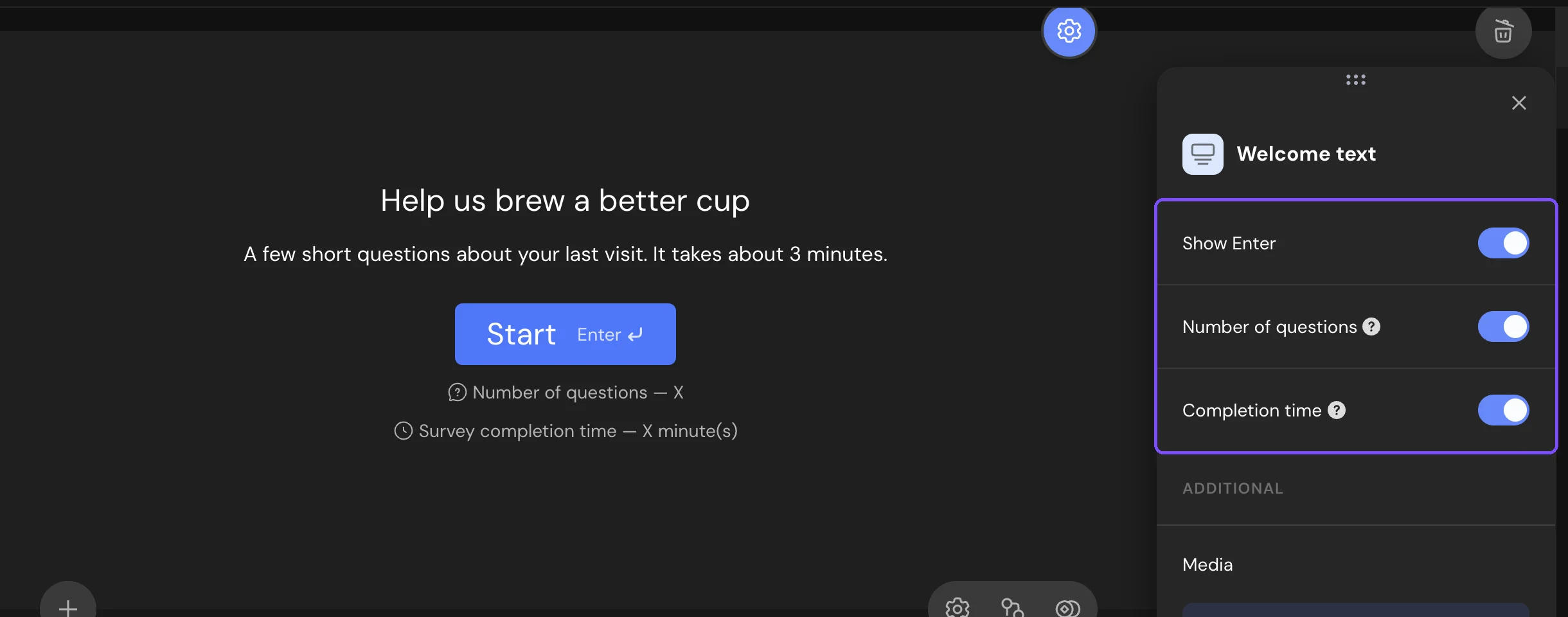
The first screen of the survey with a start button. A survey has one Welcome Screen. Once it's added, it's greyed out in the element window.
| Setting | What it does |
|---|---|
| Show Enter | Shows the Enter key hint on the button on computers. On by default. |
| Number of questions | Shows "Number of questions — 8" under the button. |
| Completion time | Shows the estimated time to complete the survey. It's calculated from the number and types of questions. |
Message
Text between questions, for example "Nearly there! Only 3 questions left". Without a button, respondents go on with the usual navigation. Turn on Button to add your own button and choose what it does: Continue goes to the next question, Follow the link opens the link you enter in a new tab. A Message inside a Question Group has no Button setting.
Thank You Screen
Paid feature. Available on the Basic plan and higher. Compare plans
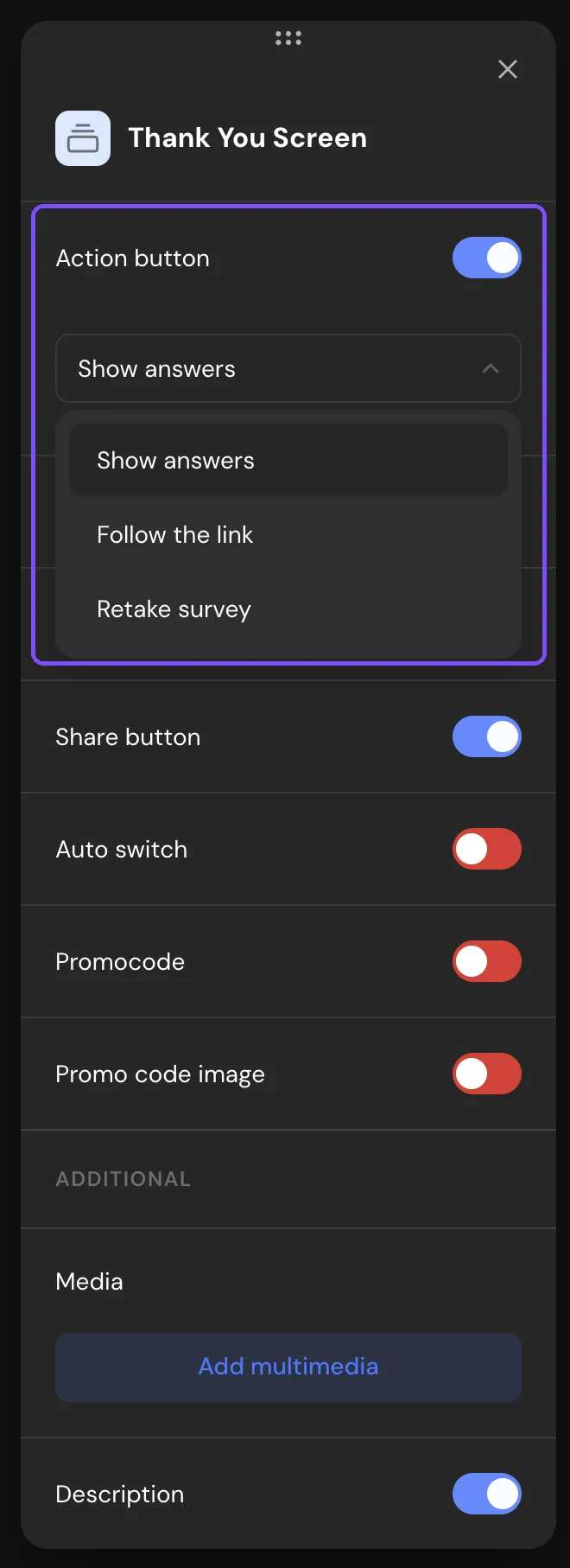
The screen respondents see after they send the survey. You can add several Thank You Screens. By default, respondents see the first one. To show another, add a logic jump with Finish survey early and choose the screen. See Logic Jumps.
| Setting | What it does |
|---|---|
| Action button | Adds a button: Show answers opens a page with the respondent's answers, Follow the link opens your link, Retake survey starts the survey again. For a link, Open in new window opens it in a new tab, and Answer from question inserts an answer into the address. |
| Scoring points | Shows the respondent's score. Available when scores are on. See Scores, Correct Answers and Personality Tests. |
| Completion time | Shows how long the respondent took. |
| Share button | Adds buttons to share the survey on social networks. |
| Auto switch | Opens the link you enter after the number of seconds in Auto redirect in n second(s). Unavailable when the Action button is set to Show answers. |
| Promocode, Promo code image | Show a promo code from the list linked to the survey. See Issuing Promo Codes to Respondents. |
With scores or categories, you can also show different text to different respondents. Click the logic icon on the Thank You Screen and choose Add text conditionally.
Disqualification screen
The screen for respondents who don't fit the survey (screenout). They get here through a logic jump with the Disqualify action or a quota. If the survey has no Disqualification screen, they see a default message. Settings: Action button (Follow the link or Retake survey), Share button and Auto switch. How to set up rules and quotas: Logic Map, Disqualification and Quotas.
Submit button
Paid feature. The submit button settings are available on the Standard plan and higher. Compare plans
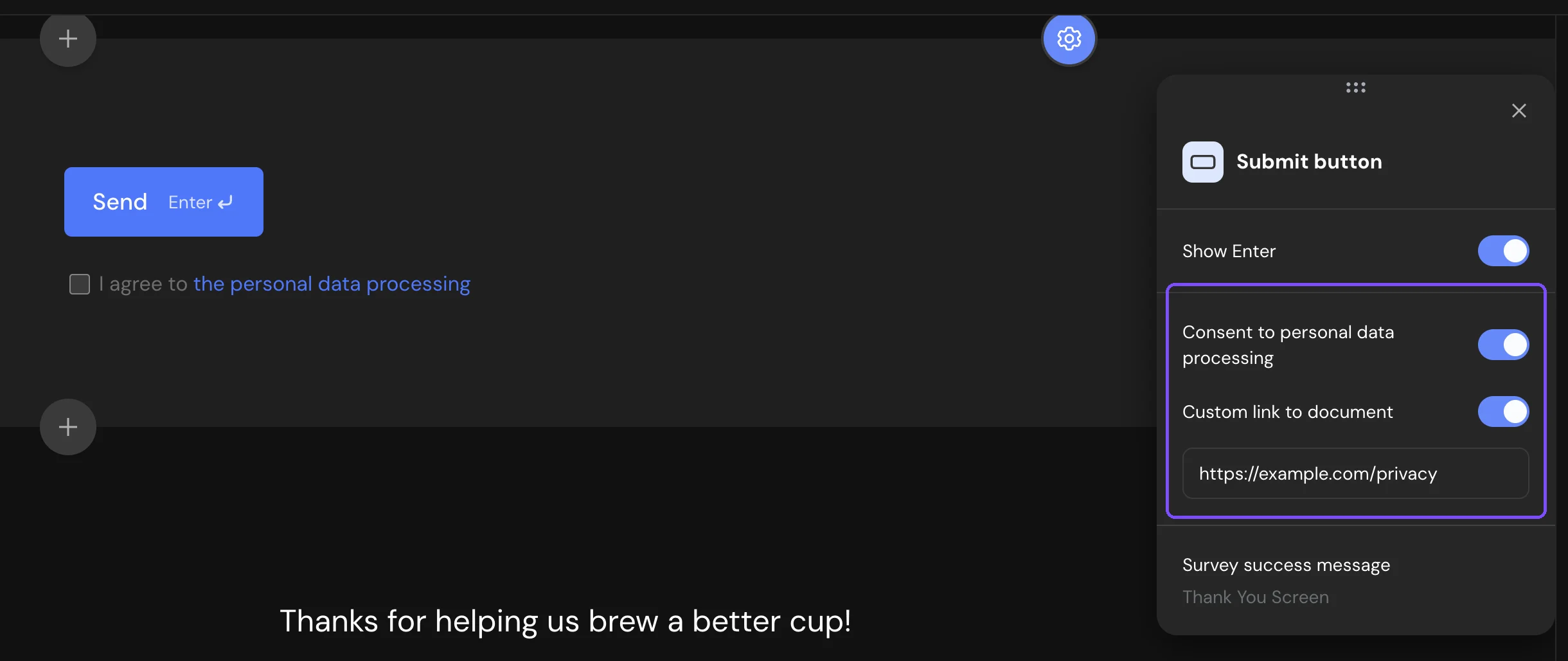
Click the Send card after the last question, then the gear icon (Settings). The panel is called Submit button. On the Free and Basic plans it's greyed out, and a click opens the plan upgrade window.
| Setting | What it does |
|---|---|
| Show Enter | Shows the Enter key hint on the button. On by default. |
| Survey success message | What happens after sending if the survey has no Thank You Screen: Follow the link, Show text, or Text and redirect by link (the text, then the link after Auto redirect in n second(s)). If the survey has a Thank You Screen, this shows Thank You Screen. |
| Consent to personal data processing | Adds the "I agree to personal data processing" checkbox under the button. The respondent can't send the survey until they tick it. Click Edit document to write your policy text, or turn on Custom link to document and enter a link to your own page. |
Note. If the survey has no Thank You Screen and the submit settings aren't changed, respondents go to the SurveyNinja thank-you page after sending. On the Free and Basic plans, these settings are locked, so add a Thank You Screen (Basic and higher) to show your own message.
Limits
- Welcome Screen and Thank You Screen: Basic plan and higher. Message and Disqualification screen: every plan.
- Submit button settings, including consent to data processing: Standard plan and higher.
- Promo codes on the Thank You Screen: Premium plan and higher.
- One Welcome Screen per survey. Thank You and Disqualification screens: as many as you need. The + of a Thank You or Disqualification screen adds only other end screens.