 25 Questions for a Travel Agency Customer Satisfaction Survey
Question Settings
Updated
On this page
Every question has a toolbar and a settings panel. Here's what most question types share. Settings of each type are in its article, see Question Types.
Question toolbar
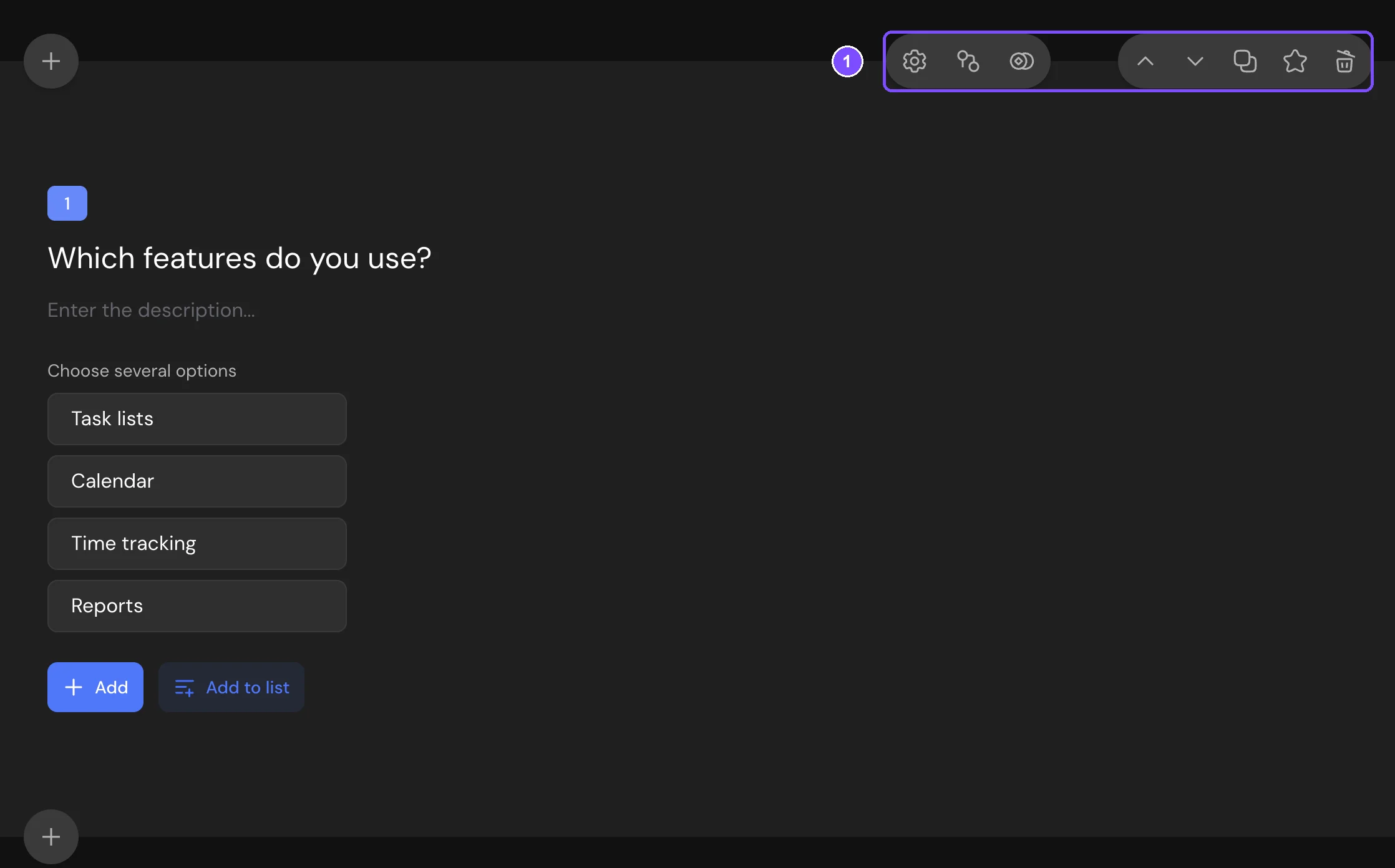
Hover over a question to see its toolbar (1). The buttons have no labels: hover over a button to see its name.
- Settings (the gear) opens the settings panel.
- Logic Jumps opens the logic jumps panel. It appears when the survey has more than one question.
- Scores sets scores for answers, for types that support them. See Scores, Correct Answers and Personality Tests.
- Move up and Move down move the question.
- Copy adds a copy of the question. At your plan's element limit, its tooltip says Limit exceeded and the button opens the upgrade offer.
- Add to favorites (the star) saves the question to Favorites.
- Delete (the trash can) removes the question.
- Pin position appears when Random question order in the survey settings shuffles the Entire survey. It keeps the question in its place.
Settings panel
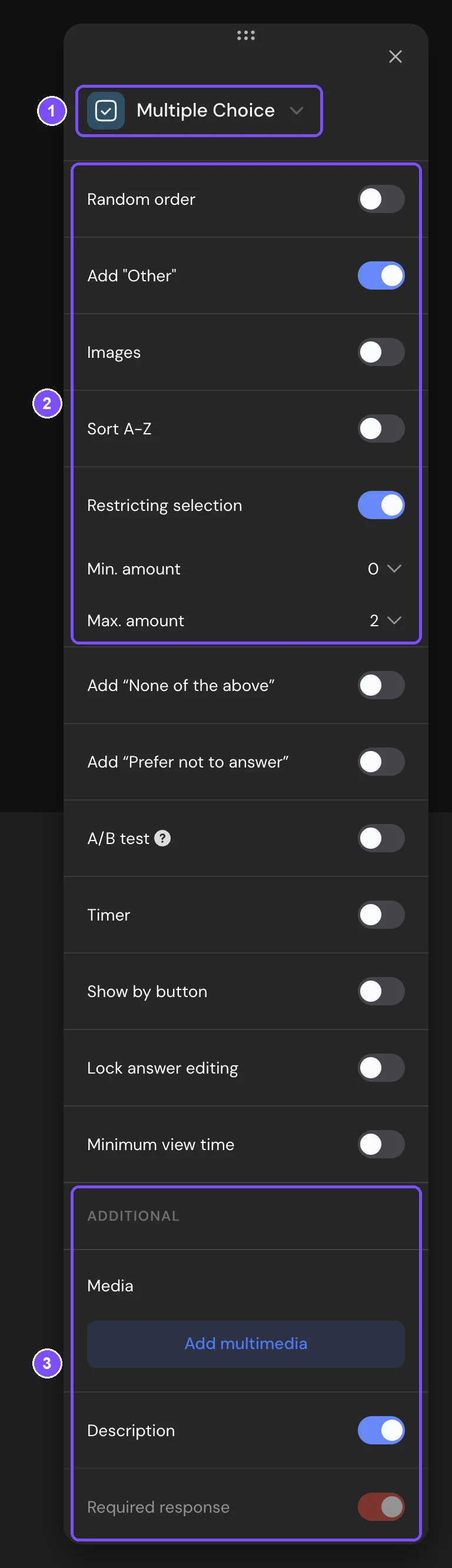
Click Settings on a question. At the top is the question type (1), then the settings of this type (2), the settings shared by most types and the Additional section (3). Drag the panel by the dots at its top if it covers the question. Press Esc or click outside the panel to close it.
Changing the question type
Choose another type in the list at the top of the panel. Types that your plan doesn't include have a $ icon. When you switch between similar types, for example from Radio Button to Dropdown or from Matrix to Matrix 3D, the answer options carry over. If something can't be kept, such as scores, images or logic conditions, SurveyNinja asks Change the question type? first. Screens have no type list.
Common settings
Which of these a question shows depends on its type.
| Setting | What it does |
|---|---|
| Random order | Shuffles the answer options for each respondent. In Radio Button, Multiple Choice, Media Choice, Dropdown and Ranging, each option then gets a pin icon (Pin position) that keeps it in place, for example "Other" at the end. |
| Add "Other" | Adds an option with a field for the respondent's own answer. Radio Button, Multiple Choice and Dropdown. |
| Add “None of the above” | Adds this option. Choosing it clears the other answers. Radio Button, Multiple Choice and Dropdown. |
| Add “Prefer not to answer” | Adds this choice under the question. Choosing it clears the answer, and the question counts as answered. Not in Message and HTML Code. |
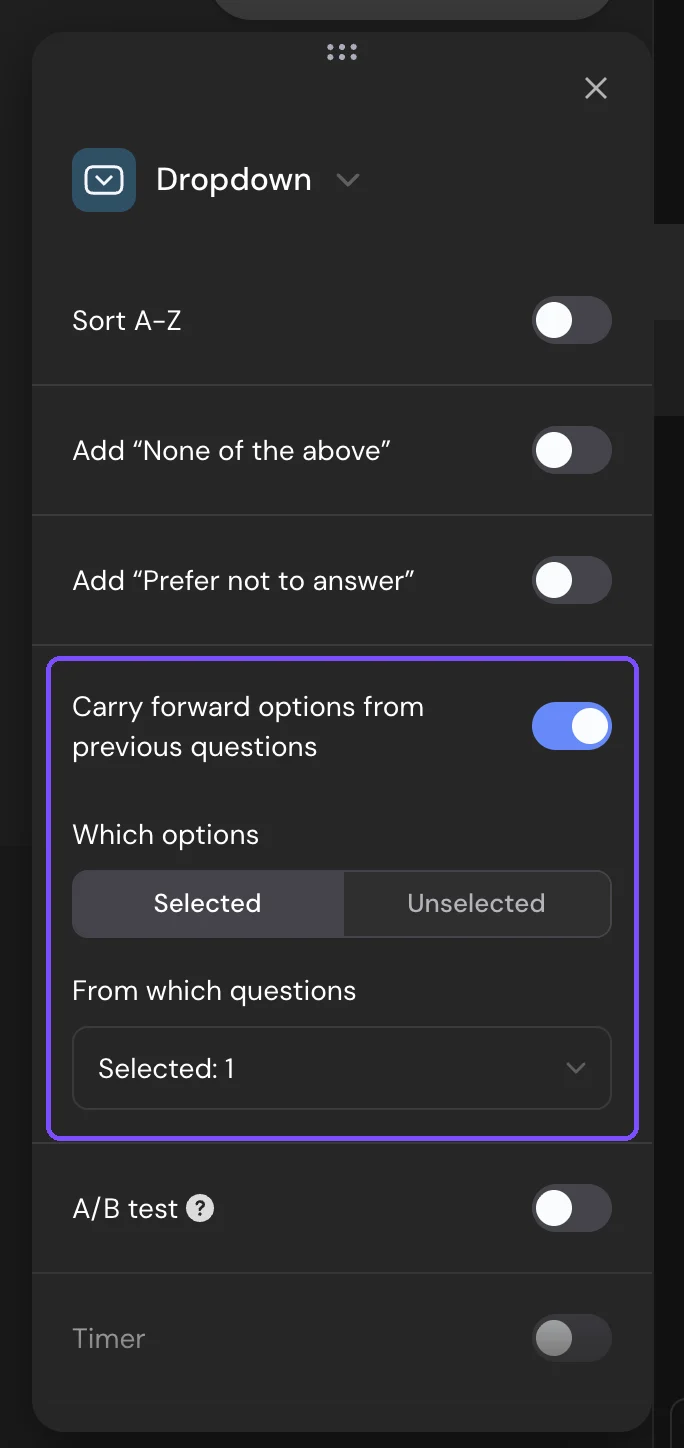
| Carry forward options from previous questions | Adds options from earlier Radio Button, Multiple Choice, Media Choice or Dropdown questions. In Which options, choose Selected or Unselected, in From which questions, the sources. Works in Radio Button, Multiple Choice, Media Choice, Dropdown and Ranging. Standard and higher. |
| A/B test | Shows respondents different versions of the title and description. In Manage variants, add versions and set the Variant display frequency of each, 100% in total. The answer options stay the same. See A/B Test for Questions. |
| Timer | Limits the time to answer, set in Time (1 minute by default). When the time runs out, the question is locked. Standard and higher. |
| Show by button | Hides the question until the respondent clicks Show a question. |
| Lock answer editing | The respondent confirms the answer with Confirm the response and can't change it after that. Not in Message and HTML Code. |
| Minimum view time | The respondent can't move on until the time passes (10 seconds by default). It must be shorter than the Timer. Premium and higher. |
| Media | Add multimedia adds an image, video or audio. The button works once the question has a title and options. Basic and higher. See Adding Multimedia. |
| Description | Shows a description field under the title. |
| Required response | The respondent can't skip the question. Message and HTML Code don't have it. |
Timers are described in Timers and Scheduled Access.
When Required response is locked
The switch is greyed out, and its tooltip says why:
- Required Responses in the survey settings is set to All required or All optional.
- The question is in a Question Group with Required answers in group on.
- A selection limit is on, such as Restricting selection in Multiple Choice. The minimum then decides if an answer is needed.
- The question is used in logic with scores.
Favorites
Click the star (Add to favorites) on the toolbar to save a question. To insert it into a survey, click +, open the Favorites tab and click the question. Search favorites finds it by name. Favorites belong to the workspace, so they're available in all its surveys.
- The copy keeps the text, options and settings. Logic jumps, carry forward, A/B test versions and inserted answers aren't saved.
- If you edit a saved question, its star goes dark. Click it and choose Update in favorites or Add as new.
- To remove a question, click its lit star, or the remove button on the Favorites tab. Copies already in surveys don't change.
Settings for all questions
Five settings can be set for all questions in Settings → Filling behavior:
| Survey setting | Question setting |
|---|---|
| Required Responses | Required response |
| Question timer | Timer |
| Show question on button click | Show by button |
| Lock answer after response | Lock answer editing |
| Minimum view time | Minimum view time |
With Individual, you set each question. All required and All optional, or Enable for all questions and Disable for all questions for the others, apply to every question and lock the switch in the question. Changing Required Responses resets the switch in every question. The same section has Random question order, which adds Pin position to the toolbar. See Survey Settings.
Limits
- Media needs the Basic plan or higher, Timer and Carry forward options from previous questions need Standard or higher, Minimum view time needs Premium or higher. Compare plans
- Booking has no timer settings. Questions inside a Question Group have no Media, Carry forward options from previous questions or Minimum view time.
- A micro survey has no Timer, Minimum view time or Media.
- Screens and Question Group can't be saved to Favorites. A workspace holds up to 100 favorite questions.