 WooCommerce Post-Purchase Survey: 7 Questions, When to Ask and What to Do Next
Survey Language and Standard Labels
Updated
On this page
Survey language sets the language of the texts SurveyNinja adds to a survey: buttons such as Next and Skip, error messages, sign-in forms and default button labels. Your questions and answer options are never translated. With Standard labels, you can replace any of these system texts with your own wording.
What the survey language changes
| Text | Example | What happens when you switch the language |
|---|---|---|
| System texts | "Next", "Skip", "Confirm the response", "Enter your email address correctly (example: my@mail.com)", "{{count}} required questions are not filled in", the password and SSO sign-in forms, "Continue where you left off?" | Switch to the new language. Texts replaced in Standard labels stay as you wrote them |
| Default texts in elements | "Start" on the Welcome Screen, "Send" on the submit button, "Continue" in a Message, "Enter your answer here...", scale labels, "Prefer not to answer", "None of the above", the thank-you text | Switch to the new language only if you didn't change them |
| Your own texts | Question titles, descriptions, answer options, screen texts you typed | Don't change |
| Dates in a Booking question | Month and weekday names in the calendar | Follow the survey language |
The progress bar shows only a percentage, so it has no text to translate.
Choosing the survey language
- Open the survey and go to the Settings tab.
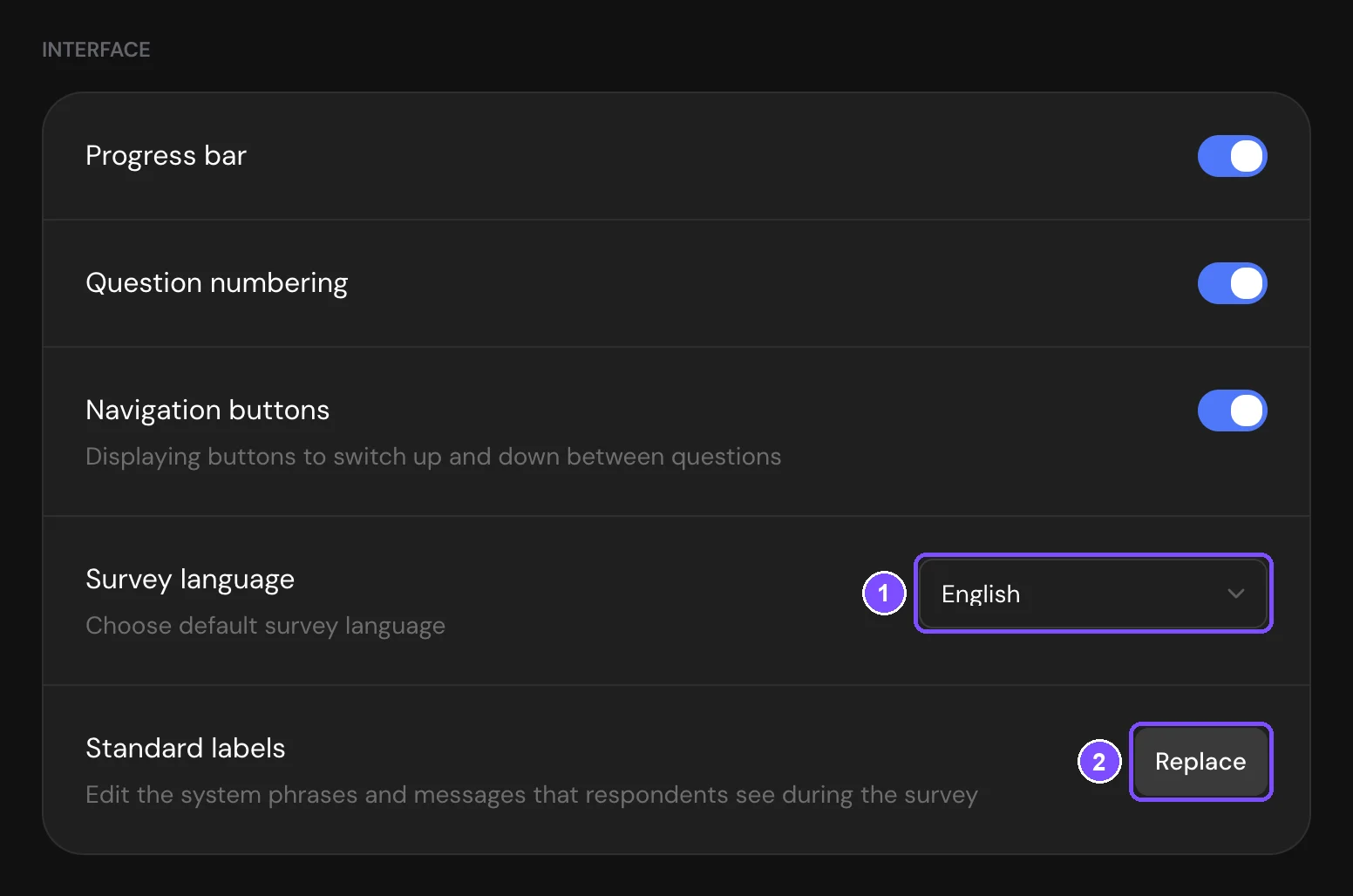
- In Interface, open the Survey language list (1) and choose English, Español or Português.
- Click Preview in the top bar and go through the survey to check the buttons and messages.
The setting is saved right away, and the default texts in the Builder switch together with it. The survey language belongs to the survey itself, so the published survey also switches without clicking Publish.
The respondent's browser language isn't taken into account. Everyone who opens the link sees the survey in the language set in Survey language.
Which language a new survey gets
- A survey created from scratch, with AI or imported from Google Forms gets your interface language at the moment you create it.
- A survey created from a template gets the template's language.
- A copy of a survey keeps the language of the original.
Replacing standard labels
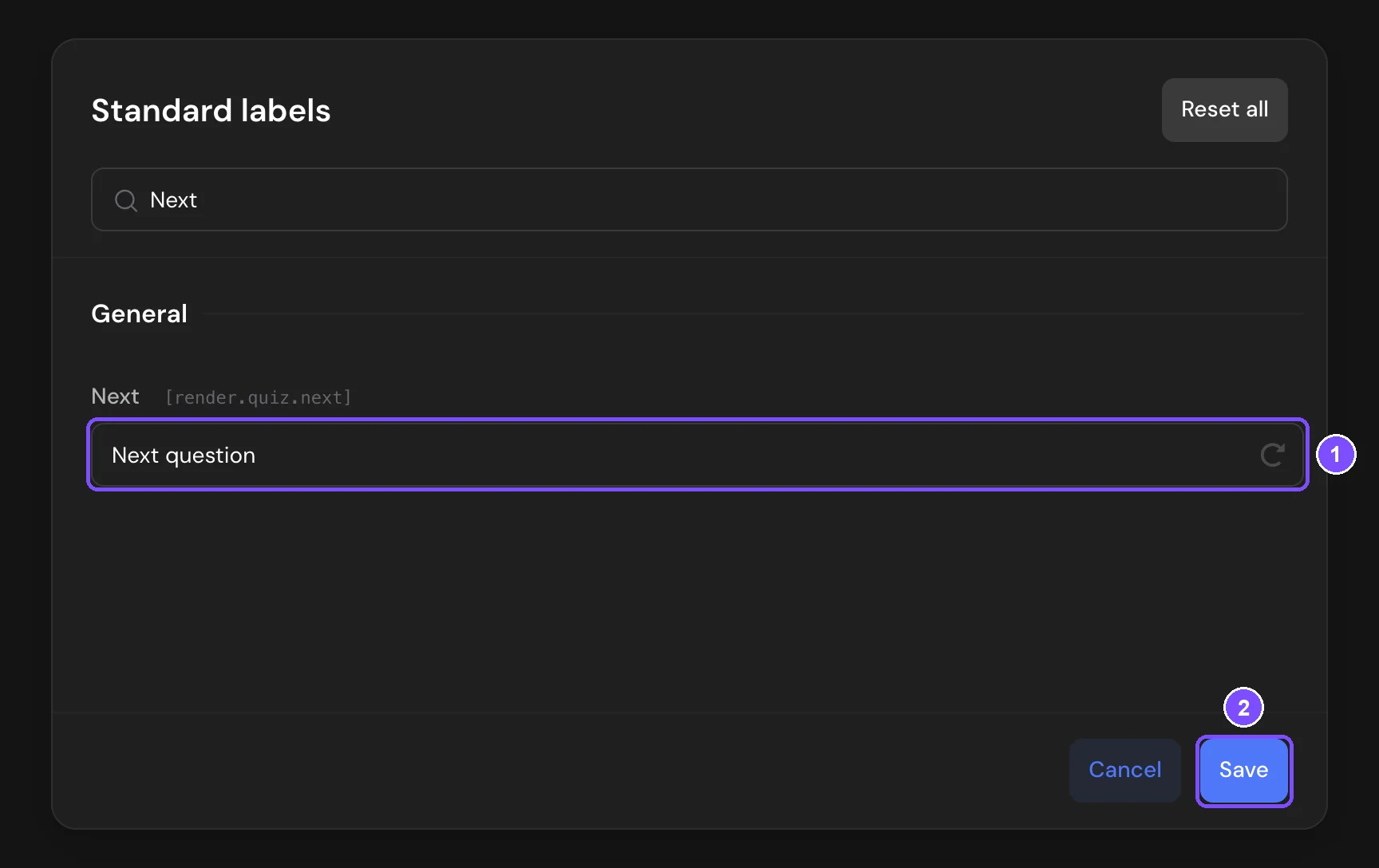
Use Standard labels to change the default wording, for example to write "Next question" instead of "Next".
- On the Settings tab, in Interface, click Replace next to Standard labels (2 in the screenshot above).
- Find the text. Type a few words in Search, or scroll through the groups: Buttons, Messages, Hints, Errors, SSO sign-in, Password sign-in and General. Above each field is the default text in the survey language.
- Type your text in the field (1). A changed field is highlighted.
- Click Save (2).
The new labels apply only to this survey.
Some texts contain variables, such as {{n}} in "Enter at least {{n}} characters". The variables are listed under the field. Keep them in your text: SurveyNinja puts the number in their place.
To go back to the default texts, click Reset all, then Save.
Button labels that belong to an element, such as "Start" on the Welcome Screen, "Send" on the submit button or "Continue" in a Message, aren't in this list. Edit them right on the screen in Builder, see Welcome, Thank You and Other Survey Screens.
Running a survey in several languages
Each survey has one language. To collect responses in several languages, make a copy of the survey for each language:
- Finish the survey in the first language.
- On the dashboard, click the three dots on the survey card and select Copy.
- In the copy, choose the language in Survey language and translate the questions, answer options and screens.
- If you replaced standard labels, enter them again in the copy. Standard labels aren't copied.
- Publish each copy and share the link that matches the audience, for example the Spanish copy on the Spanish version of your website.
Each copy collects its own responses. To compare languages, download the responses of each survey, see Viewing and Downloading Survey Responses.
Tip. Keep the same order of questions in every copy, so the downloaded tables have the same columns.
Survey language and interface language
The interface language is your personal setting for the SurveyNinja account. To change it, click your profile icon in the top right corner, choose Profile and select the language in Interface language under Language and country.
| Interface language | Survey language | |
|---|---|---|
| Where | Your profile | Settings tab of a survey |
| What changes | Menus, buttons and messages you see in your account | Buttons and system messages respondents see in one survey |
| Effect on surveys | New surveys get this language. Existing surveys don't change | Only this survey |
Limits
- Languages: English, Español and Português. One language per survey.
- Standard labels: every plan, up to 255 characters per label. HTML tags are removed.
- Replaced labels apply in any survey language. If you switch the language later, they stay as you wrote them.
- Standard labels aren't copied with the survey.