 25 Questions for a Travel Agency Customer Satisfaction Survey
Click Test, Hotspot and Area Selection
Updated
On this page
These three questions show your image and ask the respondent to answer on it, for example "Where would you click to buy this product?" on a page mockup. In a Click Test, the respondent clicks points. In a Hotspot Selection, they outline areas. In an Area Selection, you mark regions in advance, and the respondent picks some of them.
Adding an image question
- In Builder, click + and choose the type: Click Test is in the Additional section, Hotspot Selection in Open-ended, Area Selection in Choice. More about adding questions: Question Types.
- Drag the image to the question or click the upload area ("Drag the file here or click to select"). The image can be up to the maximum file size of your plan.
- For Area Selection, drag across the image to draw each region (1) and type its name in the list under the image (2). A selected region can be resized or deleted.
- Click the gear icon (Settings) to set limits (3).
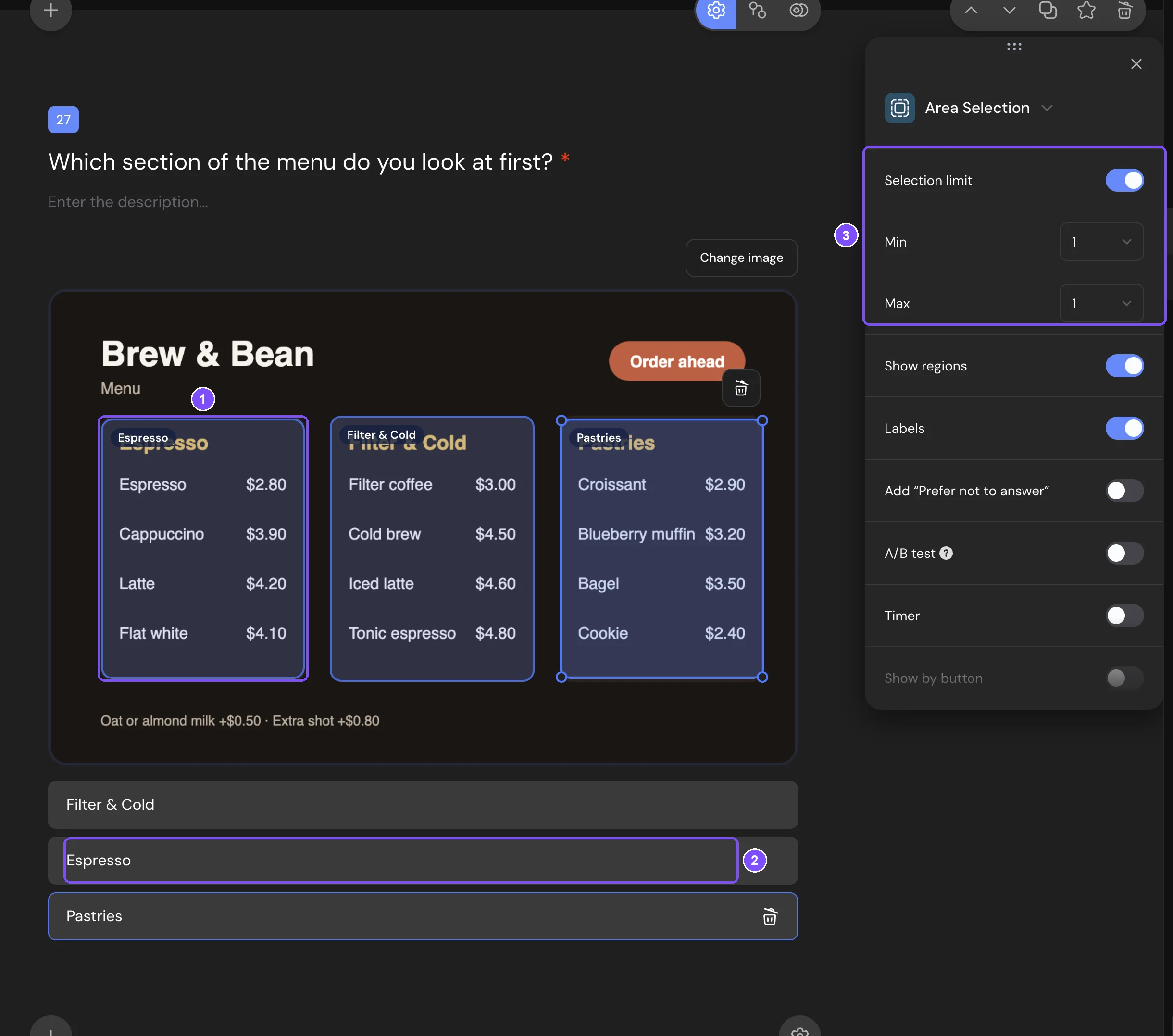
Settings
| Setting | Types | What it does |
|---|---|---|
| Selection limit | All three | Turns on Min and Max: how many points, areas or regions the respondent must and can mark. |
| Min, Max | All three | In Area Selection, both go up to the number of regions. In the other two, Max has no upper limit. |
| Numbering | Click Test, Hotspot Selection | Shows the order number on each point or area. |
| Show regions | Area Selection | Shows the regions' borders before the respondent selects them. When it's off, a region appears only after it's selected. |
| Labels | Area Selection | Shows region names on the image. |
With Selection limit on, the Required response switch is locked: the question is required when Min is above 0. The settings that every question has are described in Question Settings.
What respondents see
- Click Test: a click or tap on the image puts a point. Without a limit, the respondent can put any number of points. Clear all removes them.
- Hotspot Selection: the respondent drags across the image to outline a rectangle. An area can be resized or deleted. Clear all removes all areas.
- Area Selection: the respondent clicks regions to select them and clicks again to cancel. When Max is reached, the other regions can't be selected.
With a limit, a hint above the image says how many to mark, for example "Select up to 3 points".
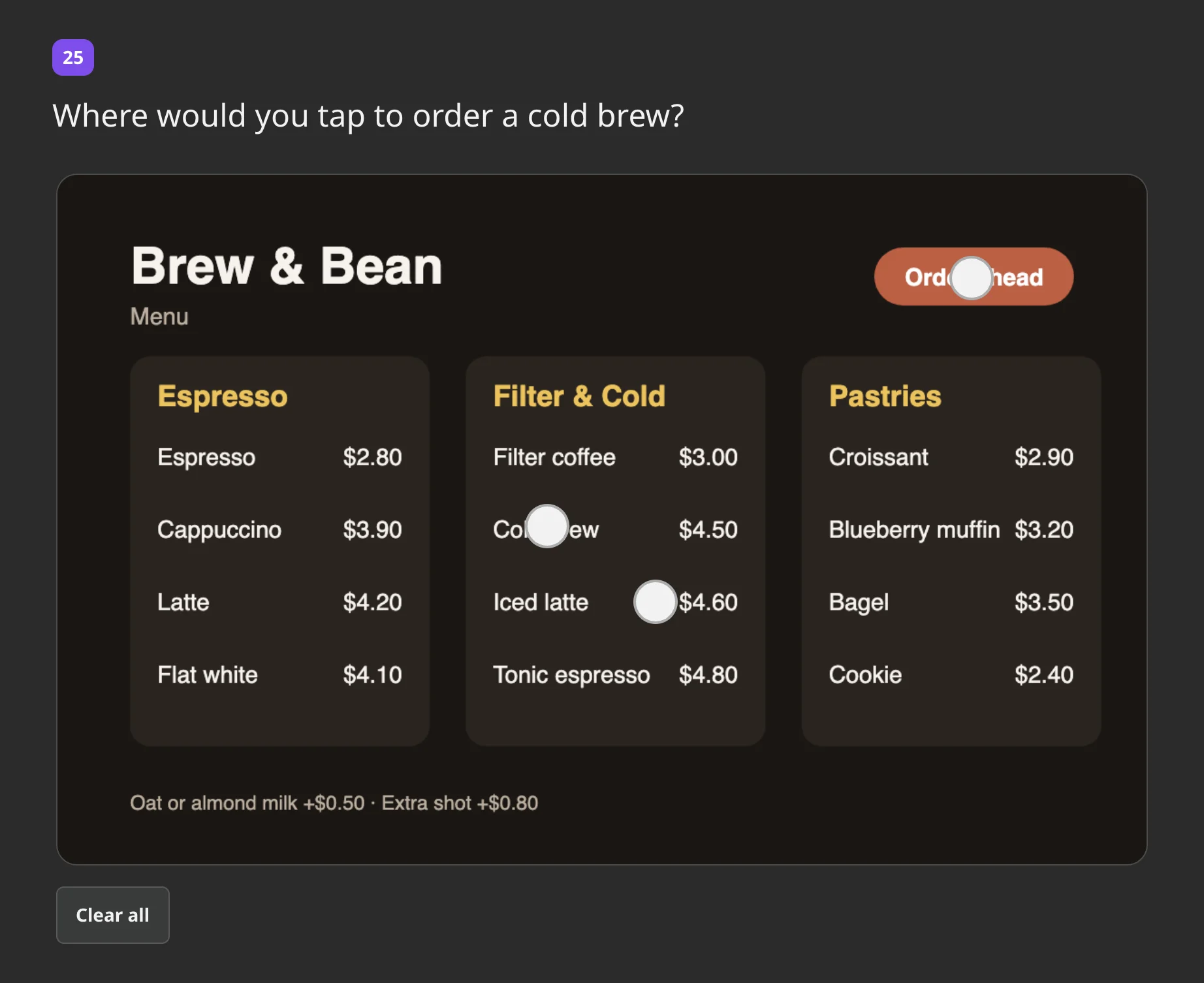
Responses and report
In Results → Reports:
- Click Test and Hotspot Selection show a Heatmap over your image: the brighter the place, the more clicks or areas it got. The heatmap can be downloaded as an image.
- Area Selection shows the image with each region's share of responses. Below it, switch between List, Bars, Table and Donut.
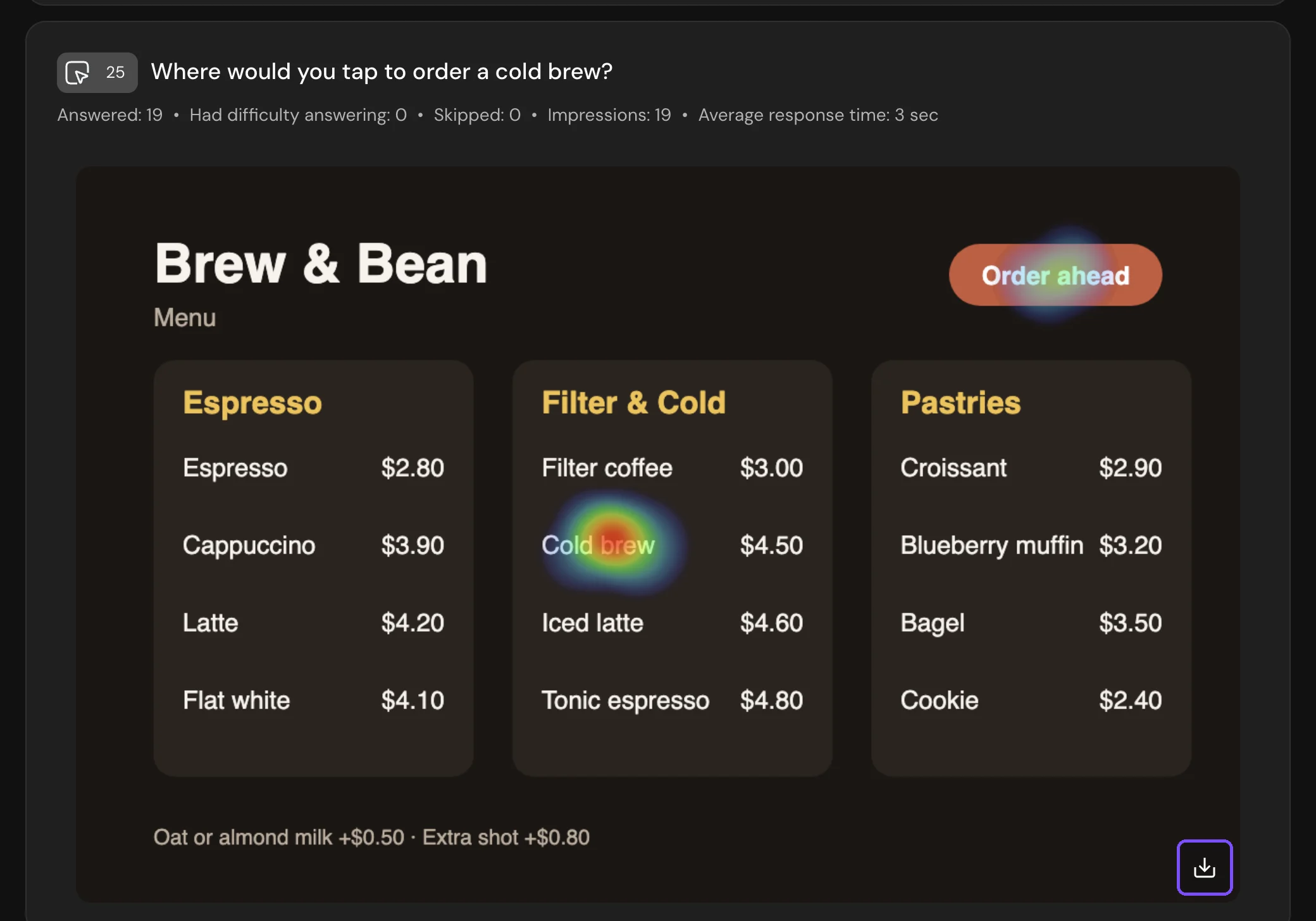
In a CSV or XLSX file, each question takes one column:
- Click Test: the image link, then each point as "1. x: 0.42, y: 0.31". Coordinates are shares of the image width and height, from 0 to 1.
- Hotspot Selection: the same, plus the width and height of each area.
- Area Selection: the names of the selected regions, separated by commas.
You can filter responses by the selected regions of an Area Selection. See Viewing the Survey Report.
Logic and scores
- Click Test and Hotspot Selection: logic compares the number of points or areas: Less than, More than, Equals and others, plus Is answered.
- Area Selection: Equals, Does not equal and Is answered for a region. Regions can also get points in Scores, Correct Answers and Personality Tests.
More about conditions: Logic Jumps.
Limits
- The three types are available on the Basic plan and higher.
- Each question uses one image. If the image is missing, respondents see "Image unavailable".
- The maximum image size is 100 MB on Basic, 300 MB on Standard and 500 MB on Premium.
- These types can't be added to a micro survey.