 25 Questions for a Travel Agency Customer Satisfaction Survey
Email Notifications
Updated
On this page
The Notifications tab of a survey sets up two kinds of emails: an email to you and your team about every new response, and a thank-you email to the respondent after they finish the survey.
Paid feature. Thank-you emails to respondents are available on the Basic plan and higher. Emails about new responses work on all plans. Compare plans
Getting an email about each response
- Open the survey and go to Notifications.
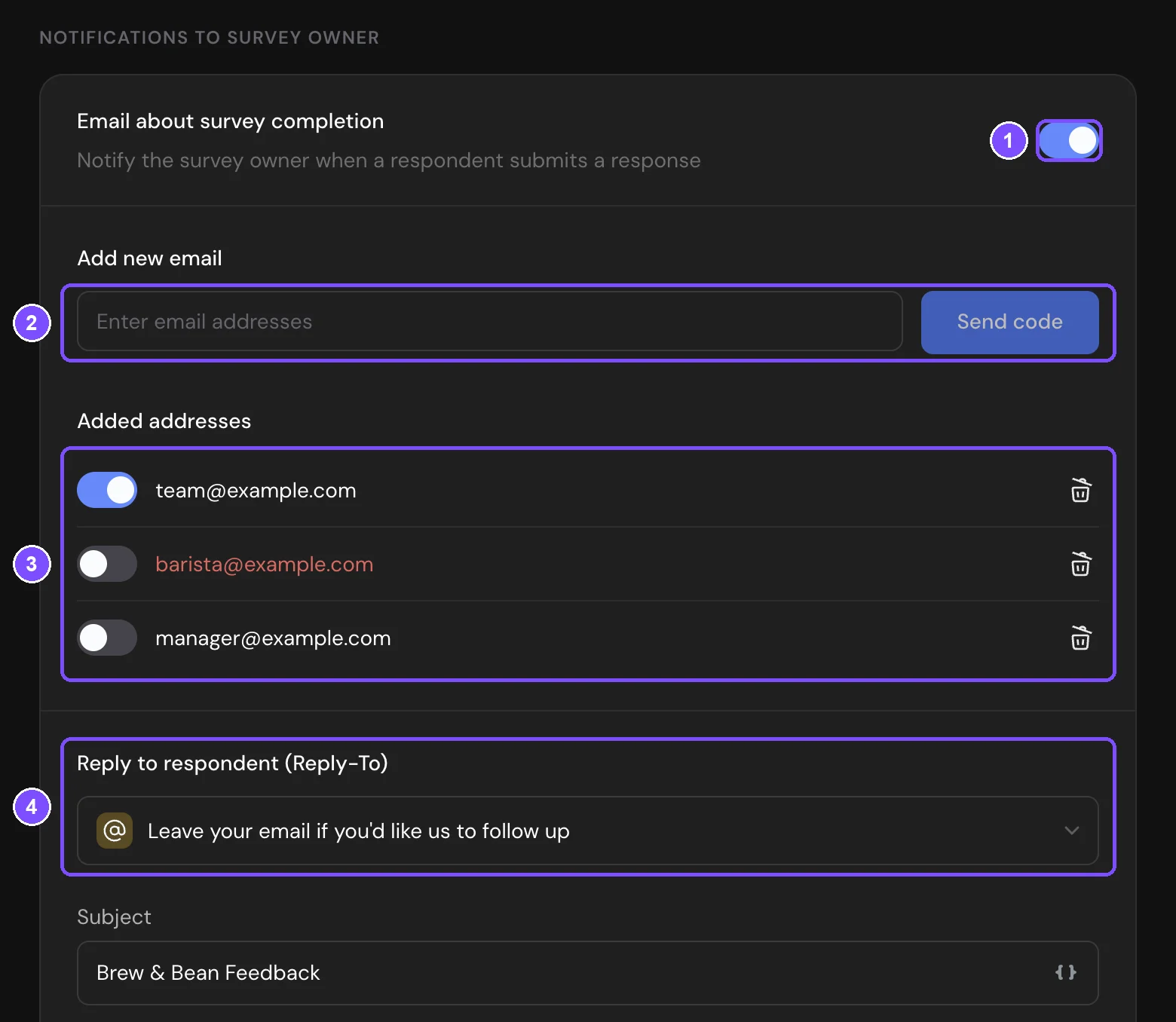
- Under Notifications to survey owner, turn on Email about survey completion (1).
- In Add new email, enter an address and click Send code (2).
- Enter the 4-digit code from the email that arrives at this address. The address appears in Added addresses (3).
- Change the Subject if needed. By default, it's the survey name.
From now on, each address gets an email every time a respondent submits the survey.
- An address already confirmed in another survey of this workspace is added without a code.
- The switch next to an address pauses emails to it. The trash icon removes the address.
- An unconfirmed address is shown in red. Click the address to enter the code.
If the code doesn't arrive, check the Spam folder. After the countdown, click get the code again. The number of attempts is limited. If they run out, contact support.
Reply to respondent (Reply-To) (4) lets you answer the respondent right from the notification. Choose the Email question of the survey, and when you click Reply in your mail app, the reply goes to the address the respondent entered.
Sending a thank-you email to respondents
The survey needs an Email question or a hidden variable with the respondent's address.
- Under Notifications to respondent, turn on Send a thank-you email to respondent (1).
- In Send email notifications, choose the Email question or the hidden variable to take the address from (2).
- In Reply to, enter the address that gets replies from respondents (3). By default, it's the email of the account owner.
- Enter the Subject (4).
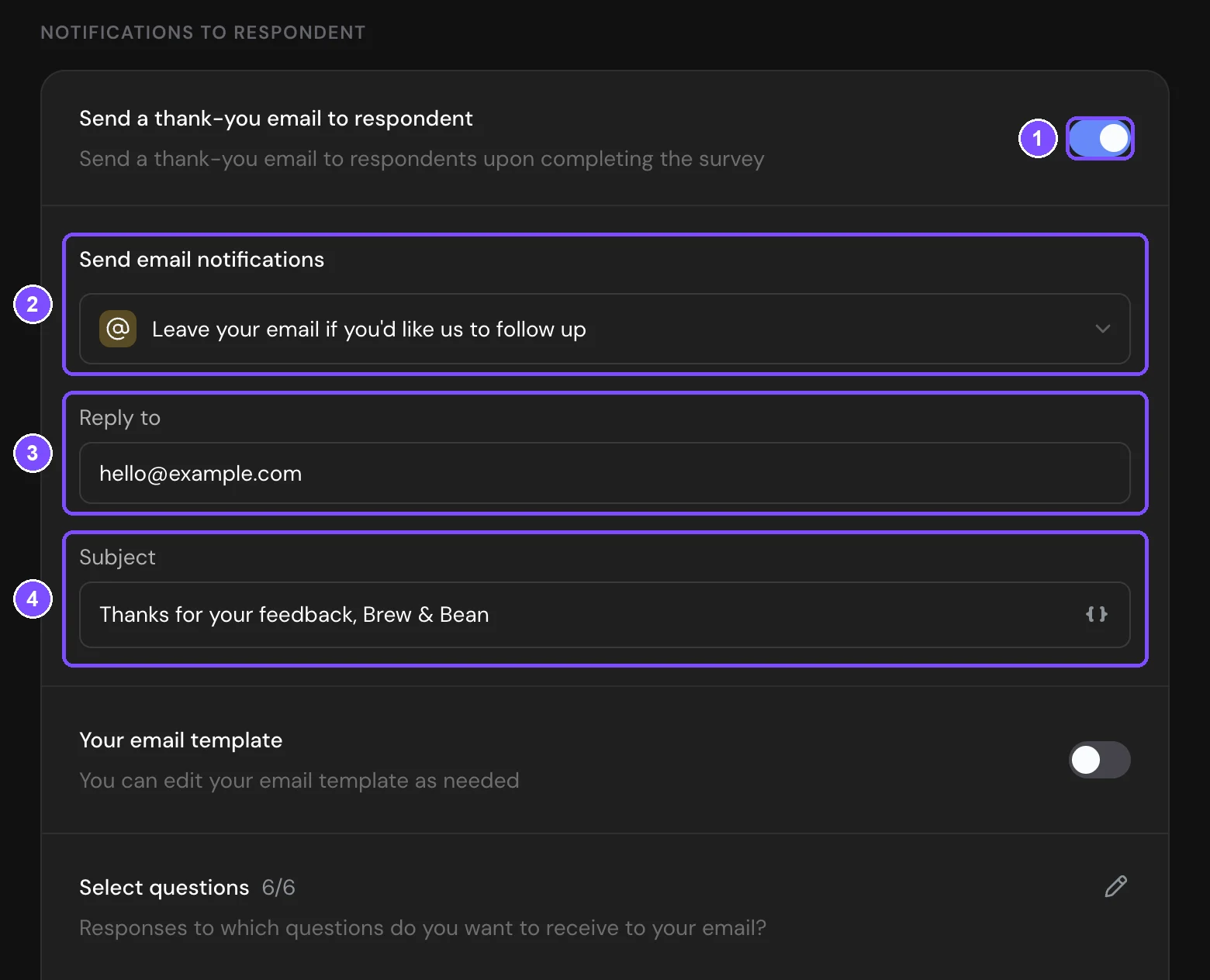
The respondent gets the email after they finish the survey. If the survey has no Email question, the section shows "To send an email to a respondent, you need to add the "Email" element to the survey".
What goes into the email
Both emails start with the standard template, which lists the respondent's answers.
- Select questions shows how many questions go into the email, for example 5/7. Click the pencil icon, tick the questions you need and click Save.
- Hidden Variables lists the variables of the survey. Click a variable to include its value in the email or leave it out.
- Include promo code in email adds a promo code block. It appears when a promo code list is attached to the survey, see Issuing Promo Codes to Respondents.
- Show response edit link adds a link that lets the respondent change their answers. It appears in the respondent email when response editing is on, see Survey Access and Protection.
Writing your own email
- Turn on Your email template (1). The editor opens with a text that already lists the answers.
- Write the text on the Visual tab (2). You can format it and add images and links.
- To insert an answer, type @ and pick a question (3). The list also has hidden variables, Number of points for tests with scores, Promocode, Promo code image and Edit link, when they are available in the survey.
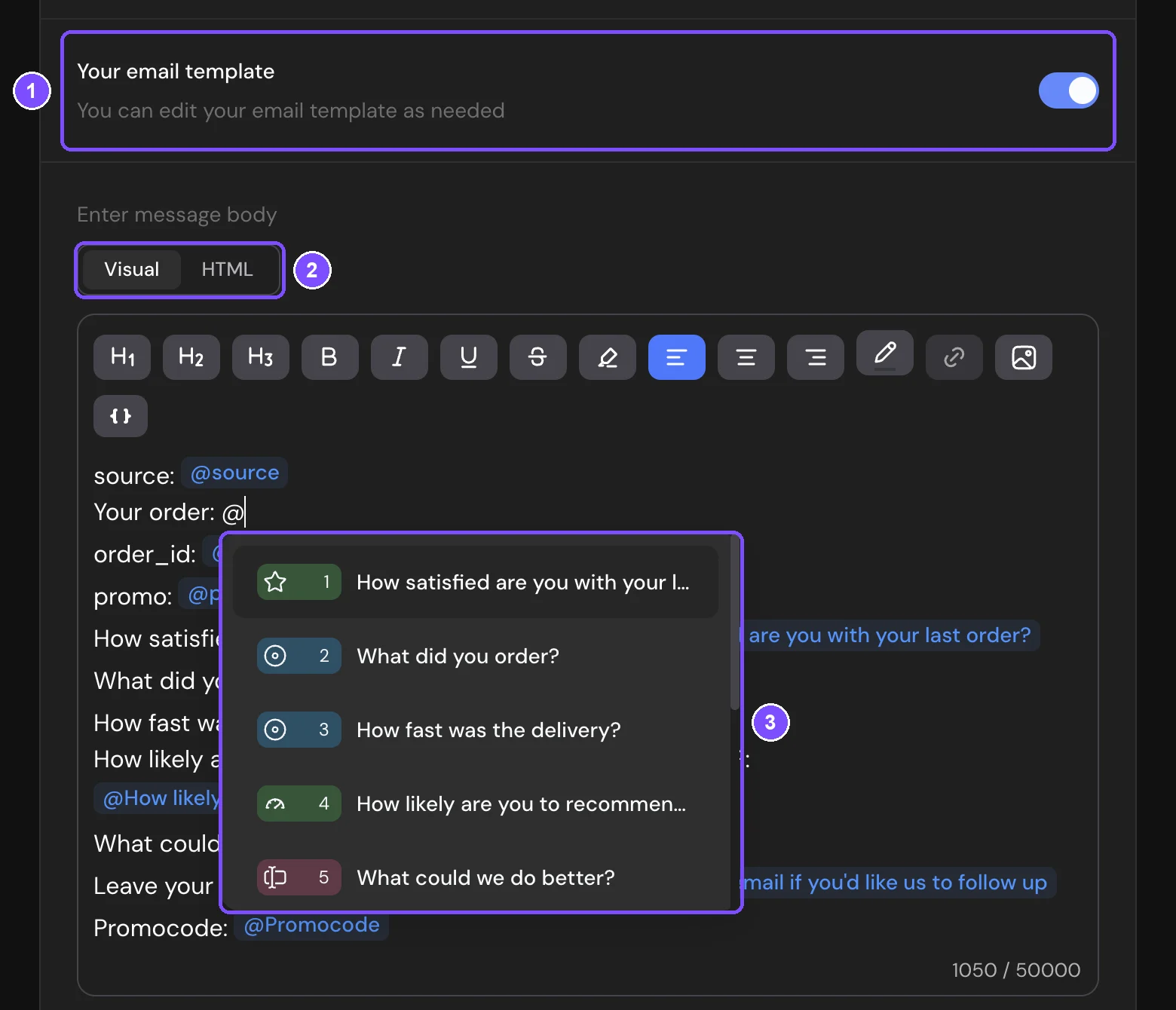
Put each question on its own line. Then lines with unanswered questions are left out of the email. Click Restore the default template to go back to the standard text. Your changes will be lost.
The HTML tab lets you paste your own HTML email. It works only when your account sends emails through your own SMTP server (Premium and higher). Without it, the tab shows Set up SMTP. See Custom SMTP Server. In the HTML editor, insert answers and fields with the variables button above the editor, and add an unsubscribe link with the %unsubscribe% token.
Emails about bookings
If the survey has a Booking question, the tab shows three more switches. All of them are on by default.
- Notify about new bookings: an email to you about each new booking. Use the switches next to the added addresses to choose who gets it. If none is selected, emails go to the email of the account owner.
- Booking confirmation to the respondent: the date and time of the booking, sent to the email from the Booking question.
- Booking cancellation button: a link in the respondent's email to cancel the booking. The switch is shown only while Booking confirmation to the respondent is on.
See Online Booking.
Limits
- Emails about new responses can go to up to 1 address on the Free plan, 3 on Basic, 5 on Standard and 10 on Premium.
- An email template can be up to 50,000 characters.