 25 Questions for a Travel Agency Customer Satisfaction Survey
Custom Domain for Survey Links
Updated
On this page
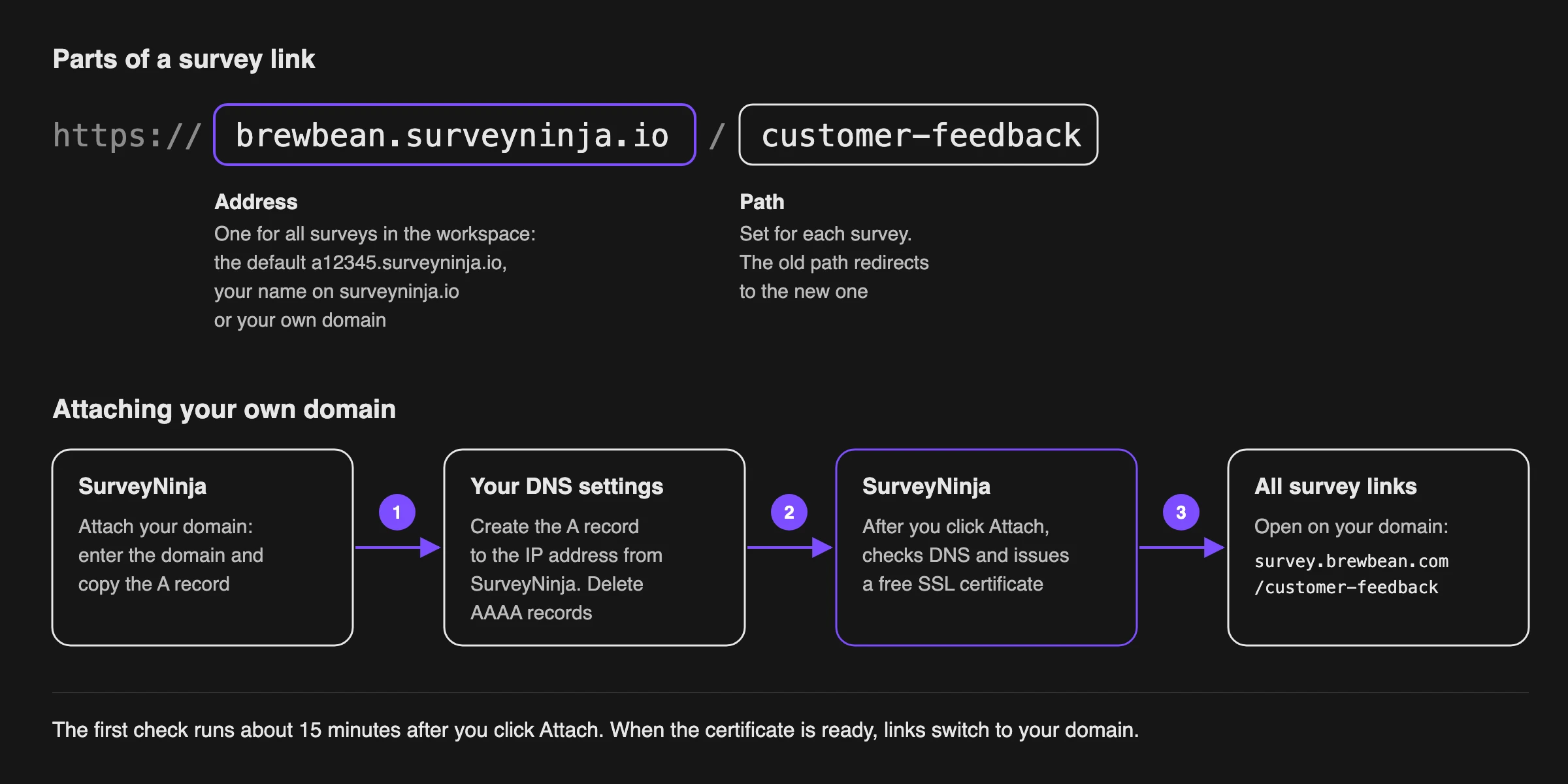
A survey link has two parts: the address of your workspace and the path of the survey, for example https://a12345.surveyninja.io/customer-feedback. You can change the path of each survey, replace the default address with your own name on surveyninja.io, or attach your company domain so links look like https://survey.brewbean.com/customer-feedback.
Paid feature. Changing the survey path and the default address is available on the Basic plan and higher. Your own domain is available on the Premium plan and higher. Compare plans
Where to change the link
- Open the survey and go to Share → Link.
- Click the pencil icon in the link field (Edit link).
A panel with the link settings opens. At the top is the Direct link (with hidden variables, if the survey has them), below is the Domain setting block with the addresses of your workspace. The selected address has a check mark (1). Hover over an address to see the gear icon (2) that opens its settings. Attach your domain (3) adds your own domain.
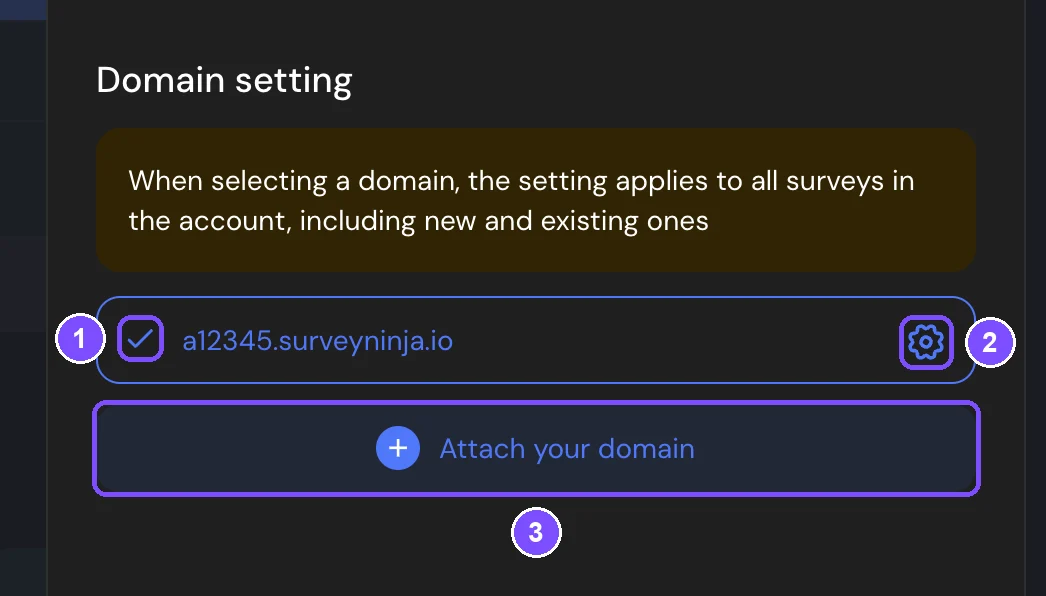
You can also open this panel from the Share the Survey panel after publishing: click Edit link under the survey link.
Note. The address applies to all surveys in the workspace, new and existing. The path is set for each survey separately.
Changing the survey path
- In Domain setting, click the gear icon next to the selected address.
- Change the field after the slash. Use letters, digits, dots and hyphens, at least 3 characters. The path can't start or end with a dot or a hyphen.
- Click Save.
The old link keeps working: it redirects respondents to the new path. If another survey in the workspace already uses this path, you see The address is already taken.
Changing the default address
The default address looks like a12345.surveyninja.io. You can replace the first part with your own name, for example your company name.
- Click the gear icon next to the address marked default address.
- In Changing default address, enter a name in Domain name, for example brewbean. The address becomes brewbean.surveyninja.io.
- Click Save. Restore puts the original name back into the field.
If the name is already used by another workspace, you see Sorry, this name is being used by someone.
Important. After you change the name, links with the previous name stop working. Change the name before you send the survey or post the link.
Attaching your own domain
Your own domain is available on the Premium plan and higher. We recommend using a subdomain of your site, for example survey.brewbean.com, so that your main site keeps working as before. You need access to the DNS settings of your domain.
- In Domain setting, click Attach your domain. On the Link page, you can also click Connect domain under "Want a link on your own domain?".
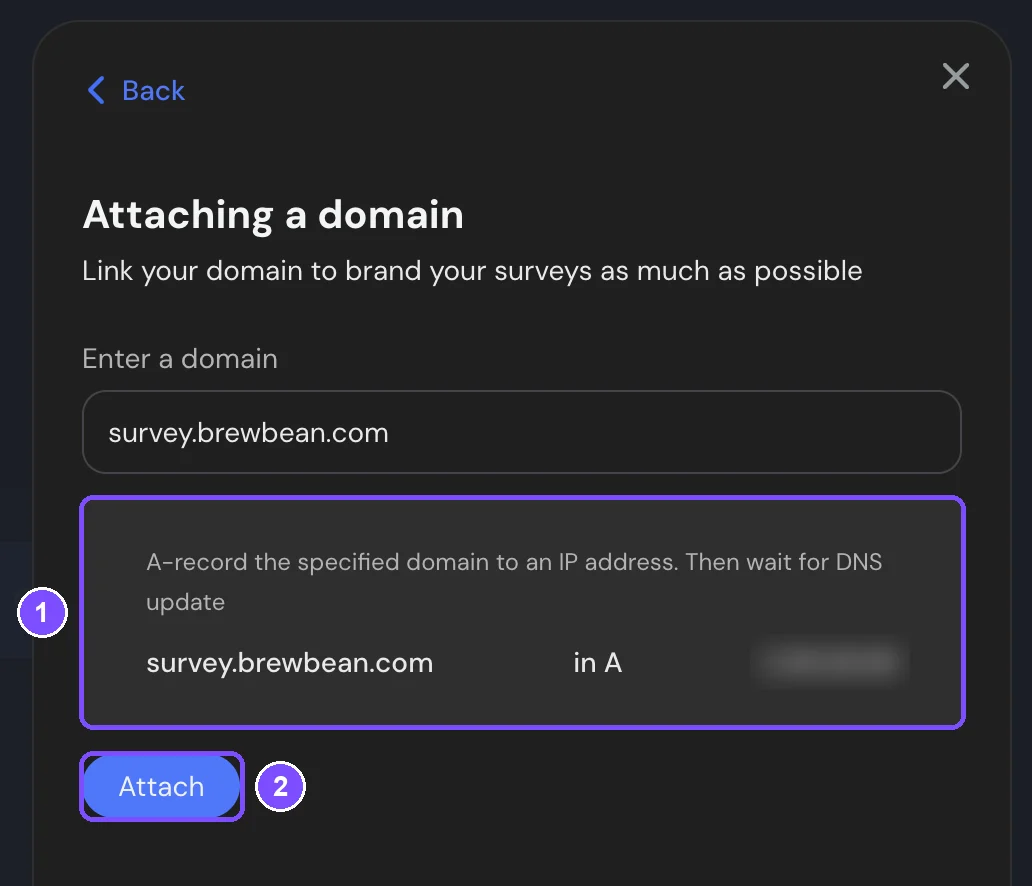
- Enter your domain in Enter a domain. Below the field, SurveyNinja shows the A record to create (1): your domain, the record type (in A) and the IP address it must point to.
- In the DNS settings of your domain, create this A record. If the domain has an AAAA (IPv6) record, delete it.
- Click Attach (2).
SurveyNinja checks the DNS record and issues a free SSL certificate for your domain. The first check runs about 15 minutes after you click Attach. If the DNS record isn't ready yet, SurveyNinja tries again later, at growing intervals. DNS changes can take several hours to spread.
While the certificate is being issued, your domain is in the Domain setting list without a check mark, and survey links stay on the current address. When the certificate is ready, SurveyNinja selects your domain by itself, and the links of all surveys switch to it.
Important. Let SurveyNinja select your domain by itself, and don't click it in the list before then. Respondents can open links on your domain once it has a certificate.
When your domain is selected, the Domain delegation block under the list shows its status:
| Status | What it means |
|---|---|
| Domain attachment is pending. Please wait until the process is complete | SurveyNinja is checking the DNS record and issuing the certificate |
| Domain successfully attached | The domain works. Links of all surveys switch to it |
| Failed to attach the domain. Please check the A record of the domain and try again | The A record is missing or points to another IP address |
When the domain is attached, links with the default address redirect respondents to your domain. To go back to the default address, click it in Domain setting.
Removing your domain
- In Domain setting, click the trash icon next to your domain.
- In Unpinning a domain, click Unpin.
Survey links on your domain stop working, and surveys go back to the default address.
Who can change the address
By default, only the workspace owner can change the address and attach a domain. Other members need a role with the Domain editing permission. Without it, the Domain setting block shows Access is restricted. To change the path of a survey, you need the Domain editing permission (the gear icons are in the Domain setting block) and permission to edit the survey settings.
Limits
- A workspace can have 1 own domain. The selected address applies to all surveys in the workspace.
- The survey path: 3 to 63 characters. The name in the default address: 3 to 62 characters. Both can contain letters, digits, dots and hyphens.
- Some names are reserved for the service and can't be used in the default address, for example www, app, api, admin and support.
- Only an A record (IPv4) is supported. A domain with an AAAA (IPv6) record can't be attached.
If something doesn't work
- The Attach button doesn't appear. The field accepts only a domain name. Remove https://, slashes, the path and spaces, for example enter survey.brewbean.com.
- "The domain was entered incorrectly." The domain contains characters that can't be in a domain name. Use Latin letters, digits, dots and hyphens.
- "An AAAA (IPv6) record is set for the domain, but it is not required…" Delete the AAAA record for this domain in DNS and keep only the A record.
- "Sorry, this name is being used by someone." For a domain: it is already attached to another workspace. For the default address: the name is taken by another workspace or reserved by the service. Choose another name.
- The status shows "Failed to attach the domain…". Check that the A record points exactly to the IP address shown in SurveyNinja. SurveyNinja repeats the check by itself for about two days. If the status still hasn't changed two days after you attached the domain, remove the domain and attach it again.
- Old links stopped working after you changed the default address. Links with the previous name don't work after the change. Send respondents the new link.