 WooCommerce Post-Purchase Survey: 7 Questions, When to Ask and What to Do Next
Survey Version History
Updated
On this page
SurveyNinja saves a version of your survey every time you publish it. If a change goes wrong, for example a question was deleted or the logic stopped working, you can open the version history and bring an earlier version back into the builder.
Opening the version history
- Open the survey and go to Survey → Settings.
- Scroll to the Version history section and click Version list (1).
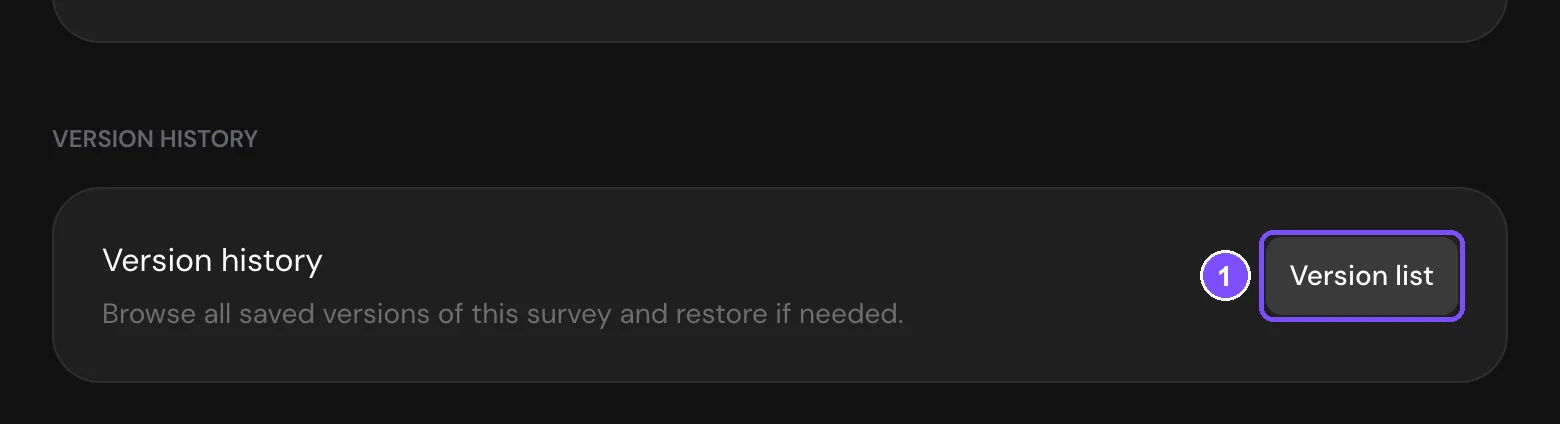
The Version history window opens with the Survey versions list.
What the list shows
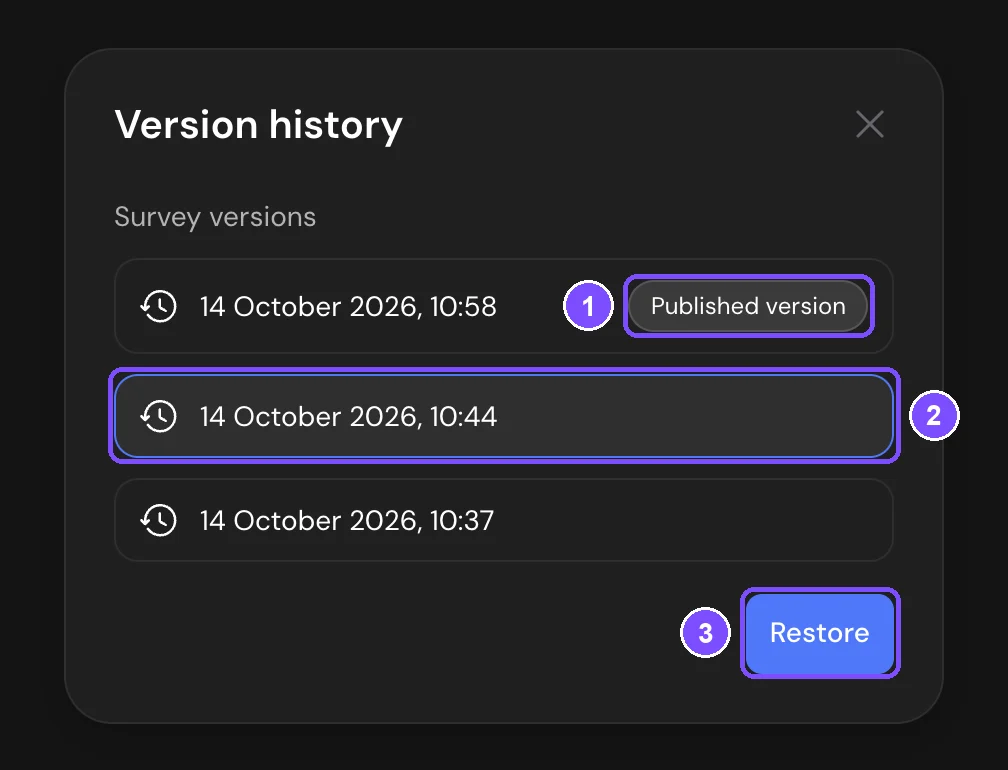
- Each row is one publication of the survey, with its date and time. The newest versions are at the top.
- The row with the Published version badge (1) is what respondents see now. It always comes first.
- The list loads 20 versions at a time. To see older ones, click Show more at the bottom.
- If the survey has never been published, the window says History is empty.
Only published versions get into the list. The builder saves your edits automatically (the header shows Saved), but these saves update the draft only and don't create versions. A new version appears after you click Publish.
The window doesn't show what is inside a version. To see it, restore the version and look at it in the builder.
Restoring a version
- In the Version history window, click the version you want to return to (2).
- Click Restore (3).
- In the Restore version window, check the date and click Restore again.
The message Version restored successfully appears, and the builder reloads with the restored survey. Restoring brings back the questions and screens, the logic, scoring, the theme and the survey settings that are published together with the survey, such as the progress bar, question numbering and response limits.
Important. Restoring replaces the current draft completely. Changes you haven't published yet are lost, and Undo can't bring them back.
To return the draft to what respondents see now, restore the row with the Published version badge.
Publishing the restored version
A restored version goes into the draft, not to respondents. Until you click Publish, respondents keep getting the version with the Published version badge.
After you click Publish, the restored survey becomes the published version, and the badge moves to it in the list. The survey link stays the same. Respondents who have the survey open at that moment see A new version of the survey is available. See Publishing Your Survey.
Version history and responses
Restoring a version doesn't delete or change any responses. Each response stays linked to the version that was published when the respondent submitted it, and all responses stay in Results.
If the restored version has different questions or answer options, publishing it works like any other edit of a published survey: the report may show earlier responses as previous versions of a question. How this works and how to merge them is described in Old Responses and Question Versions.
Undo and redo in the builder
For recent edits you don't need the version history. On the Builder and Logic map tabs, use the arrow buttons next to Saved in the header: Undo and Redo.
- Keyboard shortcuts: Ctrl+Z (Cmd+Z on Mac) to undo, Ctrl+Shift+Z (Cmd+Shift+Z) to redo. While you are typing in a text field, the shortcut undoes typing in that field.
- Undo covers questions, answer options, Welcome and Thank You Screens, logic and scoring. Changes in Design and Settings are not undone.
- Up to 50 steps are kept.
- The undo history is cleared when you reload the page, open the survey again or restore a version.
Limits
- Only published states of the survey are kept as versions. Drafts and autosaves are not.
- Restoring changes the survey, so a workspace member needs permission to edit it. If the survey is part of a respondent campaign, editing is locked: the Restore button is unavailable and the window shows why.
- The version history works inside one survey. To bring back a survey you moved to the archive, see Survey Archive.