 WooCommerce Post-Purchase Survey: 7 Questions, When to Ask and What to Do Next
Why Can't Respondents Open My Survey?
Updated
On this page
Open the survey link in a private browser window: you see what a new respondent sees. Then find that page's message below. An embedded survey shows the same pages inside the widget or iframe.
The survey is closed or reached its limit
Respondents see "The survey is completed" and "We have already received the sufficient number of answers. Thank you for your attention!", or your own text. The survey was closed with Close survey or Unpublish survey on the dashboard, its Deadline has passed, or it reached its Limit on number of responses. The banner in Share names the reason, for example Response limit reached.
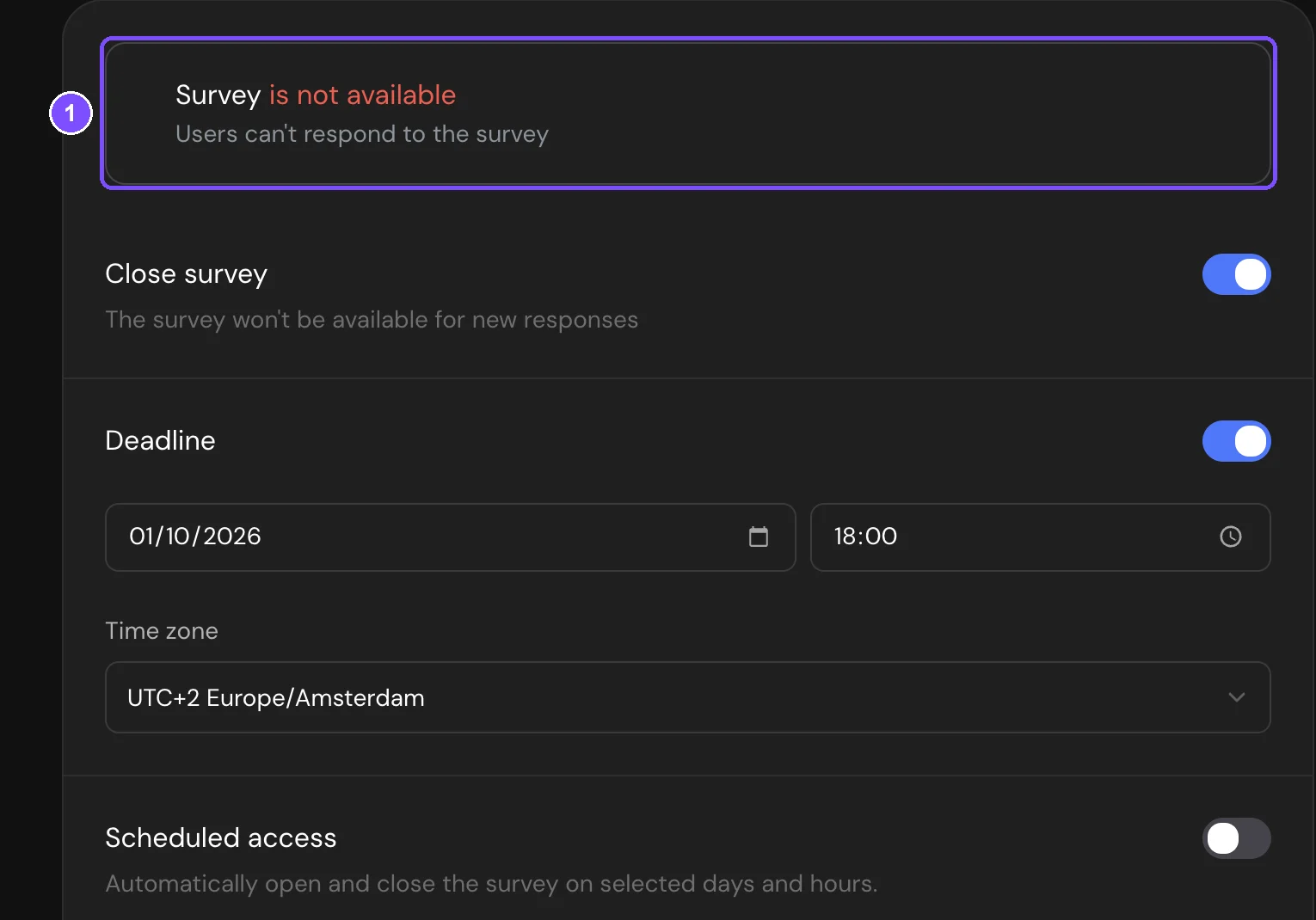
Turn off Close survey, move the deadline or raise the limit in Settings → Publication and availability (1), then click Publish. On the dashboard, Activate survey in the card menu reopens a survey closed from there. See How to Close a Published Survey and Response Limit and Survey Deadline.
Note. An expired plan doesn't close surveys: published surveys keep accepting responses. See What Happens After the Trial Ends?.
The respondent sees the Thank You Screen right away
One person can submit a survey once by default. A person who already answered goes straight to the Thank You Screen, or to your redirect page. A disqualified person sees the Disqualification screen again. Authors who tested their own survey often see this.
Check Session tracking method in Settings → Identification and access. By cookies remembers the browser, so a private window opens the survey again. By IP counts everyone on one network, for example an office Wi-Fi, as one person. To accept repeat responses, turn on Allow filling out the form more than once and click Publish. See Survey Access and Protection.
The link opens the SurveyNinja home page
SurveyNinja found no published survey at this address:
- the survey has never been published. Click Publish;
- the survey was deleted;
- the link is incomplete. Copy it again in Share → Link;
- you changed the default address of the workspace. Old links stop working, so send the new one. A changed survey path is fine: the old path redirects. See Custom Domain for Survey Links.
Respondents see an old version
Edits reach respondents only after you click Publish. If Publish is grey with the tooltip The survey has been published, respondents already see the latest version. See Publishing a Survey.
A password, email code or SSO sign-in is required
Instead of questions, respondents see a form:
- Enter password. After 10 wrong passwords, the respondent sees "You have used the wrong password too often. The survey is blocked for 24 hours".
- Confirm Email, where they get a 6-digit code.
- Log in via SSO with "The survey is available only after authorization via SSO".
Send respondents the password, or turn off Access by password, Email identification or Access the survey via SSO in Settings → Identification and access and click Publish. With an email code or SSO, a person who already answered sees "You have already answered this survey". See Survey Access and Protection.
The survey is closed by schedule
Respondents see "Quiz is temporarily closed" with the days and hours when it's open. Scheduled access is on, and they came outside these hours. Check the days, From, To and Time zone in Settings → Publication and availability, then click Publish. See Timers and Scheduled Access.
A unique link doesn't work
- "A response has already been submitted via this link. Thank you for participating!": the link reached its response limit.
- "This link is currently not active. If you think this is a mistake, contact the person who sent it to you.": the link or its set is closed, deleted, or outside its validity period or schedule.
If the set has its own messages, respondents see those. Change the set settings or send a new link. See Unique Survey Links.
The survey ends after the first questions
Respondents see "Unfortunately, you did not qualify…" or your Disqualification screen. A disqualification rule matched their answer, or a quota is full. Check the rules and quotas on the Logic map. See Logic Map, Disqualification and Quotas.
The survey is archived
Respondents see "Survey Archived". Click Archive in the left panel of the dashboard, then Move from archive in the survey card menu. See Survey Archive.
The device or IP address is not allowed
- "Survey unavailable on this device": the device type isn't selected in Device Access.
- "Your IP address is blocked": Access by IP doesn't allow this address.
Change these in Settings → Protection and access restriction and click Publish. See Survey Access and Protection.
Your own domain doesn't open
The browser shows a connection or certificate error instead of a SurveyNinja page. Check the A record of your domain and its status in Share → Link → Edit link → Domain setting. Attach the domain before selecting it. Until the domain has a certificate, select the default address so that links keep opening. See Custom Domain for Survey Links.
Still not working?
Contact support with the survey link. If respondents see "Something went wrong", add the code shown under the message.