 25 Questions for a Travel Agency Customer Satisfaction Survey
Single and Multiple Choice Questions
Updated
On this page
Choice questions give respondents a list of answers to pick from, for example "How did you hear about us?" with Search, Friends and Social media. These are closed-ended questions, and SurveyNinja has four types of them, all available on every plan, including Free.
| Type | What the respondent does | Good for |
|---|---|---|
| Radio Button | Picks one option from a list | One answer: age group, main reason, favorite drink |
| Multiple Choice | Picks several options | "Which features do you use?" |
| Dropdown | Picks from a dropdown menu with search, one option or several | Long lists: countries, cities, product models |
| Yes or No | Clicks one of two buttons with icons | Dichotomous questions such as "Have you ordered from us before?" |
For options with pictures, video or audio, use Media Choice.
Adding a choice question
- In Builder, click + above or below a question.
- In the Choice section, click Radio Button, Multiple Choice, Dropdown or Yes or No.
- Type the question and the options. Click Add for one more option. To paste a long list, click Add to list, write each option on a new line and click Add.
Options left empty aren't shown to respondents. To change the type later, click Settings on the question and choose another type in the list at the top. More about adding questions: Question Types.
Settings
Click Settings (the gear) on the question. Under the type list (1) are the settings of this type (2), then the settings shared by all questions and Additional (3).
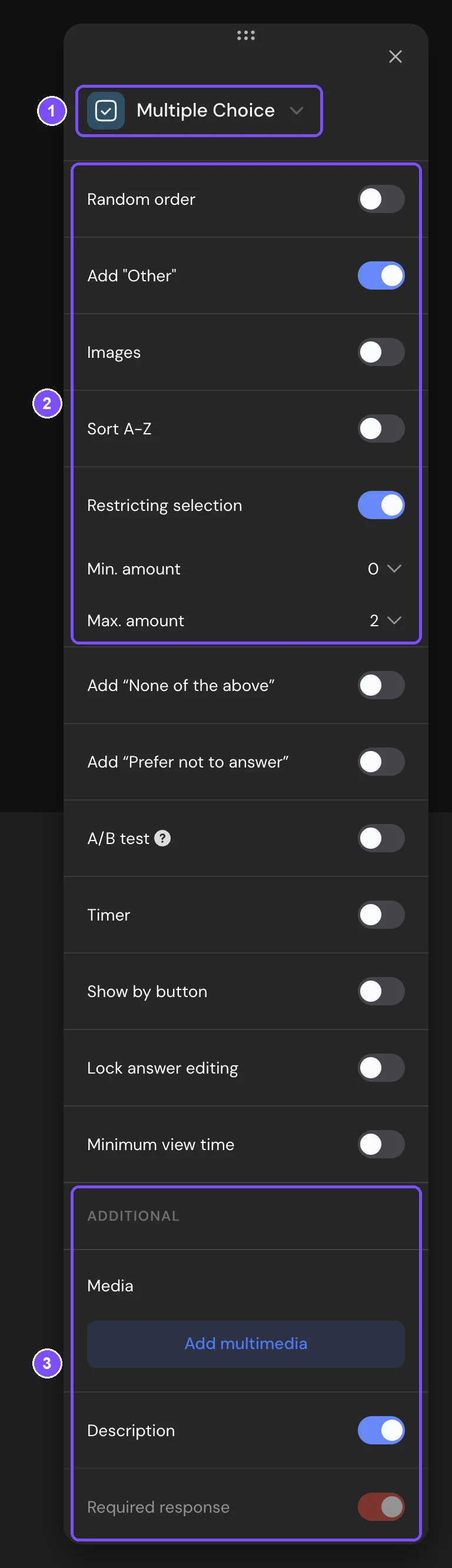
| Setting | Types | What it does |
|---|---|---|
| Random order | Radio Button, Multiple Choice, Dropdown | Shuffles the options for each respondent. Other and None of the above are shuffled too. To keep an option in its place, click Pin position next to it in the builder. The pin appears while Random order is on. |
| Add "Other" | Radio Button, Multiple Choice, Dropdown | Adds the Other option with a field where the respondent types their own answer. |
| Images | Radio Button, Multiple Choice | Adds a picture next to each option. |
| Sort A-Z | Radio Button, Multiple Choice, Dropdown | Shows the options in alphabetical order. It doesn't work while Random order is on. |
| Restricting selection | Multiple Choice | Sets Min. amount and Max. amount of options to pick. The question becomes required when Min. amount is above 0, and the Required response switch is locked. |
| Multiple Choice | Dropdown | Lets the respondent pick several options from the menu. |
| Labels | Yes or No | Shows the text under the icons, Yes and No by default. Edit the text right in the question. |
| Icons | Yes or No | The icon pair: Checkmarks, Circle, Square, Shield, Message, Smileys, Hearts or Likes. |
| Negative option on the left | Yes or No | Puts No first. |
The Dropdown field shows the hint "Choose from the list". Click it in the builder to write your own. Settings shared by all questions, such as Add “None of the above”, Add “Prefer not to answer”, Carry forward options from previous questions and Required response, are described in Question Settings.
What respondents see
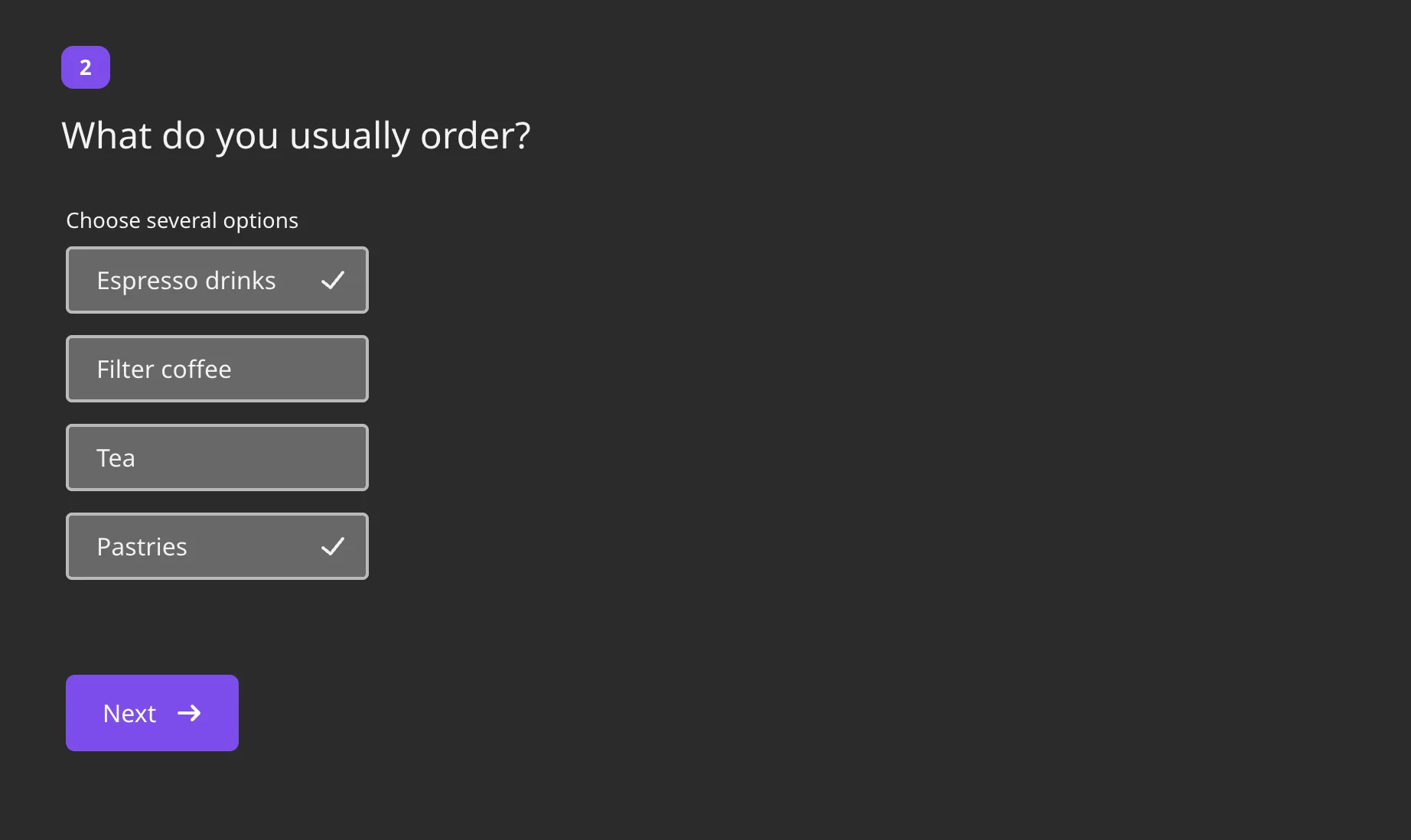
Radio Button and Multiple Choice show the options as a list of buttons, the same on a computer and a phone. Multiple Choice has the hint "Choose several options" above the list. If the respondent picks fewer or more options than Restricting selection allows, they see "Choose minimum N" or "Choose max N" and can't go on.
Dropdown opens a list under the field. The respondent can type in the field to find an option, and the matching text is highlighted.
After a single answer in Radio Button, Yes or No and a one-answer Dropdown, the next question opens by itself. This doesn't happen when the respondent picks Other, inside a Question Group, or when Disable auto-advance to the next question is on in the survey settings.
Responses and report
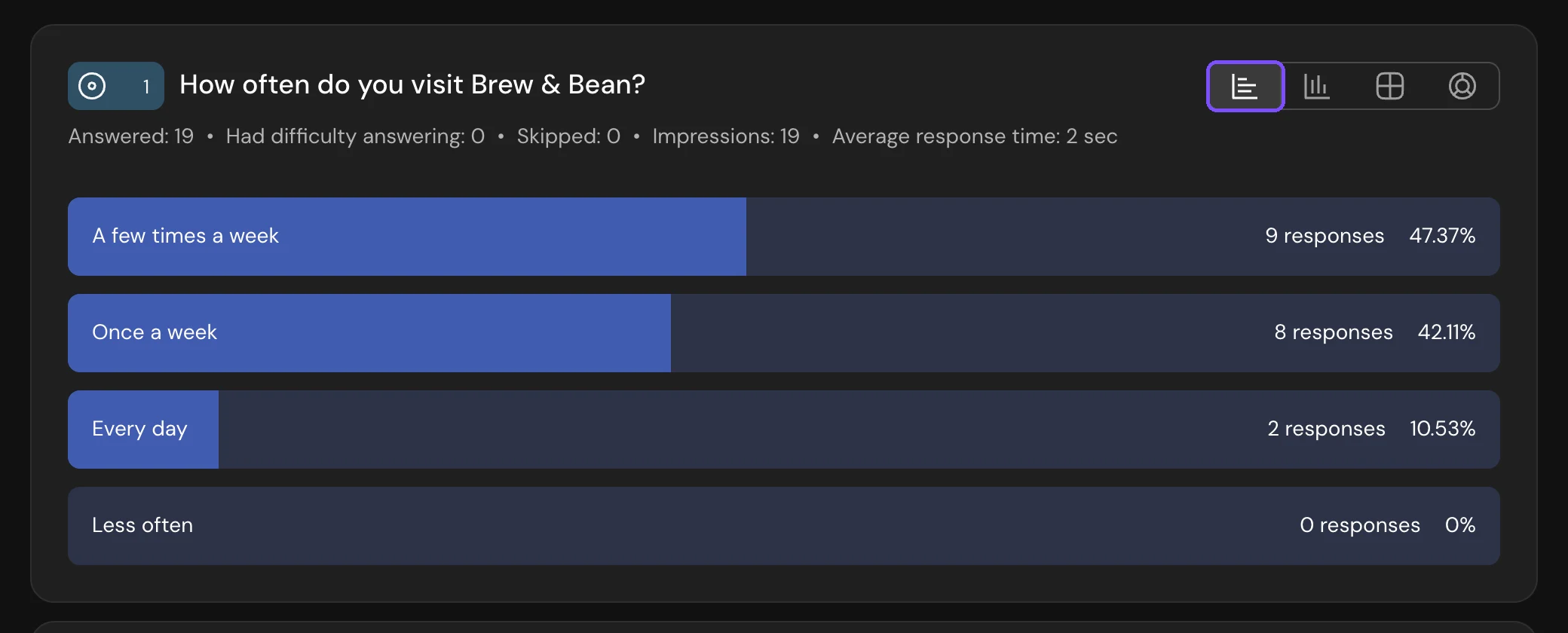
In Results → Reports, the question card shows how many respondents chose each option, in the List, Bars, Table or Donut view. In the List view, the Other row has Show other responses, which opens the texts respondents typed.
In CSV and XLSX files, the answer is one column with the chosen options. An Other answer is written as "Other" plus the respondent's text. For Multiple Choice and a Dropdown with several answers, you choose in the download window: In one column or A column per option. With A column per option, a question with Add "Other" gets two more columns, Other and Other option text. See Viewing and Downloading Survey Responses.
To see only respondents who chose a certain option, use Filter by answers in the report filter (Basic plan and higher). See Viewing the Survey Report.
Logic and scores
In logic jumps, all four types have the conditions Equals, Does not equal and Is answered. If Prefer not to answer or None of the above is on, you can use these answers in conditions too.
All four types can have points and correct answers. In Multiple Choice, the points of every selected option add up. See Scores, Correct Answers and Personality Tests.
Limits
- Restricting selection is only in Multiple Choice. A Dropdown with several answers has no minimum or maximum.
- Min. amount and Max. amount go from 0 to the number of options.
- Yes or No always has 2 options.
- None of the above is available for Radio Button, Multiple Choice and Dropdown.
- A survey on the Free plan holds up to 30 elements. See Question Types.