 25 Questions for a Travel Agency Customer Satisfaction Survey
Scores, Correct Answers and Personality Tests
Updated
On this page
A survey becomes a quiz or a test when answers have points. SurveyNinja has three modes, all set up in the Answer Scores window:
- Correct and Incorrect Answers: you mark which options are right, and the results show whether each answer is correct.
- Scores: you give points for options. SurveyNinja adds them up, and you can show different results for different totals.
- Categories: for personality tests. Each option adds points to one or more categories, and the category with the most points becomes the result.
Correct and Incorrect Answers works together with Scores or Categories, but Scores and Categories can't be on at the same time. All three modes are available on all plans. To show a result that depends on the score, you need the Thank You Screen, available on the Basic plan and higher. Logic jumps work on every plan. Compare plans
To create a quiz with points from a description, use the AI assistant with Create a test (with scores) turned on. See Creating a Survey with AI.
Which questions can have points
Radio Button, Multiple Choice, Media Choice, Yes or No, Dropdown, Area Selection, Smile rating, Rating, NPS, Opinion Scale and Matrix. These questions also count inside a Question Group.
Opening the Answer Scores window
- In Builder, select a question of one of these types.
- Click the Scores icon on the question panel, next to the logic icon.
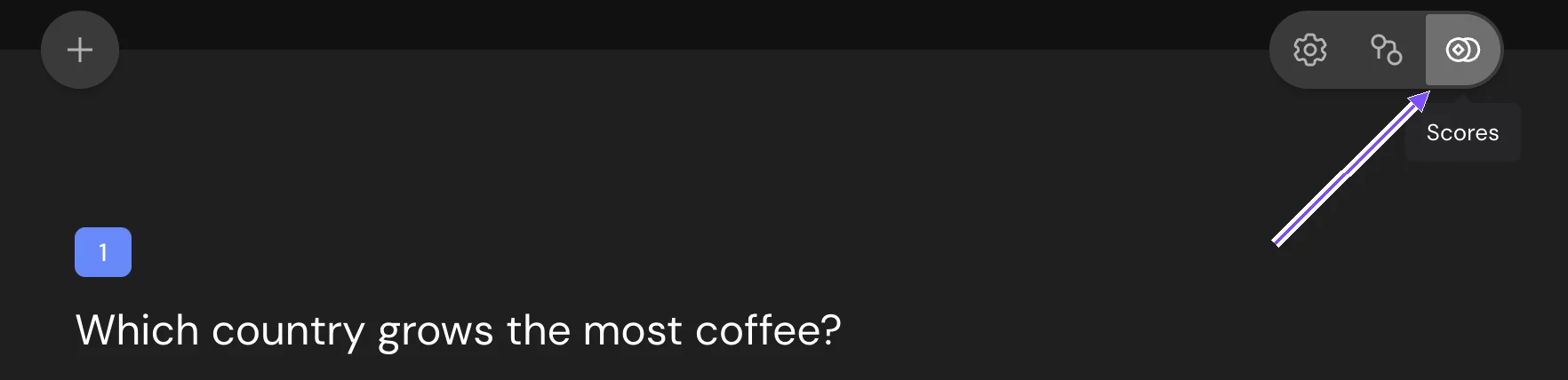
The window opens on the current question. Switch to All questions at the top to set up the whole survey in one place. Changes are saved right away, without a Save button.
Marking correct answers
- In the Answer Scores window, turn on Correct and Incorrect Answers at the bottom (3).
- Click the marker next to an option to switch it between correct and incorrect (Mark as Correct / Mark as Incorrect) (1). When you turn the mode on, every option is marked incorrect (a red cross), so mark the right ones.
In Results, every answer in a response is marked as correct or incorrect. To let respondents see their own answers, on the Thank You Screen turn on Action button and choose Show answers.
Giving points for answers
- In the Answer Scores window, turn on Scores at the bottom (3).
- Next to each option, enter the points in the Scores field or use − and + (2). Points can be negative, for example to take away points for a wrong answer.
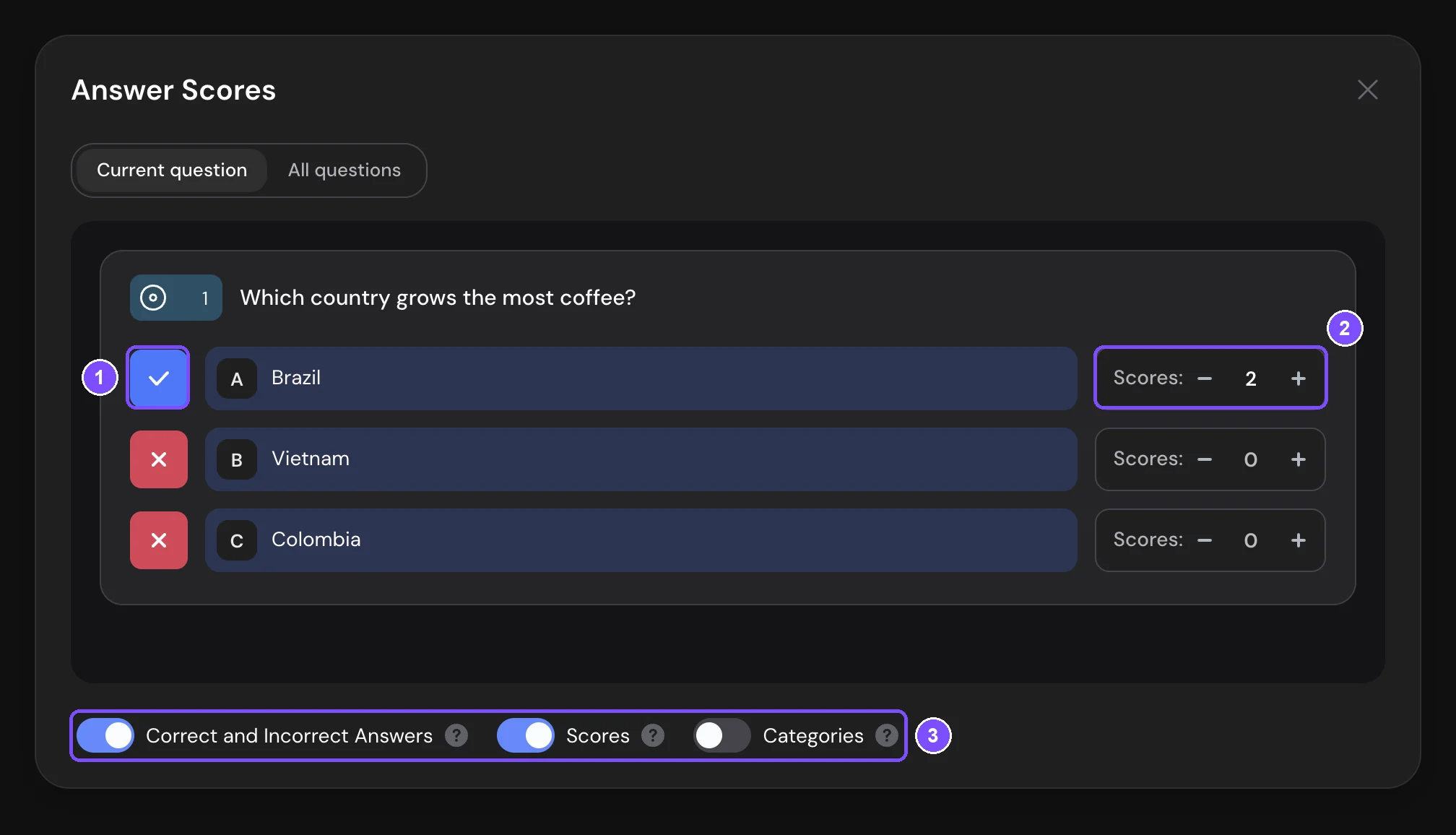
The total score is the sum of points for all options the respondent chose. In Multiple Choice, every selected option counts. In a Matrix, every chosen cell counts.
Showing the number of points
Open the settings of the Thank You Screen (gear icon) and turn on Scoring points. The switch works only when Scores is on.
Showing different text for different scores
- Click the logic icon on the Thank You Screen panel. It appears when Scores or Categories is on.
- Click Add text conditionally.
- Under Scores, choose the condition: From and To, Greater, Lower or Equals, and enter the points (1).
- Fill in Display title and Display description (2), for example "Coffee expert" and "You know your beans".
- To add another condition, click + under the last one. Then click Save (3).
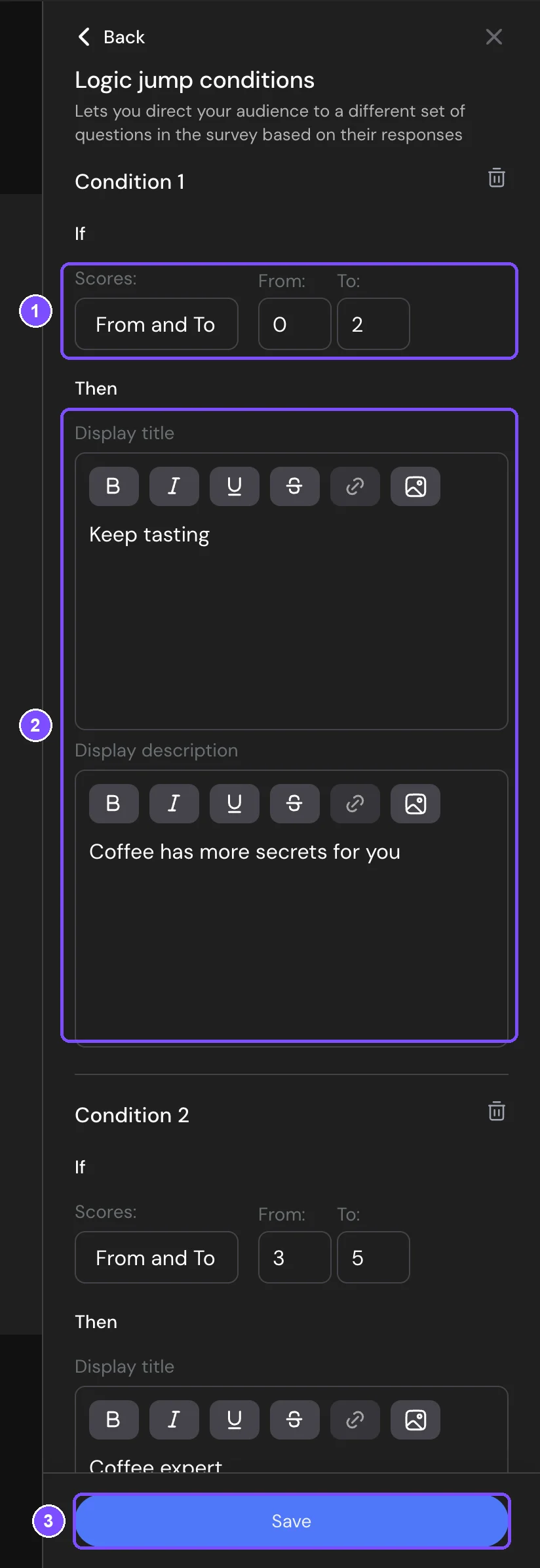
Respondents whose score doesn't match any condition see the standard text of the Thank You Screen.
Sending respondents to other questions by score
In the logic jumps of a question, open the By total score tab. Count the score Across the entire survey or By question, set the condition and choose where to go. See Logic Jumps.
Personality tests with categories
In a personality test, answers don't have a right or wrong value. Each option points to a type, such as "Explorer" or "Planner", and the respondent gets the type that collected the most points.
- In the Answer Scores window, turn on Categories. If Scores is on, confirm the switch: points stay saved but stop working while categories are on.
- Under an option, click + category, type a name in Find or create a category and click Create category «…». Next time, pick the category from the list. To add one more category to an option that already has one, click + next to its chips (2).
- Set the weight of the category on this option with − and + (1). The default is 1 point.
- Drag categories in the list by the handles to set their order (3). If two categories get the same number of points, the one higher in the list wins.
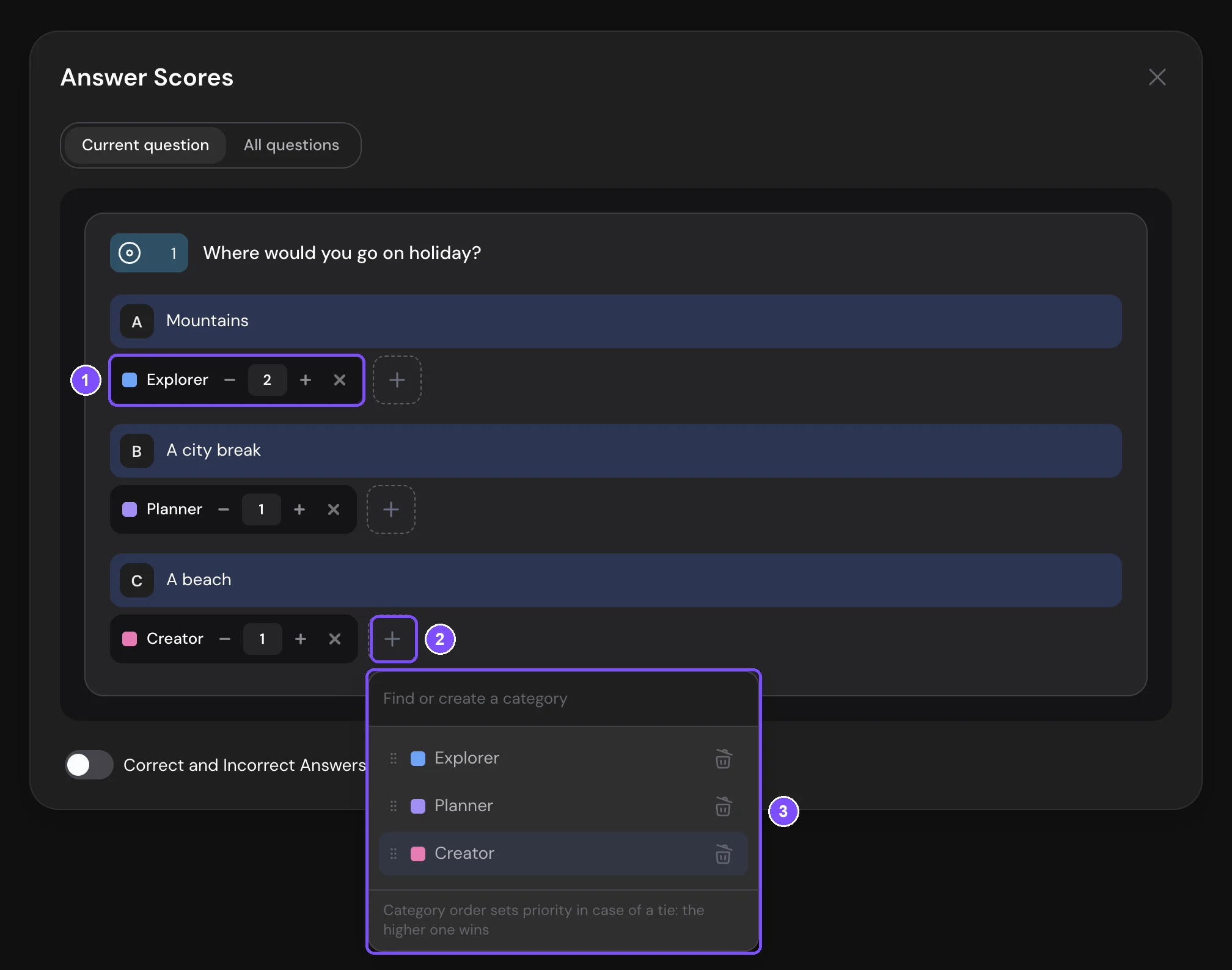
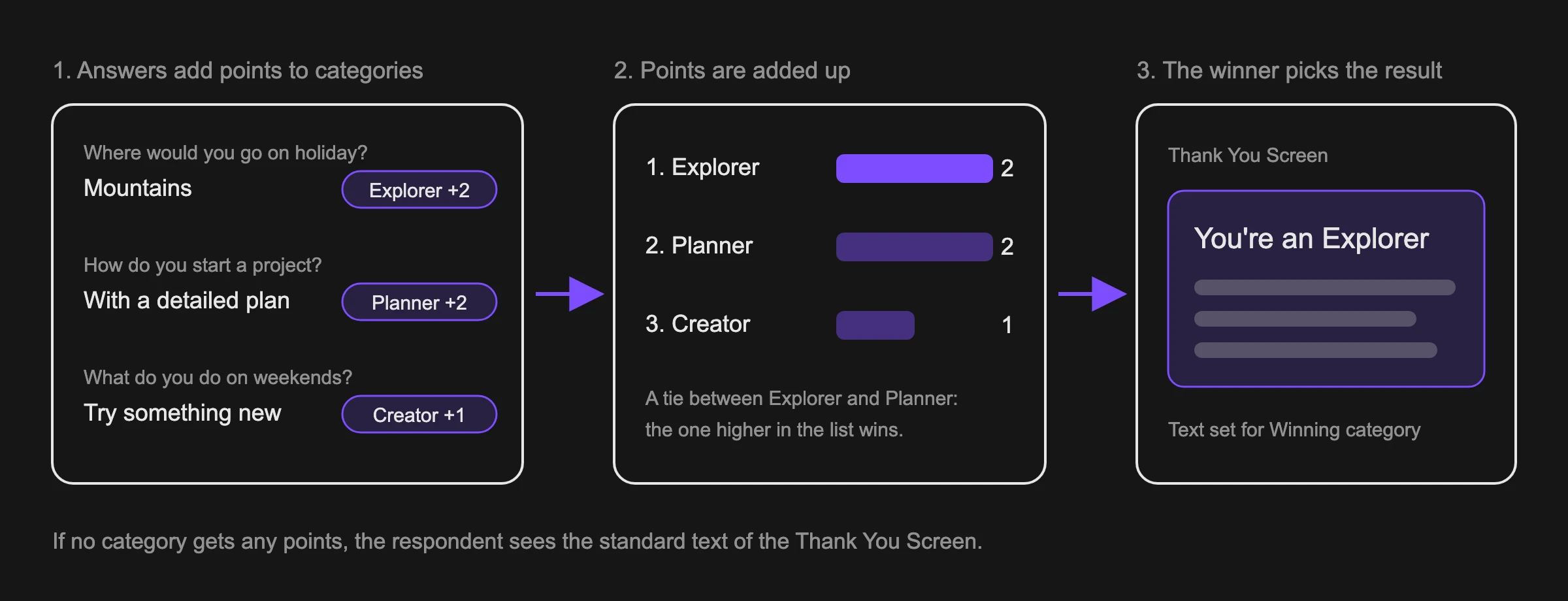
To show each type its own result:
- Click the logic icon on the Thank You Screen panel and click Add text conditionally.
- In Winning category, choose a category.
- Fill in Display title and Display description and click Save.
Important. Deleting a category removes it from all responses of the survey. This can't be undone.
Scores in results
- In Results → Responses, each response shows Total score or the winning category.
- In Results → Reports, a test with categories gets the Distribution by category block: how many respondents got each category.
- The Score filter shows responses with a total greater than, less than or equal to a number. The Categories filter shows responses by category.
- In emails, insert the score with the Number of points variable. See Email Notifications.
See Viewing the Survey Report and Viewing and Downloading Survey Responses.
Limits
- When you switch between Scores and Categories, the settings of the other mode are kept but stop working until you switch back.
- Points are whole numbers. A category weight is at least 1.
- If no category gets any points, there's no winner, and the respondent sees the standard text of the Thank You Screen.