 25 Questions for a Travel Agency Customer Satisfaction Survey
Survey Access and Protection
Updated
On this page
Access settings decide who can take a survey and how many times. They are on the Settings tab of the survey, in two groups:
- Identification and access: passwords, email codes, SSO, repeat responses, anonymous responses and response editing.
- Protection and access restriction: captcha, lists of IP addresses and the devices the survey opens on.
Paid feature. Access the survey via SSO is available on the Premium plan and higher. The other access settings work on all plans. Compare plans
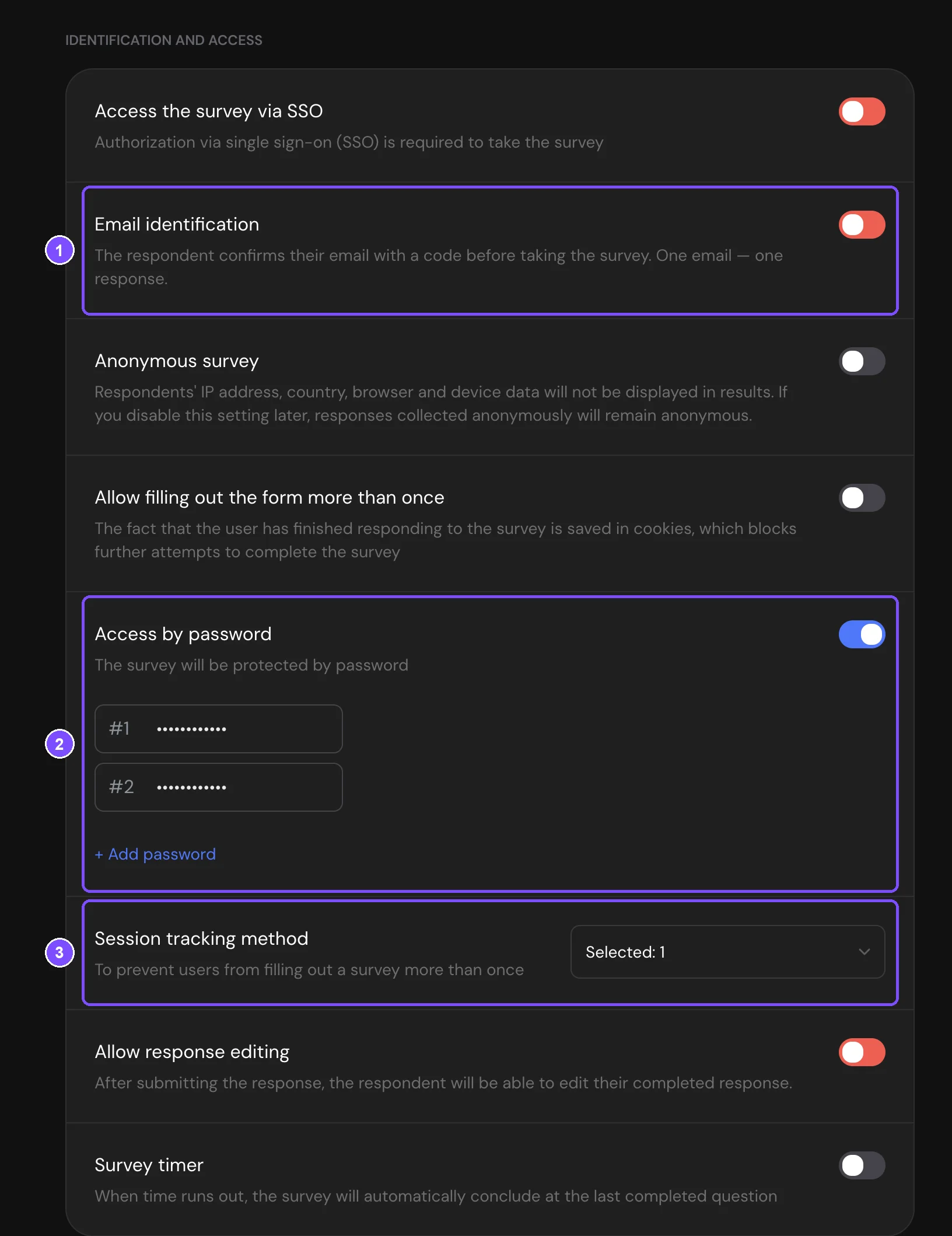
Asking respondents to identify themselves
Choose one way to let respondents in:
| Setting | What the respondent does |
|---|---|
| Access by password | Enters one of your passwords before the survey |
| Email identification | Enters their email and a 6-digit code from the email. One email gets one response |
| Access the survey via SSO | Signs in with your company account. Set up SSO first, see SSO |
Only one of these settings can be on at a time. A blocked switch is red and doesn't turn on. Hover over it to see which setting blocks it, for example "Not available when password access is enabled". All conflicts are listed in Limits.
Password
- In Identification and access, turn on Access by password (2 on the first screenshot).
- Click + Add password, type the password and press Enter. Saved passwords are hidden with dots.
- Add more passwords the same way if different groups of respondents need their own.
Before the survey, respondents see the Enter password form. Any password from the list opens the survey. To change a password, click the pencil icon next to it. To delete one, click the trash icon and confirm with Remove. A deleted password can't be restored.
After 10 wrong passwords in a row, the survey is blocked for that visitor. Attempts are reset once a day.
Email code
Turn on Email identification (1 on the first screenshot). Before the survey, the respondent sees the Confirm Email form, enters their email, clicks Send code and gets a 6-digit code. The code is valid for 10 minutes. If they don't receive it, they can request a new one after a short wait.
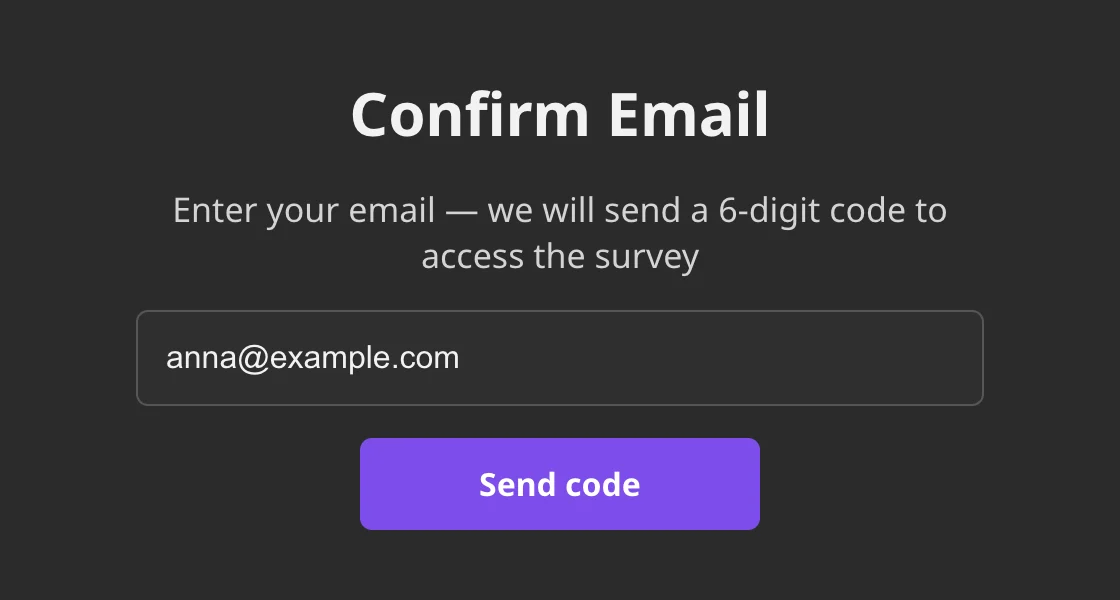
If the respondent has already answered, they see "You have already answered this survey" instead of the questions.
Allowing or blocking repeat responses
By default, one person can submit the survey once. SurveyNinja recognizes people who already answered by the method set in Session tracking method (3 on the first screenshot). You can select several:
- By cookies (default): the browser remembers that the survey was completed. Another browser or a private window lets the person answer again.
- By IP: one response per IP address. Everyone who shares one network, for example an office Wi-Fi, counts as one person.
- By hidden variables: one response per set of hidden variable values. For example, if each customer gets a link with their own order_id, a second response with the same order_id isn't accepted.
A person who already answered sees the end of the survey instead of the questions.
To accept any number of responses from the same person, for example on a shared tablet at a reception desk, turn on Allow filling out the form more than once. Session tracking method then disappears.
When Email identification or SSO is on, they control repeat responses instead, and Session tracking method is hidden.
Anonymous survey
Turn on Anonymous survey so that the IP address, country, browser and device of respondents aren't shown in the results. Answers to questions are still saved as entered, so don't ask for a name or an email if you promise anonymity.
Responses collected while the setting was on stay anonymous even if you turn it off later.
Turn on Show "Anonymous" label to show respondents the "Anonymous" label in the survey and a short explanation of what data isn't saved.
Letting respondents edit their response
With Allow response editing, a respondent can change their answers after submitting the survey. The setting needs Email identification or Access the survey via SSO, so that SurveyNinja knows whose response it is. It can't be used together with Survey timer or with disqualification in the survey.
The respondent gets to their response in one of these ways:
- the Edit responses button on the Thank You Screen;
- opening the survey again: after signing in, they see "Your responses have been saved. You can edit your responses if needed." and Edit responses;
- a link in the thank-you email. Turn on Show response edit link on the Notifications tab, see Email Notifications.
Note. If the survey has no Thank You Screen and no thank-you email, respondents find the edit button only when they open the survey again. The settings page shows a warning in this case.
Protecting the survey
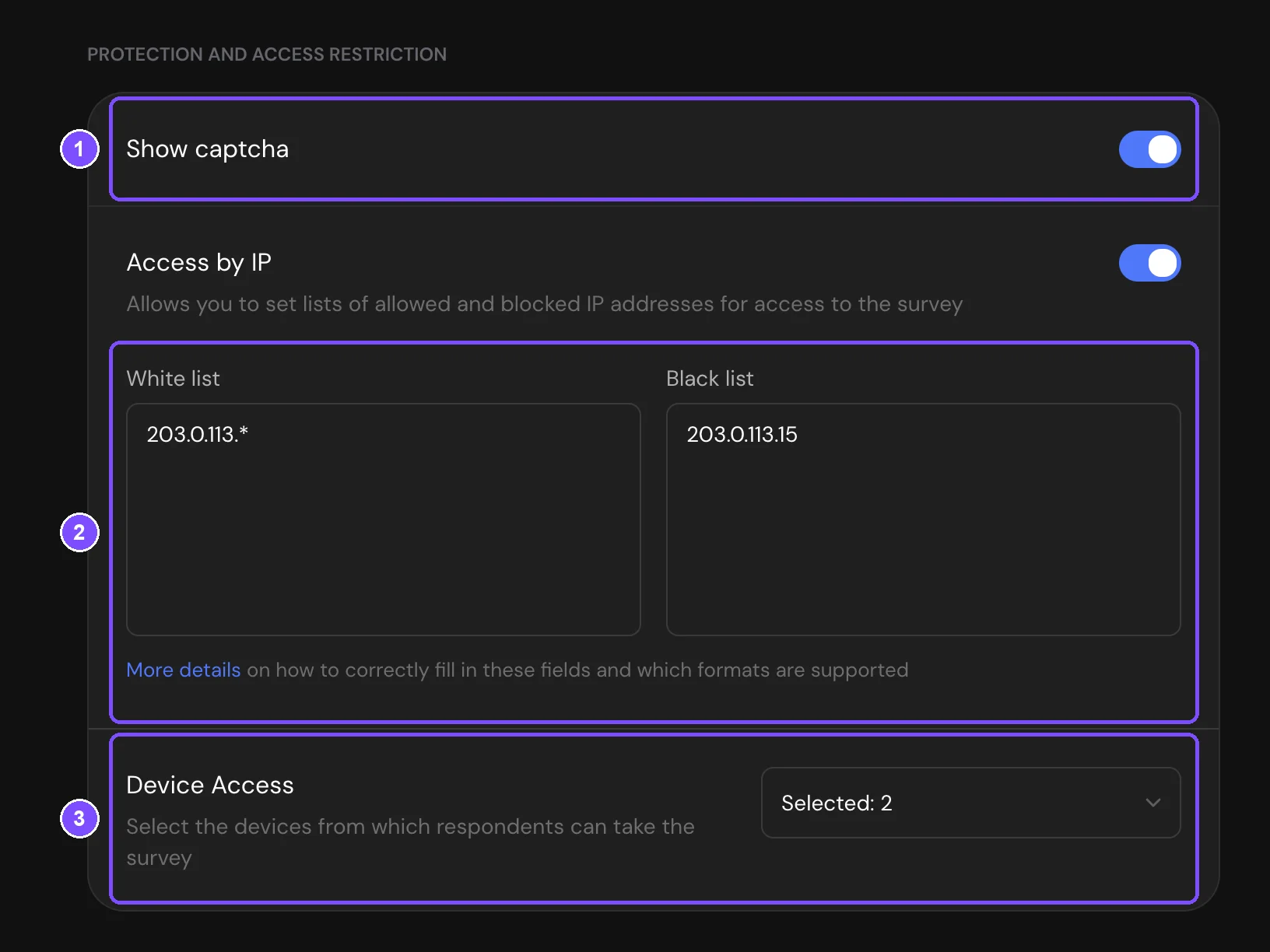
Captcha
Turn on Show captcha (1). Before submitting, respondents tick the Google reCAPTCHA "I'm not a robot" box, which stops automated submissions.
If your surveys open on your own domain, two more fields appear: Private key and Public Key. Create reCAPTCHA v2 keys for your domain in the Google reCAPTCHA admin console and paste them here. See Custom Domain for Survey Links.
Access by IP
- Turn on Access by IP.
- Add addresses to White list, Black list or both (2). Put each address or pattern on a new line. The More details link under the fields lists the supported formats.
How the lists work:
- only a white list: the survey opens only from these addresses;
- only a black list: the survey opens from any address except these;
- both lists: the survey opens from addresses that are in the white list and not in the black list.
Supported formats, for IPv4 and IPv6:
| Format | Example |
|---|---|
| Single address | 1.2.3.4 |
| Mask | 1.2.3.* |
| CIDR | 1.2.3.0/24 |
| Range | 1.2.3.0-1.2.3.255 |
Visitors from other addresses see "Your IP address is blocked".
Device Access
In Device Access (3), choose where the survey opens: Desktop, Mobile, Tablet. On other devices, people see "Survey unavailable on this device".
Limits
Some settings don't work together:
| Setting | Doesn't work together with |
|---|---|
| Access the survey via SSO | Email identification, Access by password, Allow filling out the form more than once, Anonymous survey |
| Email identification | Access the survey via SSO, Access by password, Allow filling out the form more than once, Anonymous survey |
| Allow response editing | Works only with SSO or Email identification. Doesn't work with Survey timer or disqualification |
| Session tracking method | Hidden when SSO, Email identification or Allow filling out the form more than once is on |
A micro survey on your website shows only some of these settings. Who sees it is set in its display rules instead.