 25 Questions for a Travel Agency Customer Satisfaction Survey
Name, Email, Phone and Date Fields
Updated
On this page
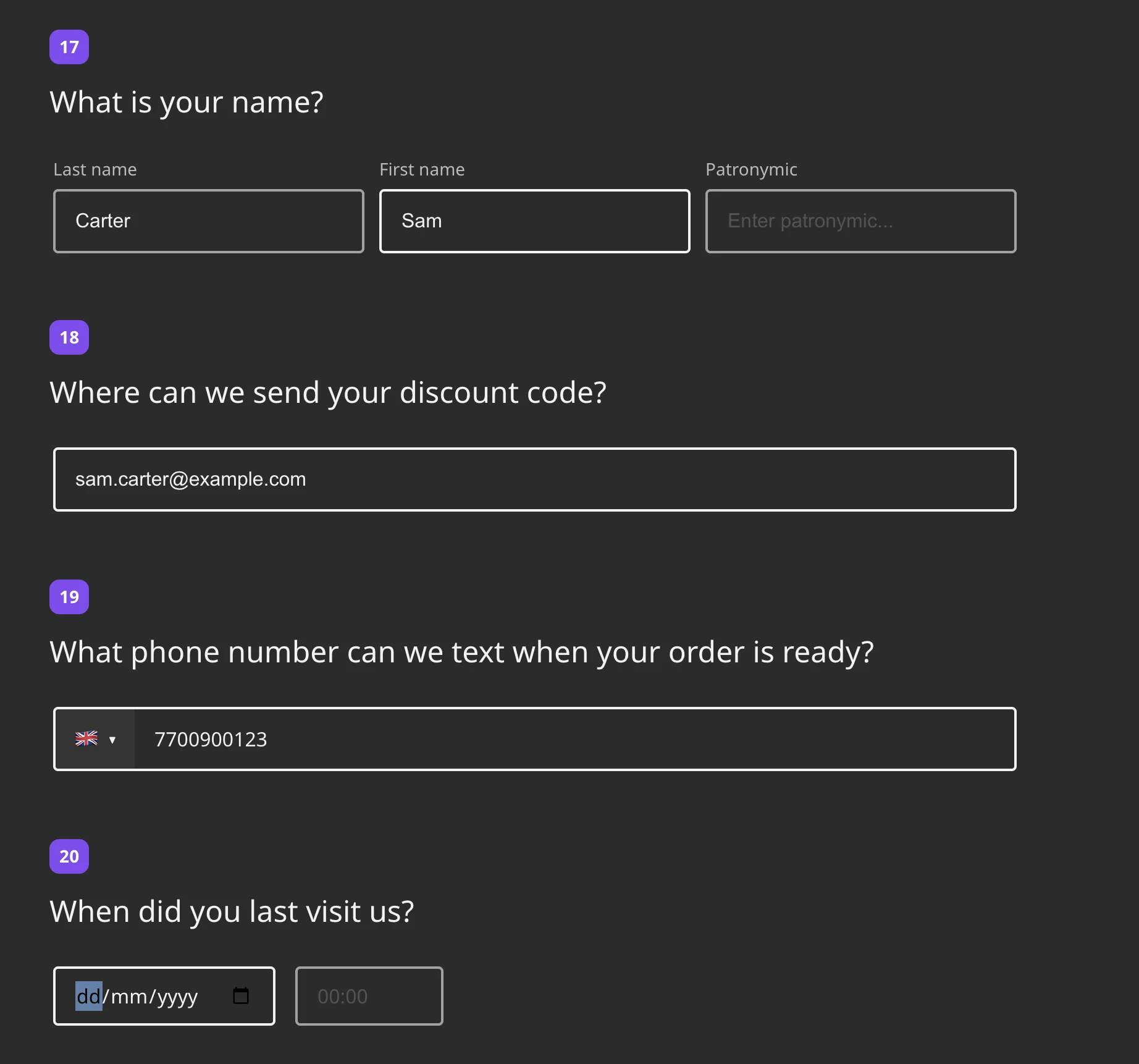
These questions collect contact details and dates with a checked format: a respondent's name, an email for follow-up, a phone number with a country code, or a date such as "When did you last visit Brew & Bean?". All four are in the Contact details section of the element window.
Adding a contact question
- In Builder, click + and choose Full name, Email, Phone Number or Date and Time in the Contact details section. More about adding questions: Question Types.
- Click the gear icon (Settings) to set up the field.
Full name
The question shows three fields: Last name, First name and Patronymic. Add “Patronymic” field is on by default. Turn it off to keep only the first and last name. You can change the placeholder of each field right in the question and drag the handle on the right to change the width of the fields.
If the question is required, the respondent has to fill in every field it shows.
A field for an email address. It has only the common settings. If the address has a wrong format, the respondent sees "Enter your email address correctly (example: my@mail.com)".
The address from an Email question can be used to send the respondent an email after the survey and to reply to them from a notification. See Notifications.
Phone Number
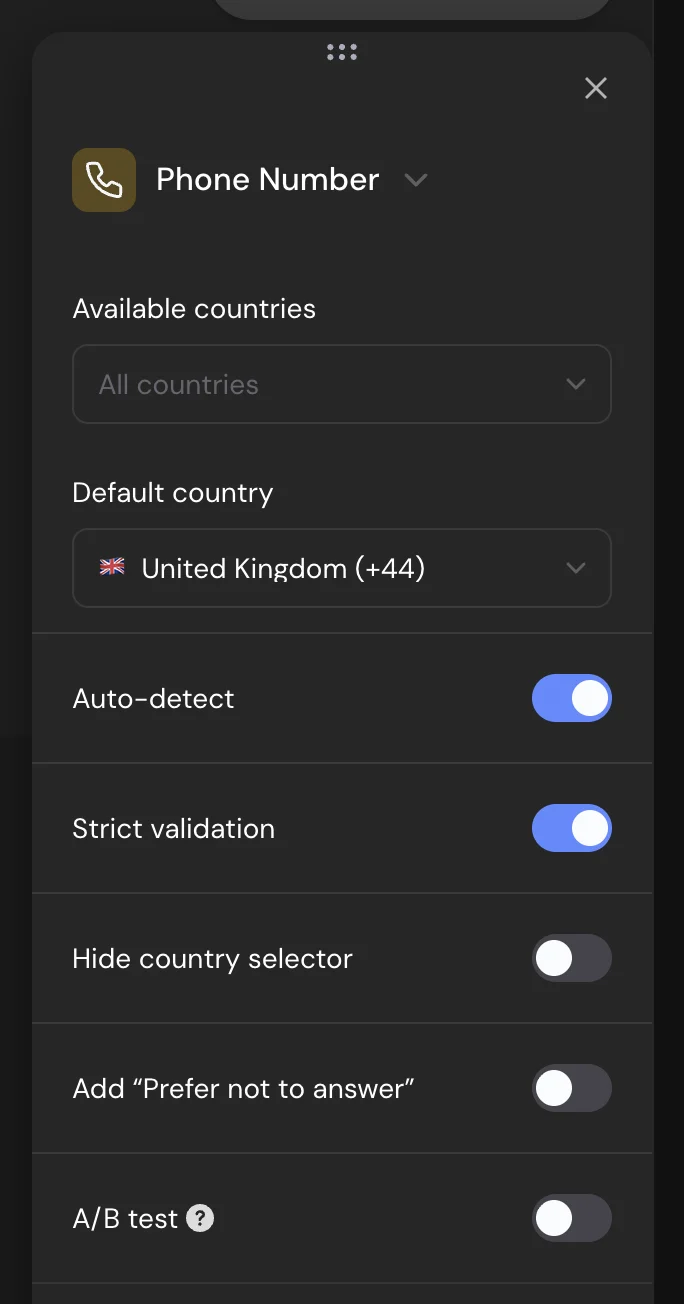
A field with a country selector and a calling code.
| Setting | What it does |
|---|---|
| Available countries | Limits the list of countries. Empty means All countries (28 countries). |
| Default country | The country selected when the question opens. By default, the United Kingdom. |
| Auto-detect | Switches the country when the respondent types a number with a different calling code. Unavailable when the country selector is hidden. |
| Strict validation | Checks that the number is valid for its country. If it isn't, the respondent sees "Invalid number". On by default. |
| Hide country selector | Hides the country list. The respondent types the number in the format of the default country or with a "+" and the calling code. |
Date and Time
| Setting | What it does |
|---|---|
| Type | Date and time, Date or Time. |
| Date format | DD.MM.YYYY, MM.DD.YYYY, YYYY.MM.DD or MM.YYYY (month and year). |
| Time format | 24 hours or 12 hours. |
| Separator | Dot, Slash or Hyphen between the parts of the date. |
The respondent picks the date and time in the browser's date picker. The answer is saved in the format and with the separator you chose.
The common settings of all four questions are described in Question Settings.
Responses and report
In Results → Reports, each of these questions shows the list of answers. Switch between List and Cards and search the answers. In a CSV or XLSX file, each question takes one column.
You can filter responses by these questions: Equal, Not equal, Contains or Starts with. To insert an answer, such as the respondent's name, into a later question, see Reusing Answers in Survey Questions.
Logic
| Question | Conditions |
|---|---|
| Full name, Email, Phone Number | Starts with, Ends with, Contains, Does not contain, Equals, Does not equal, Is answered |
| Date and Time | Equals, Does not equal, Earlier than, Later than, Earlier or on this day, Later or on this day |
For example, send respondents whose email ends with your company domain to a separate block. These questions can't get scores. See Logic Jumps.
Limits
- Full name, Email, Phone Number and Date and Time are available on every plan, including Free.
- Phone Number supports 28 countries.
- A Booking question by default takes the respondent's name, phone and email from the first Full name, Phone Number and Email questions of the survey.