 WooCommerce Post-Purchase Survey: 7 Questions, When to Ask and What to Do Next
Custom File Storage
Updated
-
Free: not included -
Basic: not included -
Standard: not included - Premium
- Enterprise
On this page
Connect your company's S3-compatible storage, and new files that respondents upload, along with the video and audio you add to surveys, are saved to your bucket instead of SurveyNinja storage. These files don't count toward your plan's storage limit. Amazon S3, Cloudflare R2, MinIO and other services with an S3 API work.
What goes to your storage
- Files respondents attach to File Upload questions.
- Video and audio files you upload in the media library. See Adding Multimedia.
Images you upload to questions, backgrounds and publication settings stay in SurveyNinja storage. Files that are already stored never move: after you connect, change or disconnect the storage, they keep opening from where they were saved.
Before you start
- Only the workspace owner can connect, change or disconnect the storage. Other members see the settings read-only.
- Create a bucket and an access key that can write, read and delete objects in it. The bucket can stay private.
Connecting your storage
- Click your profile icon in the top right corner and choose Billing. In the Storage block, click Connect next to Connect your own cloud. The Survey settings page opens.
- Click Custom file storage. The S3 connection setup window opens.
- Fill in Storage address (endpoint) (1), Bucket (2), Region (3), Access key ID (4) and Secret access key (5).
- If needed, set the options under Additional (6).
- Click Connect (7).
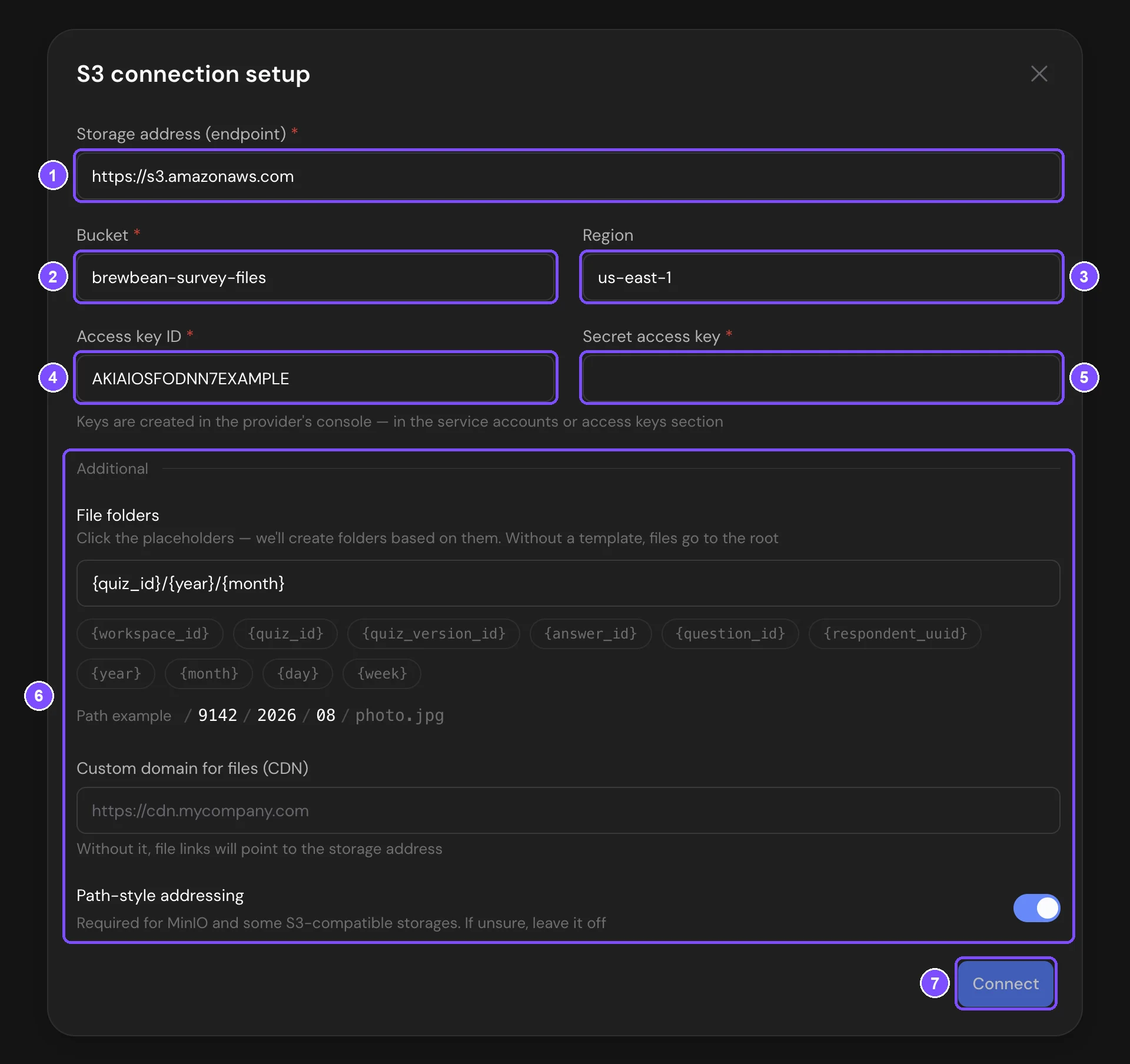
SurveyNinja saves the settings and checks them by writing, reading and deleting a test file. Storage connected means new files now go to your bucket. Click Done.
If you see Failed to connect, the reason is shown below it. Click Back to settings, fix the fields and click Save to check again. Until a check passes, files go to SurveyNinja storage.
Connection settings
| Field | What to enter |
|---|---|
| Storage address (endpoint) | The full https address of the S3 API, for example https://s3.amazonaws.com |
| Bucket | The bucket name |
| Region | The bucket's region. If empty, us-east-1 is used |
| Access key ID, Secret access key | The keys from your provider's console. After saving, the secret key isn't shown: leave the field empty to keep it |
| File folders | A folder template. Click placeholders such as {quiz_id} or {year}, and Path example shows the result. Without a template, files go to the bucket root. Changes apply to new files |
| Custom domain for files (CDN) | File links point straight to this domain, so files must be publicly readable there. Without it, links open through SurveyNinja with a temporary link to your bucket |
| Path-style addressing | Required for MinIO and some S3-compatible storages. On by default |
Testing the connection
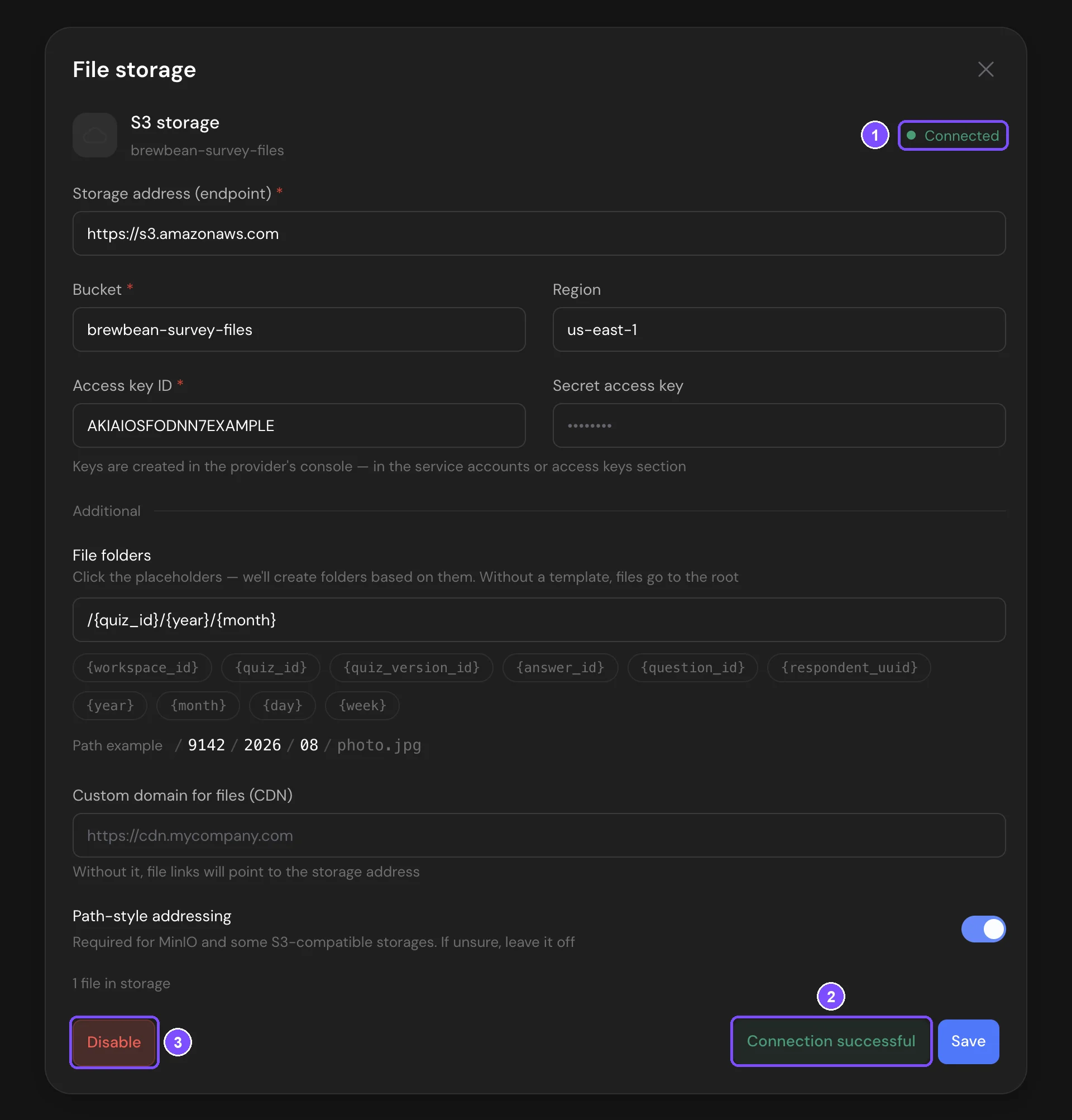
Open Custom file storage again. The window shows S3 storage, the bucket and the status. Click Test connection: the button shows Connection successful or No connection.
| Message | What to check |
|---|---|
| Invalid access keys | Access key ID and Secret access key |
| Bucket not found | The bucket name and the endpoint |
| Access denied — check the key permissions | The key must be allowed to write, read and delete objects |
| Bucket region mismatch | Region |
| Could not connect to the storage | The endpoint and that the storage is reachable from the internet |
When your storage is unavailable
If a file can't be written to your bucket, for example because the key was deleted, it's saved to SurveyNinja storage instead. The status changes to Unavailable, Survey settings shows Your storage is unavailable, and the workspace owner gets an email, no more than once a day.
SurveyNinja checks the storage every hour and switches back when it works. To switch back right away, fix the problem and click Test connection. Files saved in the meantime stay in SurveyNinja storage and count toward the limit.
Changing or disconnecting the storage
- New keys for the same bucket. Enter them and click Save. Existing files keep opening.
- Another bucket. Change Bucket or Storage address (endpoint) and click Save. If the old bucket has files, confirm with Continue: they stay there and keep opening.
- Disconnect. Click Disable and confirm. New files go to SurveyNinja storage again. Files in your bucket keep opening, but the settings are cleared: to connect again, enter the address, bucket and keys again.
Important. Don't delete the bucket or the key while it holds survey files. Files removed directly in the bucket show "File deleted from storage" in responses and the file manager.
If your plan changes
On a plan below Premium, new files go to SurveyNinja storage and count toward that plan's limit. Files already in your bucket keep opening. The settings are kept: after you return to Premium or higher, new files go to your bucket again. See How to Buy a Plan and What Happens After the Trial Ends?
Usage and the file manager
With your storage connected, the Storage block on the Billing page shows a separate line, Your own storage, with the size of your files there and a Settings button. If the storage is unavailable, the button changes to Fix.
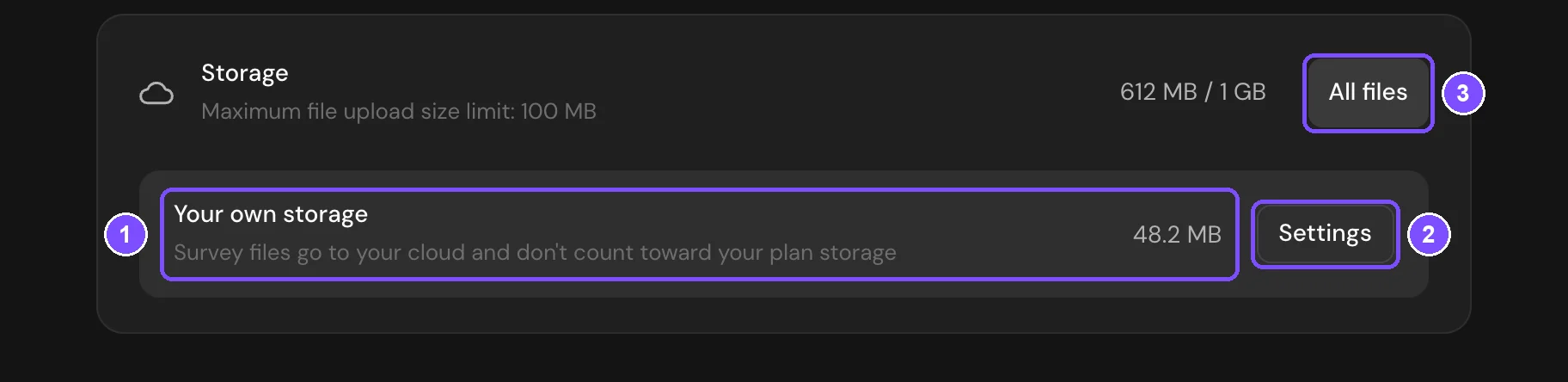
In the file manager (All files), files from your bucket are listed with the others. Deleting a file there also deletes it from your bucket.
Limits
- A workspace has one storage. Only S3-compatible storages are supported.
- The plan's limit on one file still applies, for example 500 MB on Premium. See File Upload Questions.
- SurveyNinja doesn't limit the space in your bucket. Your provider's limits and prices apply.