 WooCommerce Post-Purchase Survey: 7 Questions, When to Ask and What to Do Next
QR Code and Printed Survey
Updated
On this page
A QR code takes people from a poster, receipt or slide straight to your survey. You can also print the survey itself and hand it out on paper. Both are in the Share section, which opens after the first publication.
Downloading the QR code
- Open the survey and click Share in the top menu.
- Go to QR code.
- In Choose format, pick PNG or SVG (1).
- Set the colors, style and logo in Style and color (2). The preview on the left changes as you go.
- In Size and quality, choose the File size (3).
- Click Download QR code (4).
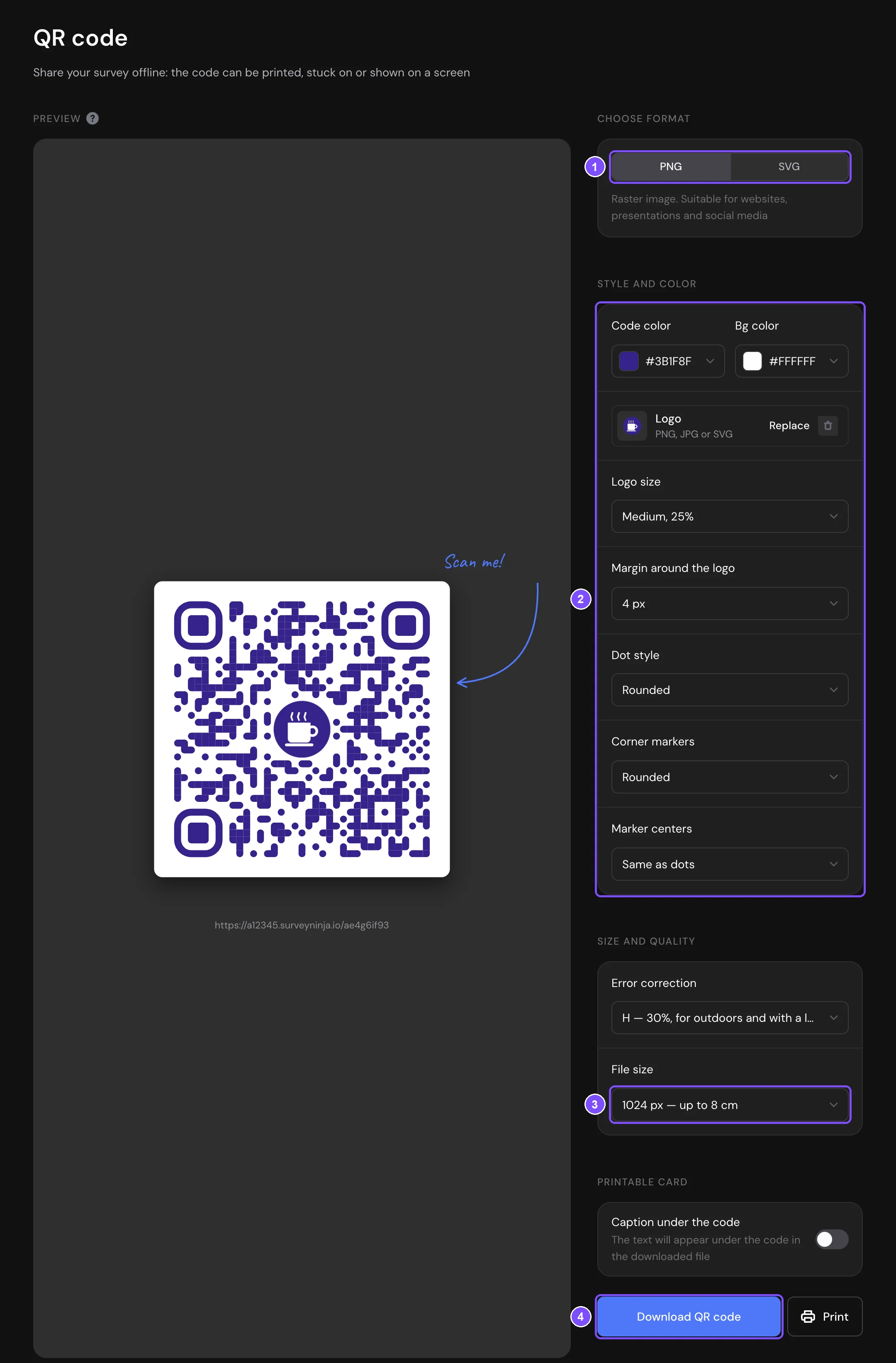
The settings are saved for the survey automatically, and QR codes of unique links use the same style.
QR code settings
| Setting | Options |
|---|---|
| Choose format | PNG for websites, presentations and social media. SVG is a vector file that scales without quality loss, for print at any size. |
| Code color, Bg color | Any color. Keep the code darker than the background. |
| Dot style | Squares, Rounded, Dots, Classy, Classy rounded, Extra rounded |
| Corner markers | Squares, Rounded, Circles |
| Marker centers | Same as dots, Square, Circle |
| Error correction | L (7%, for screens), M (15%, standard), Q (25%, with a logo), H (30%, for outdoors and with a logo) |
| File size | 512 px (up to 4 cm in print), 1024 px (up to 8 cm), 2048 px (A4 poster), 4096 px (banner) |
Adding a logo
In Logo, click Upload and choose a PNG, JPG or SVG file up to 1 MB. Then set the Logo size (20%, 25% or 30% of the code) and the Margin around the logo.
The logo covers part of the code, so Error correction switches to H when you add it. If you lower it to L or M, the page warns that the code may not scan. To change the logo, click Replace. To remove it, click the Delete icon.
Caption under the code
Turn on Caption under the code in Printable card. The downloaded file becomes a card with the code and text under it: a Caption (up to 80 characters, "Scan to take the survey" by default) and a Subtitle (up to 60 characters). Set the Card background and Text color under them.
Printing the QR code
Click Print next to Download QR code and choose a format:
| Format | What gets printed |
|---|---|
| A4 sheet | A 12 cm code with a caption |
| Business card 90×50 | A 3 cm code with a caption |
| Sticker 5×5 | A 4.5 cm code without a caption |
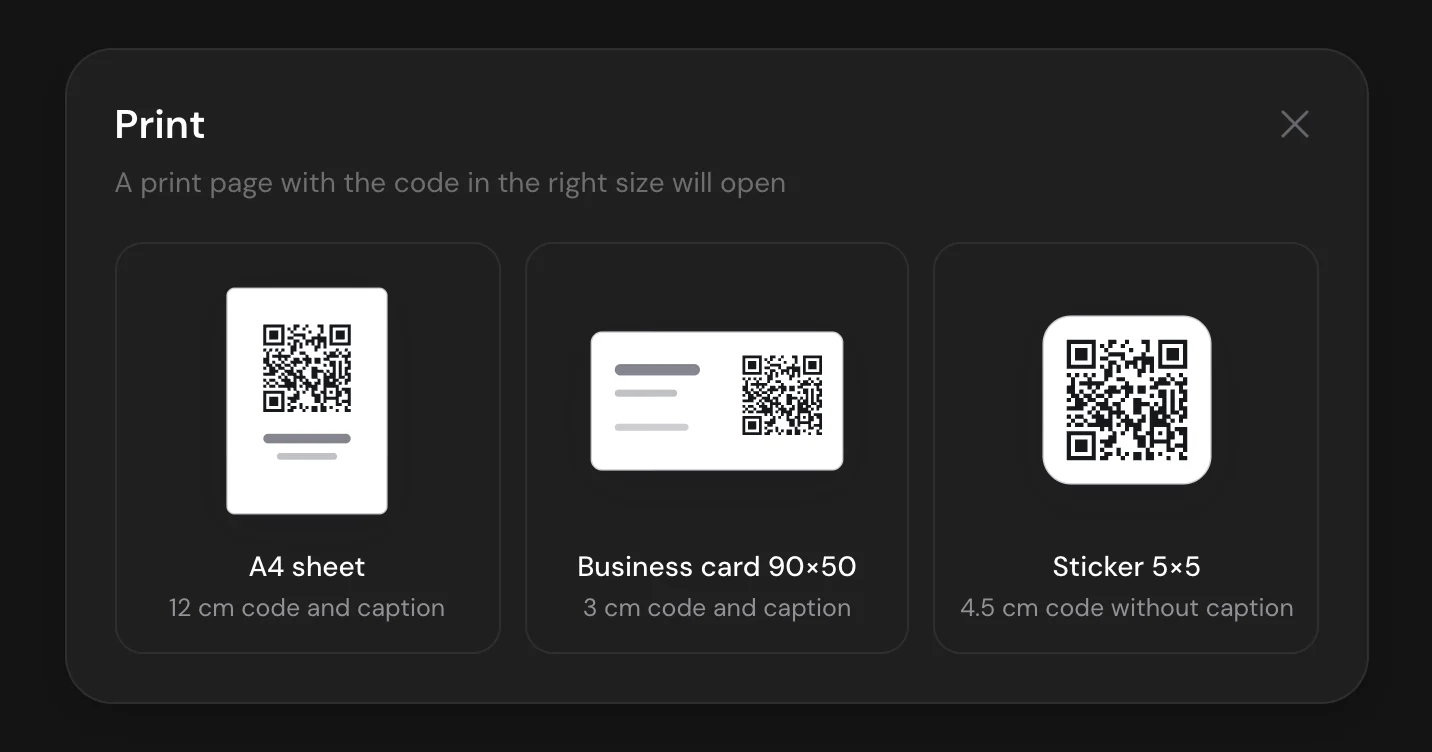
The browser's print dialog opens. The caption comes from Caption under the code, or is "Scan to take the survey" if that is off.
Tip. Test the printed code with 2 or 3 phones before you print a large batch, especially with a logo or light colors.
Printing the survey on paper
- In Share, go to Print.
- Choose the File format: PDF, Word (you can edit it before printing), TXT or HTML.
- Choose the Font size: Small, Medium or Large.
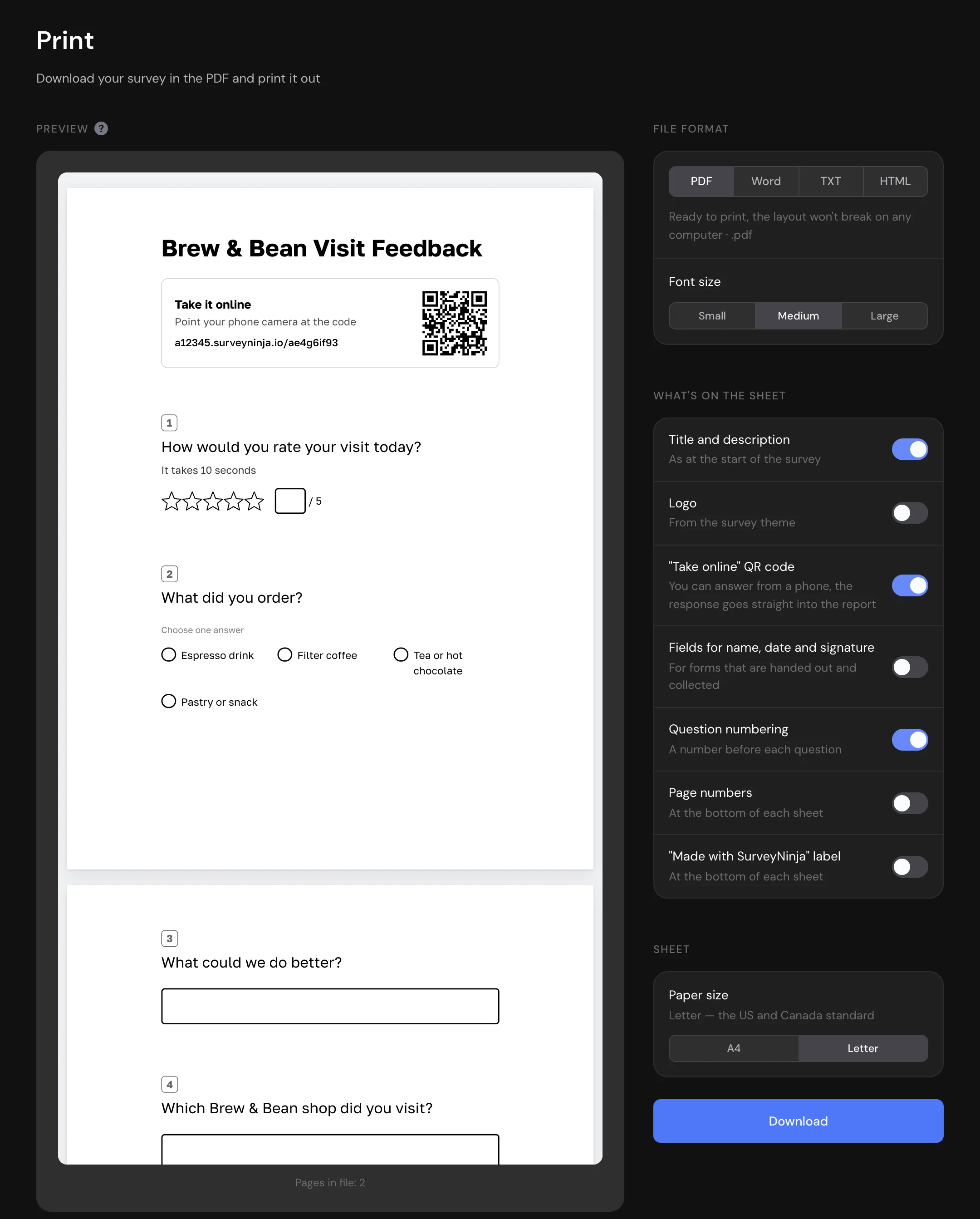
- In What's on the sheet, turn on the parts you need (see the table).
- In Sheet, choose the Paper size: A4 or Letter. If the survey has open-ended questions with a large text field, also set the Answer space: 2, 4 or 6 lines.
- Click Download.
| Option | What it adds |
|---|---|
| Title and description | The title and description from the start of the survey |
| Logo | The logo from the survey theme (not in TXT) |
| "Take online" QR code | A code to answer from a phone instead of on paper (not in TXT) |
| Fields for name, date and signature | For forms that are handed out and collected |
| Question numbering | A number before each question |
| Page numbers | At the bottom of each sheet (PDF and Word only) |
| "Made with SurveyNinja" label | Can be turned off on the Standard plan and higher |
The preview shows the PDF layout. The settings on this page are not saved: set them again the next time you print.
Answers written on paper don't get into the report on their own. Let people scan the "Take online" QR code, or type the answers into a spreadsheet and upload responses from a file.
Limits
- QR codes and printing are available on all plans. Hiding the "Made with SurveyNinja" label needs the Standard plan or higher.
- A logo upload uses your plan's file upload limit. The Free plan has no file uploads, so a logo can't be added there.
- After a change of the survey path, the old link redirects to the new one. After a change of the workspace address name, old links and printed codes stop working. See Custom Domain for Survey Links.
- A closed survey still opens from the code, but respondents see the closing page. See How to Close a Published Survey.
If something doesn't work
- The page says "Publish the survey to get the code". The survey has no public link yet. Click Publish.
- The code doesn't scan. Make the code darker than the background, choose Q or H in Error correction, make the logo smaller or print the code larger.
- "The file is too large" when you upload a logo. The logo must be up to 1 MB. Compress the image or use SVG.
- "Upload error. Please try again" when you upload a logo. The file must be PNG, JPG or SVG. On the Free plan, logos can't be uploaded.