 25 Questions for a Travel Agency Customer Satisfaction Survey
Logic Map, Disqualification and Quotas
Updated
On this page
The logic map shows every route through your survey as a diagram. Disqualification ends the survey early for respondents who don't fit your audience, and a quota stops accepting answers once a question or an option has collected enough of them.
Logic map
Open the survey and go to Survey → Logic map. The map shows the questions in builder order, from the start (the Welcome Screen, if there is one) to the endings: Submitting responses, Final screen and Disqualification screen (3). Arrows show where each answer leads. When you zoom out, blocks show only the question type icon and number.
- Click a question or the round Logic button on its right edge (1) to open its Logic Jumps panel right on the map. Add or change rules there, as in the builder.
- Click a rule label on an arrow (2) to see its condition. Edit opens the rule, Delete removes it.
- An eye under a question means it has a display condition: it's shown or hidden depending on earlier answers.
- A red ! on a question marks a logical error, a yellow one marks a warning. Click the question to see what's wrong.
- Scroll to move around the map. To zoom, hold Ctrl and scroll, pinch on a trackpad or use the buttons in the bottom-left corner. The mini-map in the bottom-right corner shows where you are in a long survey.
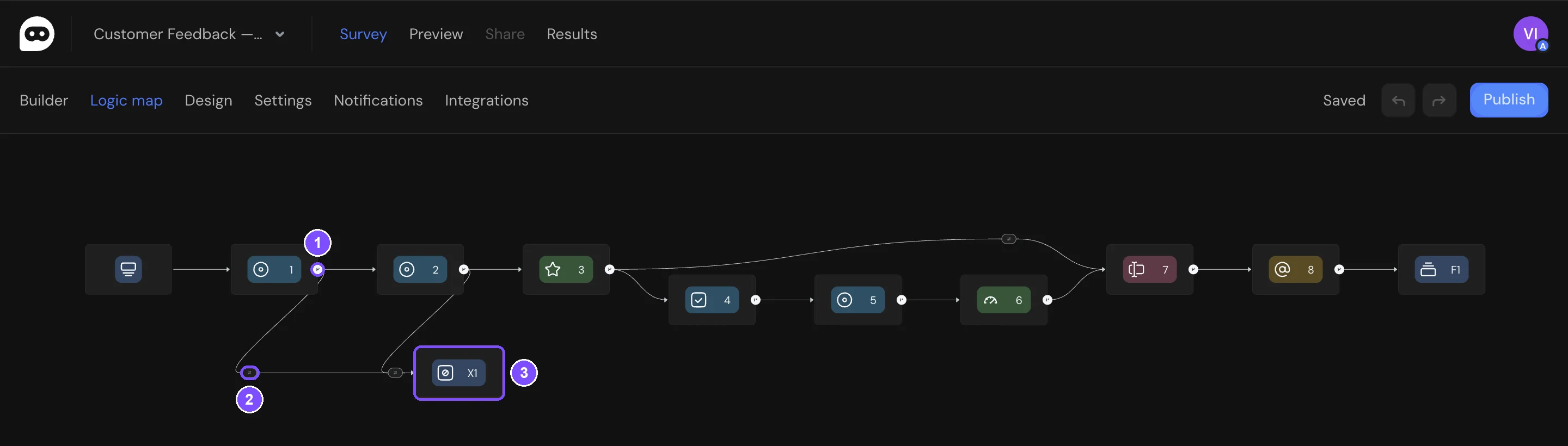
If Random question order is on in the survey settings, the map shows the builder order, and a note above the map reminds you that respondents see a different order.
If the logic has a critical error, the Publish button turns red. Click ! next to it to see the list of Logic issues.
Disqualifying respondents
Disqualification is useful when only part of your audience should answer. For example, a survey about delivery is only for customers who have ordered delivery at least once.
Adding a Disqualification screen
- In Builder, click + and choose Disqualification screen in the Basic section.
- Write the text respondents will see.
- In the screen settings, you can turn on Action button and choose Follow the link or Retake survey. Auto switch opens a link automatically after a delay, for example, to send respondents back to a panel provider.
If you don't add a Disqualification screen, respondents see the default message: "Unfortunately, you did not qualify. Based on your answers, you do not meet the criteria for this survey, so you cannot continue. Thank you for your time!" You can add several screens and choose which one each rule leads to.
Adding a disqualification rule
- Open the screening question and click the Logic Jumps icon on its toolbar, then Add logic jump.
- In IF, set the condition. For example, "How often do you order delivery?" Equals "Never".
- In THEN, choose Disqualify (1). In Disqualification screen, choose the screen (2). Screens are listed by number and text, for example "X1 Thanks! This survey is only for our delivery customers." Default screen shows the default message.
- Click Save.
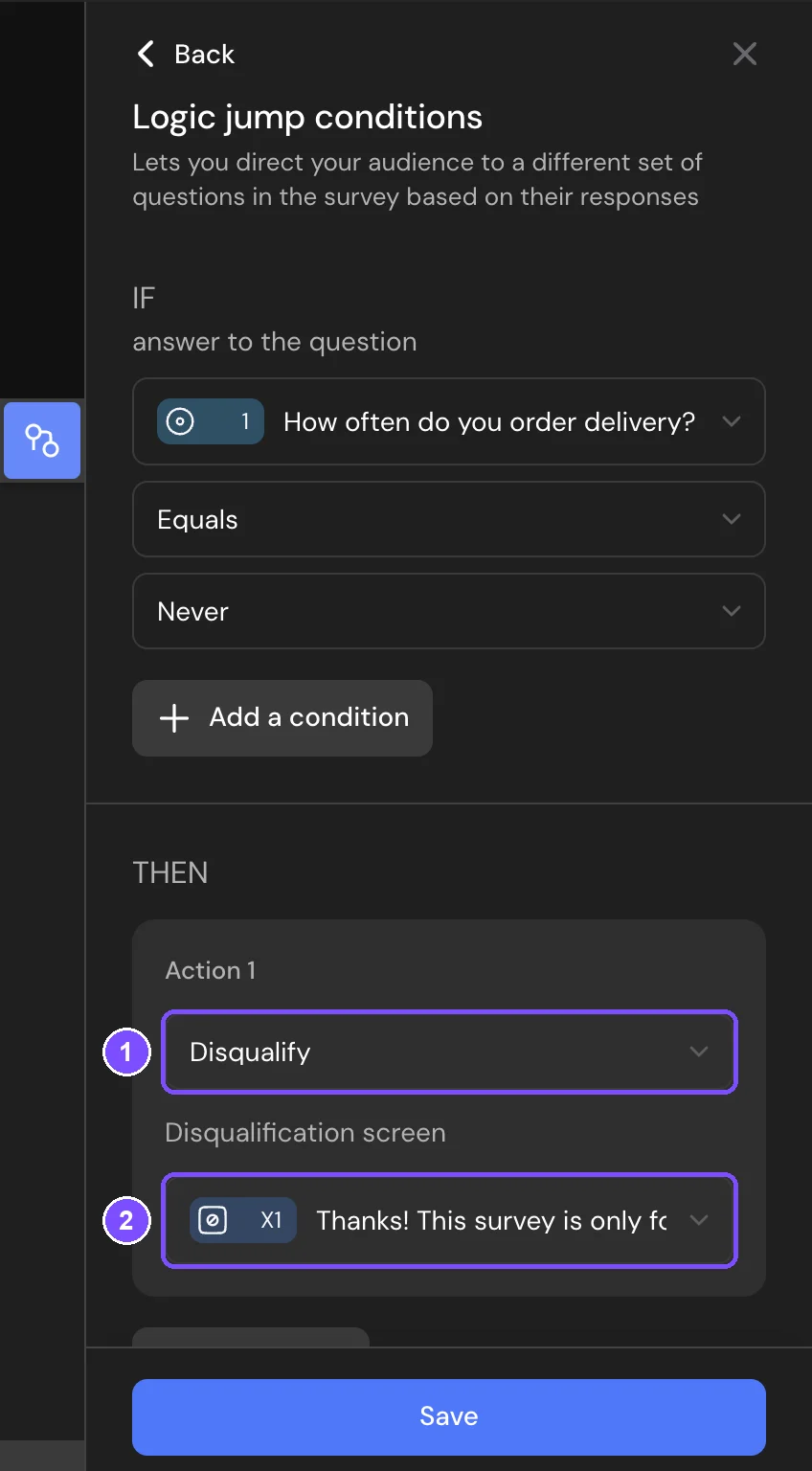
The survey ends on the Disqualification screen. The response is saved with the "disqualified" status: you'll find it in Results → Responses on the Disqualified tab. In Reports, disqualified responses are left out unless you open the Disqualified tab there.
Setting a quota
A quota limits how many answers a question or one of its options collects. When the limit is reached, the next respondents go to the Disqualification screen. For example, you need no more than 100 respondents from Berlin.
- Open the question's Logic Jumps panel and click Add quota disqualification. The Quota disqualification editor opens.
- In answer to the question, choose the question whose answers are counted (1). The current question is selected by default.
- In Count, choose what to count (2):
– All answers to the question: every answer counts.
– Only a specific option: only answers with the option you choose in Option. - Enter the Answer limit (3).
- In Disqualification screen, choose where to send respondents after the limit is reached (4).
- Click Save.
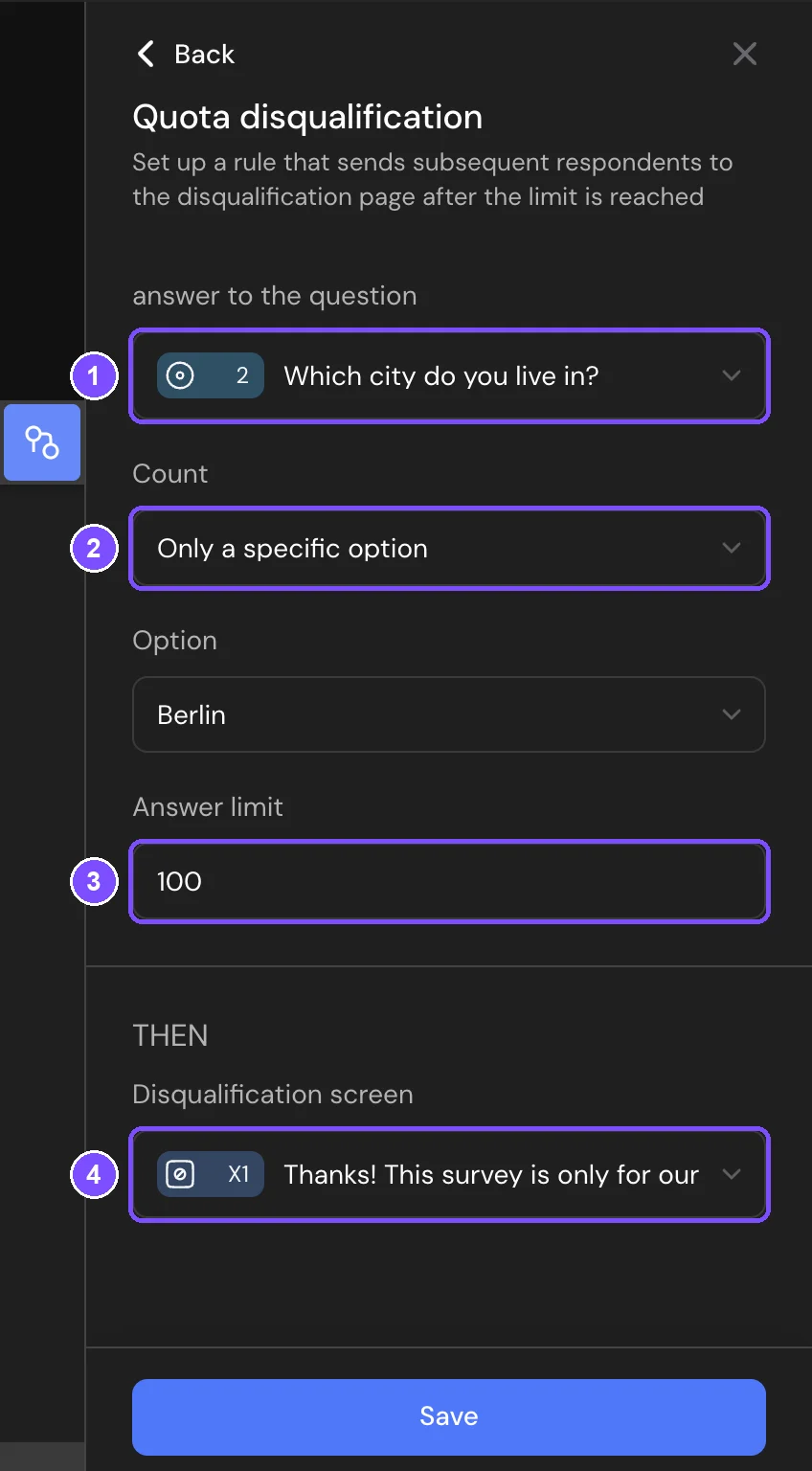
The rule appears in the Logic Jumps panel, for example: IF "Which city do you live in?" per option "Berlin" received 100 answers, THEN JUMP TO the Disqualification screen.
What counts toward the limit:
- Completed responses.
- Responses in progress that were started in the last 24 hours, so respondents who are answering right now keep their place. This works only if your plan saves incomplete responses (Standard and higher).
Disqualified, hidden and deleted responses don't count.
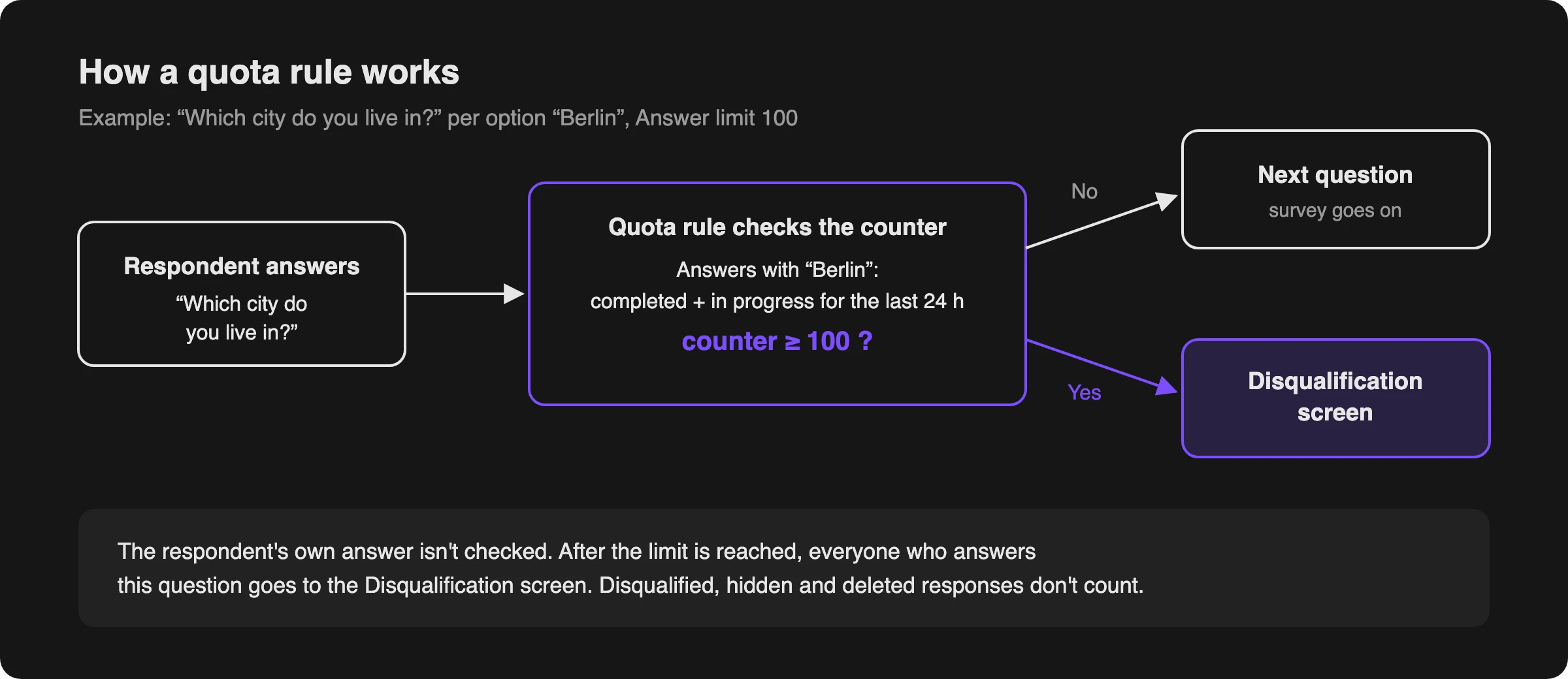
Tip. Put a quota rule on a question that only the group you count reaches. The rule compares the counter with the limit: once the limit is reached, everyone who answers the question with this rule goes to the Disqualification screen. For example, to close the survey for Berlin residents only, add the rule to a question that a logic jump opens for Berlin residents.
To stop the whole survey after a certain number of responses, use Limit on number of responses in the survey settings instead. By default, disqualified responses count toward that limit. To leave them out, choose Completed, excluding screened out in Count. See Response Limit and Survey Deadline.
Limits
- Only a specific option works for Radio Button, Multiple Choice, Media Choice and Dropdown. For other question types, a quota counts all answers to the question.
- Disqualification doesn't work together with Allow response editing in the survey settings. While editing is on, Disqualify and Add quota disqualification are unavailable. While the survey has disqualification rules, editing can't be turned on.
- Disqualified responses count toward your plan's monthly response limit. They aren't sent to integrations and don't trigger email notifications.
- The Disqualified tab in Results is available on the Standard plan and higher.