 25 Questions for a Travel Agency Customer Satisfaction Survey
Star and Emoji Rating Questions
Updated
On this page
A rating question asks respondents to score something with icons, for example "How would you rate your order?" with 5 stars. SurveyNinja has two types: Rating with stars, hearts and other icons, and Smile rating with faces from sad to happy. Both work as a rating scale and suit customer satisfaction (CSAT) questions.
Use Rating when you need a number: the report shows the average, the median and the standard deviation. Use Smile rating when a face is quicker to read than a number, and when you want to ask "Why?" right after a low score.
Adding a rating question
- In Builder, click + above or below a question.
- In the Scales and ratings section, click Rating or Smile rating.
- Type the question. For Smile rating, edit the text under each face right in the question.
More about adding questions: Question Types.
Rating settings
Click Settings (the gear) on the question.
| Setting | What it does |
|---|---|
| Icons | Stars (default), Hearts, Users, Thumbs up, Crowns, Cats, Dogs, Circles, Flags, Drops, Checkmarks, Light bulbs, Trophies, Clouds, Lightning, Pencils or Skulls. |
| Start at | The value of the first icon: 0 or 1. |
| Steps | The value of the last icon, from 3 to 10. With Start at 1 and Steps 5, the respondent sees 5 icons valued 1 to 5. With Start at 0, there's one more icon. |
| Labels | Shows the value under each icon. |
Smile rating settings
| Setting | What it does |
|---|---|
| Icons | The face style: Classic, Emoji, Pictograms, Clay (default), Boy stickers, Girl stickers, Glass, Pixel, Badges or Custom smileys. With Custom smileys, upload your own image for each face in the question (SVG, PNG, JPG or GIF, up to 10 MB). |
| Steps | The number of faces, from 2 to 5. |
| Labels | Shows the text of each face: "Very bad", "Bad", "Fair", "Good" and "Excellent" by default. |
| Label style | Appears when Labels is on: Under each emoji, Only at the ends (the first and last text, the rest stay in the report) or In a tooltip on hover. |
| Follow-up question | Asks one more question after the faces you choose. Turn on the switches next to the faces, then type the question text under the faces in the question, for example "What went wrong?". |
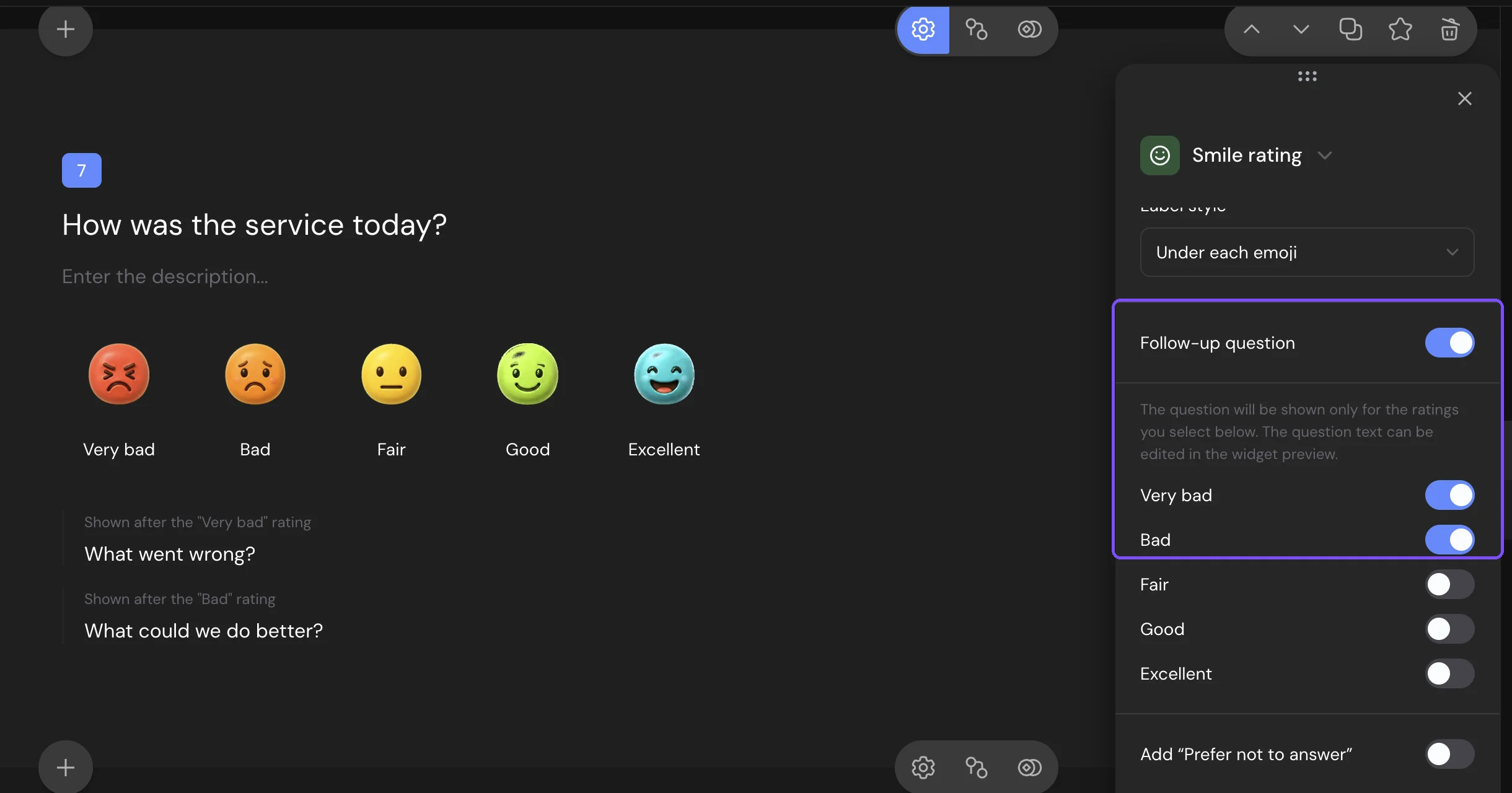
Shared settings such as Required response and Add “Prefer not to answer” are described in Question Settings.
What respondents see
Rating shows a row of icons. On a computer, the icons light up as the pointer moves over them, and a click sets the score. On a phone, the respondent taps an icon. Clicking the chosen icon again clears the answer.
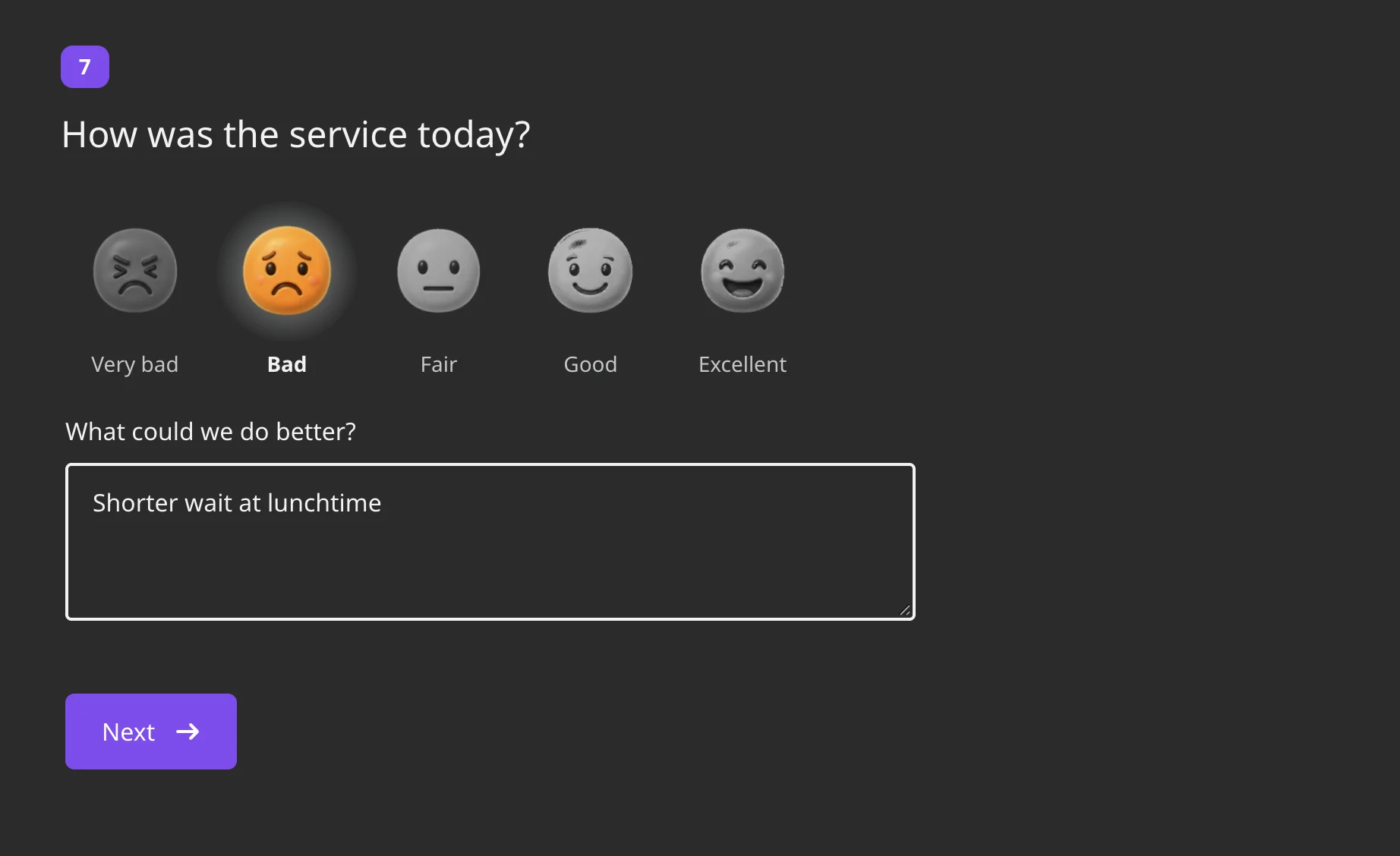
Smile rating shows a row of faces. The chosen face stays bright, the others fade. With In a tooltip on hover, a phone shows the text for a moment after a tap. If the chosen face has a follow-up question, a text field with the question appears under the faces. The answer to it is optional.
After a score, the next question opens by itself. This doesn't happen when a follow-up question appears, inside a Question Group, or when Disable auto-advance to the next question is on in the survey settings.
Responses and report
In Results → Reports:
- Rating shows Average rating, Median and Standard deviation above the chart, and how many respondents gave each score in the List, Bars or Table view.
- Smile rating shows each face with its text and the number of answers in the List, Bars or Table view. In Bars, low faces are one color, middle faces another and high faces a third.
Follow-up answers appear in Results → Responses, under the chosen face together with the question. In CSV and XLSX files, Rating is a number, and Smile rating is the text of the face followed by the follow-up answer, for example "Bad — The delivery was late". See Viewing and Downloading Survey Responses.
To keep only some scores in the report, use Filter by answers (Basic plan and higher): enter a number for Rating or pick a face for Smile rating.
Logic and scores
In logic jumps, both types have the conditions Less than, Less than or equal to, More than, More than or equal to, Equals, Does not equal and Is answered. For example, send everyone who gave 1 or 2 stars to "What could we do better?". Both types can give points for each score. See Scores, Correct Answers and Personality Tests.
Limits
- Rating and Smile rating are available on every plan, including Free.
- Rating: Steps from 3 to 10, Start at 0 or 1, so a rating has 3 to 11 icons.
- Smile rating: 2 to 5 faces. The report doesn't show an average for Smile rating.
- A follow-up question is a single text field. Its answers aren't in the report charts.